
The Dashboard is your entry point into your HR Planner platform. It has been designed to provide you with a quick overview of the data that is important to you, and you can configure it however you need.
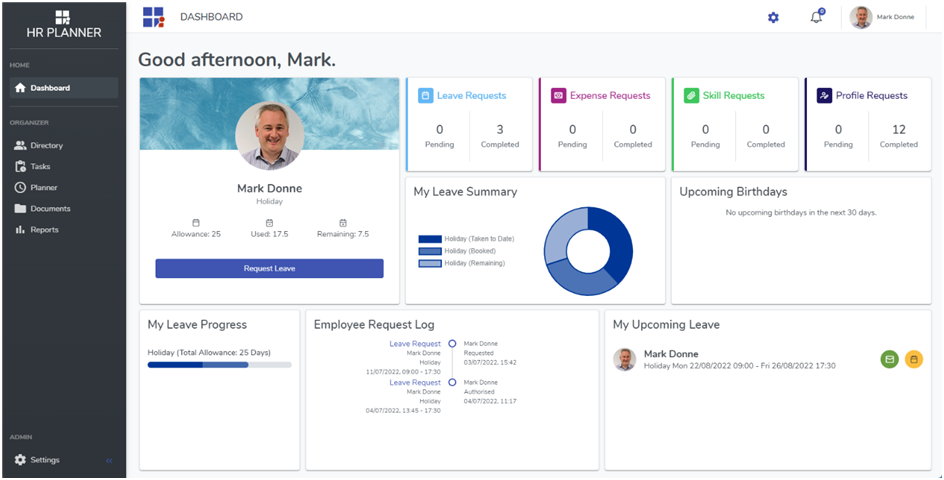
Each of the individual sections you see above is called a widget and you can add, remove, resize and re-arrange them however you want. We have provided you with a sample Dashboard but this is your Dashboard so you can decide what you want to see and where you want to see it.
There are currently 8 different widget types that can be added to your Dashboard and they each have configurable Content Types with advanced filtering which means there are literally thousands of different widget combinations that you can add to your Dashboard!
Widget Types
The following is a list of different widget types that can be added to your Dashboard.
Content Type
A common filter which is used by a lot of the widget types below is “Content Type”. This Content Type defines the type of data that the widget is looking at and the available options are:
- Just Me – The information would only be pulled from your data
- Employees – The information would be pulled from the selected Employee(s)
- Companies – The information would be pulled from the selected Company(s)
- Departments – The information would be pulled from the selected Department(s)
- Employee Roles – The information would be pulled from the selected Employee Role(s)
1. Employee Summary
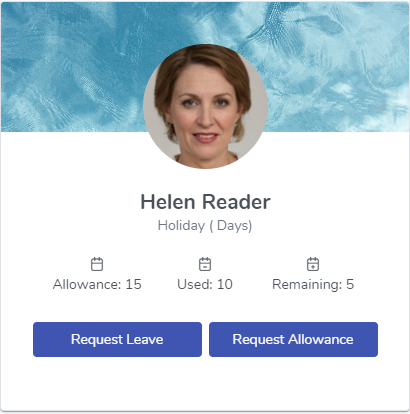
This widget can be configured to display the Allowance, Used and Remaining balance for a single Leave Type for any individual.
2. Leave Chart

This widget type displays the Taken to Date, Booked and Remaining figures for the chosen Content Type for one or more Leave Types and you can also configure the chart type to be Pie or Donut.
In the example above we have 3 different Leave Charts where the Content Type for the first one is Me, the second one is the Department eBusiness and the last one is the Employee Role “All Employees”.
3. Leave Comparison

This widget type displays one year against another year for the chosen Content Type for one or more Leave Types.
In the example above we have 3 different Leave Comparison widgets where the Content Type for the first one is Me, the second one is the Department eBusiness and the last one is the Employee Role “All Employees”.
4. Leave Progress
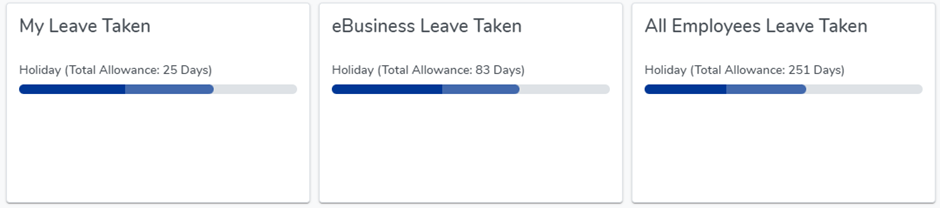
This widget type displays the Leave Taken and Booked so far for the chosen Content Type for one or more Leave Types.
In the example above we have 3 different Leave Progress widgets where the Content Type for the first one is Me, the second one is the Department eBusiness and the last one is the Employee Role “All Employees”.
5. Request Log
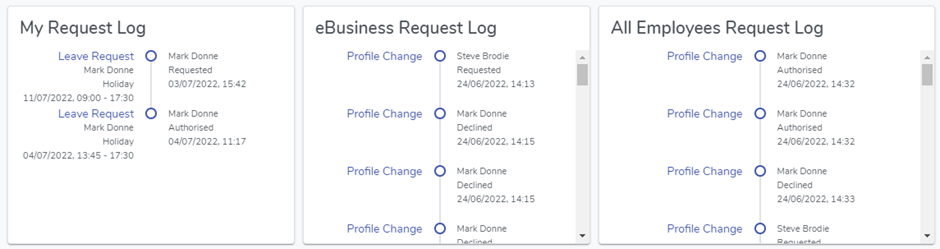
This widget type can display all Requested, Authorised and Declined Requests that have been logged for the chosen Content Type. You can control how many entries to display and how far back to look.
In the example above we have 3 different Request Log widgets where the Content Type for the first one is Me, the second one is the Department eBusiness and the last one is the Employee Role “All Employees”.
6. Task Data
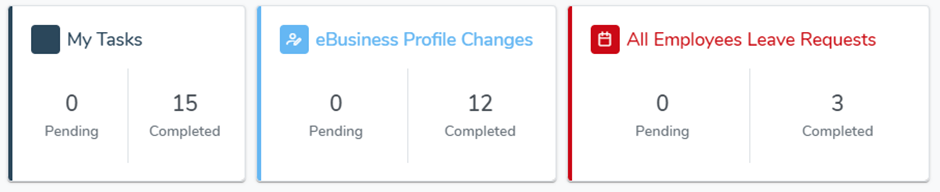
This widget type can display all Pending and Completed Requests that have been logged for the chosen Content Type and Task Type. You can also define the colour of each widget.
In the example above we have 3 different Task Data widgets where the Content Type for the first one is Just Me with All Task Types, the second one is the Department eBusiness with the Profile Change Task Type and the last one is the Employee Role “All Employees” with the Leave Request Task Type.
7. Upcoming Birthdays
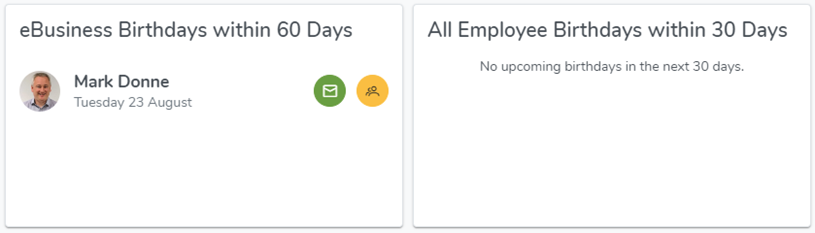
This widget type will display any Upcoming Birthdays for your chosen Content Type within a timeframe you specify.
In the example above we have 2 different Upcoming Birthday widgets where the Content Type for the first one is the Department eBusiness and the timeframe is within 60 days and the second one is the Employee Role “All Employees” where the timeframe is within 30 days.
8. Upcoming Leave
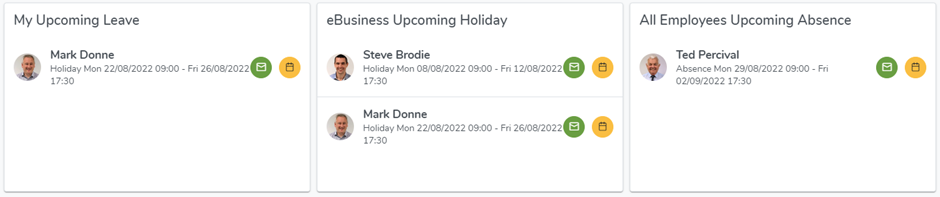
This widget type can display any Upcoming Leave for your chosen Content Type and Leave Type within a timeframe you specify.
In the example above we have 3 different Upcoming Leave widgets where the Content Type for the first one is Just Me with All Leave Types selected, the second one is the Department eBusiness with just the Holiday Leave Type selected and the last one is the Employee Role “All Employees” with the Absence Leave Type selected.