
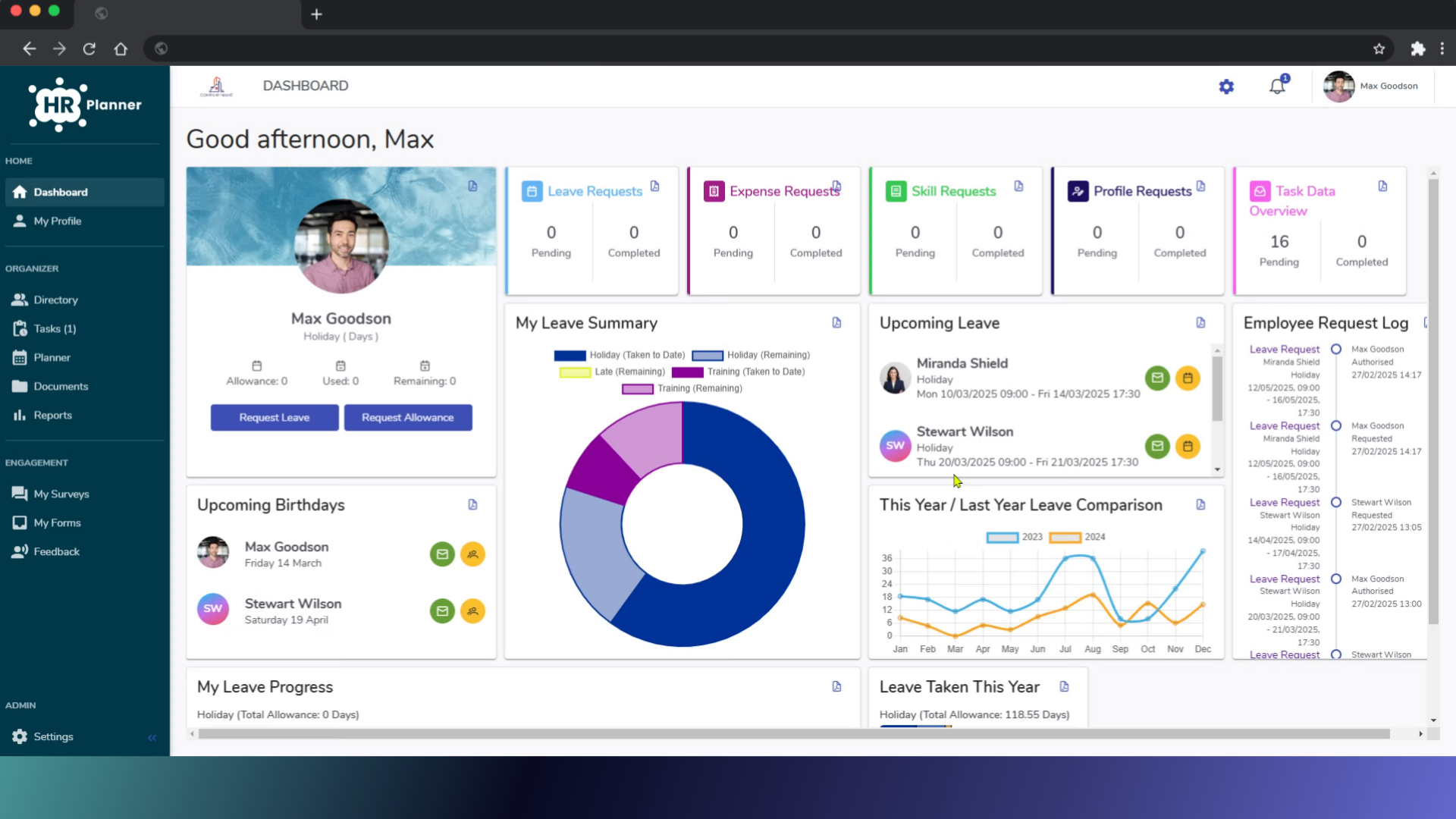
Learn how to personalize your system by changing the color schemes with these straightforward instructions.
1. Introduction
Customize the look of your interface to match your preferences and style effortlessly.
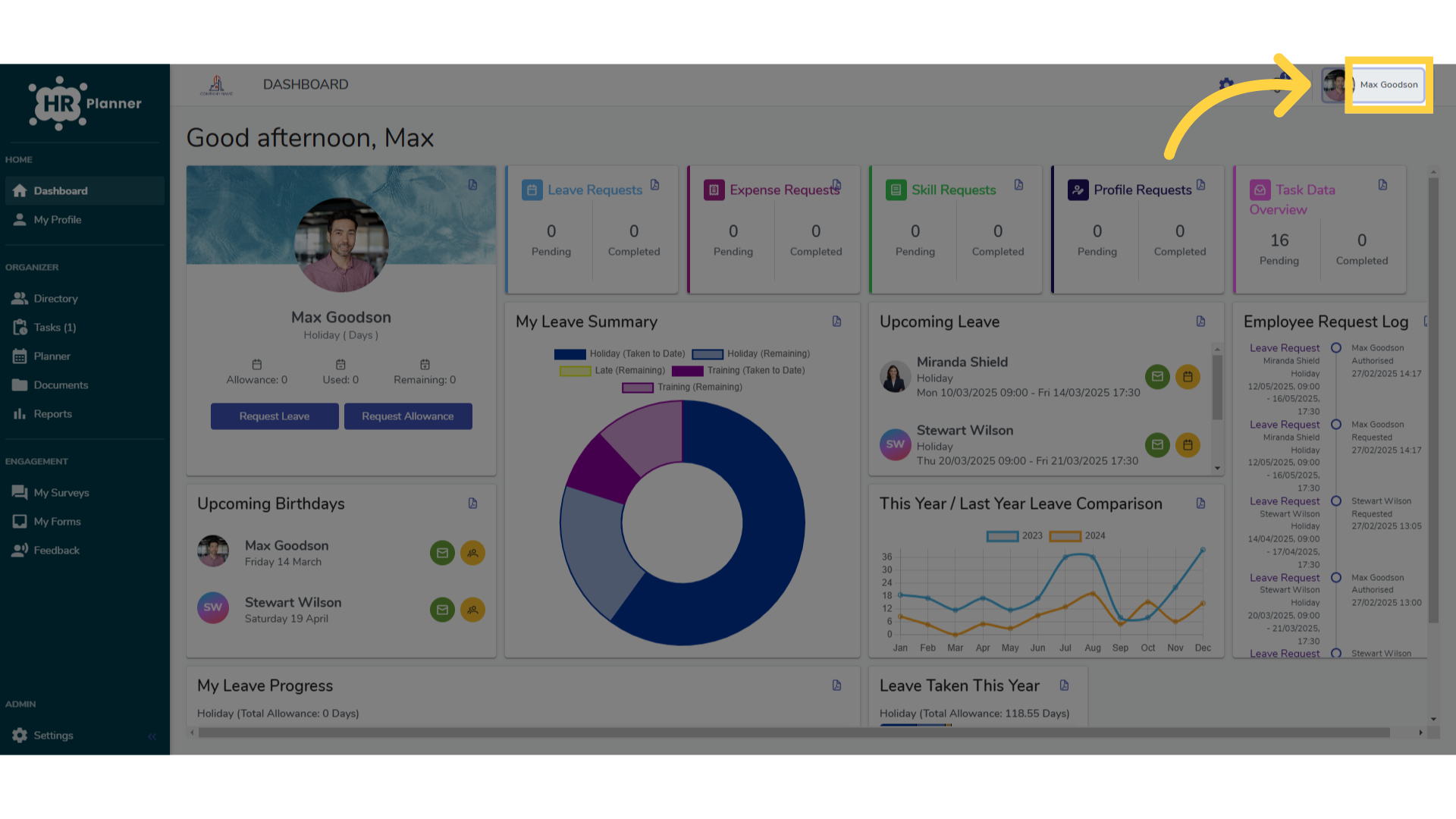
2. Click Your Name
Open the user profile settings.
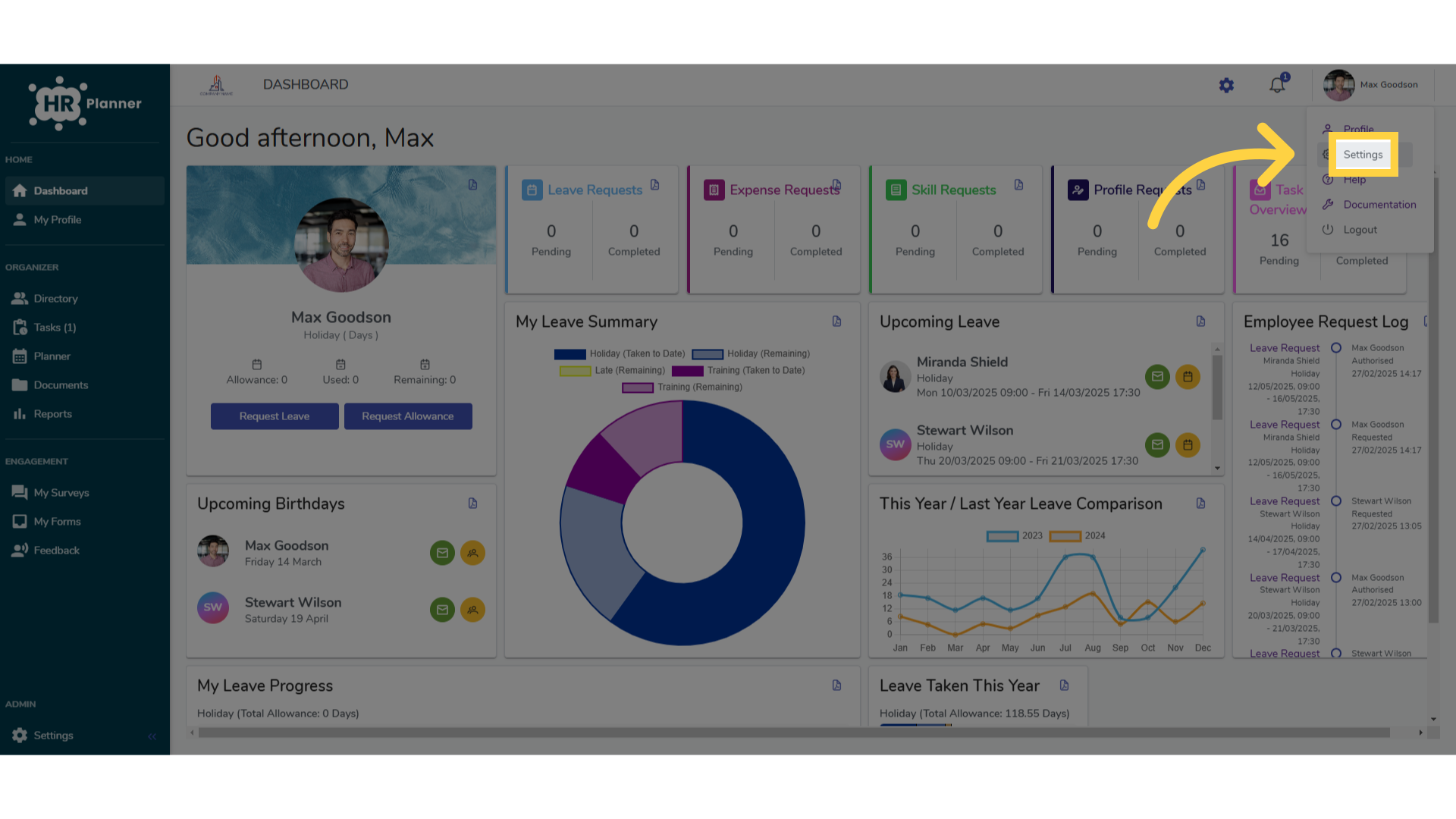
3. Click “Settings”
Navigate to the settings menu.
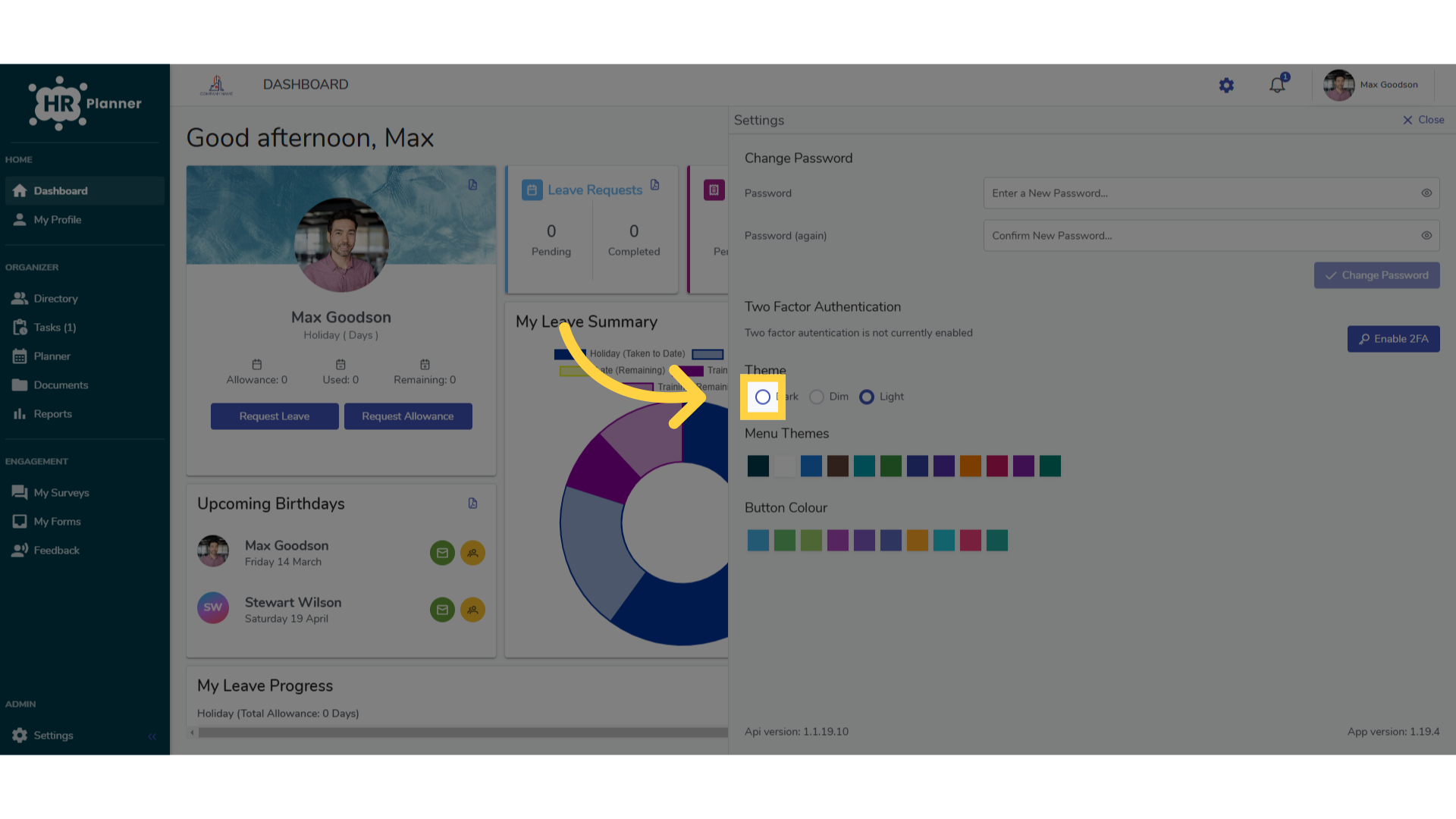
4. Click here
You can set either light, dim or dark mode
5. Click here
Here, you can also change the color theme.
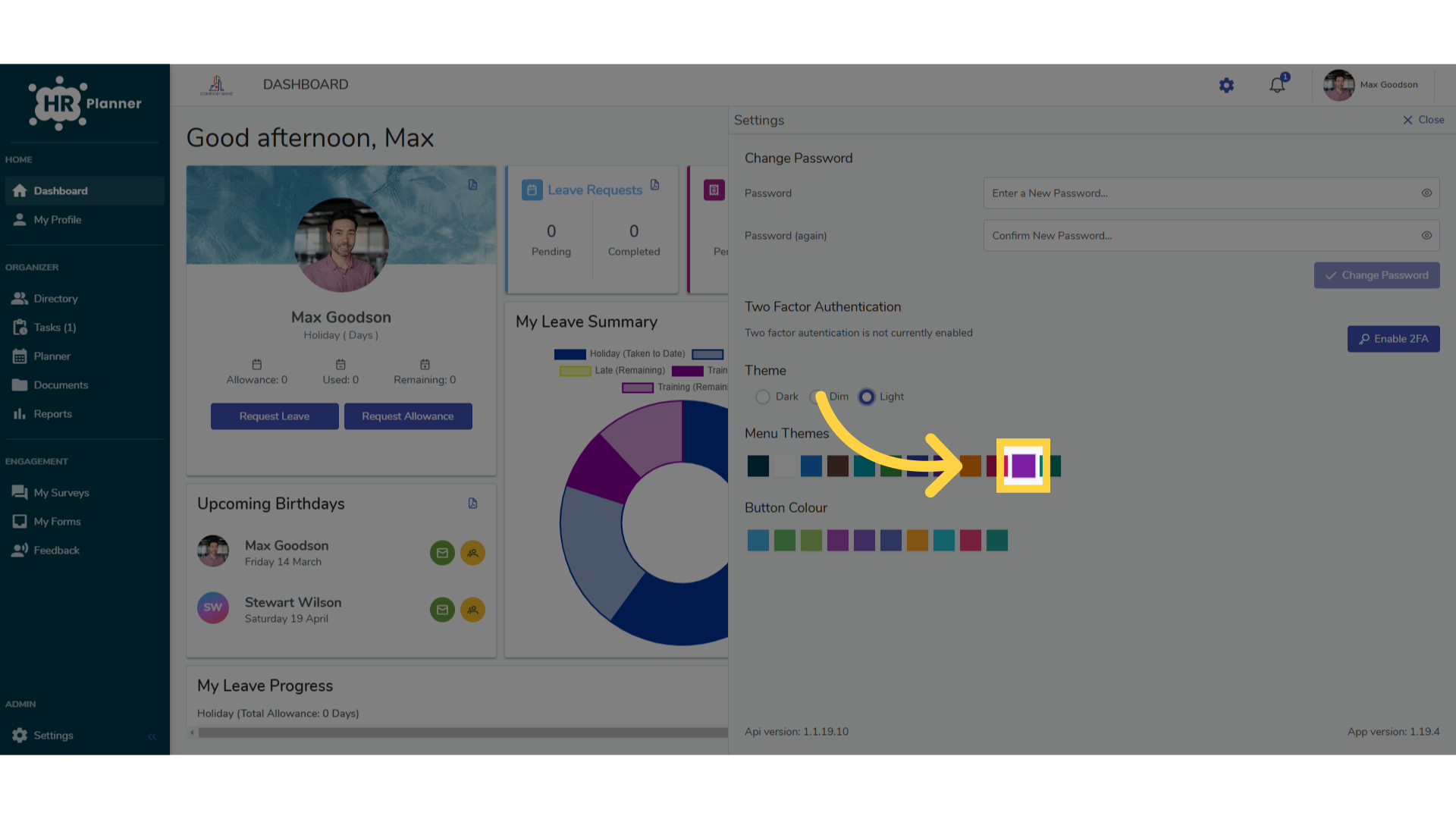
6. Click here
and the button colour too
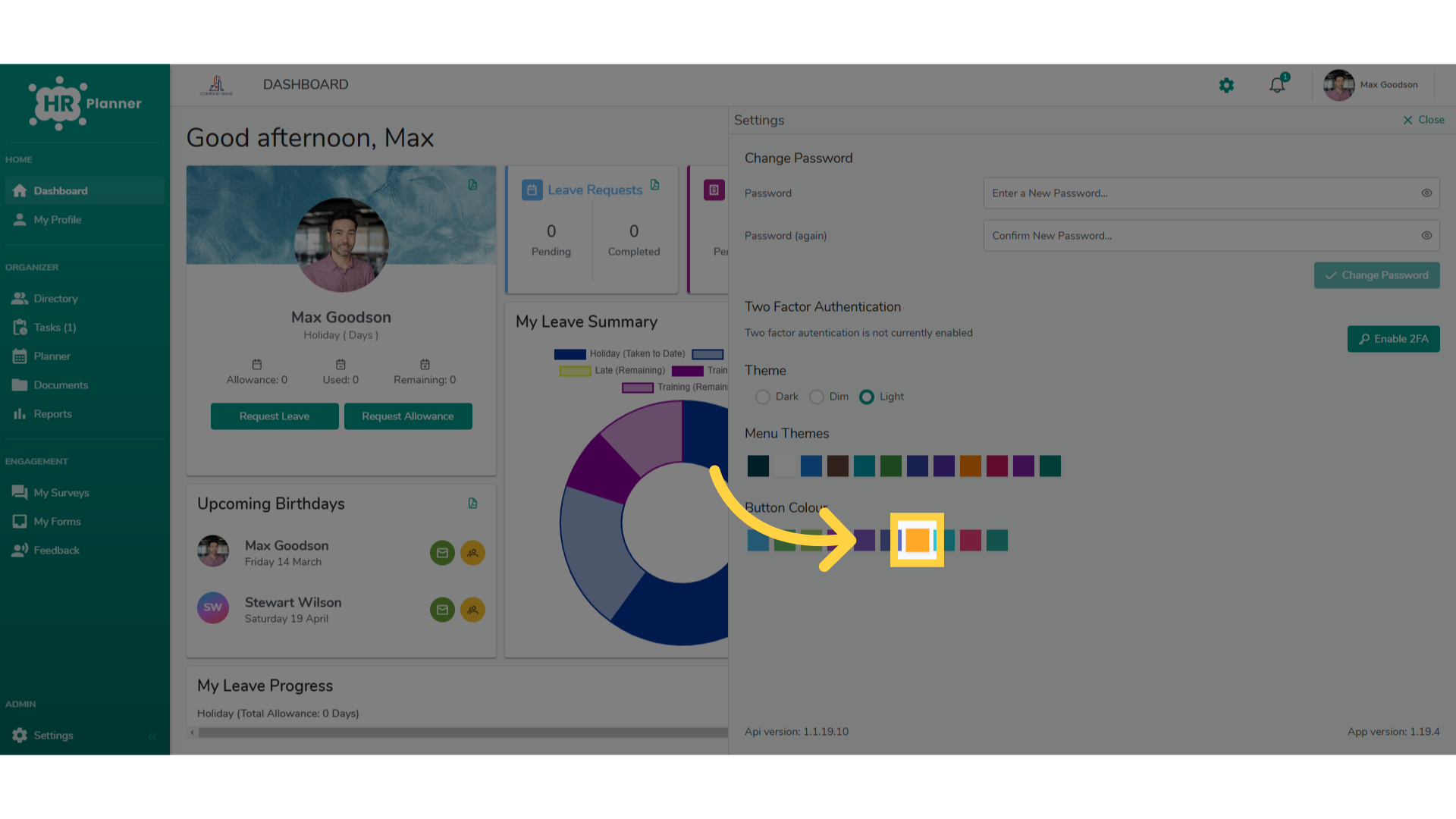
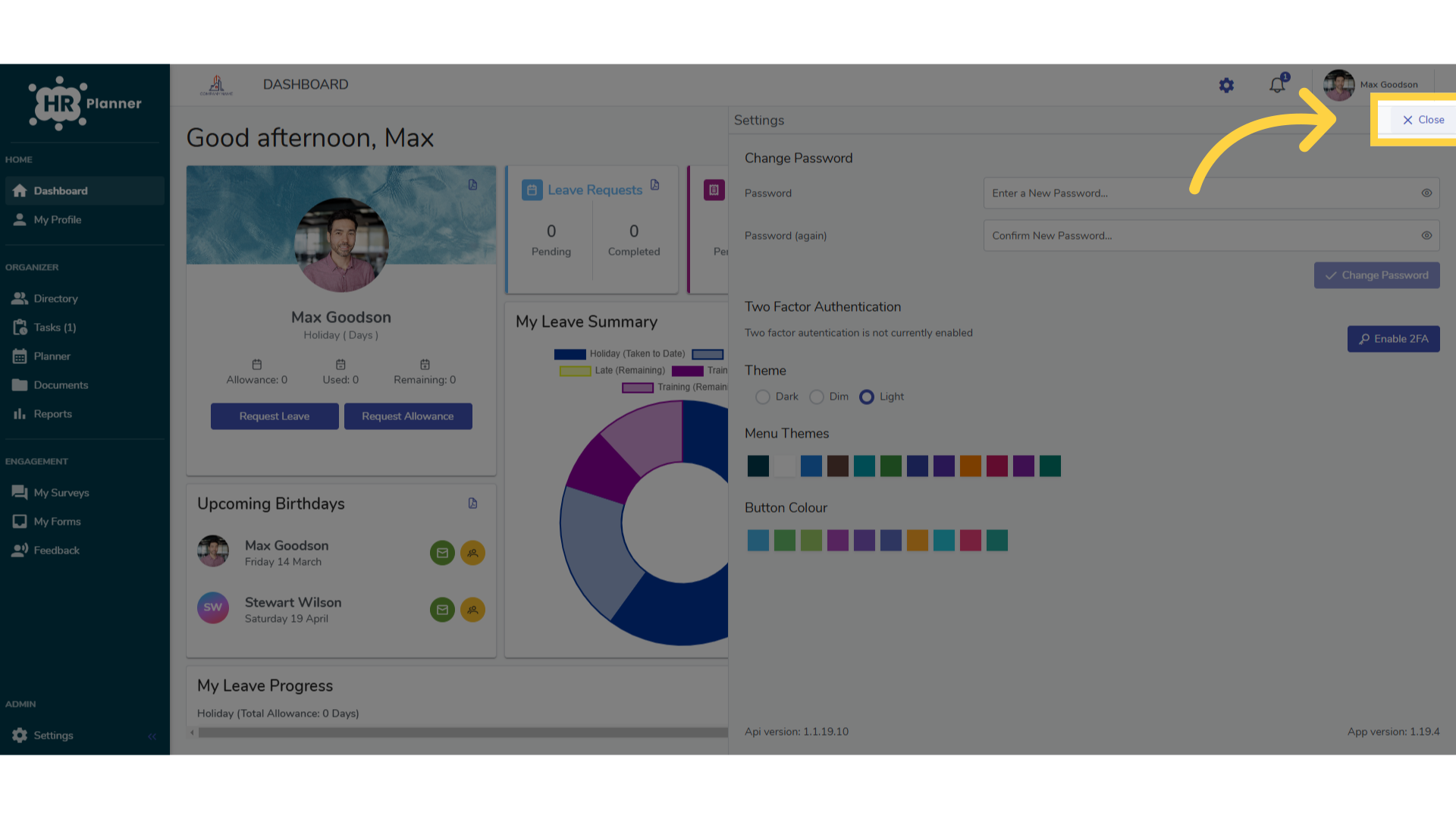
7. Click “Close”
Click close when finished to save.
This guide demonstrated how to modify the color schemes of your system in hrplanner. By following these steps, you can easily update the color theme to personalize your experience.