
Learn how to update your password on hr planner.
1. Introduction
Follow these clear instructions to easily change and confirm your new password.
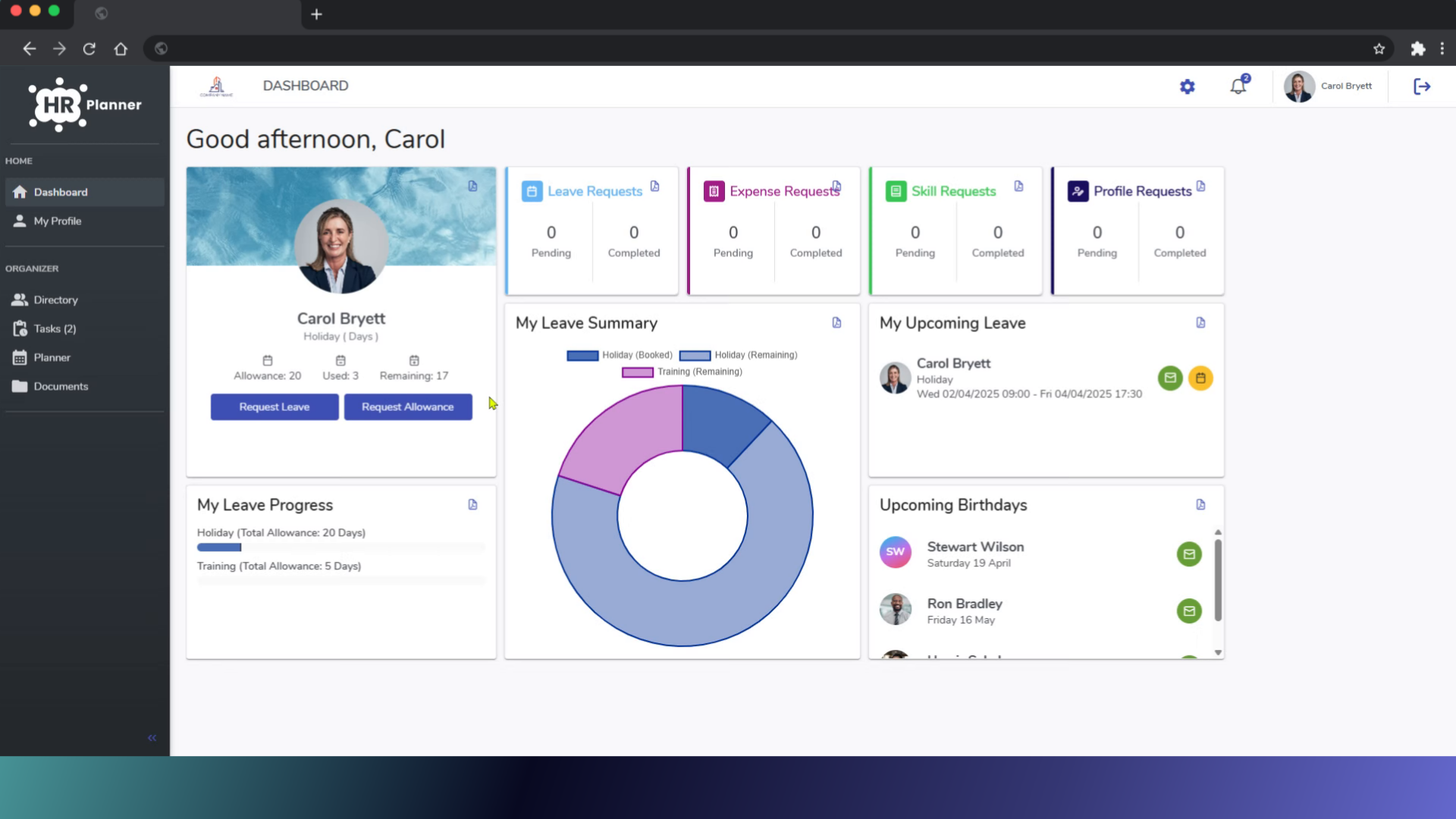
2. Click here
Access your profile by clicking your name in the top right corner
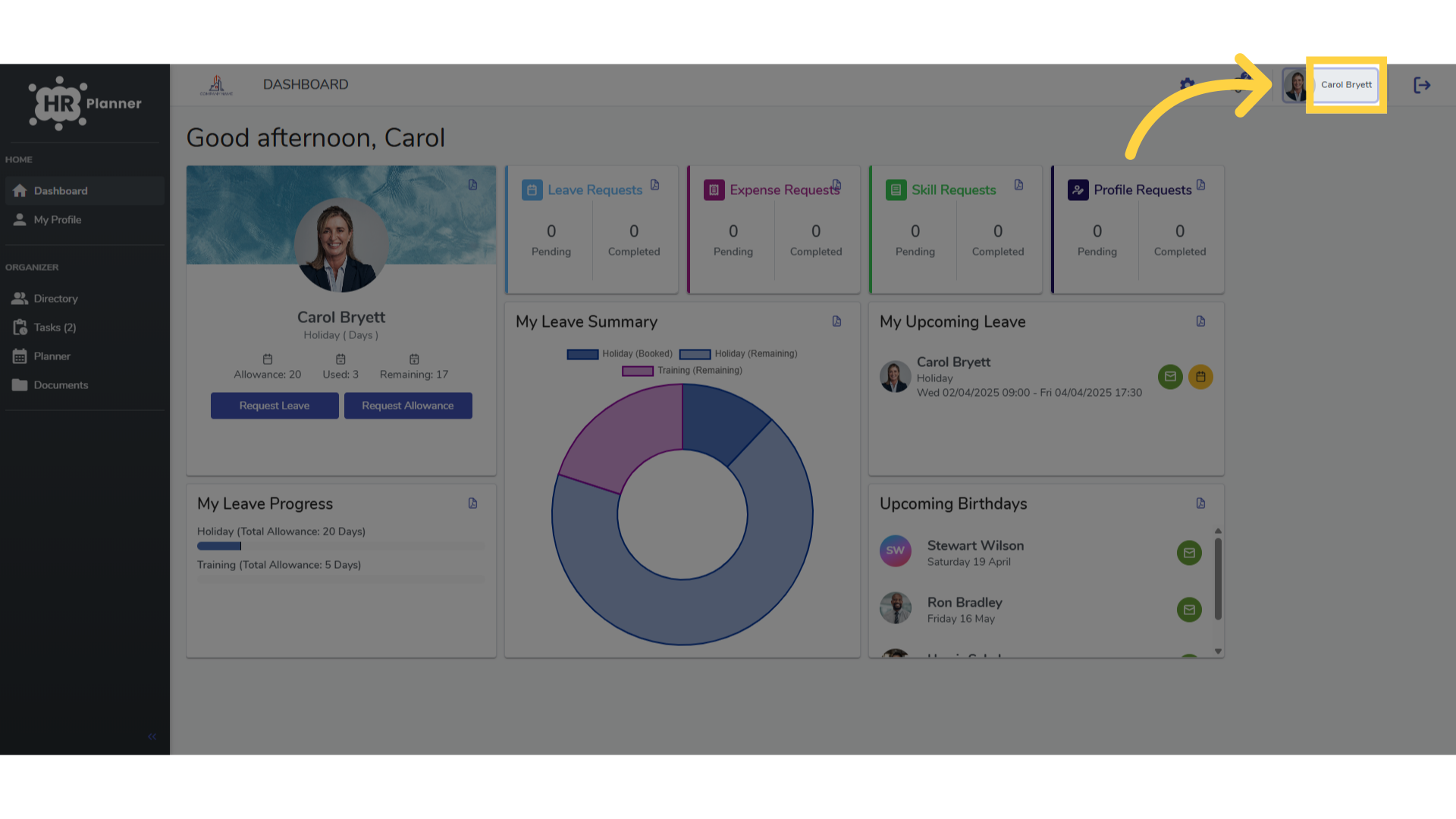
3. Click “Settings”
and selecting Settings
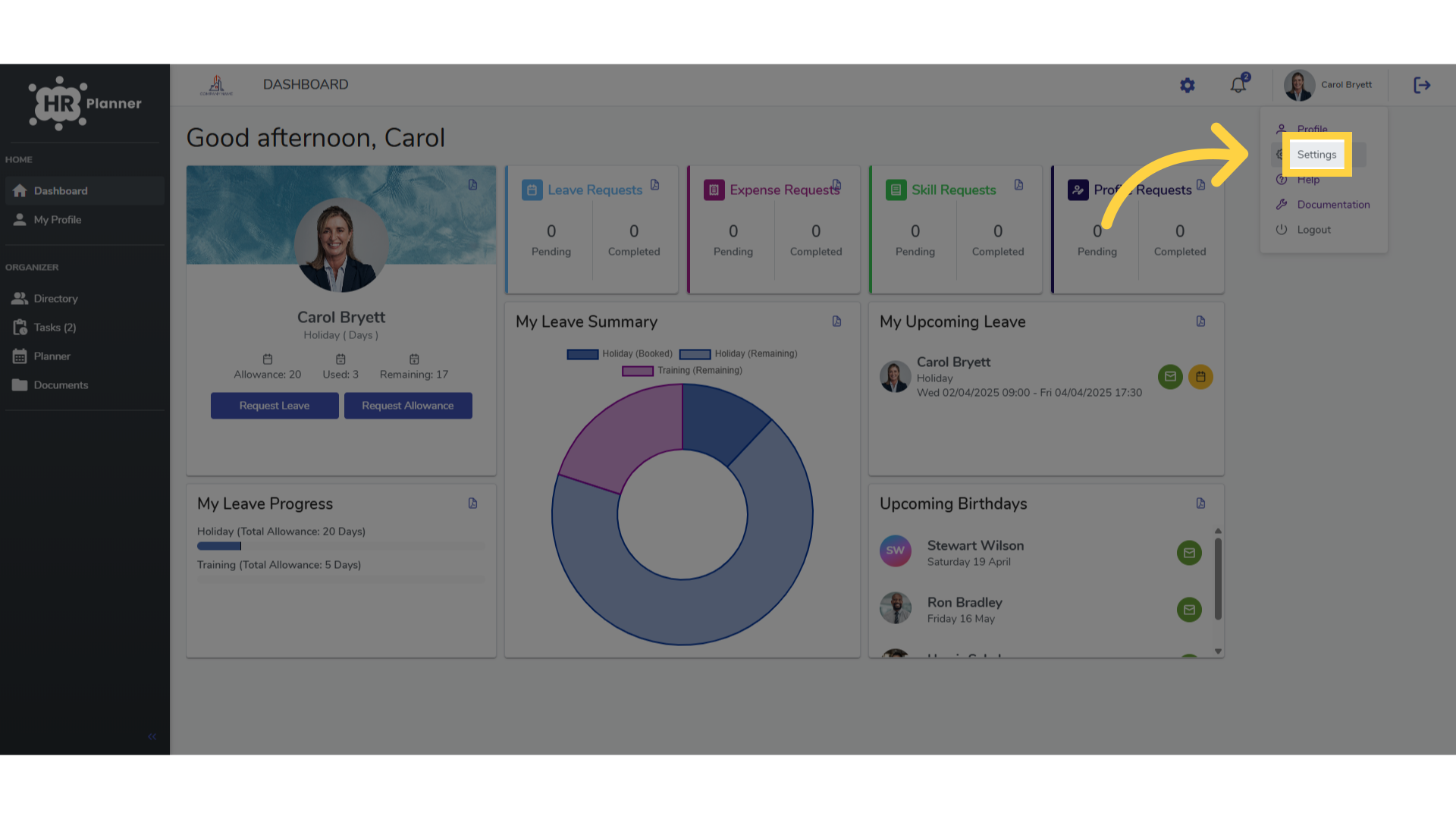
4. Click “Enter a New Password…”
enter a new password
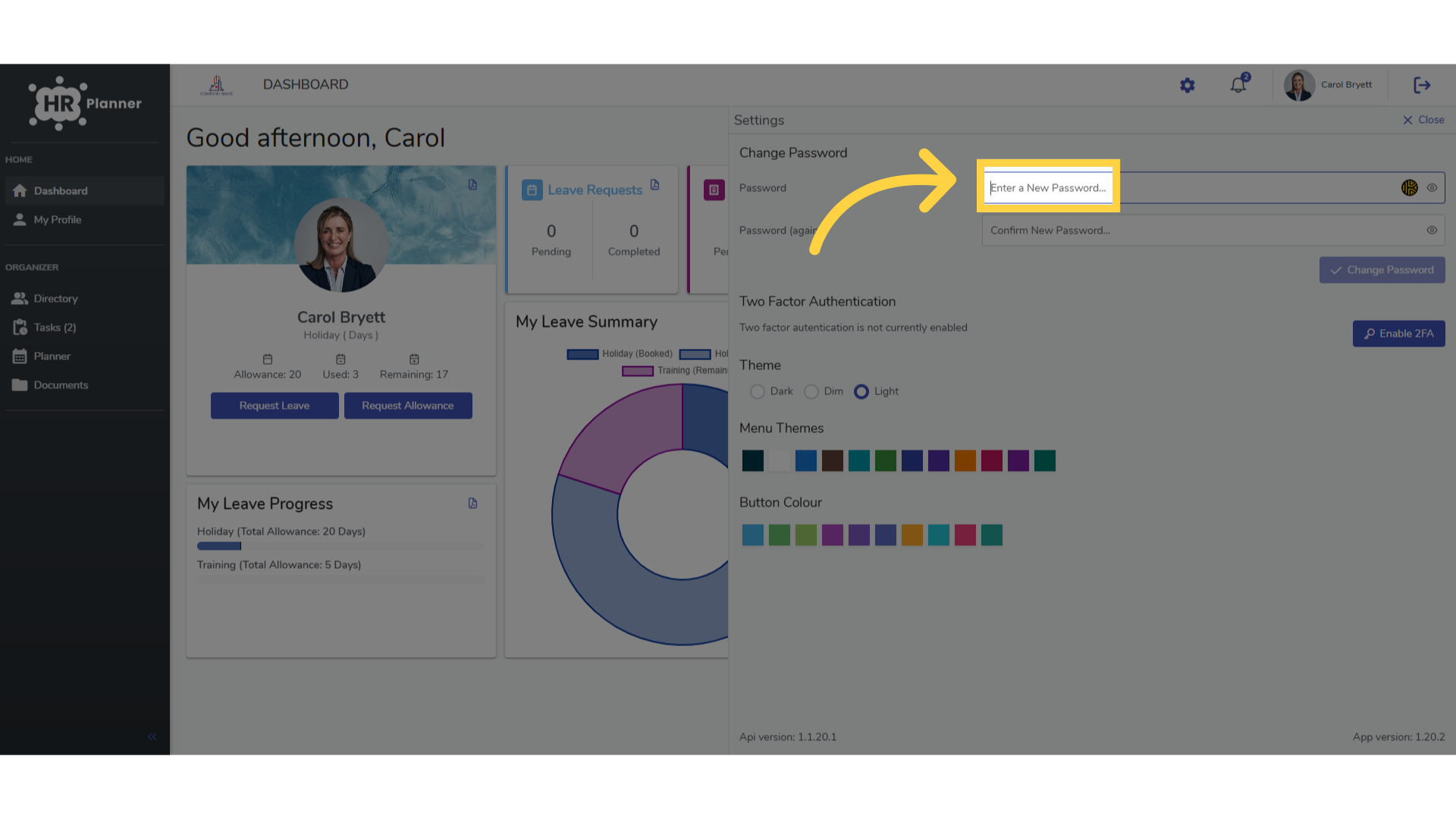
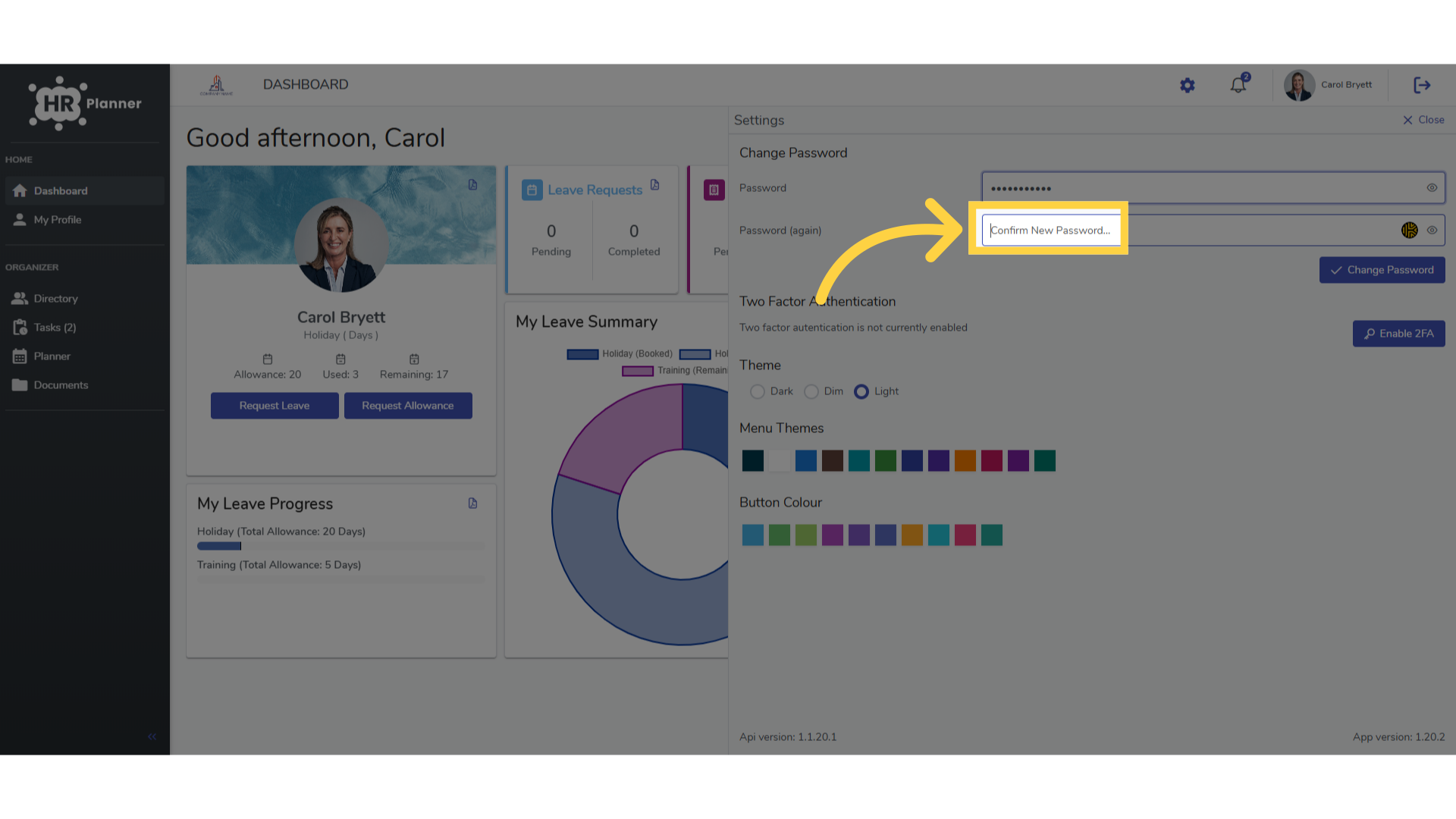
5. Click “Confirm New Password…”
Confirm the new password.
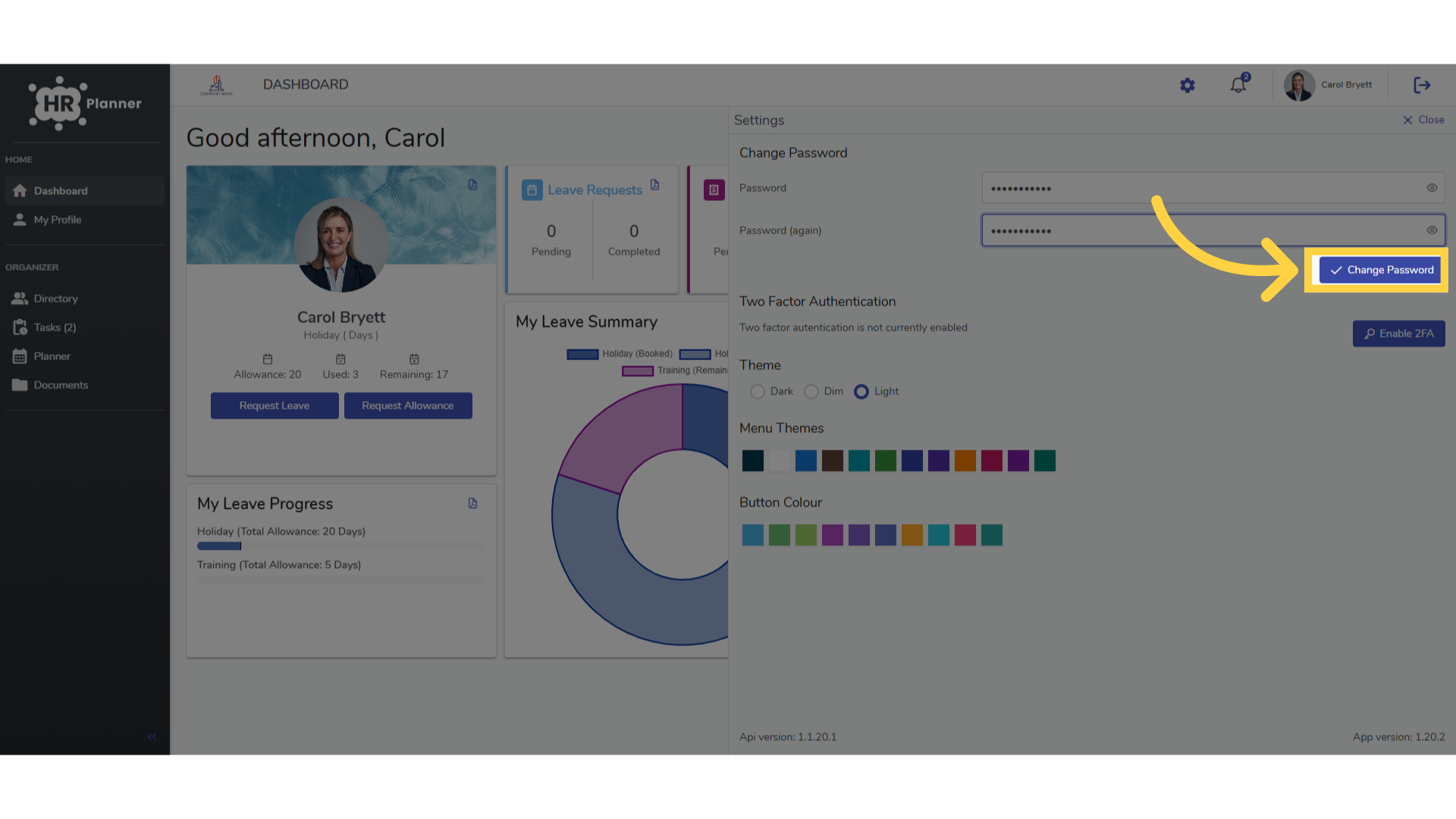
6. Click “Change Password”
And Apply the password change.
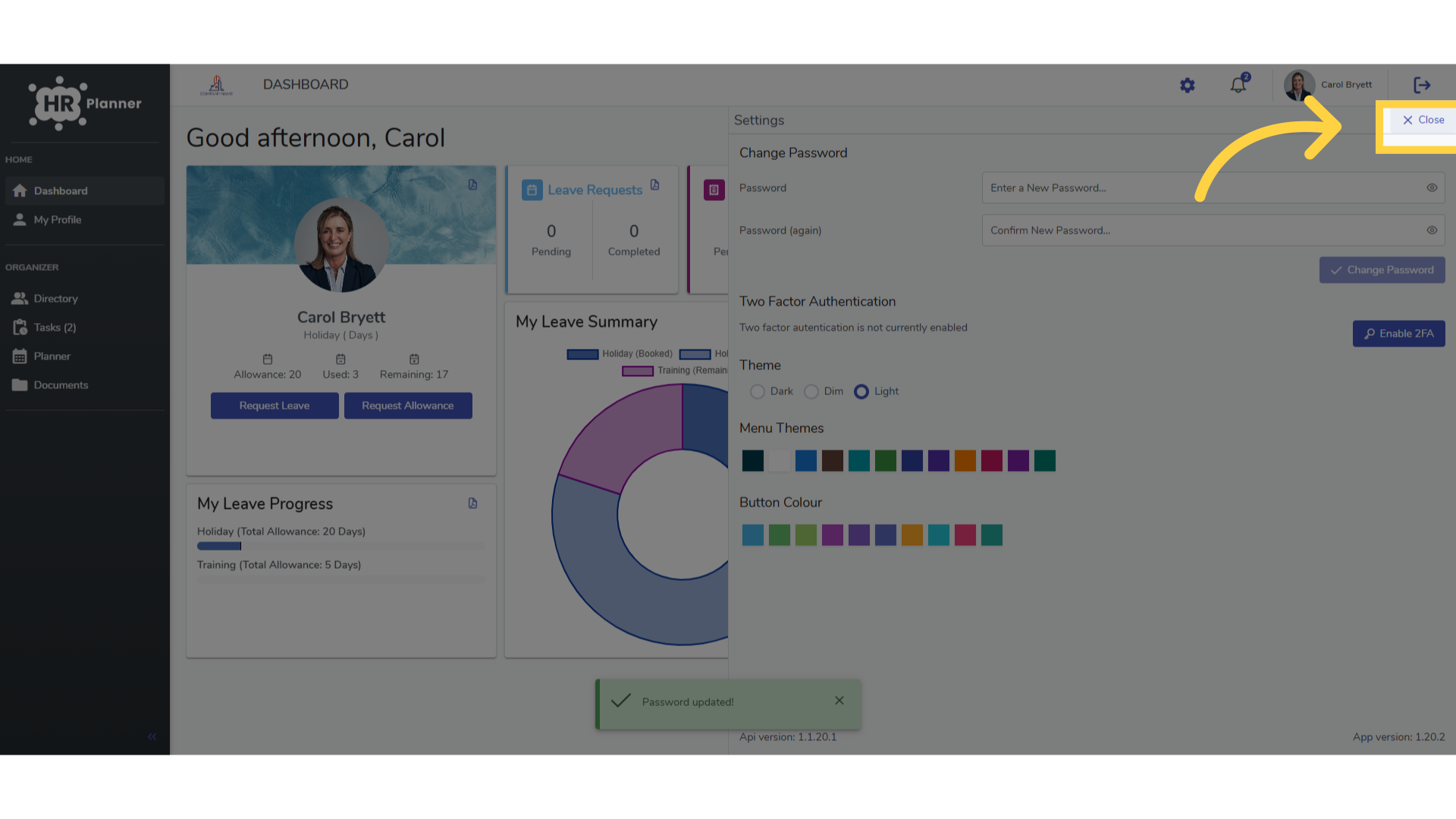
7. Click “Close”
and Close the settings window when complete.
This guide shows how to efficiently change your password on hrplanner. Access your profile, navigate to settings, input, and confirm your new password securely.