
Explore how to adjust your Planner view in the hr planner application.
1. Introduction
From accessing the Planner section to switching between Month, Week, and Day views, this guide will help you effortlessly navigate through your calendar settings.
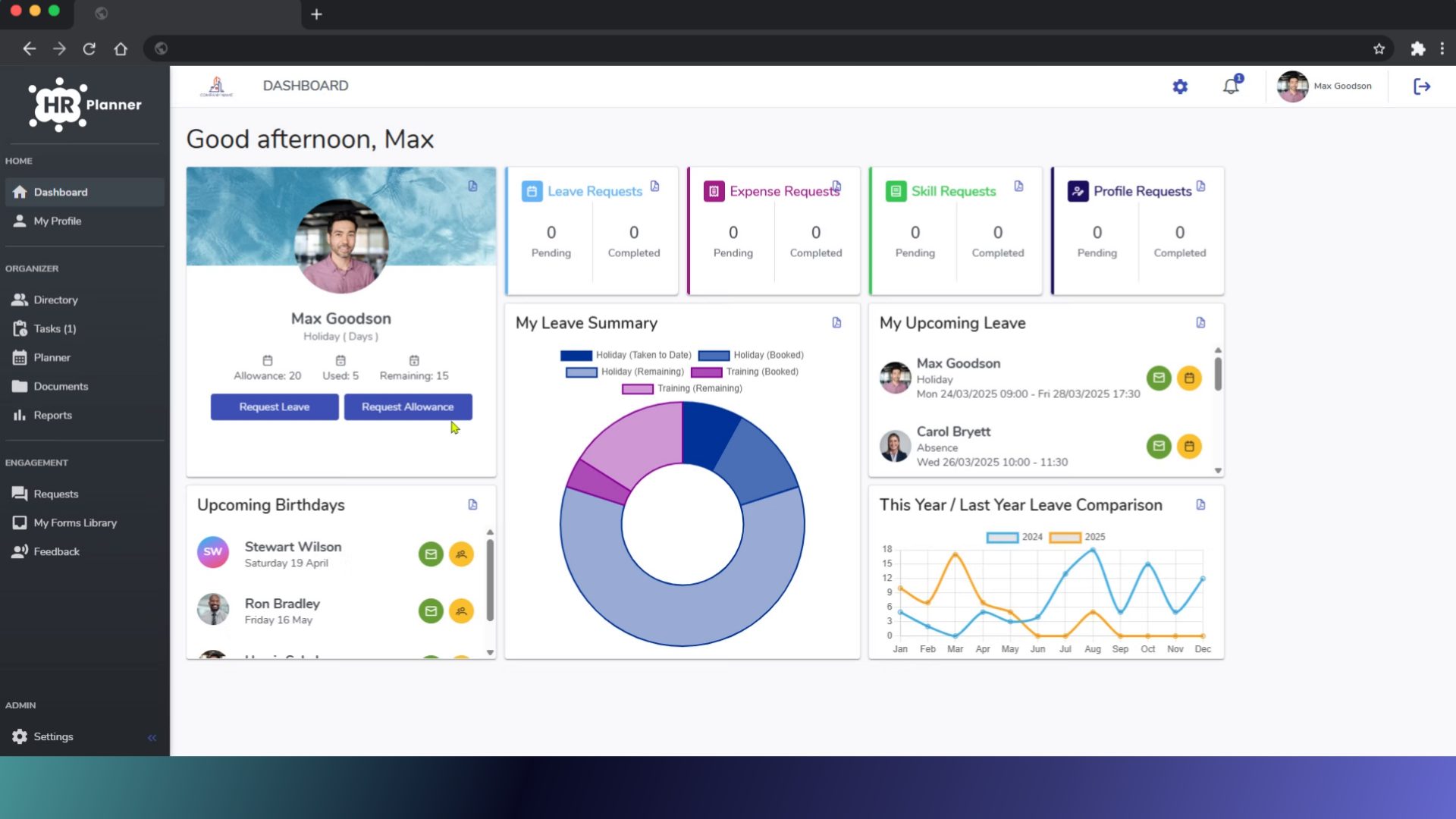
2. Click “Planner”
Access the Planner section from the menu on your dashboard.
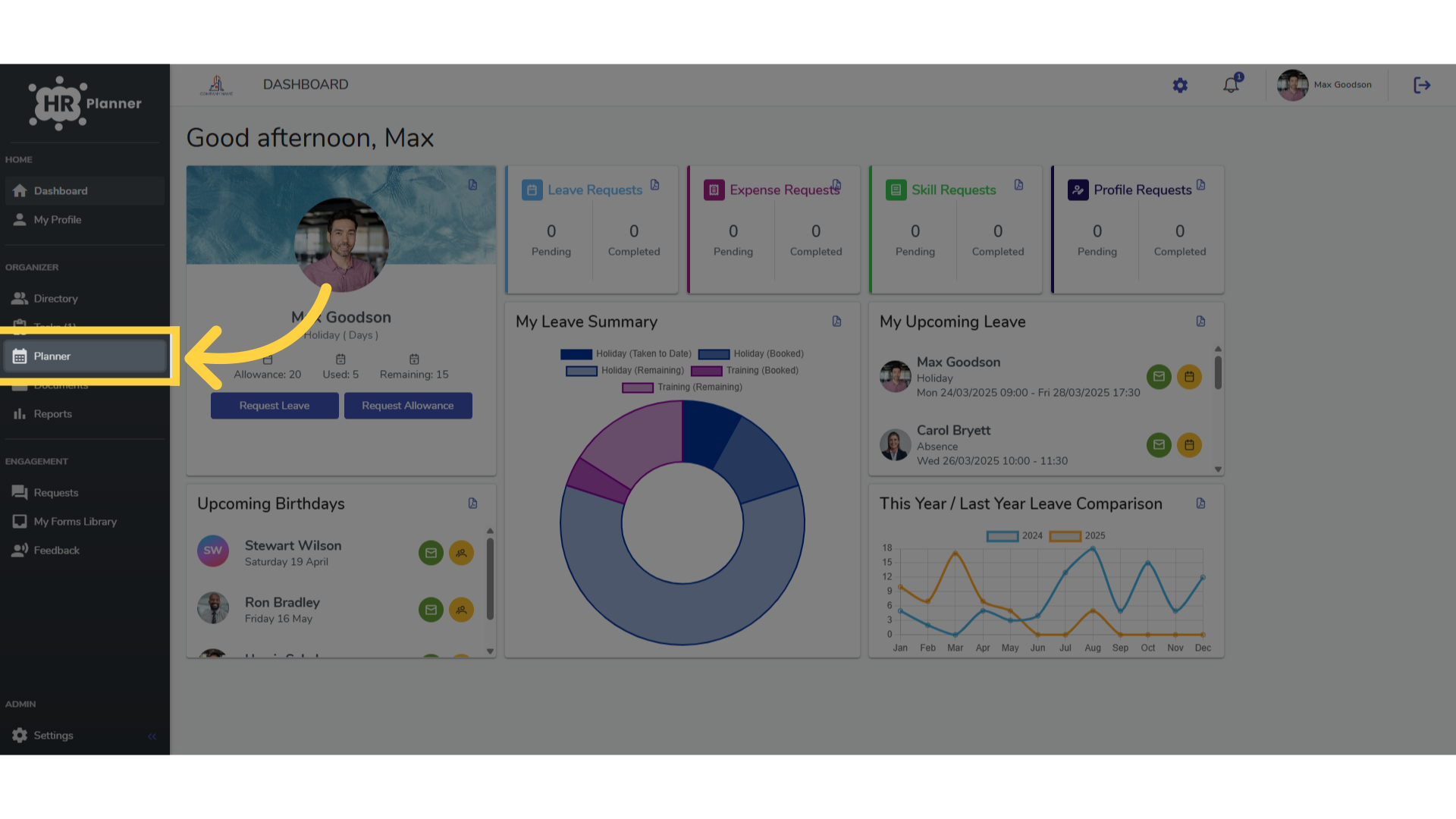
3. Click “Classic”
The Classic view shows only those employees that are absent on each day.
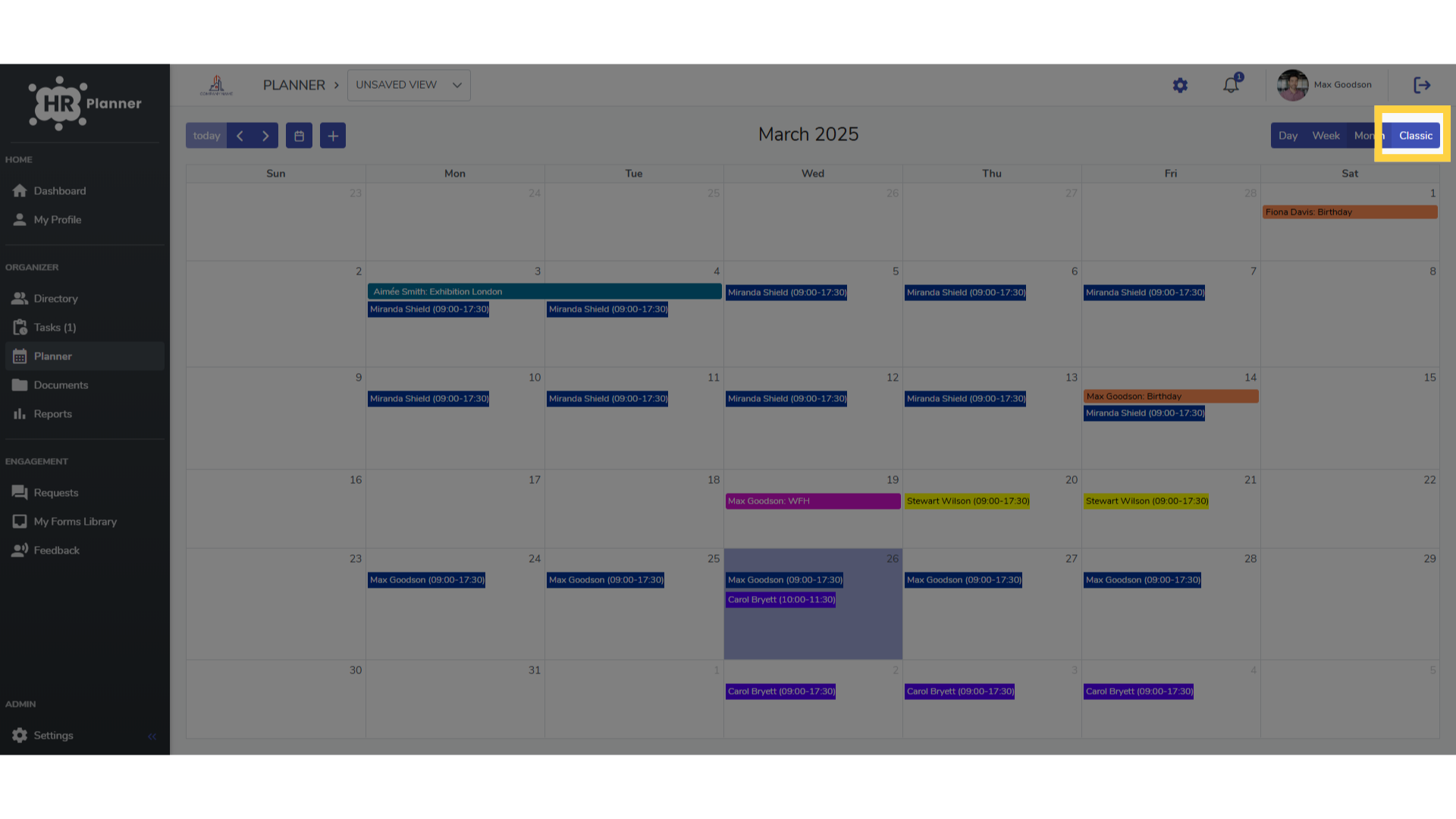
4. Click “Month”
The Month view lists all employees, shows their department and their absence events.
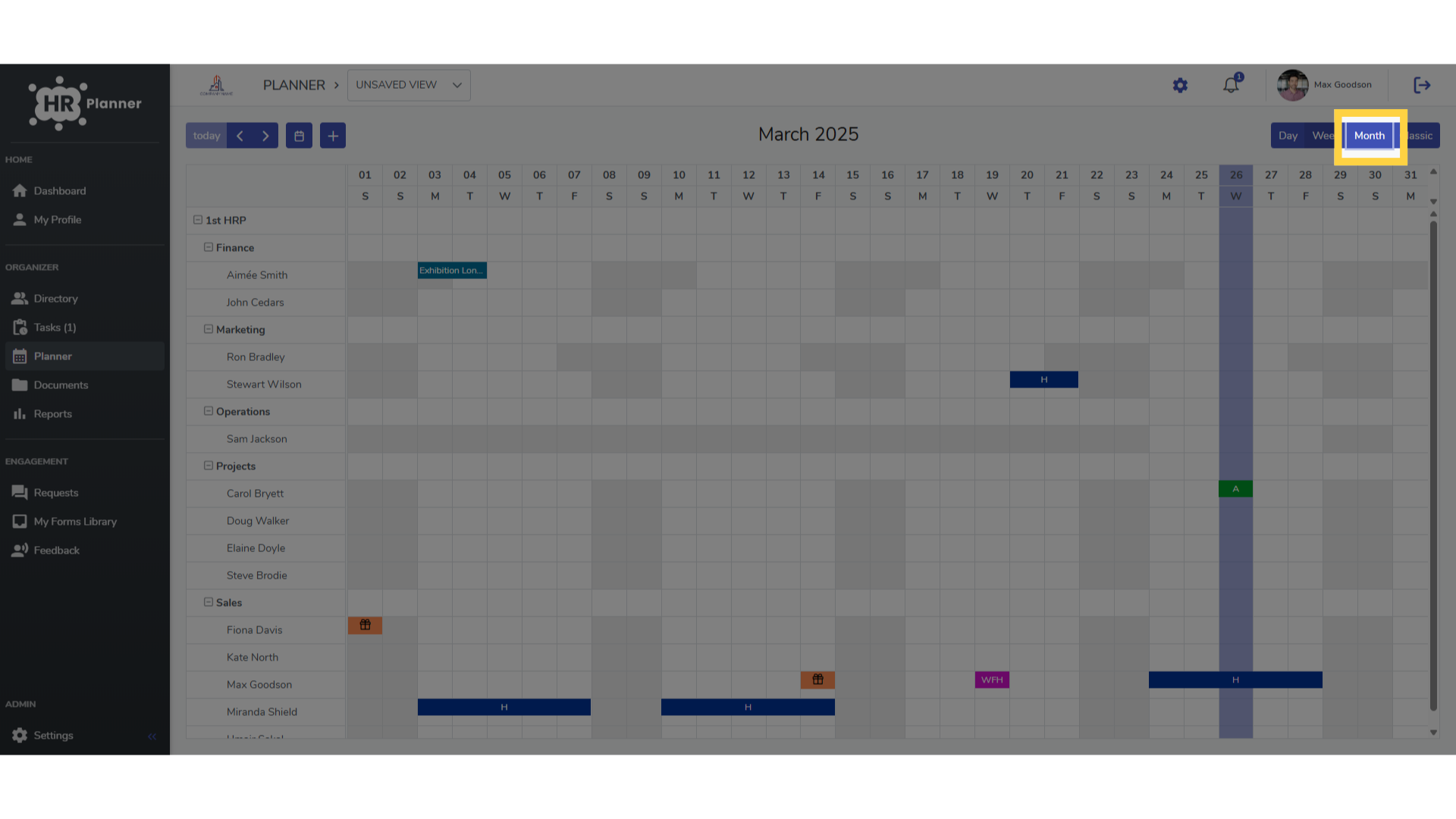
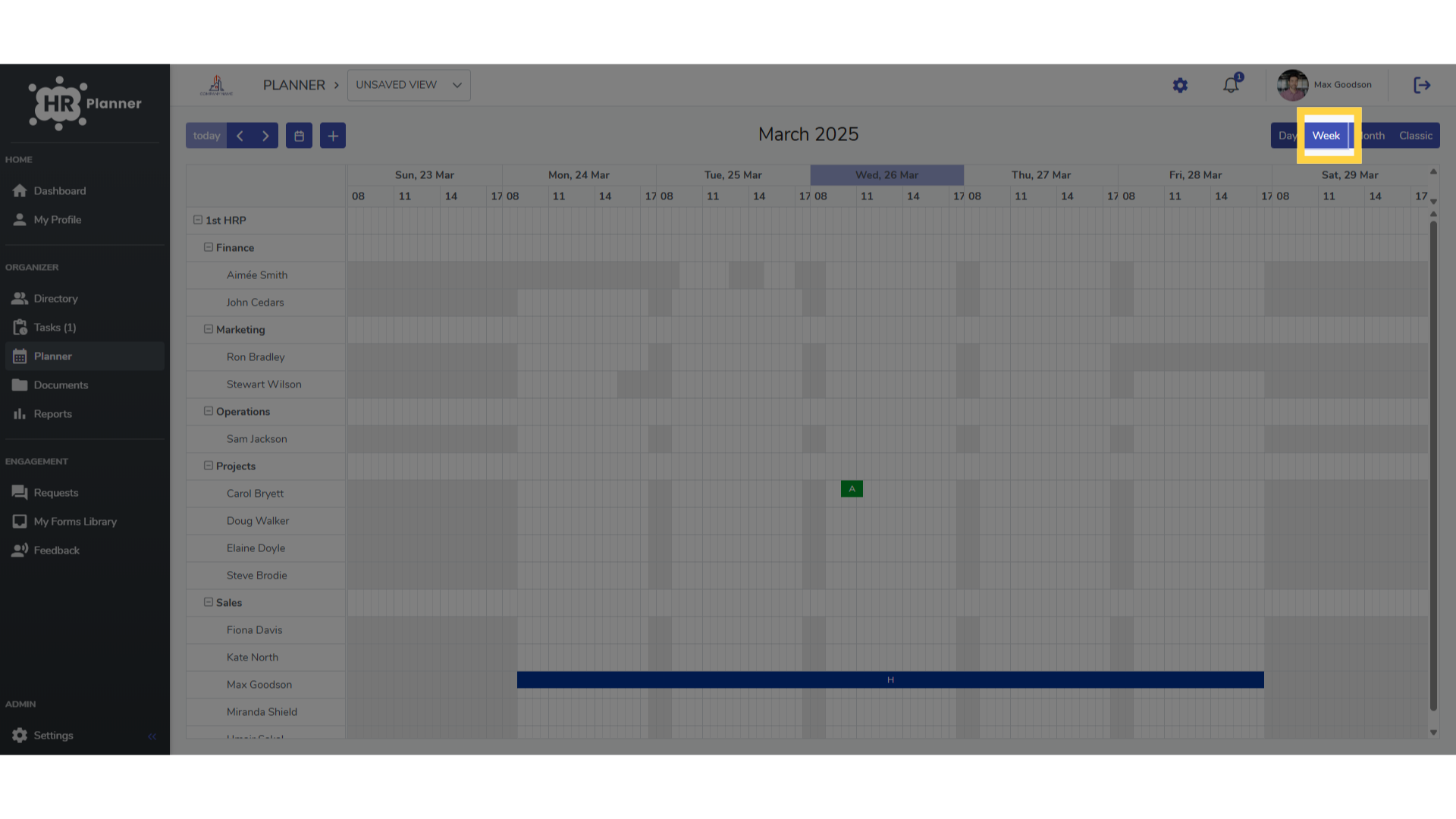
5. Click “Week”
The Week view shows more detailed time breakdowns of absence events.
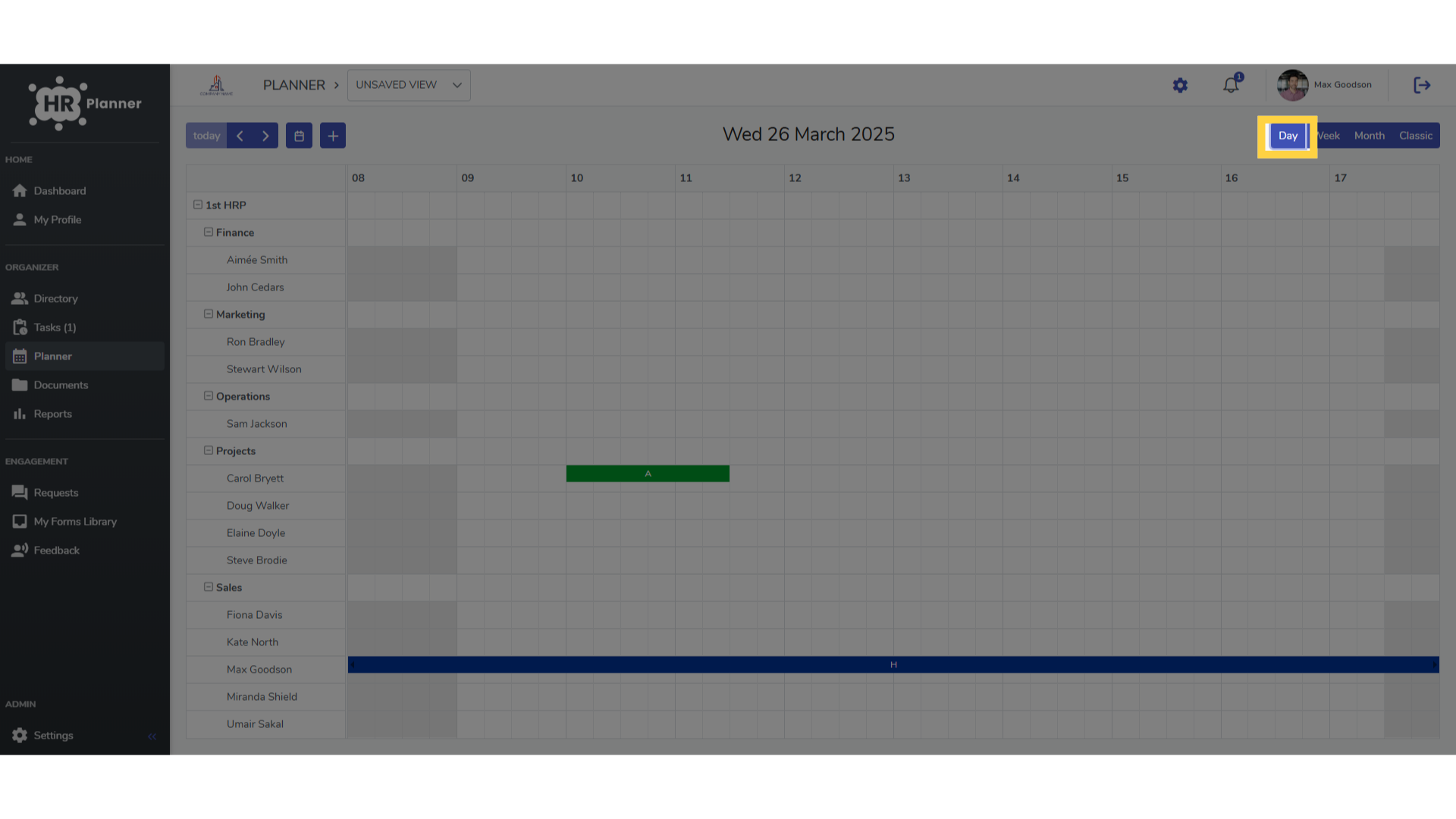
6. Click “Day”
And finally the Day view shows the most details of specific timed absences.
Discover how to efficiently change your calendar view in hr planner by following these straightforward steps. From selecting different time frames to returning to the dashboard, you can easily manage your calendar preferences.