
Requesting Leave and other Absence in HR Planner is all handled by the Request Panel.
There are multiple ways in HR Planner to access the Request Panel and in this guide we will show you all of them. After we show you how to bring up the Request Panel we will then show you how to complete it and Submit your Request for Leave or Absence.
Request Leave
The first step in Requesting Leave is to open the Request Panel. You can access the Request Panel from multiple places in HR Planner including your Dashboard, the Planner and your Leave Summary.
1. From the Dashboard
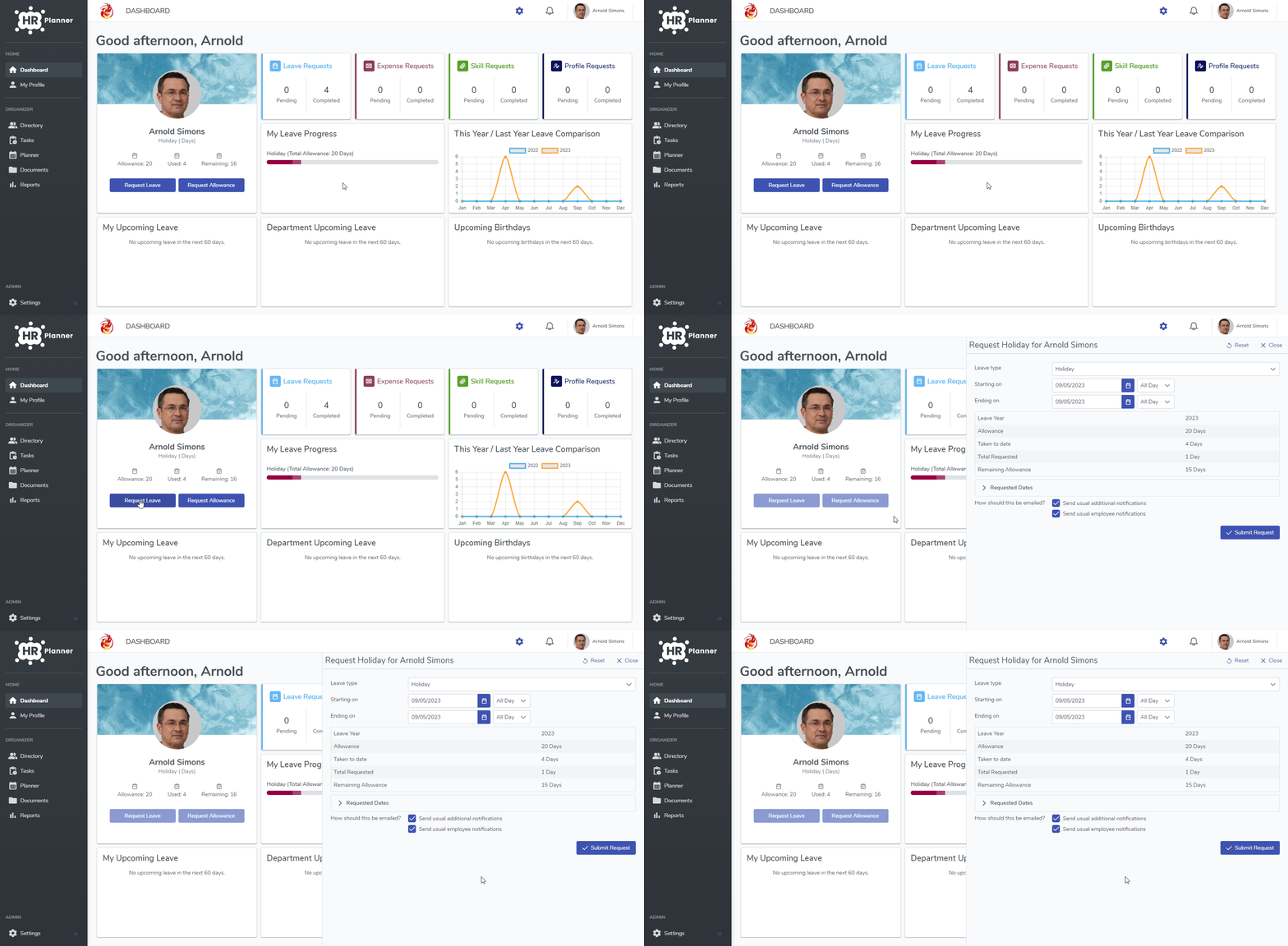
If your Dashboard is displaying the Profile Widget then you can Request Leave by simply clicking on the Request Leave button as follows.
- Click on Dashboard.
- Click on the Request Leave button (on your profile widget).
- Complete the form and Submit your Leave Request.
2. From the Planner
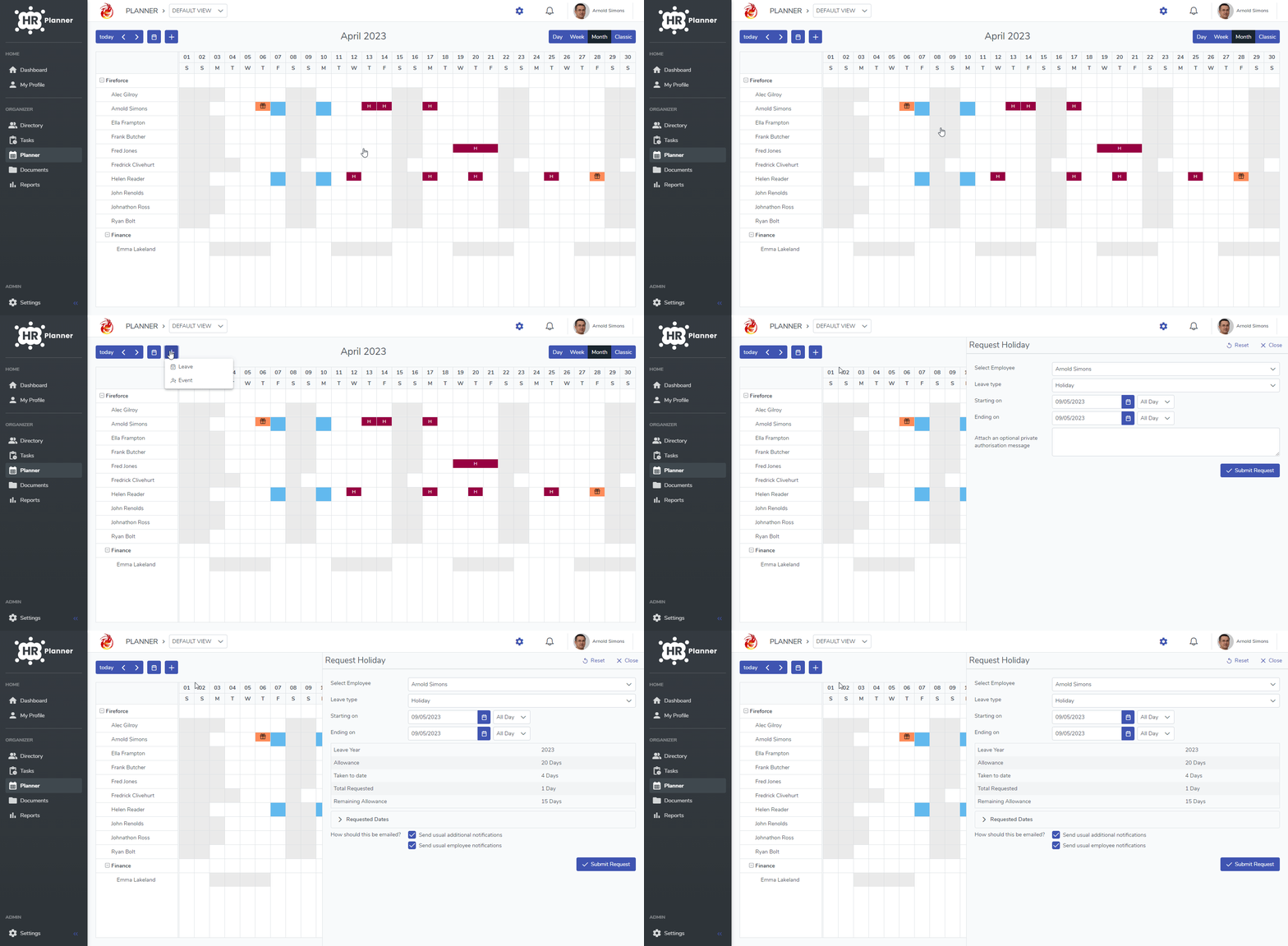
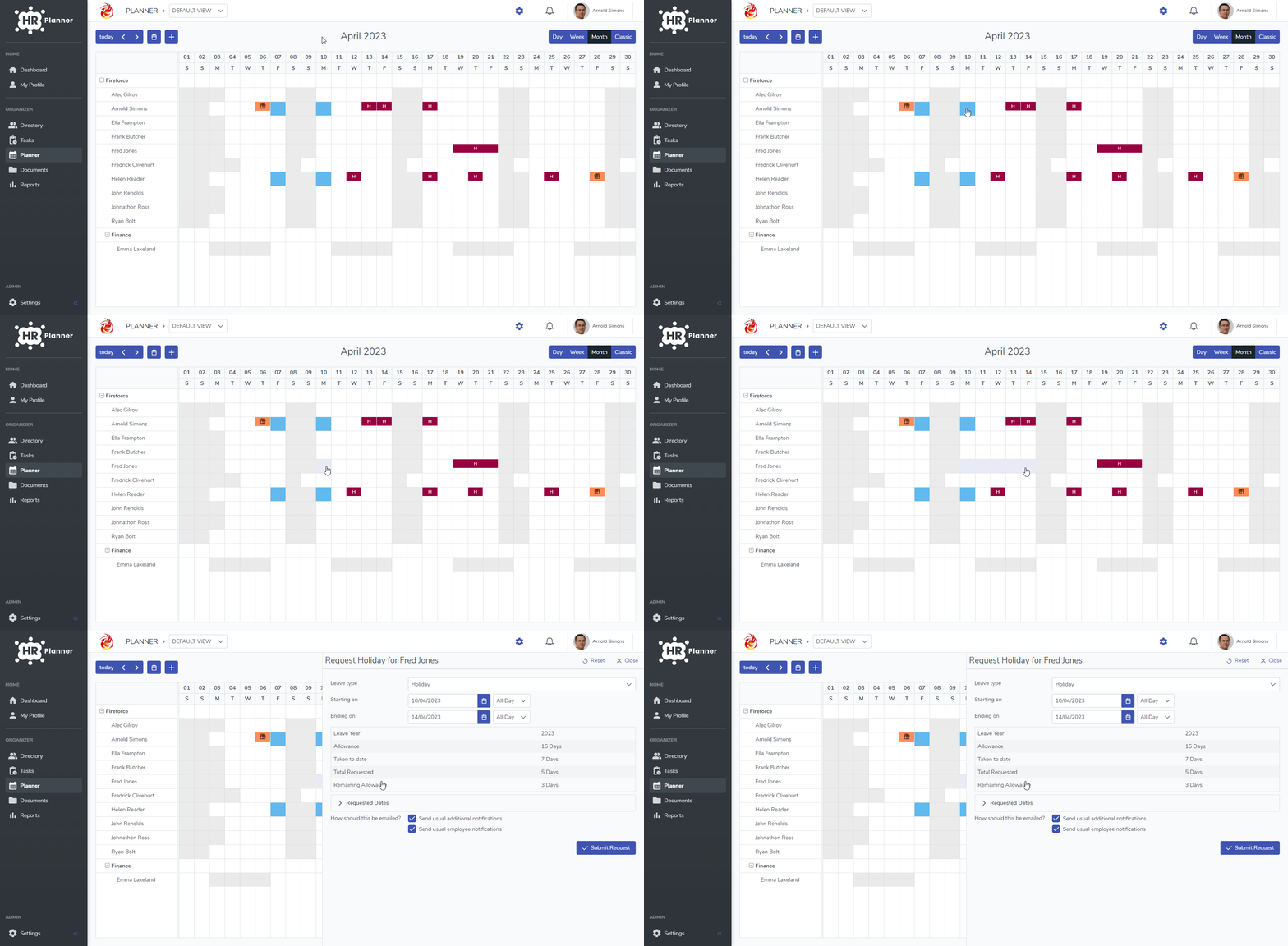
There are 2 different ways to Request Leave from the Planner screen. You can either click on the Plus Button or you can use your mouse to drag across the calendar to select the days you require which is called the Drag Method.
Plus Button
- Click on Planner.
- Click on the Plus sign on the top left hand side.
- Click on Leave.
- Complete the form and Submit your Leave Request.
Drag Method
- Click on Planner.
- Click and hold the mouse button down on the first Date you would like to Request.
- Drag your mouse along to the date where you would like to finish and release the button.
- Complete the form and Submit your Leave Request.
3. From your Leave Summary
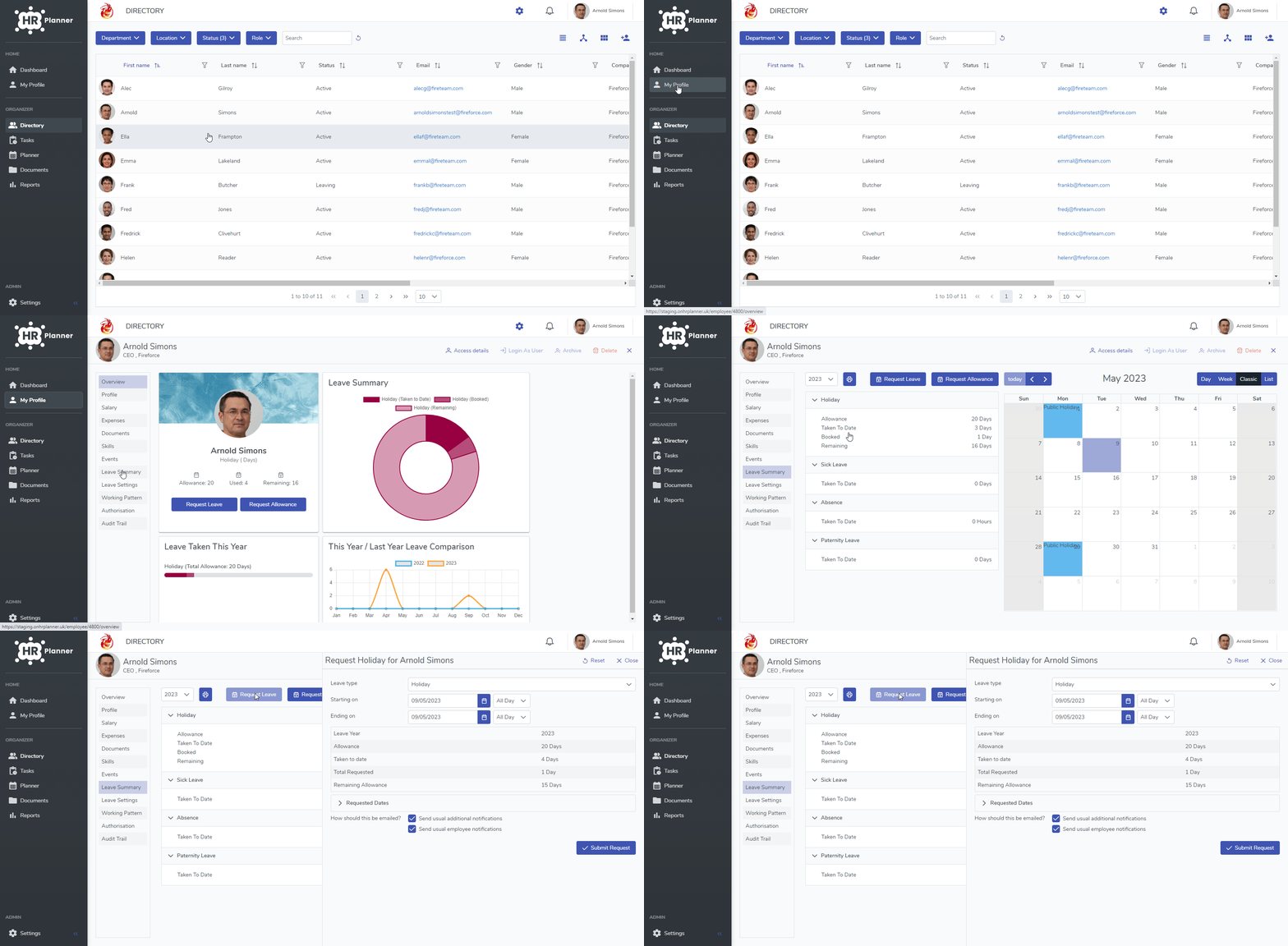
When you are viewing your Leave Summary you can quickly Request new Leave by clicking the Request Leave button.
- Click on My Profile to go to your personal Profile.
- Click on the Leave Summary tab.
- Click on Request Leave.
- Complete the form and Submit your Leave Request.
Submitting your Leave Request
Now that you know how to access the Request Panel you can proceed to complete all of the required information and submit your Request. The information that will be required for your Leave Request will vary depending on how your Organisation has been setup.
We will now guide you through making a basic Leave Request for Holiday.
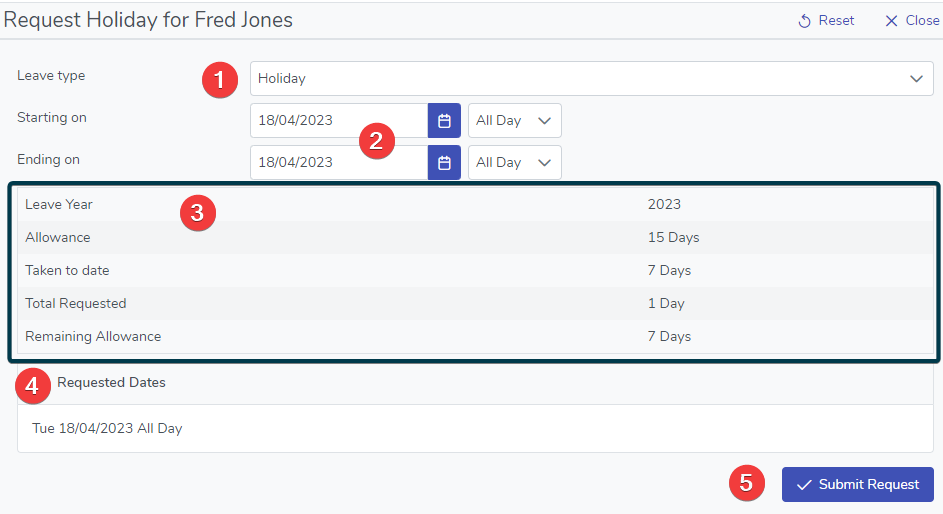
In the screenshot above you can see 5 Key areas of the Request Form.
- This is where you select the type of leave you would like such as Holiday, Sick Leave and Absence.
- This is where you choose the start and end dates of the leave that you would like to request.
If you would like to request a Half Day then simply choose the same morning or afternoon period for the “Starting On” and “Ending On” like this
Half Day in the Morning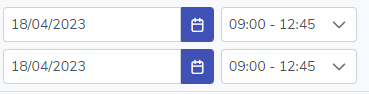
or
Half Day in the Afternoon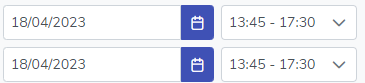
- This will show you a summary of the request you are submitting including information like the Annual Allowance, Taken To Date totals, Total Requested total and Remaining Allowance.
- This will show you all of the dates that you are requesting.
- Finally, when you are happy with your request click the Submit Request button to submit it. If needed the Request will then be sent to any Authorisers to be actioned.