
Learn how to generate a Leave Summary Report specifically filtered for Holidays with HR Planner.
1. Introduction
From accessing the reporting section to refreshing the report, this guide will walk you through the necessary steps.
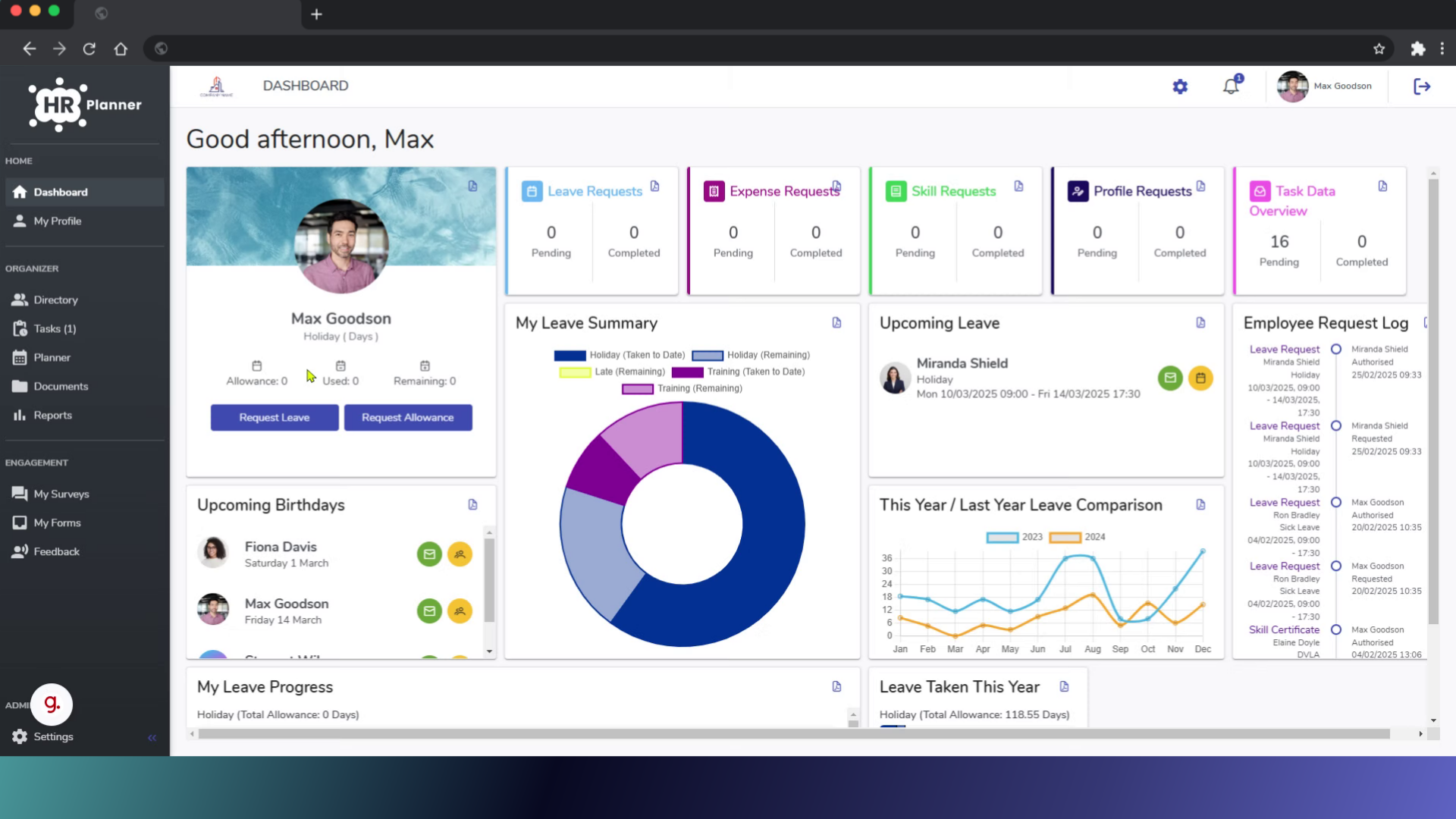
2. Click “Reports”
Access the reporting section via the menu on the left hand side.
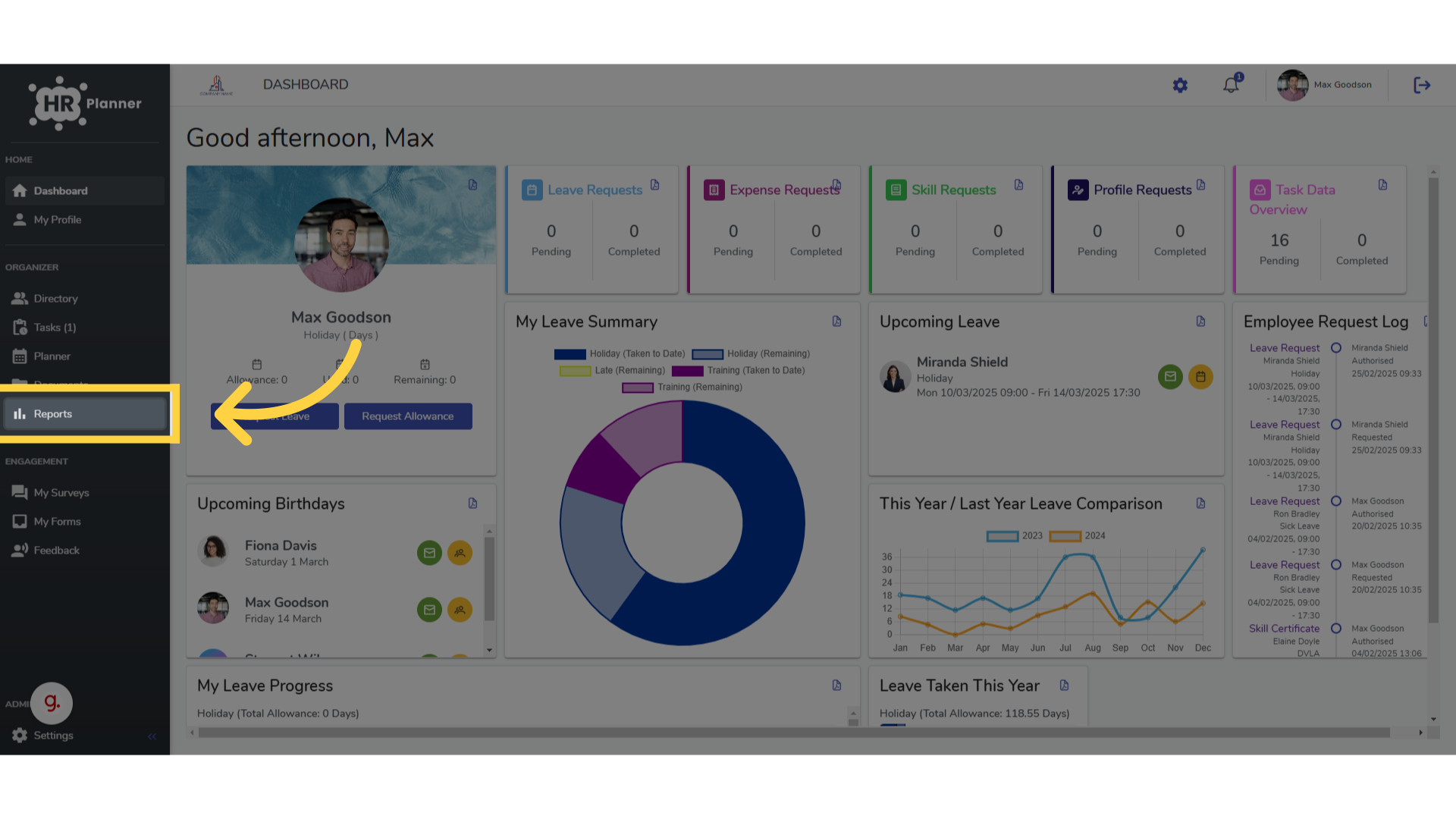
3. Choose “Leave Summary”
Select the Leave Summary report.
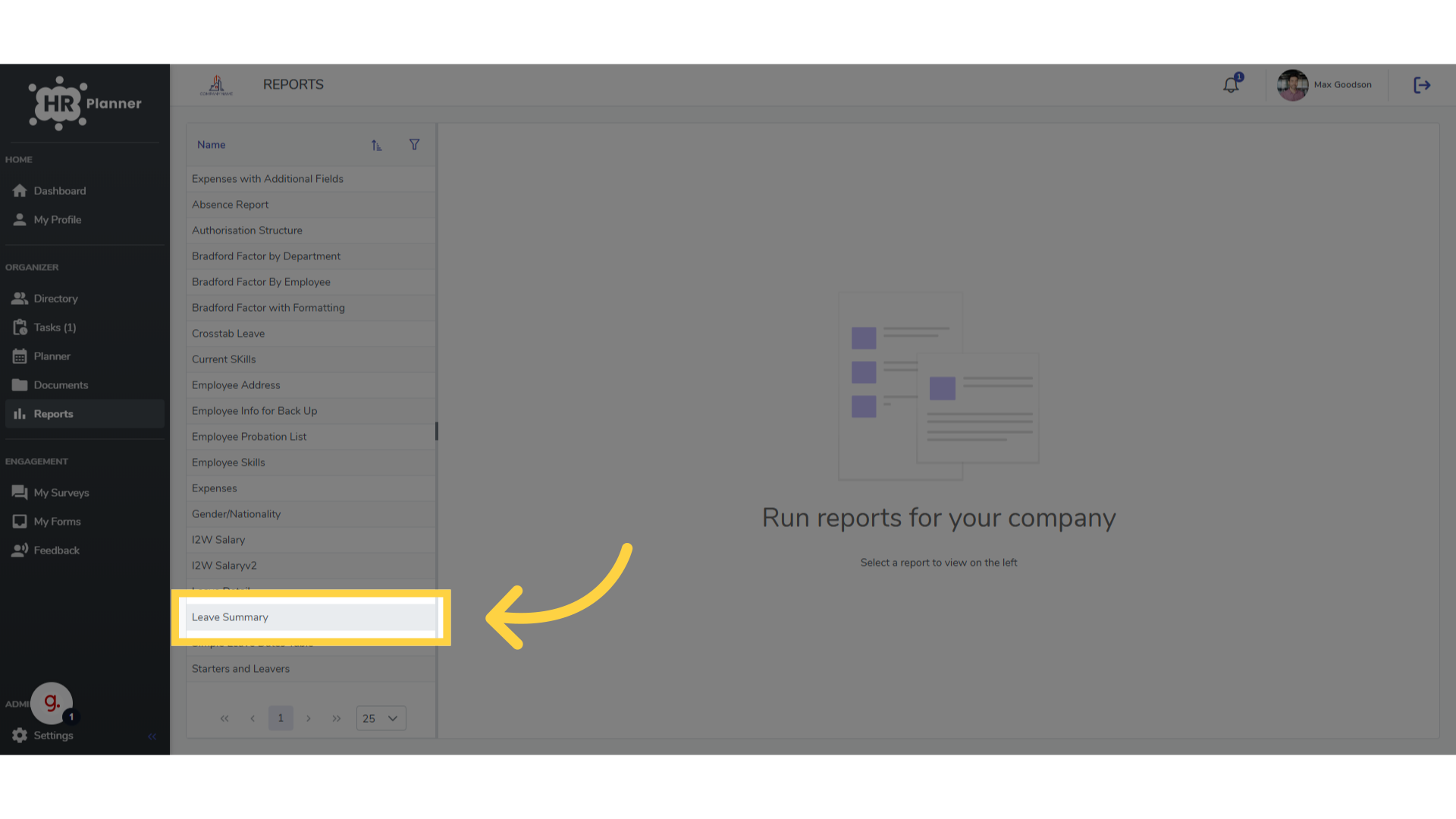
4. Click here
You can filter by leavetype
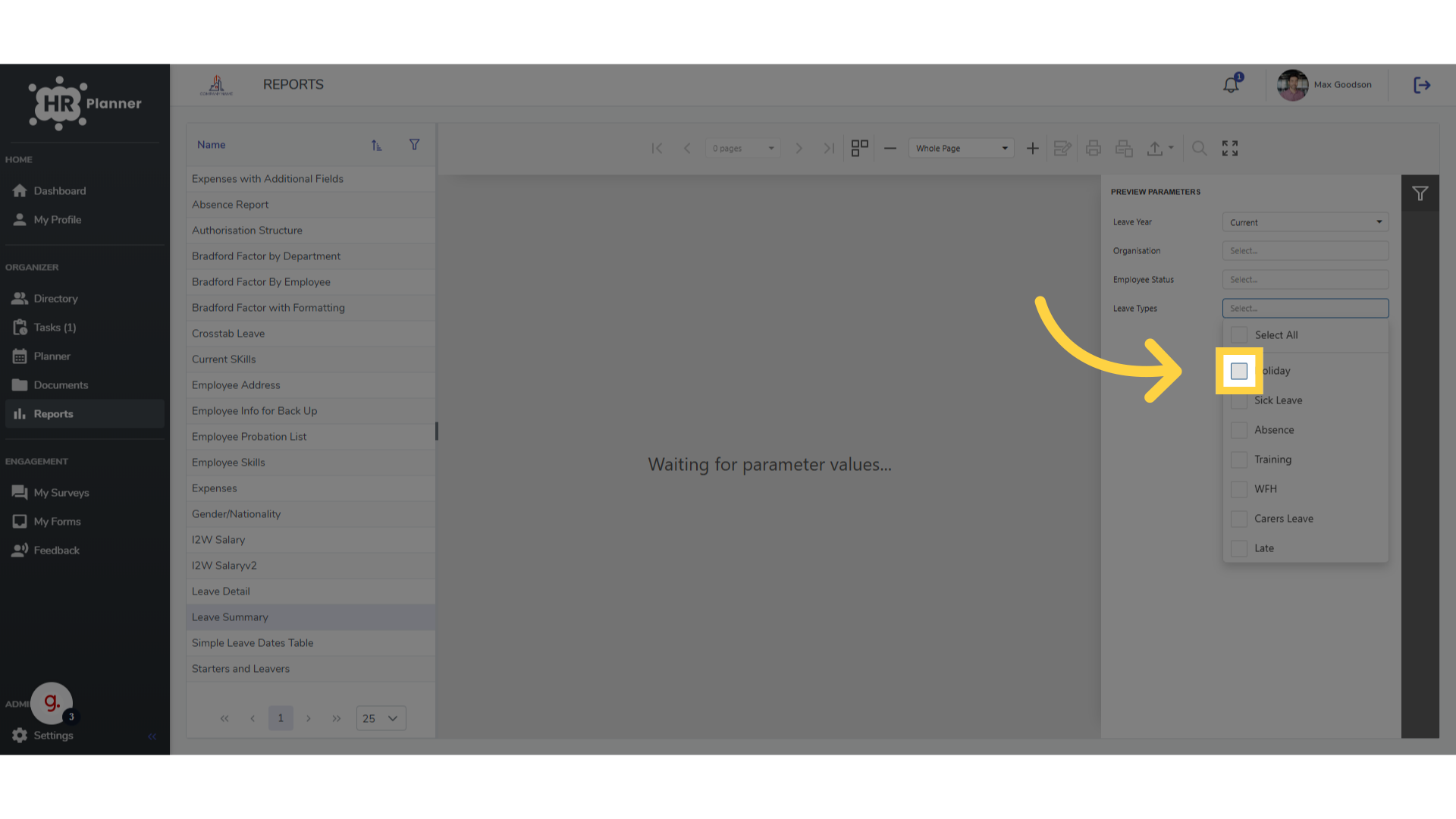
5. Select Holiday
Choose Holiday
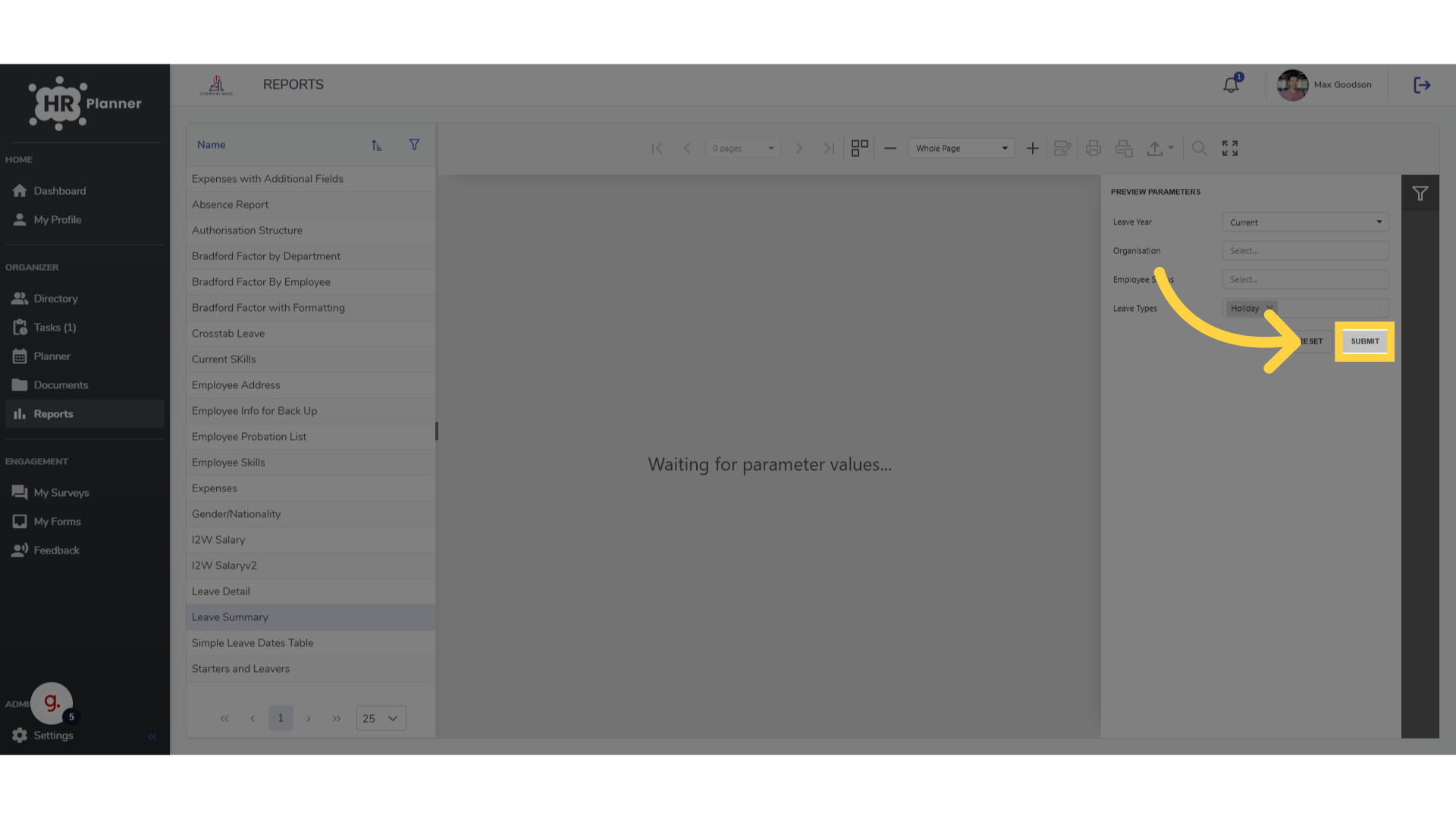
6. Click “Submit”
Finalize and generate the report by clicking Submit slide
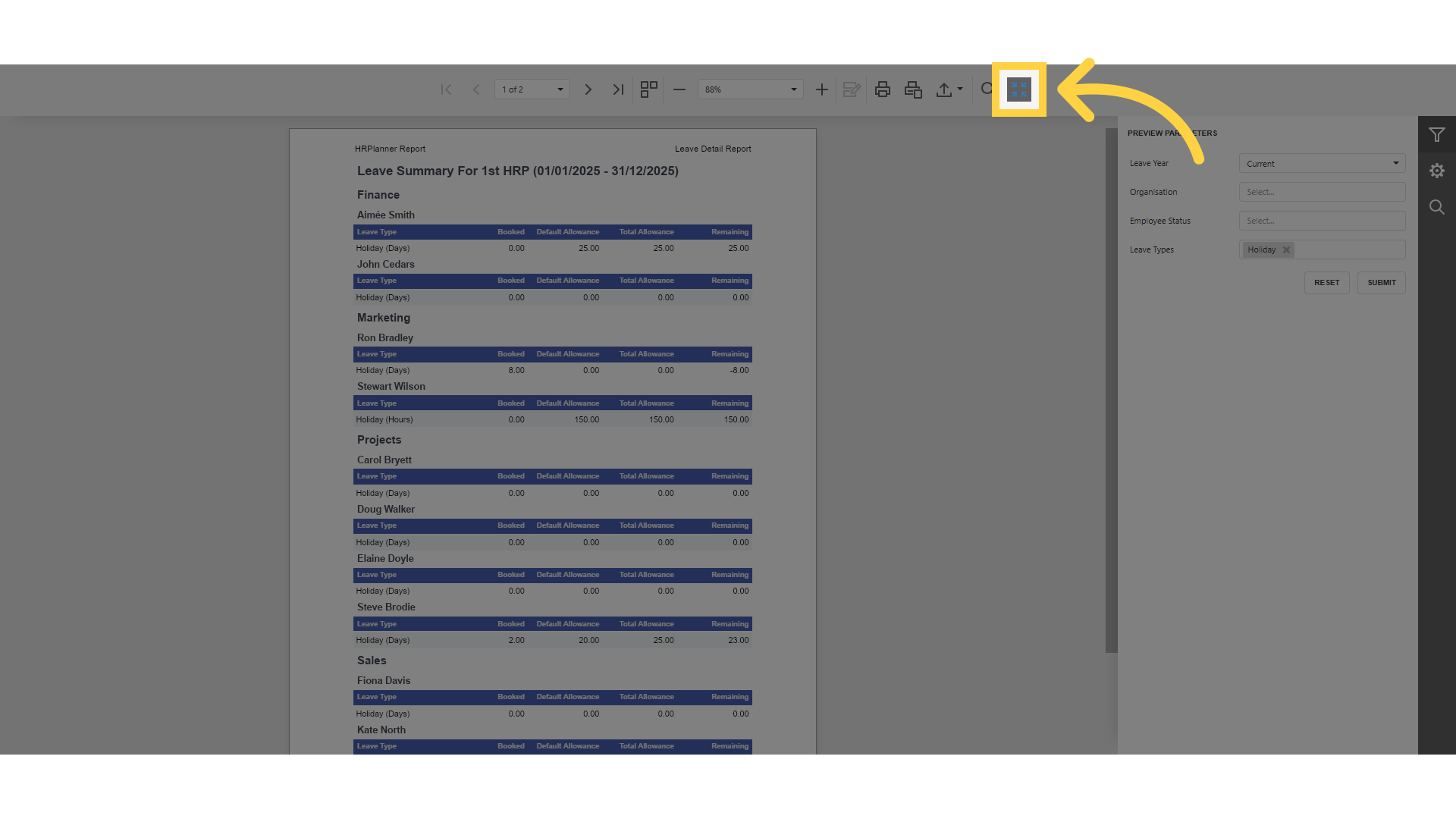
7. Click here
Click here to view in full screen
This guide covered the steps to run a Leave Summary Report filtered for Holidays on HR planner, including accessing the reporting section, selecting the report, refreshing the data, and finalizing the report generation.