
This guide will walk you through the process of setting your Leave Year Start Date in hr planner.
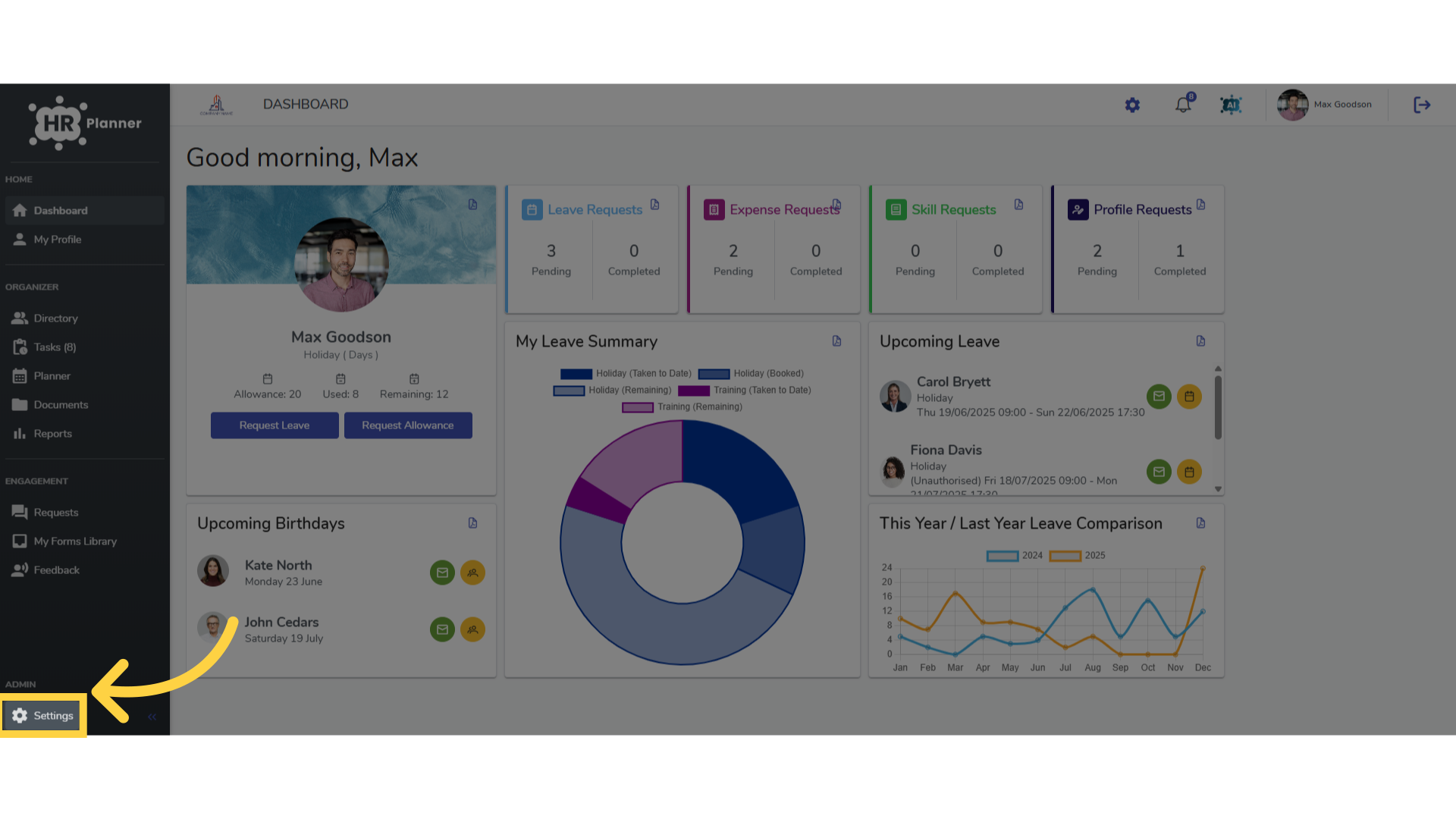
1. Click “Settings”
Access the Settings menu.
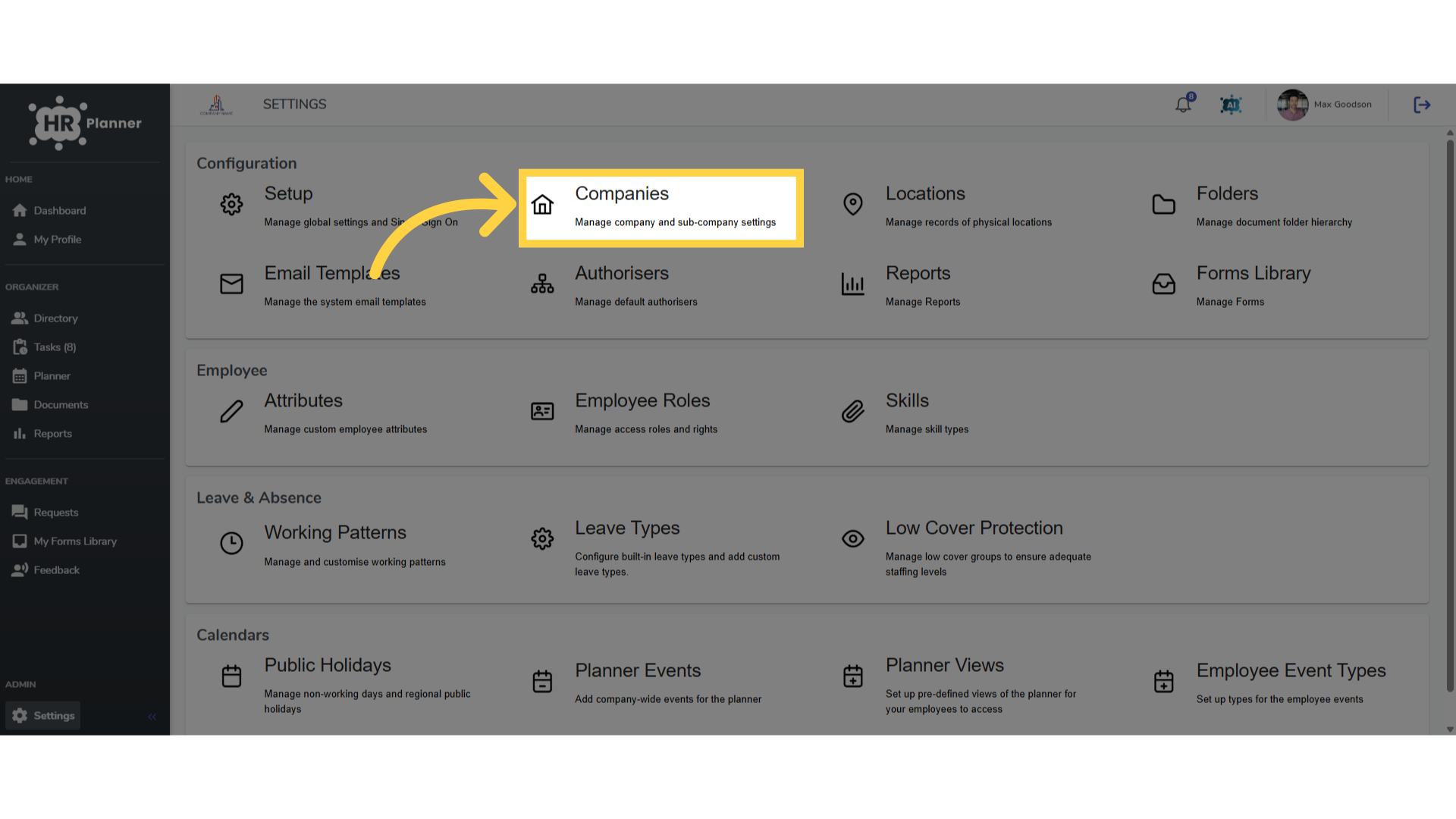
2. Click “Companies”
Navigate to the Companies section.
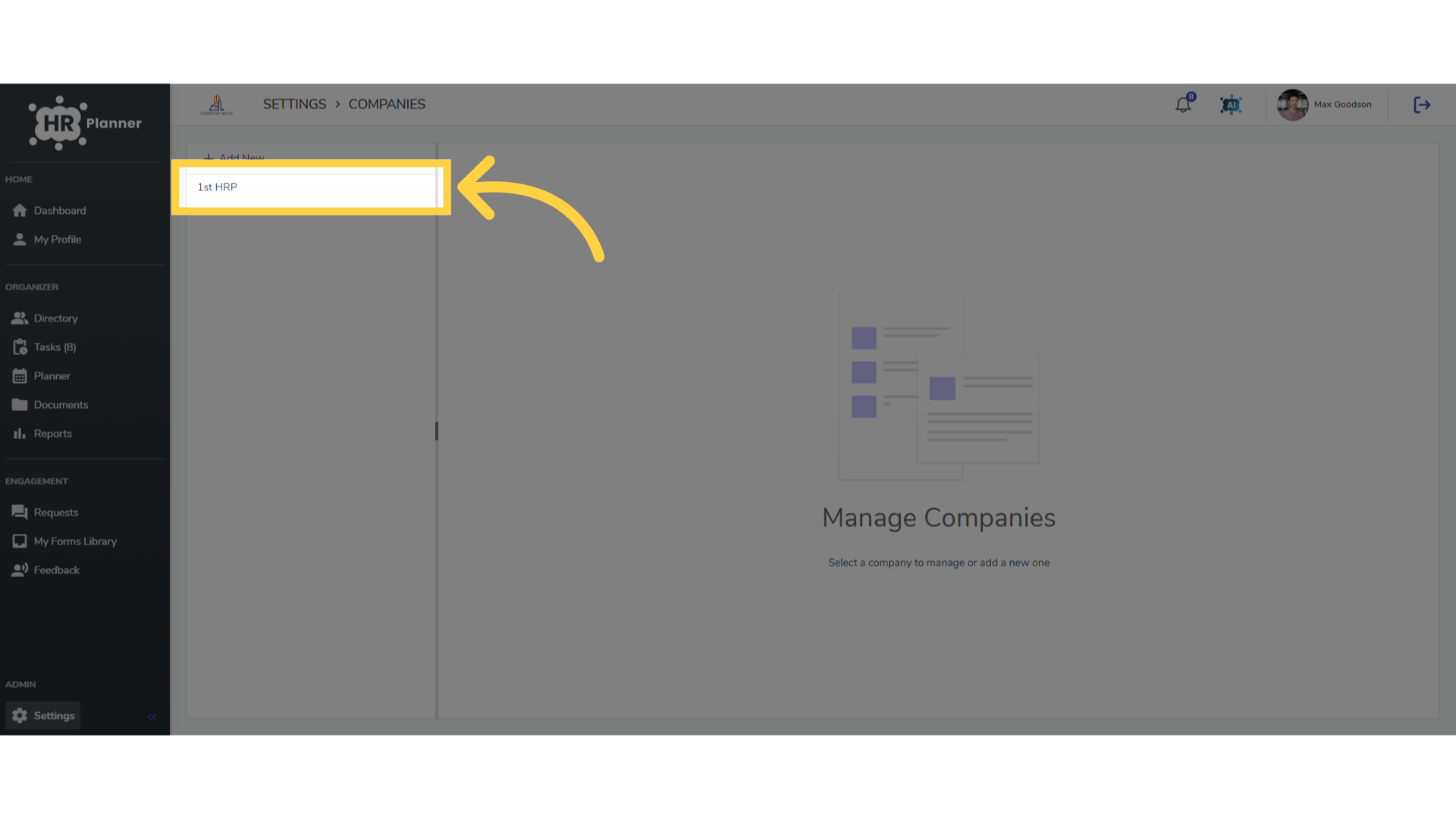
3. Select your company
Select your company
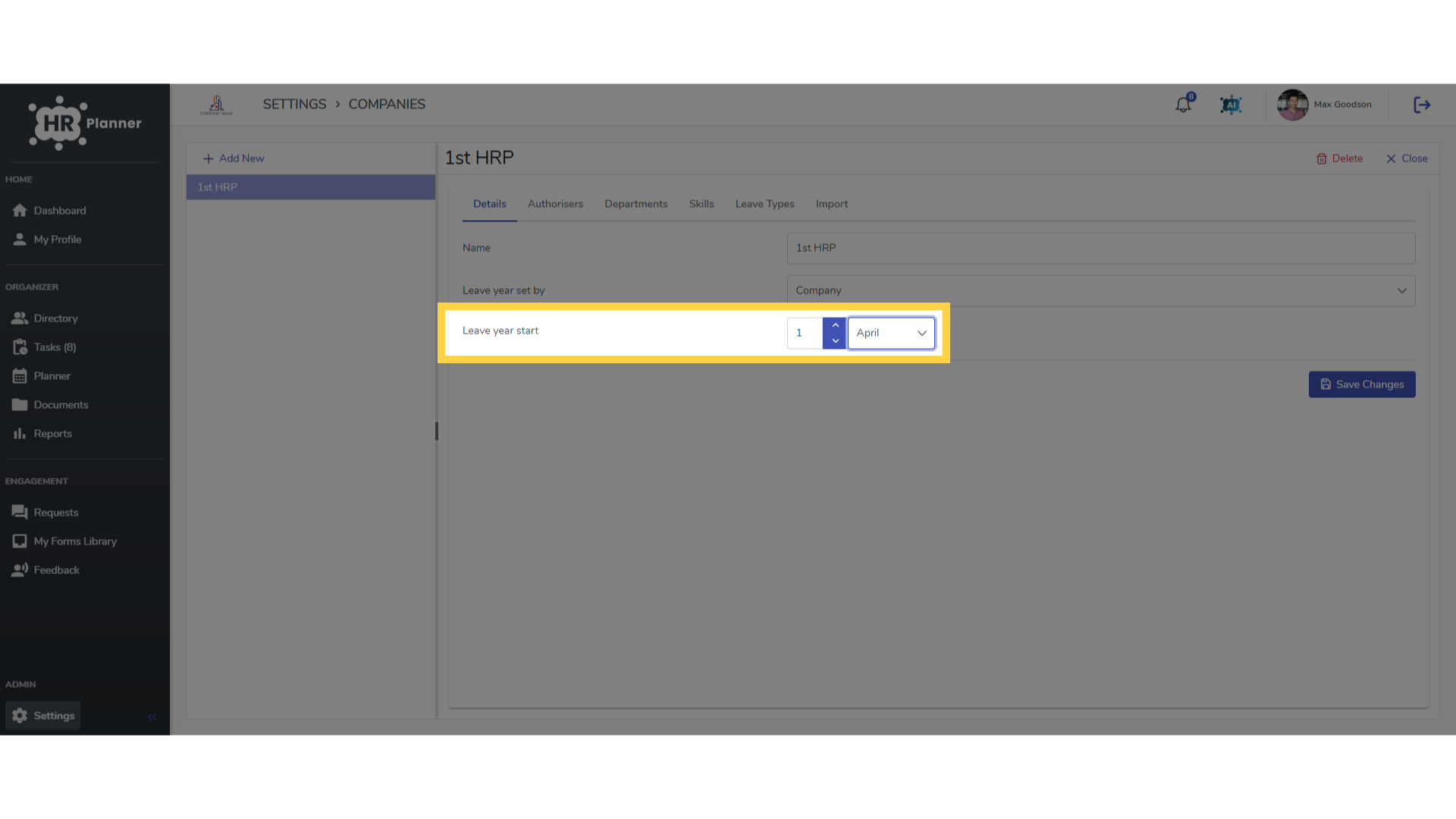
4. Set by Company
You can set your company leave year start date in this field on the Details tab.
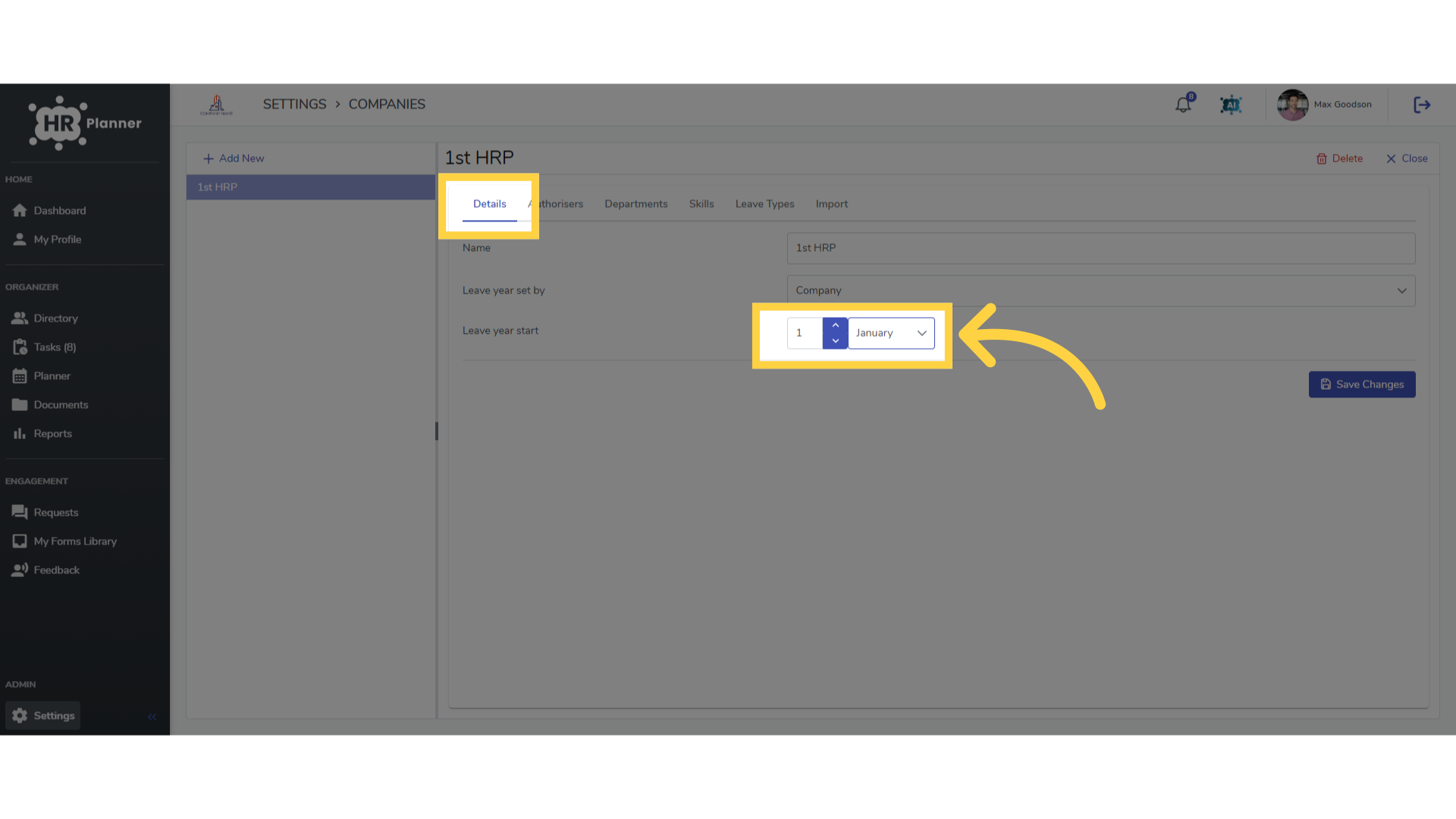
5. Set the leave year start date
For example the first of April, which will be applied to all users.
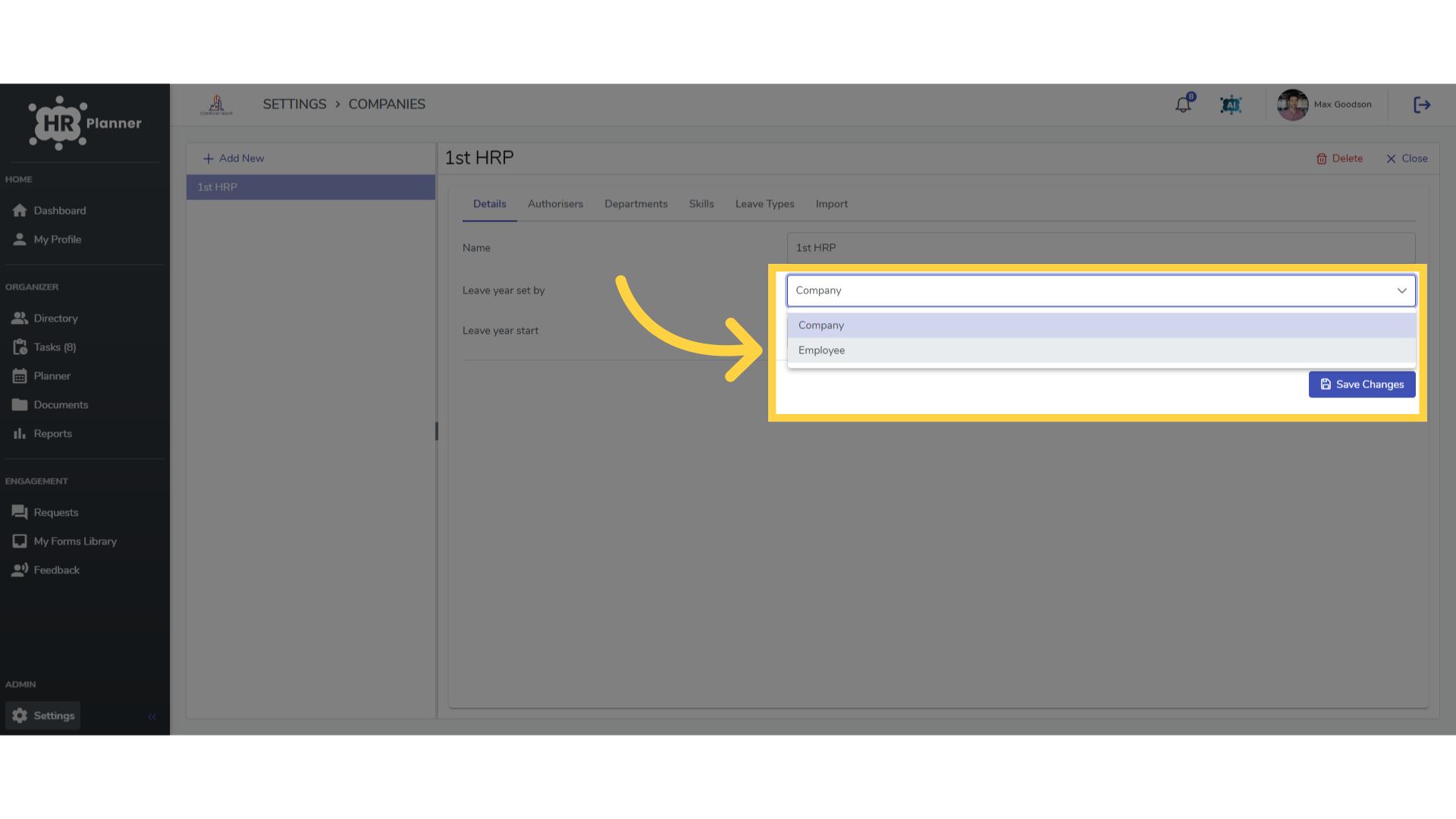
6. Set by Employee
If your leave year start date is different for each employee, perhaps set to their employment start date, change the field from Company to Employee.
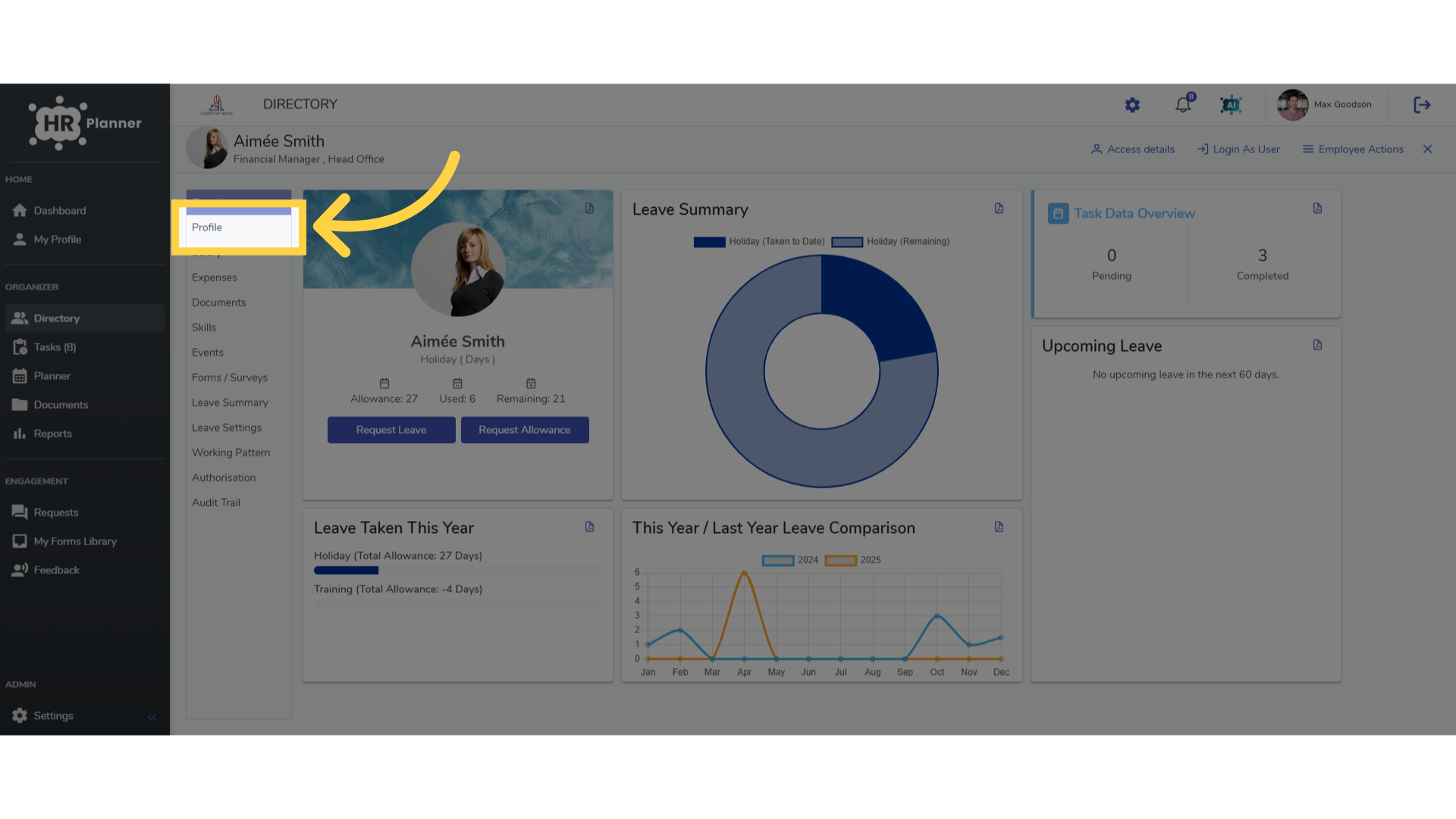
7. Click “Profile”
Now, on each employees Profile page
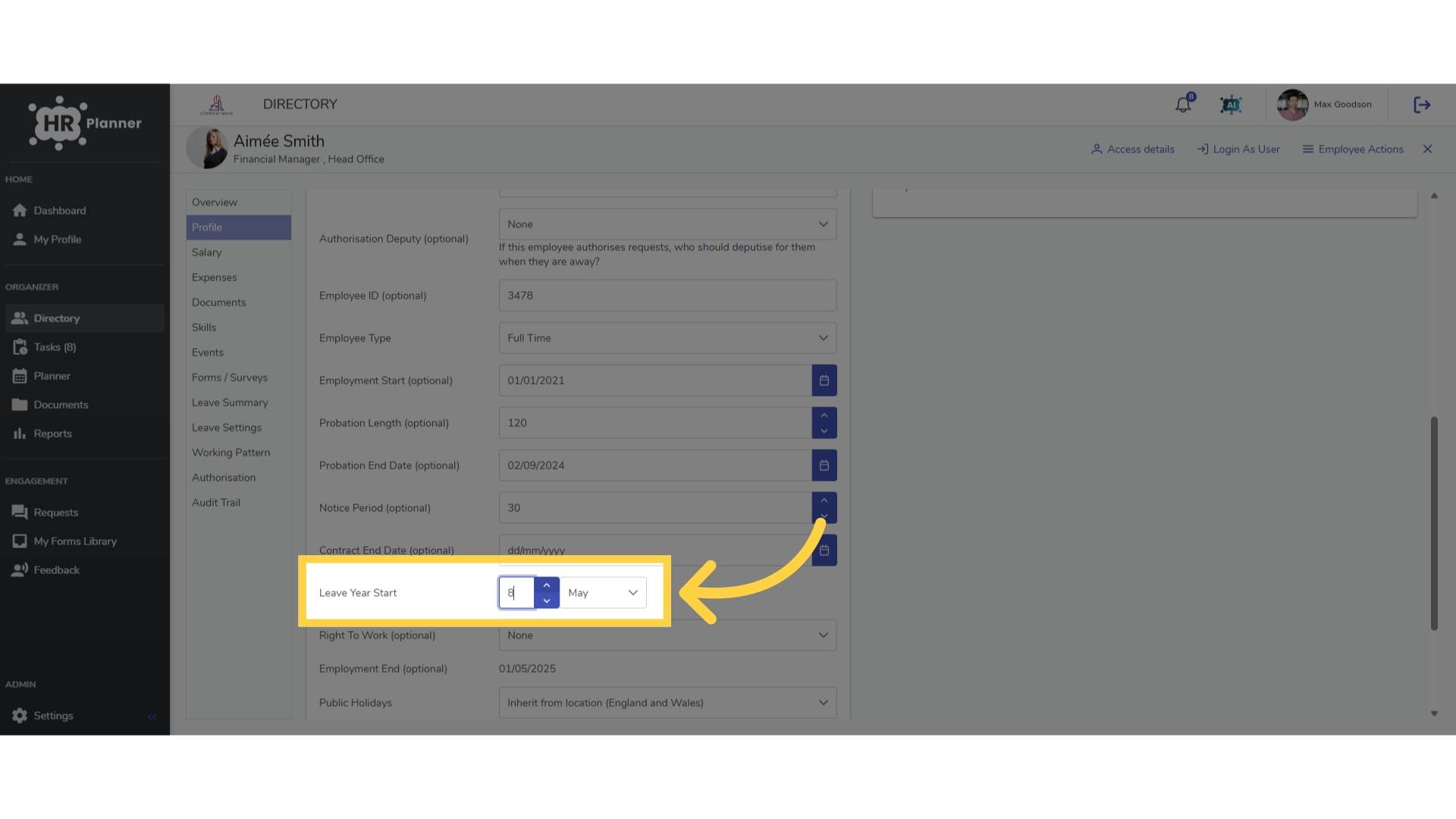
8. Edit an employees leave year start date
You can set their specific leave year start date.
The guide covered the detailed steps to set your Leave Year Start Date in hr planner.