
Learn how to create an anonymous and requestable Feedback form for your employees using hr planner.
1. Introduction
Follow these instructions to efficiently set up a platform for valuable feedback from your team.
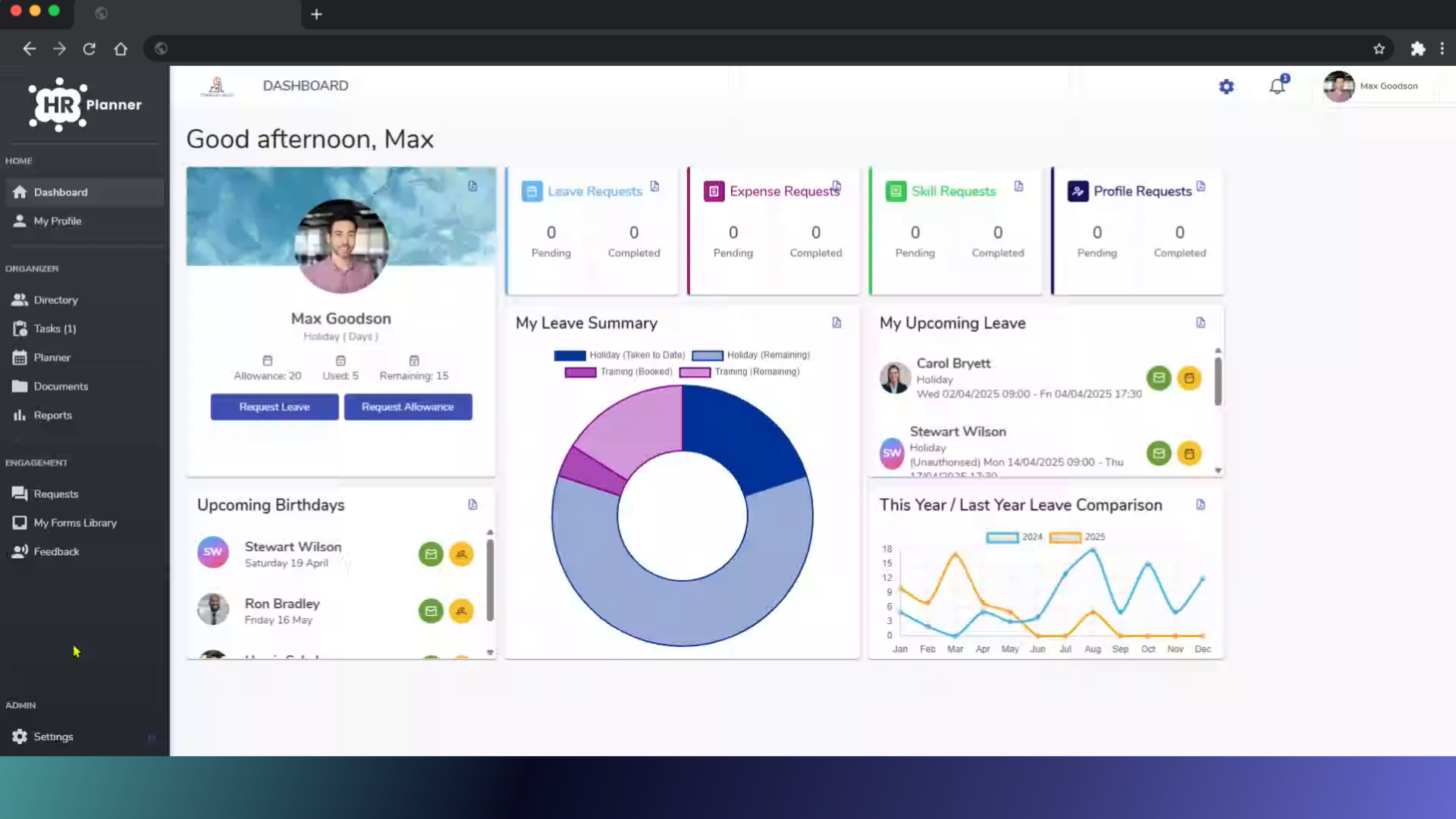
2. Click “Settings”
Access the settings menu from your dashboard.
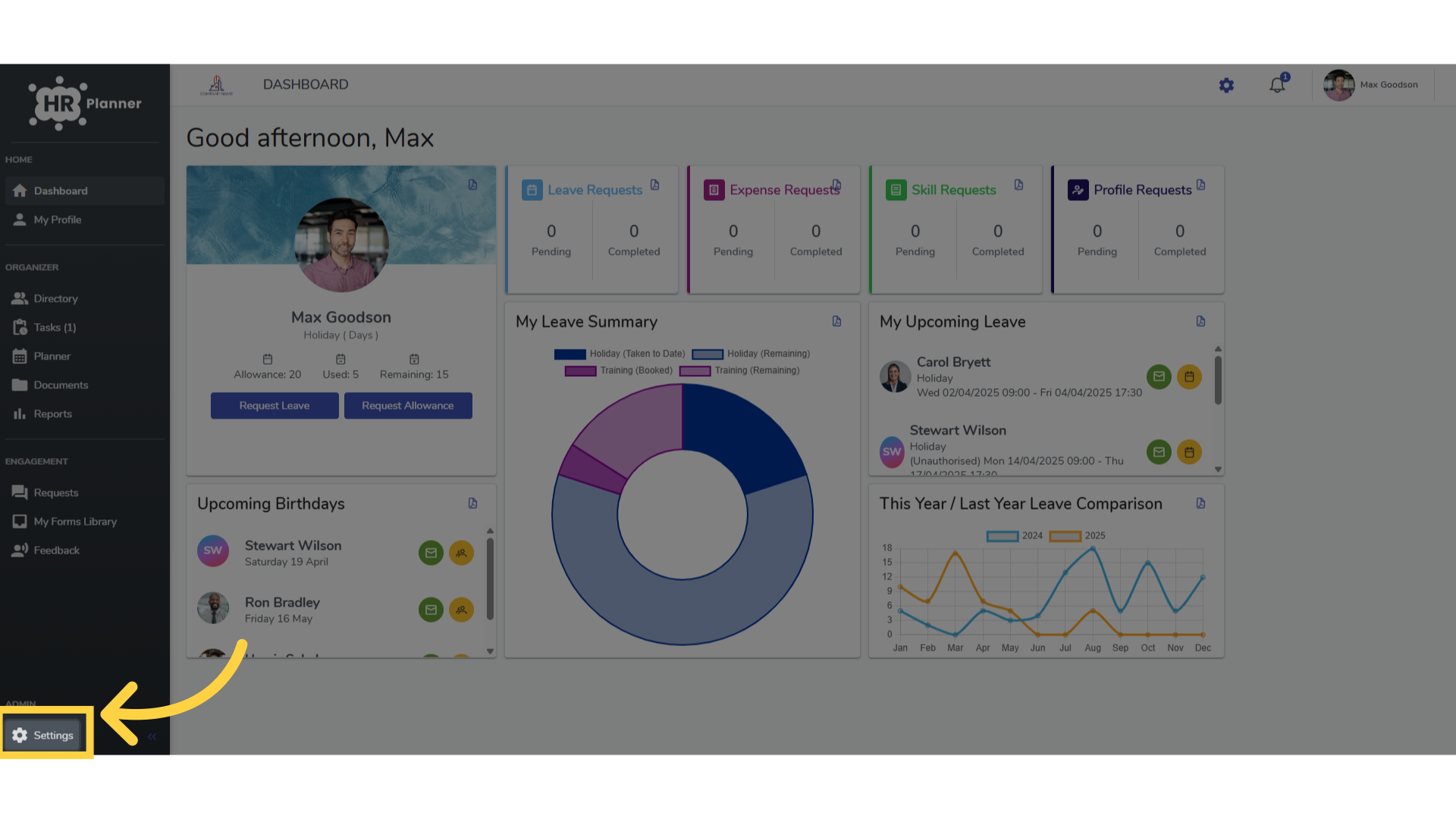
3. Click “Forms Library”
and navigate to the Forms Library.
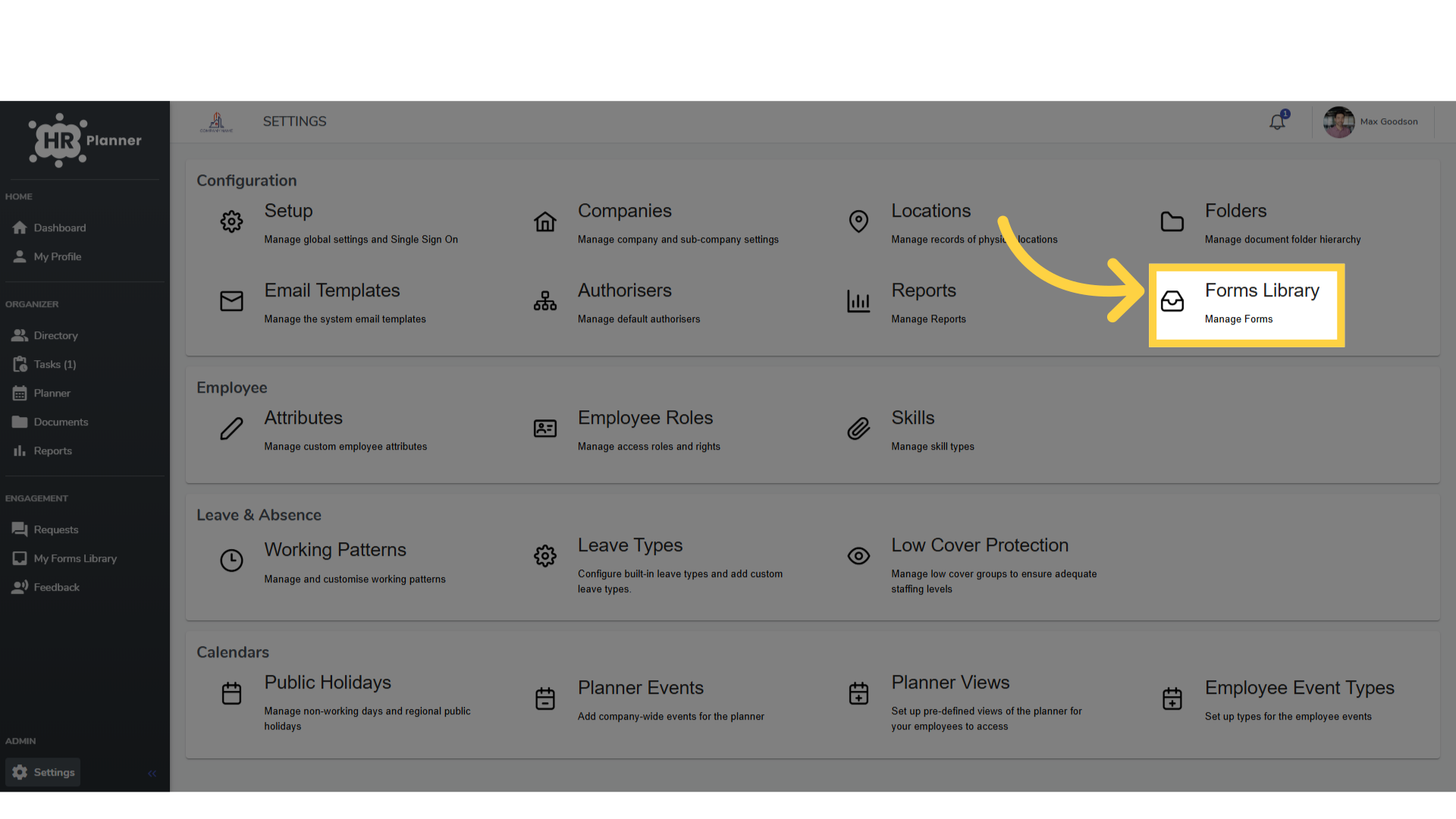
4. Select a Form
Having already created a form select it from the list.
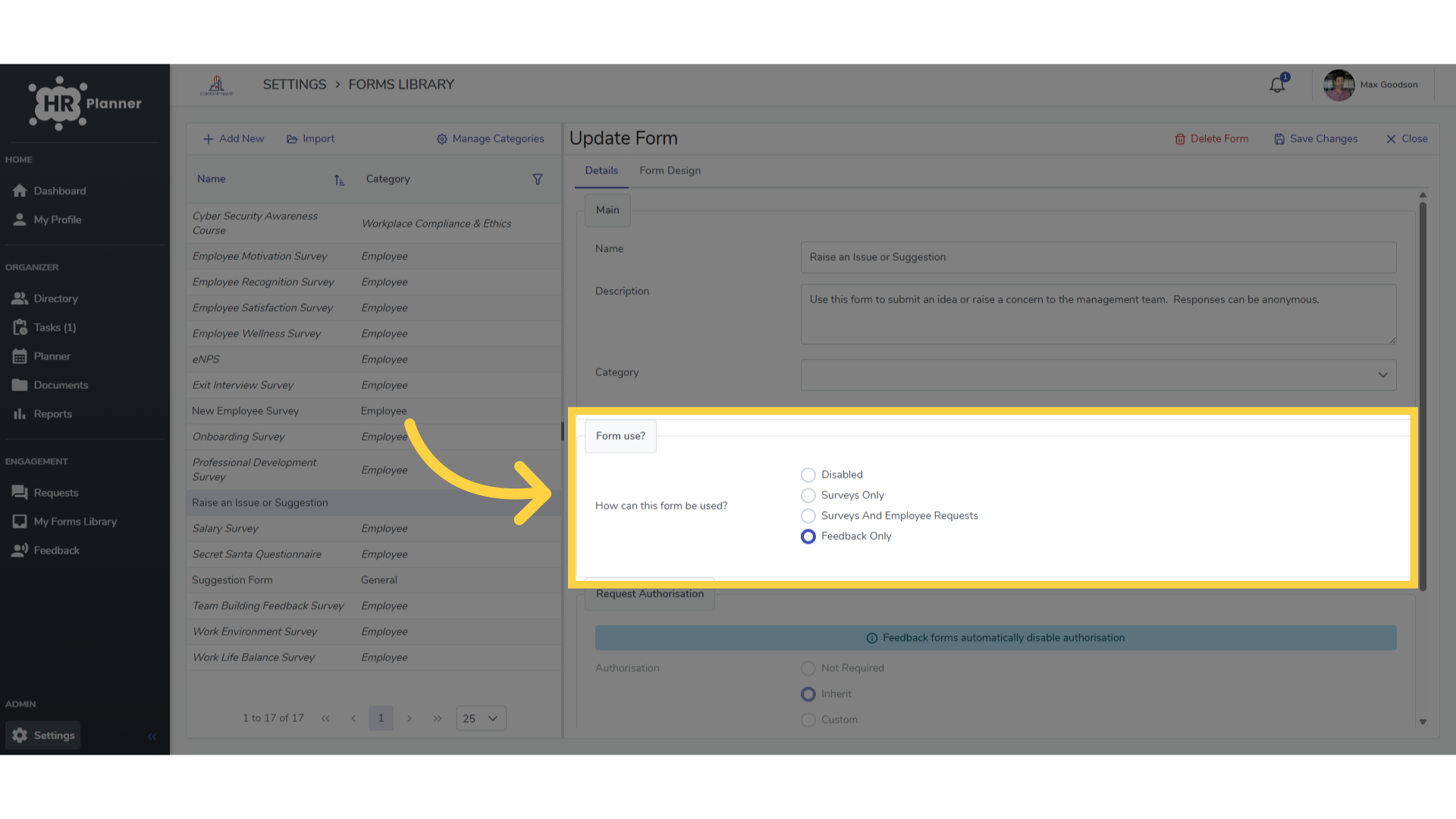
5. Click “Surveys And Employee Requests”
Choose the Feedback only option and Save the Changes.
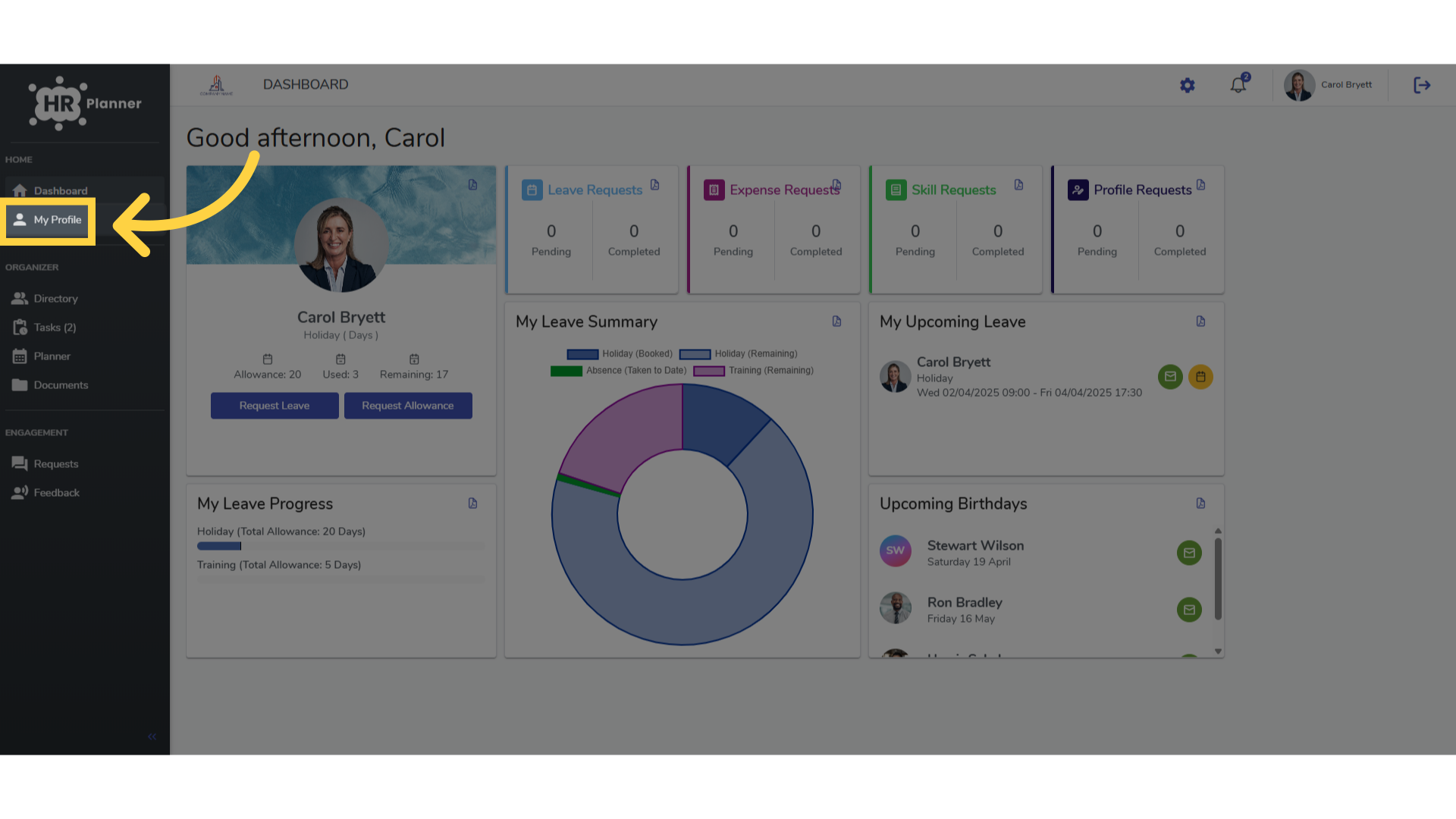
6. Click “My Profile”
Employees can access this form from their My Profile section.
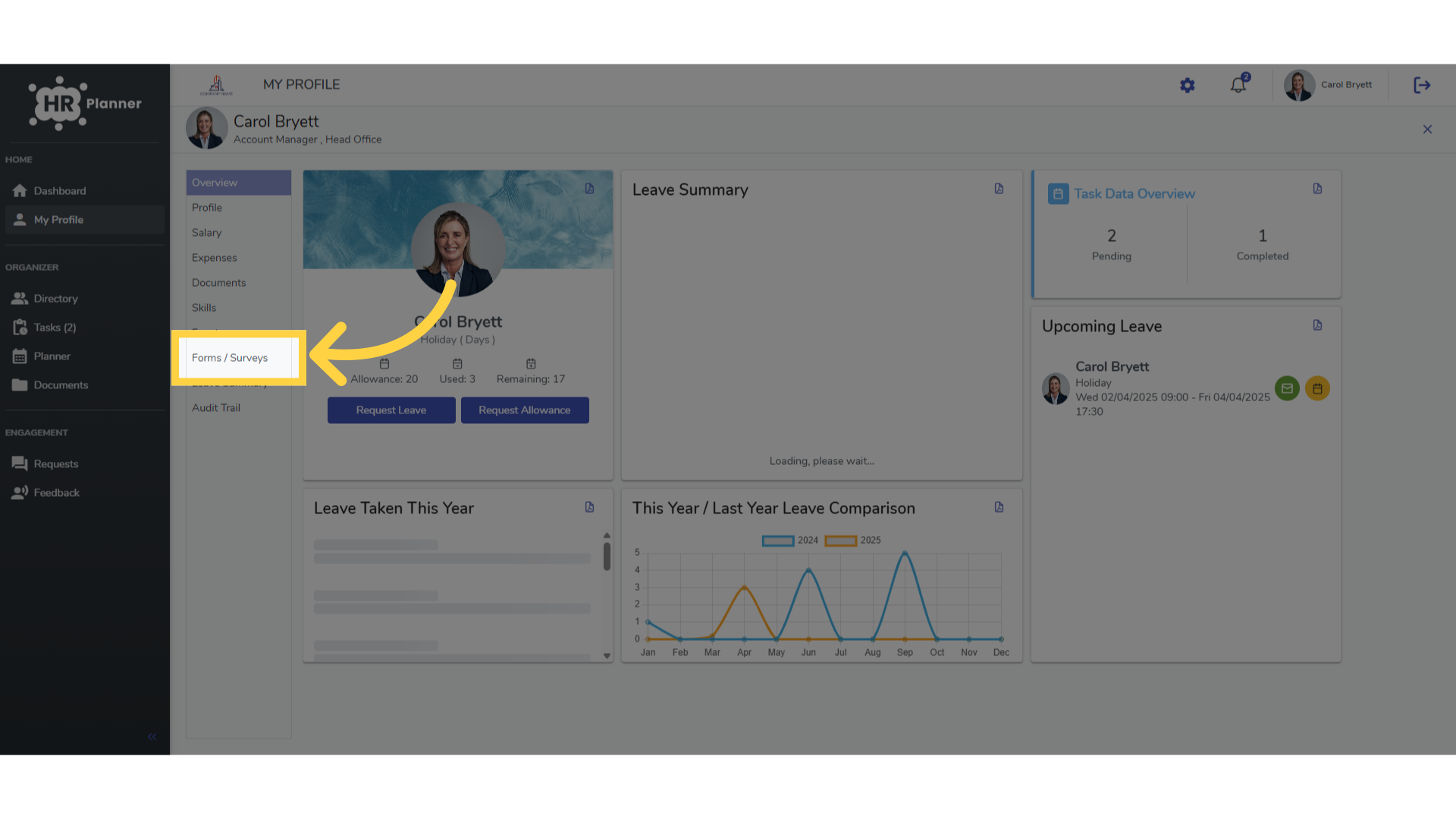
7. Click “Forms / Surveys”
In the Forms and Surveys tab
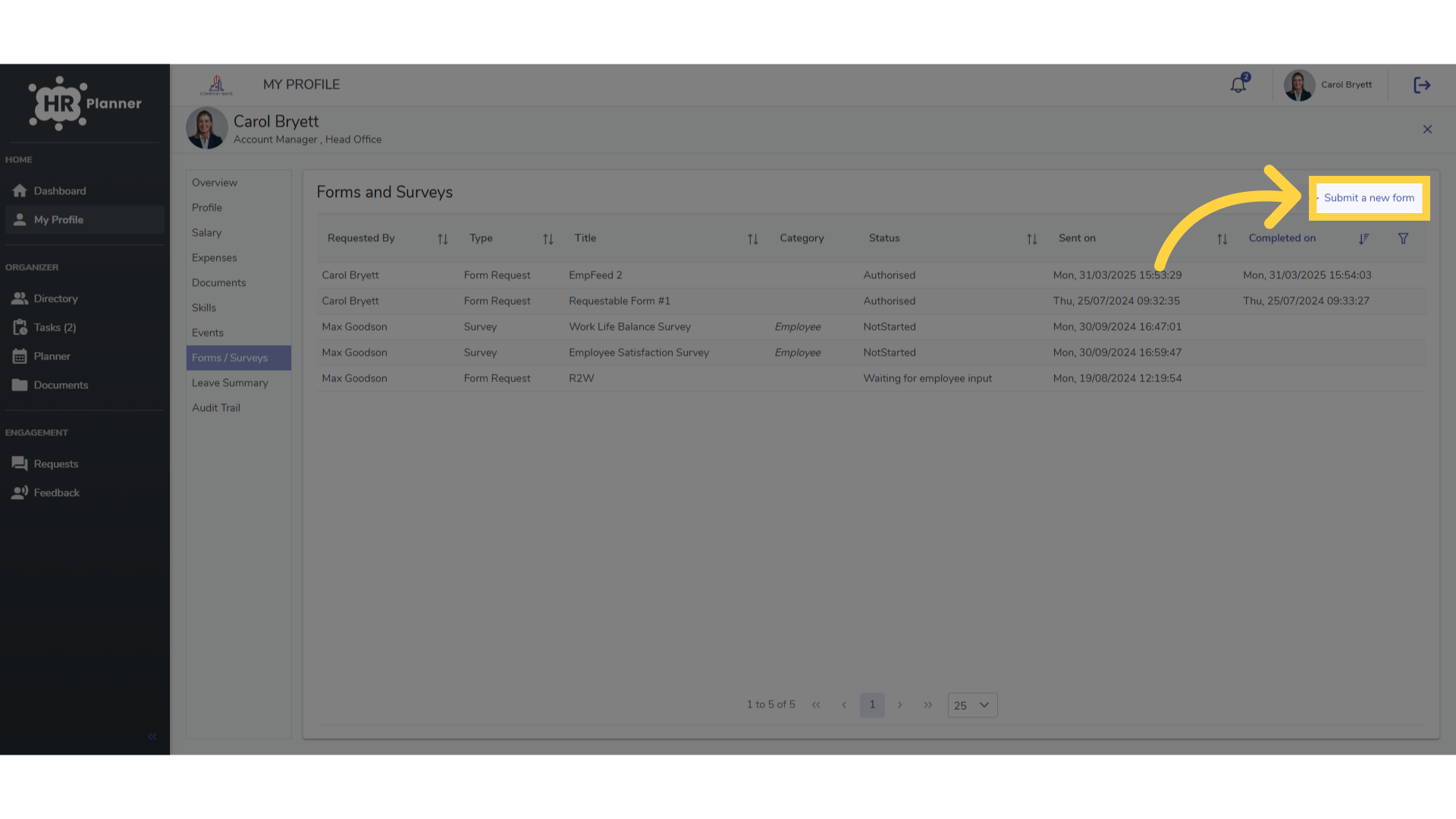
8. Click “Submit a new form”
and by selecting submit a new form
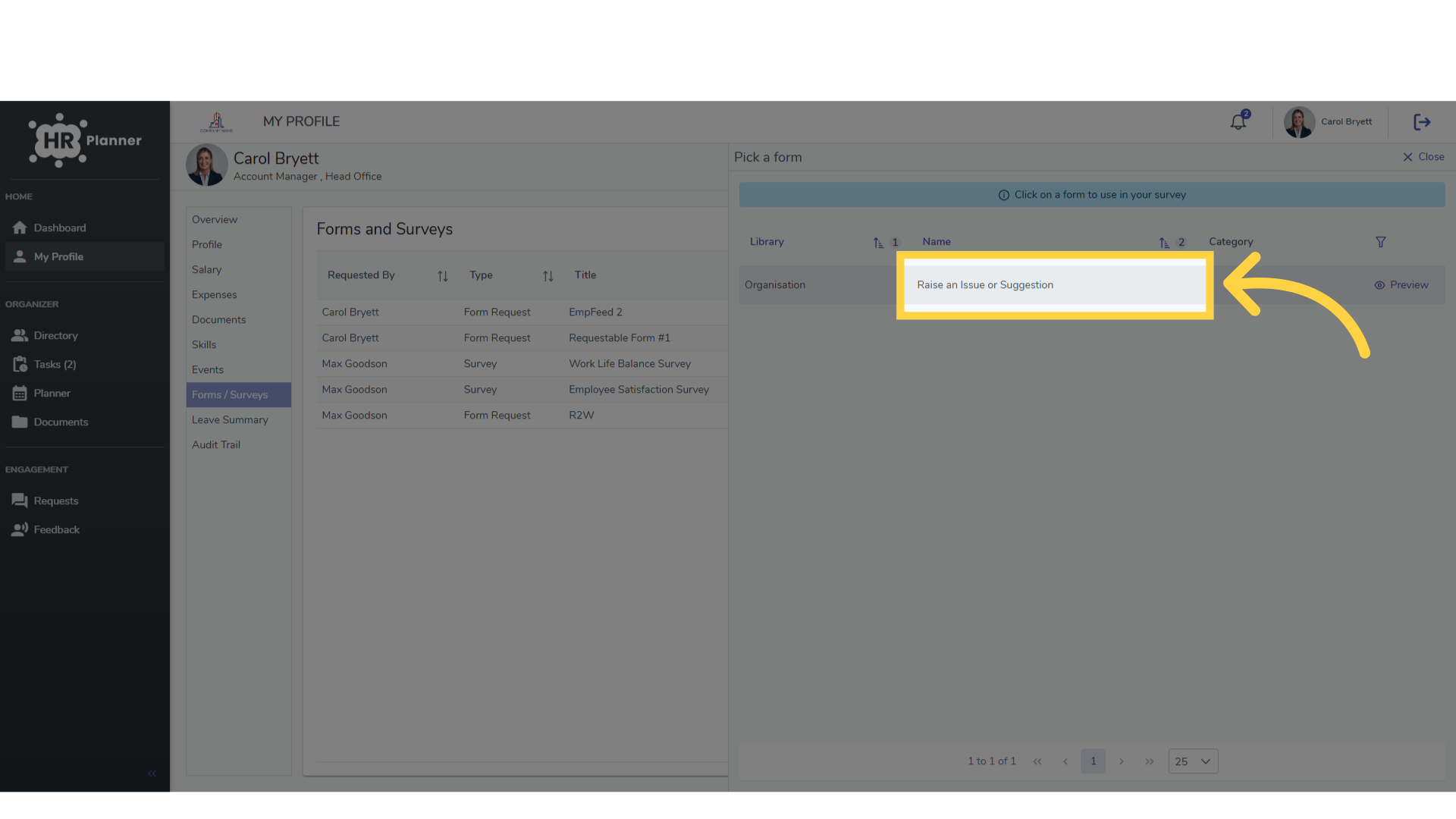
9. Select a form
They can pick the form from those available.
10. Click here
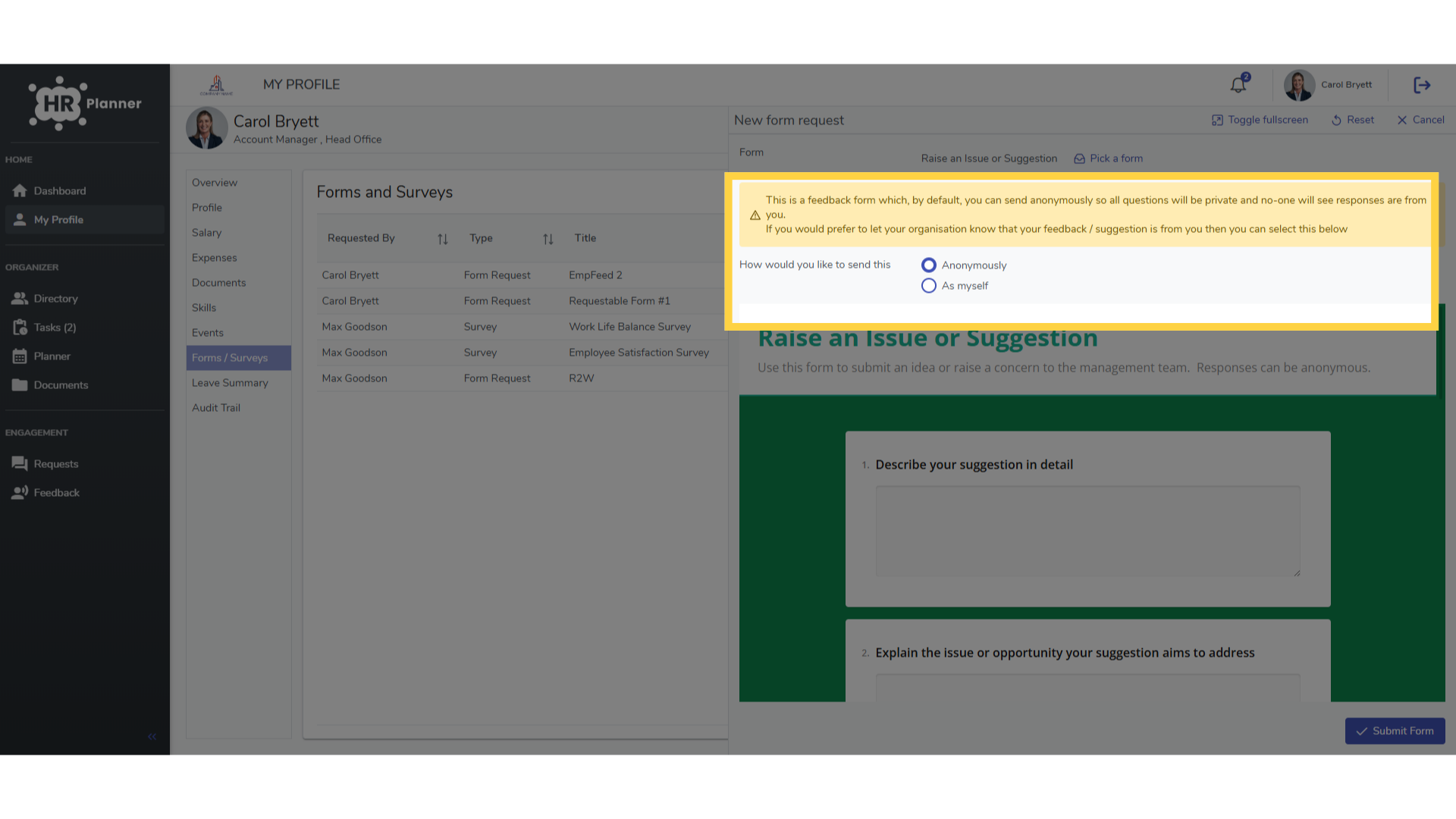
Where they now have the option to complete and submit either as themselves or anonymously.
This guide covered the process of setting up an anonymous Feedback form for employees in hr planner.