
This guide will walk you through creating a multi-step form.
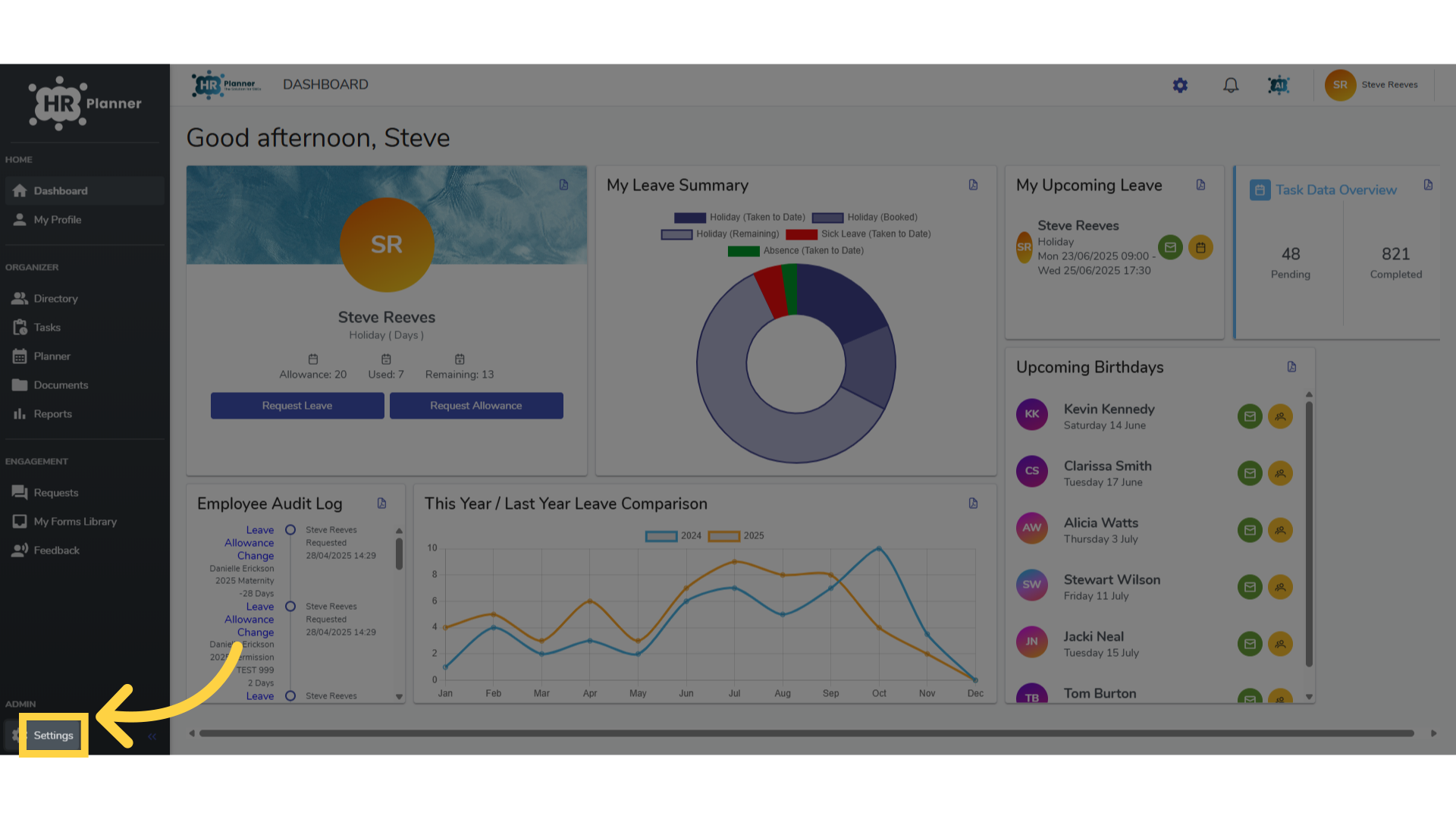
1. Click “Settings”
Multi-Stage forms allow you to define a different person to complete each section (or page) of a form. As one person completes a page the form automatically forwards to the next employee and so on.
Firstly, access the settings area.
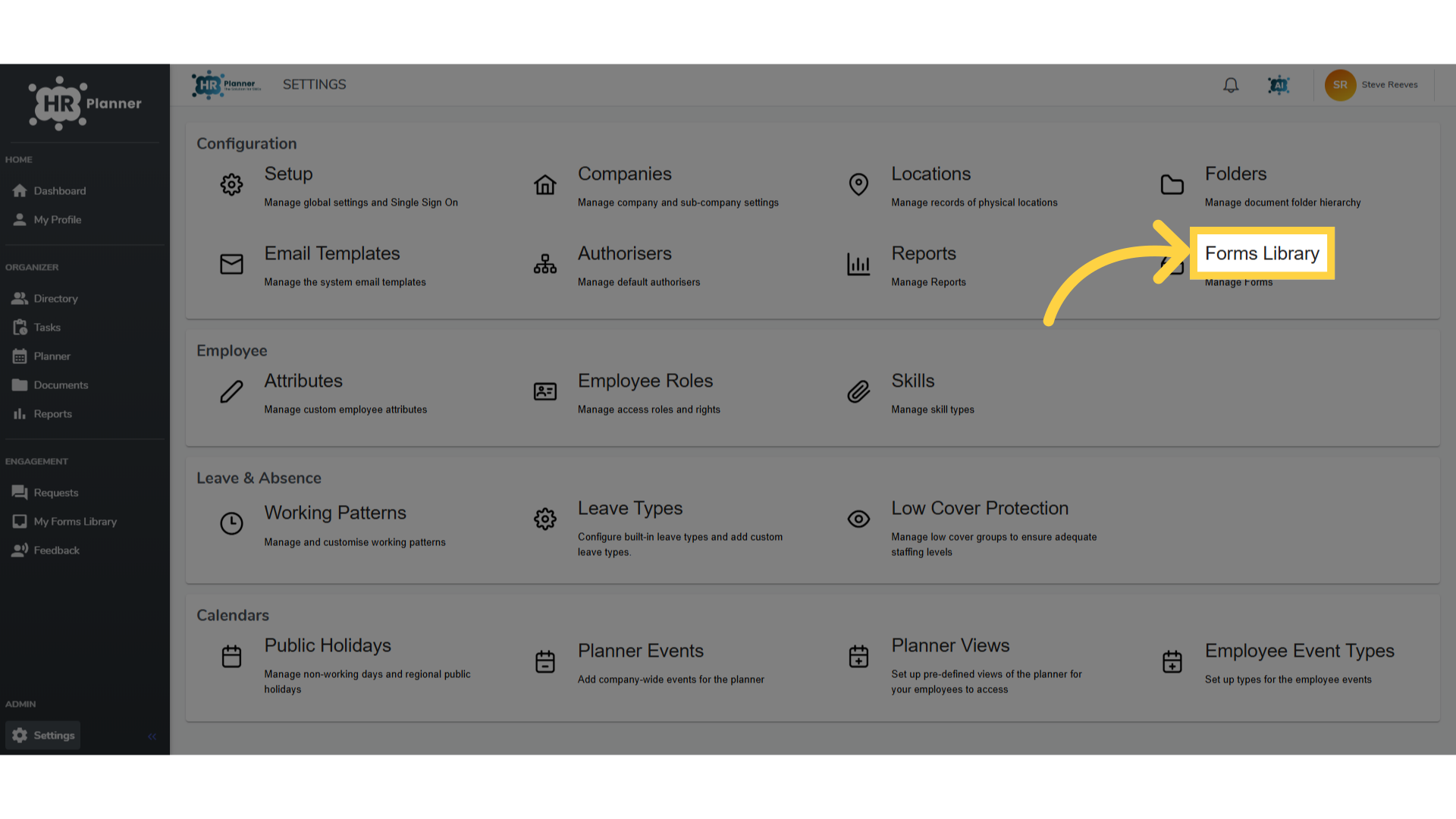
2. Click “Forms Library”
Navigate to the Forms Library.
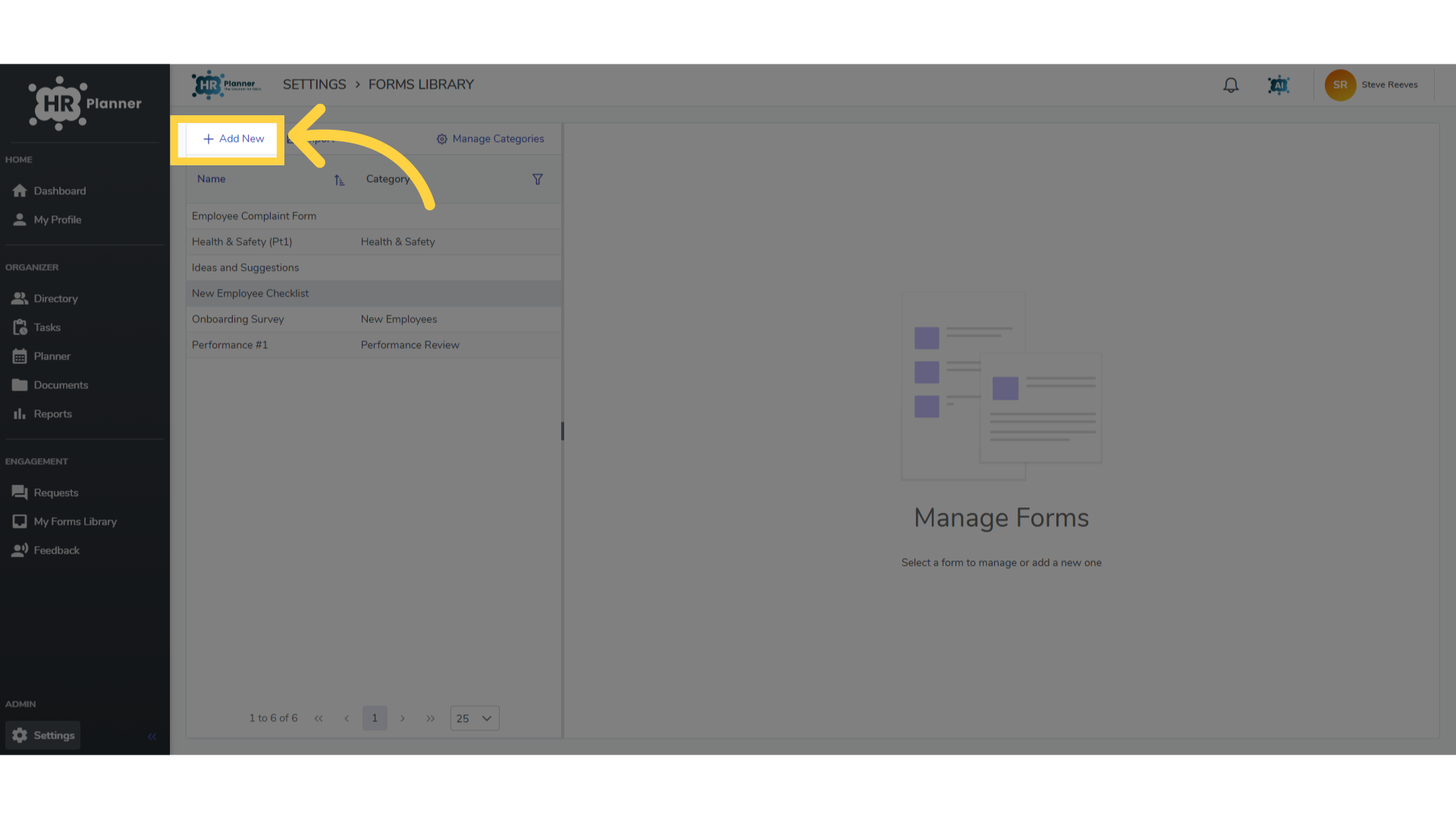
3. Click “New Employee Checklist”
Click Add New
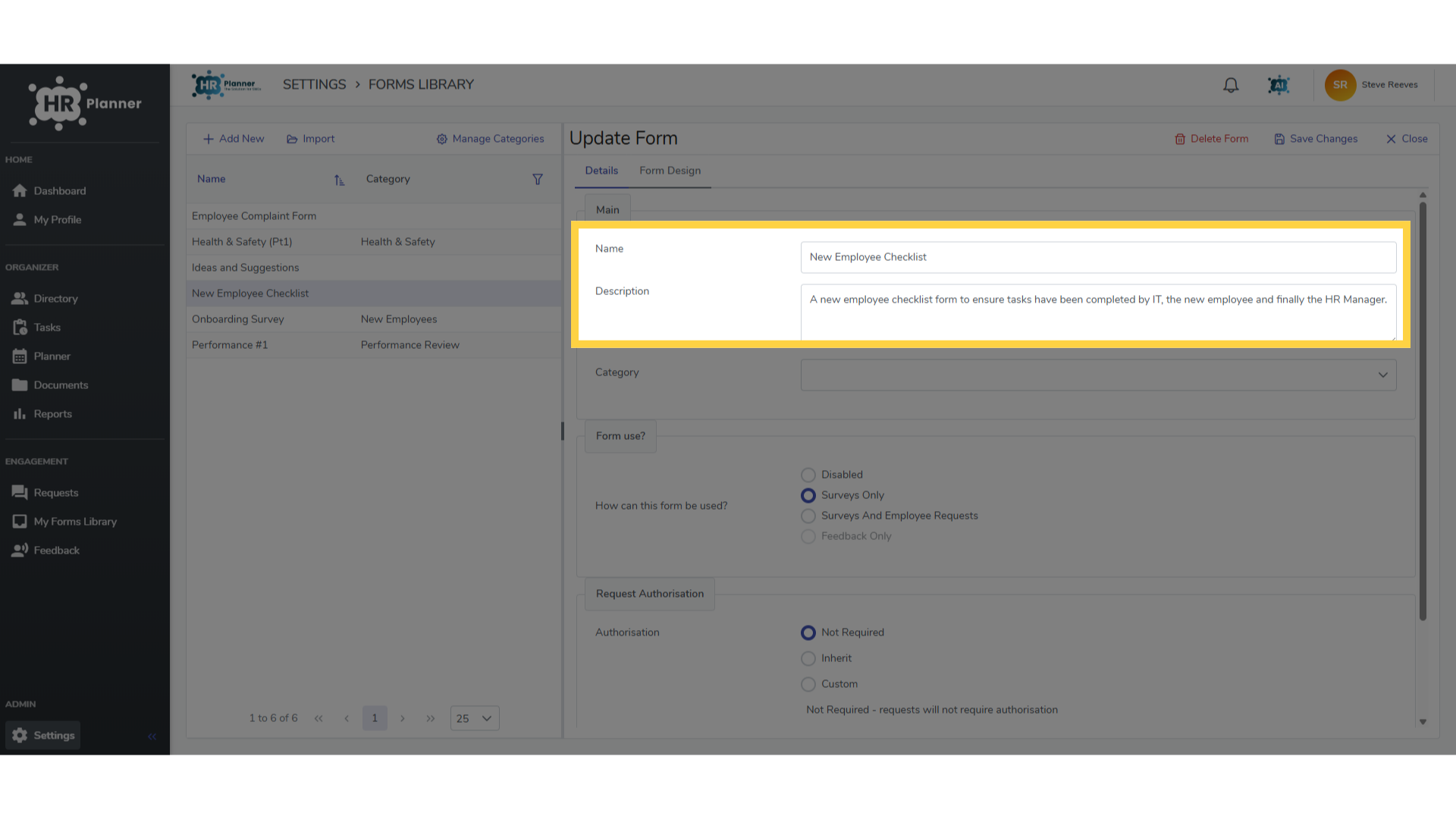
4. Click “Form Design”
Add the title of the form and a brief description.
5. Add your questions
Once you have added your questions you can define who should complete each page.
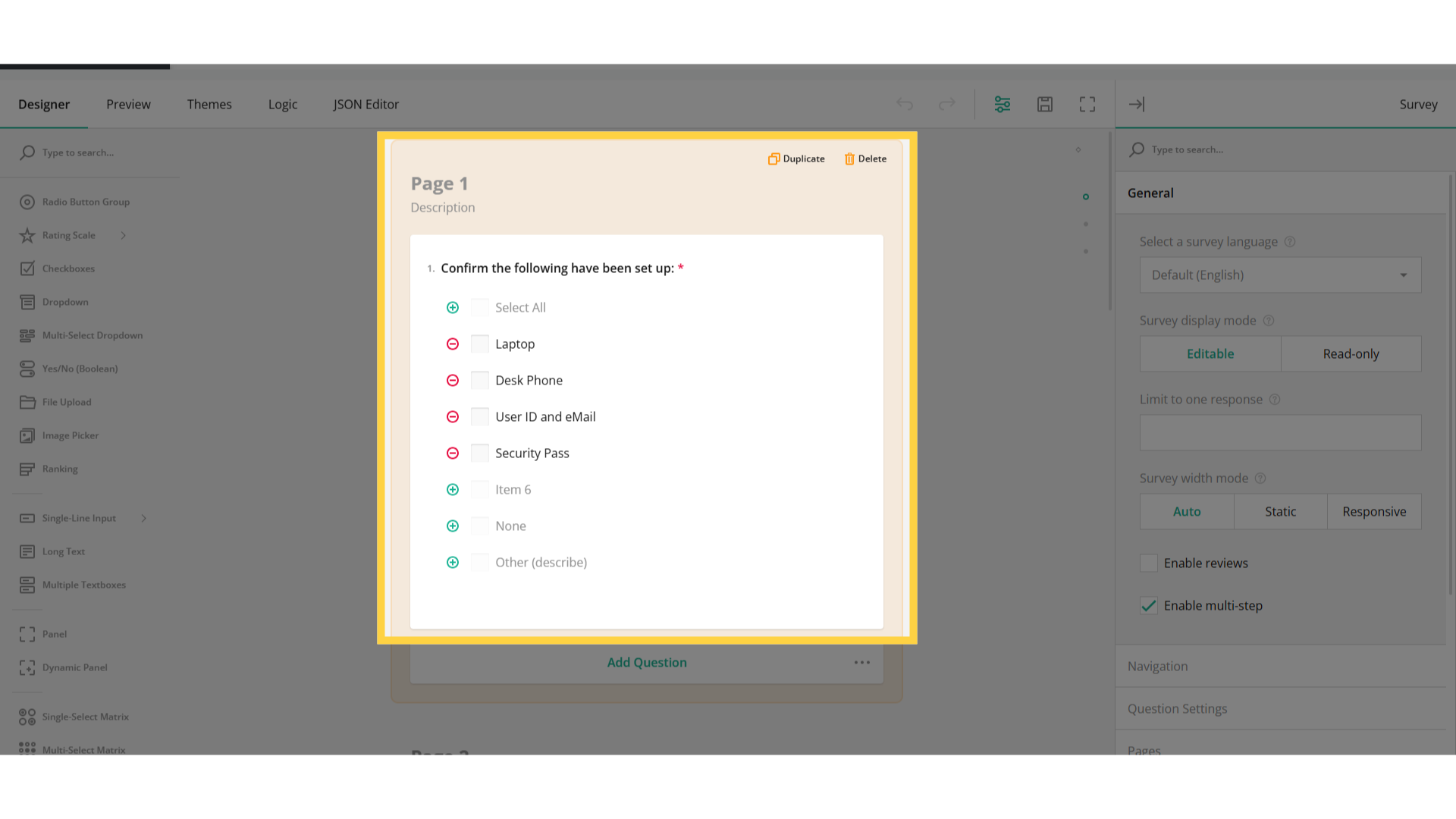
6. Select the page
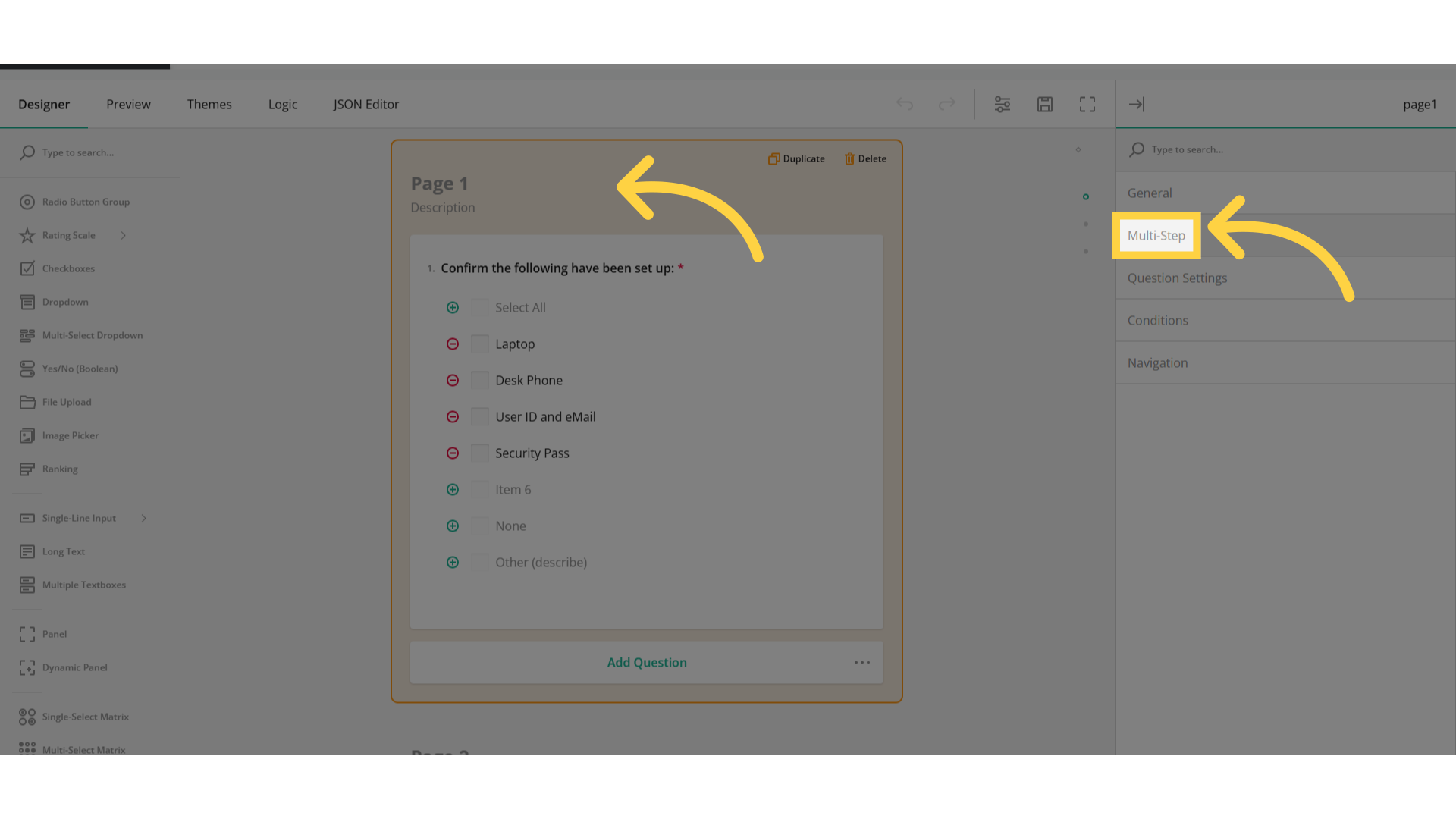
Firstly click in the Page area of Page 1 and select the Multi-Step option from the menu.
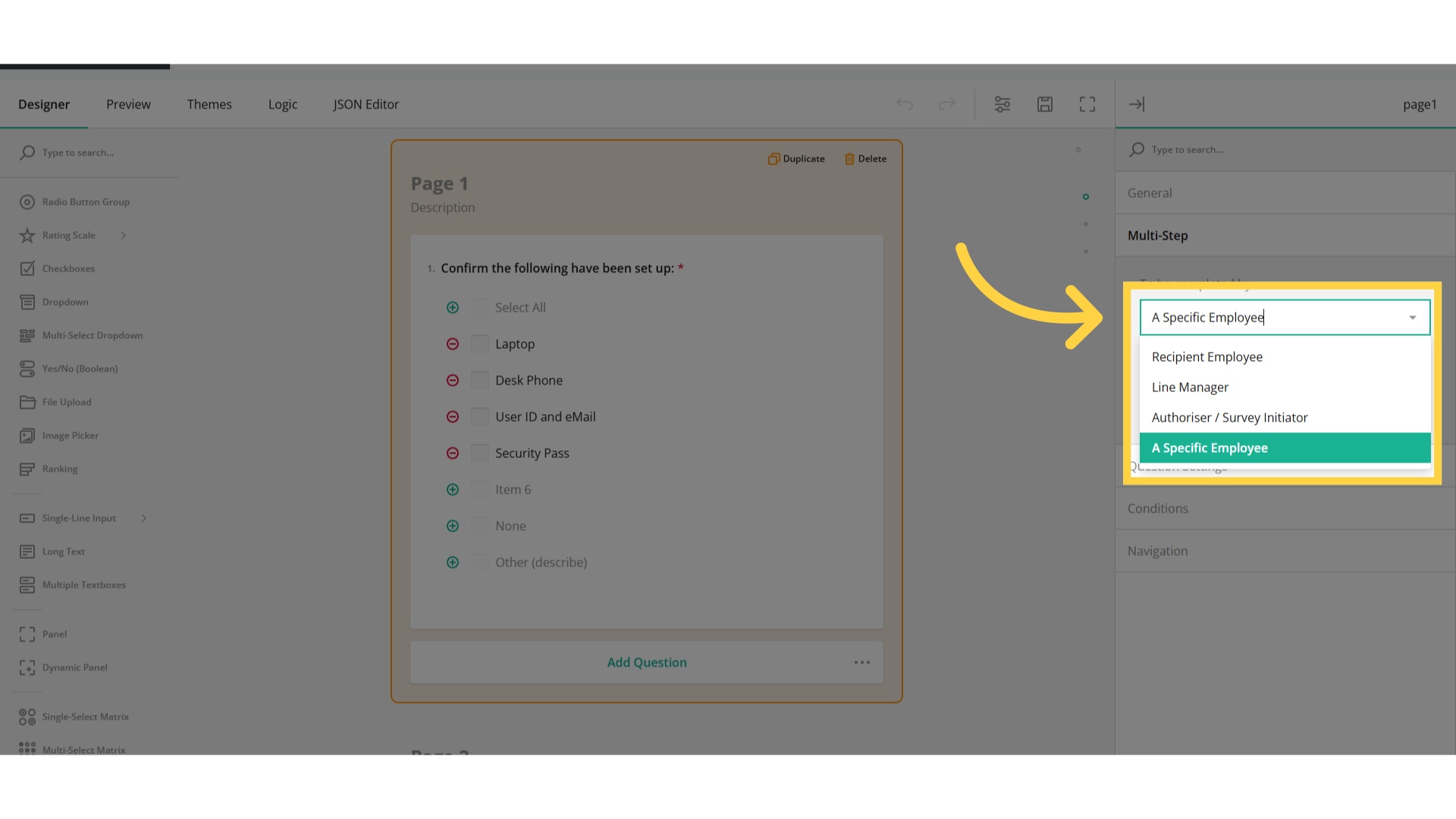
7. Click “To be completed by”
You can assign the page to be completed by the recipient, their Line Manager, their Authoriser or a specific employee.
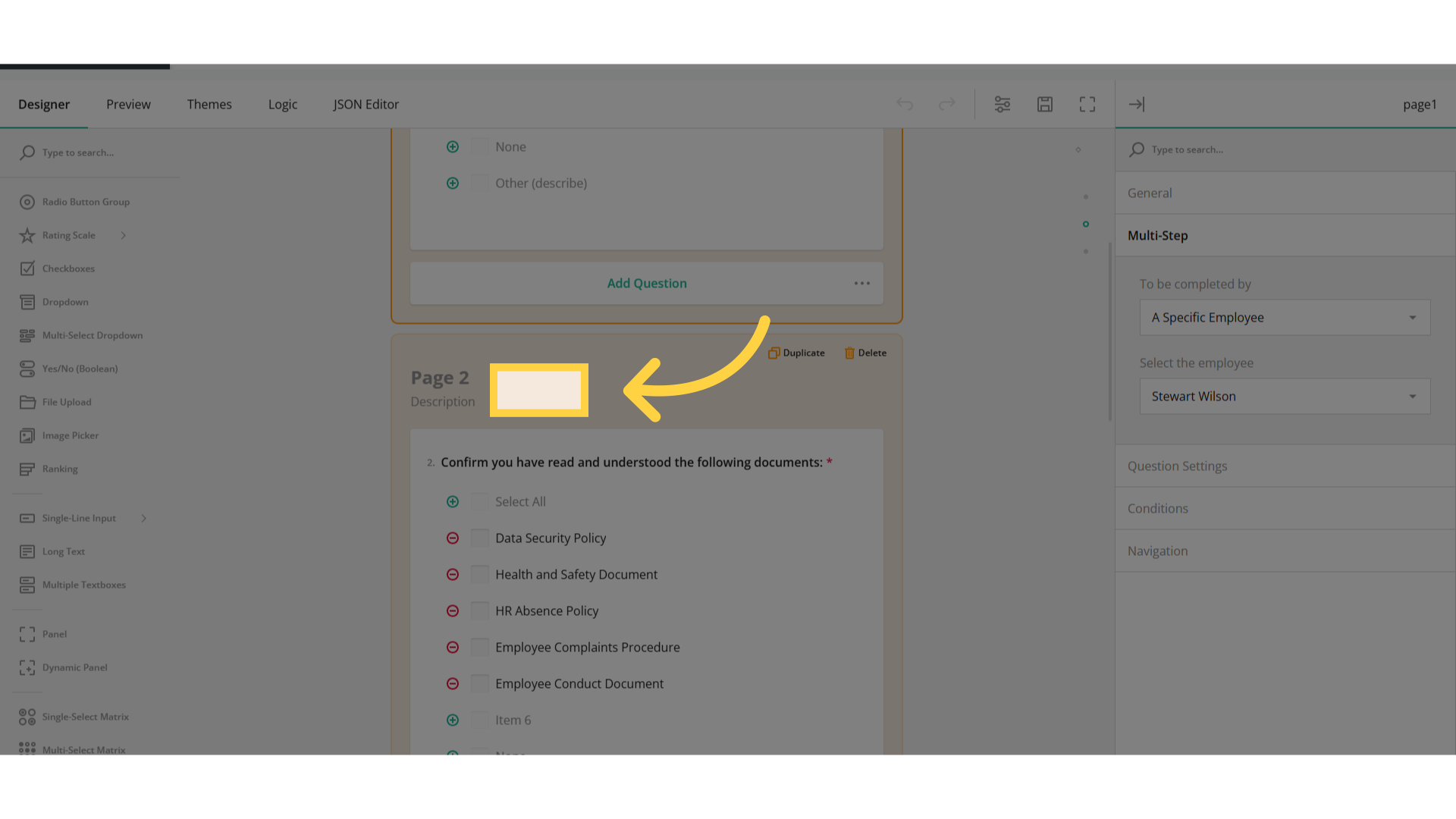
8. Repeat the steps for each page
Repeat the steps for each page of your form.
9. Click the employee
Once submitted and completed you can view the form on the employees record.
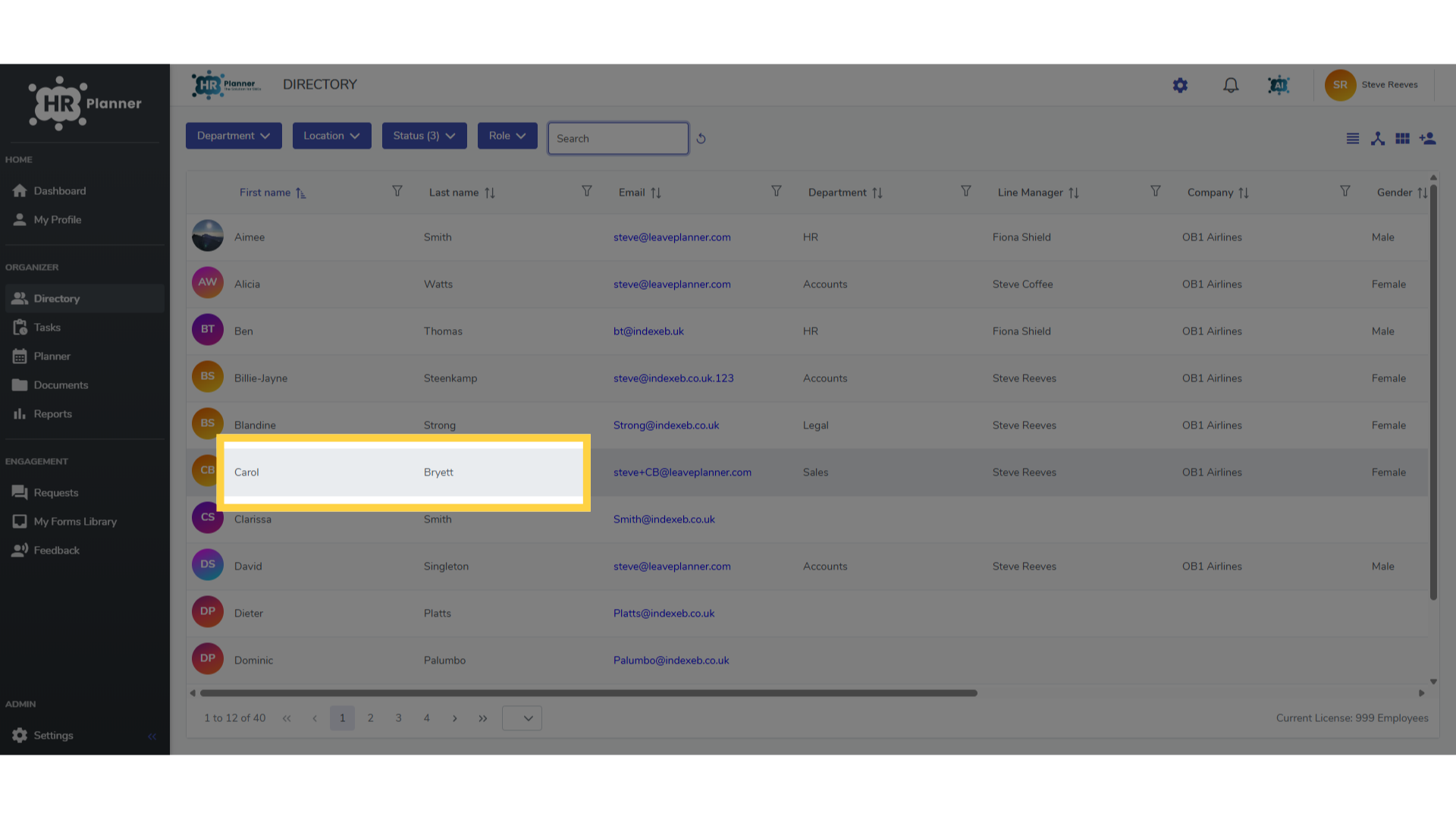
10. Click “Forms / Surveys”
Navigate to their Forms and Surveys tab.
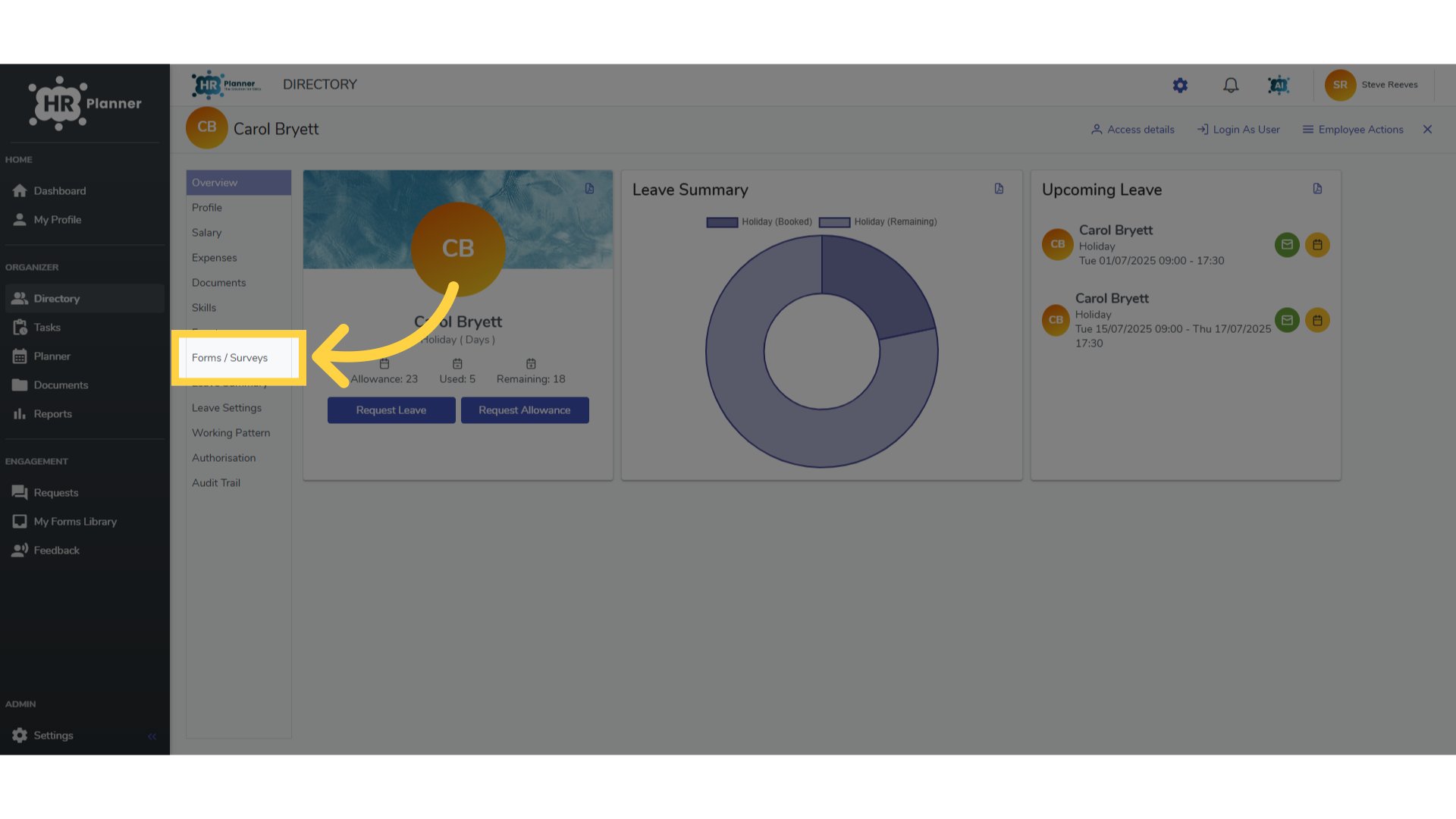
11. Click “New Employee Checklist”
Select the completed form
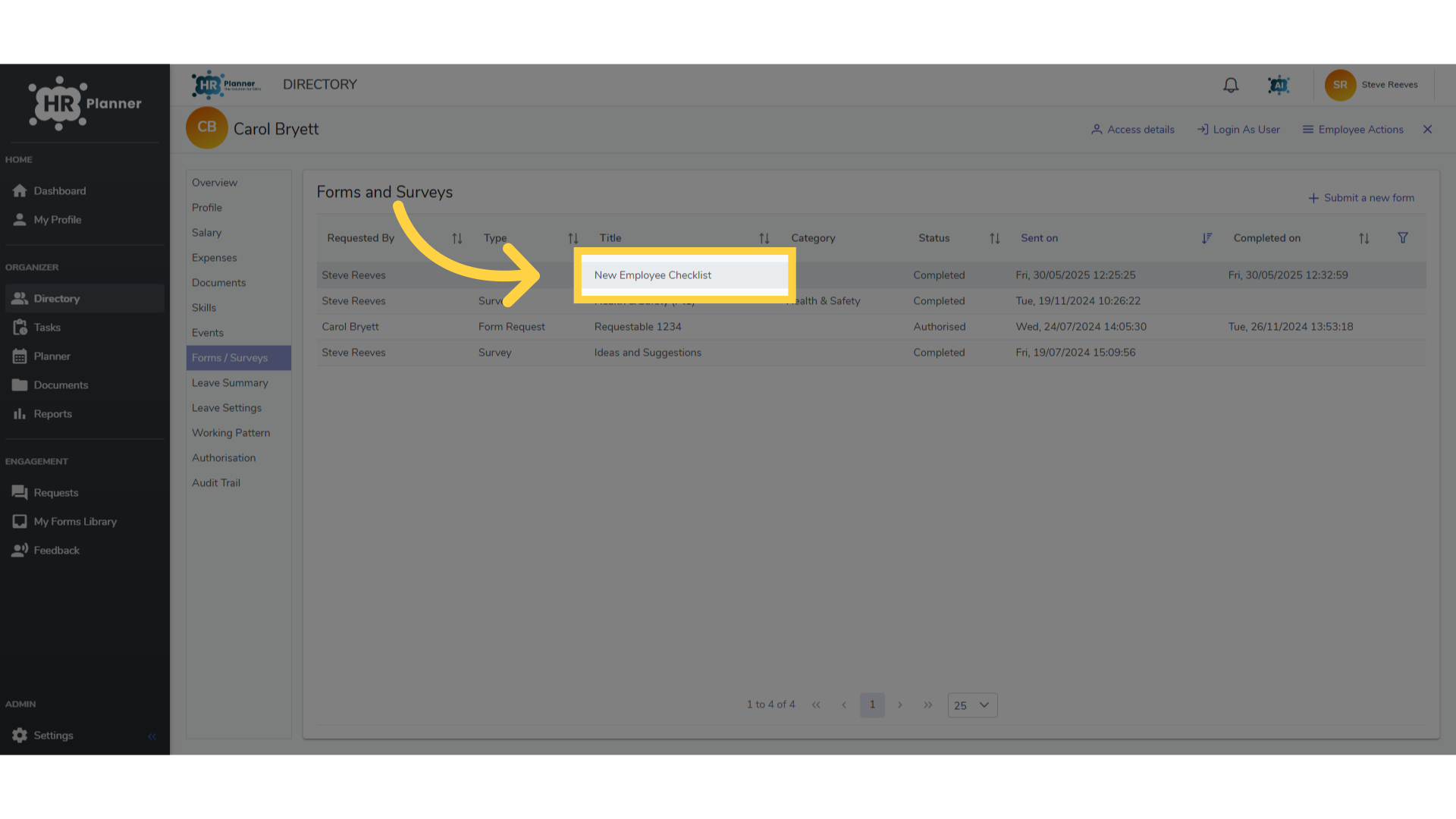
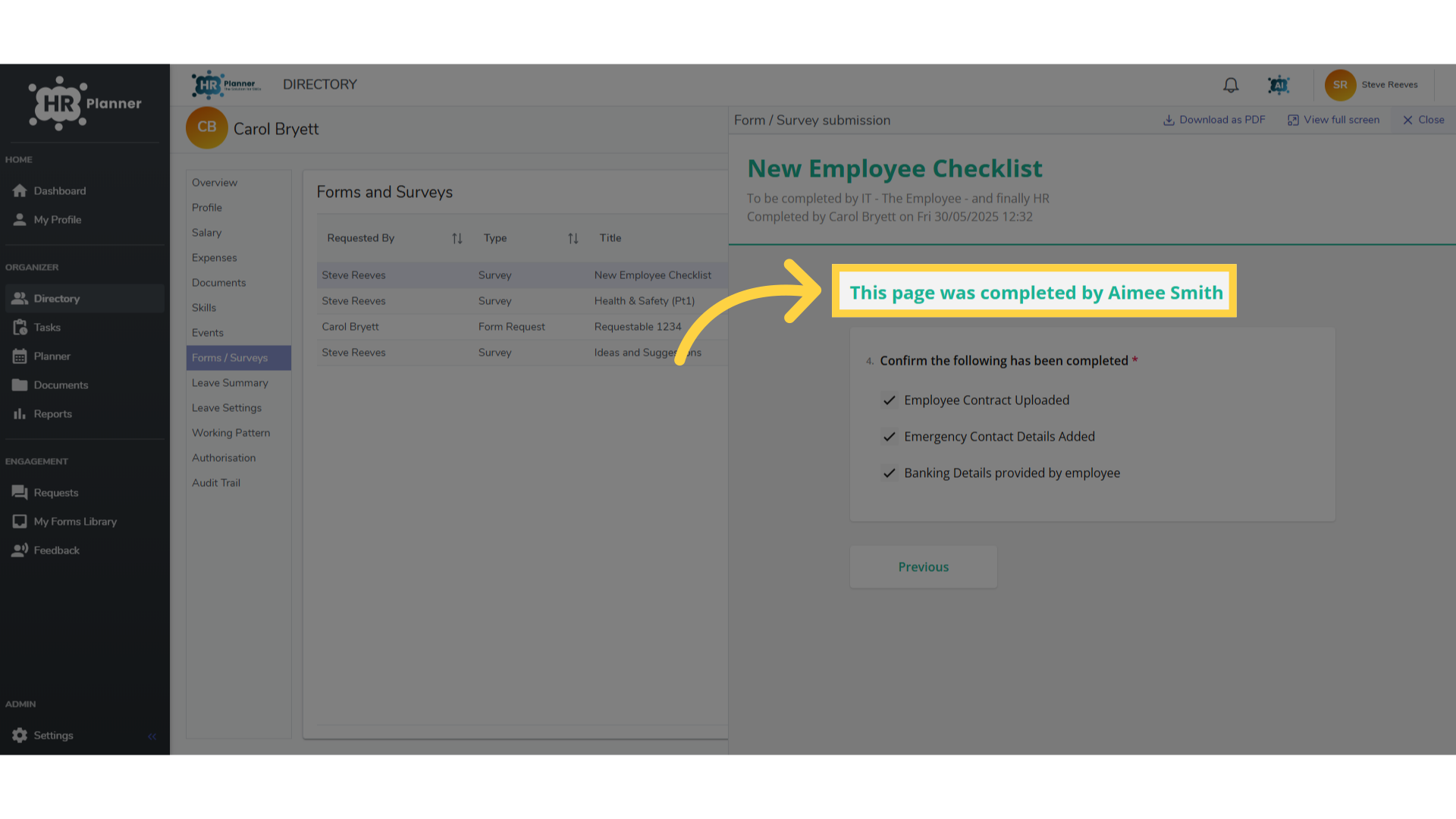
12. View the completed form
And the person who completed each page is clearly shown.
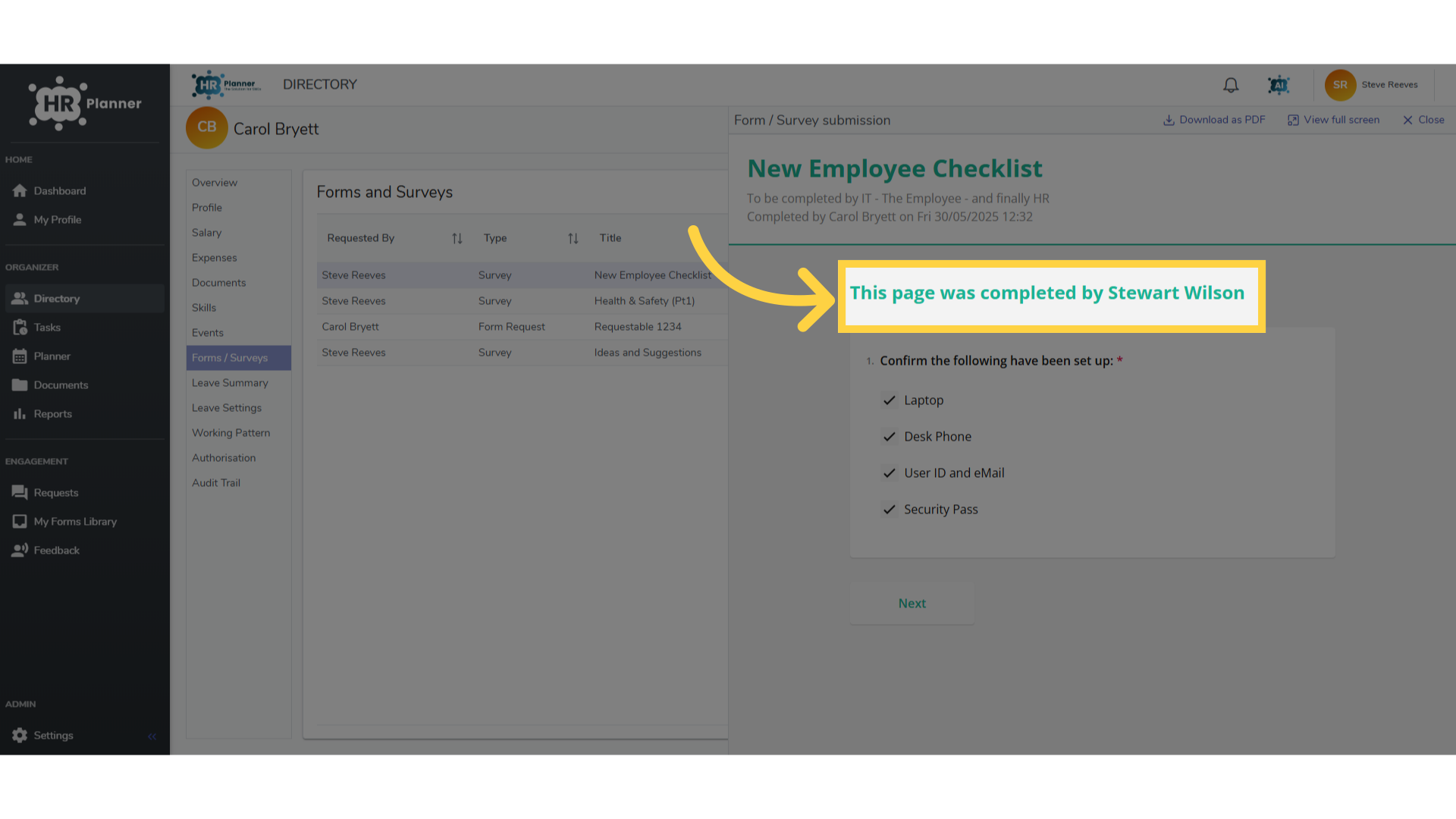
13. View the completed form
Close the window.
The guide covered the detailed process of creating a multi-stage form including accessing settings, designing forms, selecting specific employees, and managing submissions effectively.