
This guide will walk you through creating a Low Cover Group in hr planner to manage employee leave scheduling efficiently.
1. Introduction
Low Cover Groups allow you to set limits on how many of your employees can be absent at the same time.
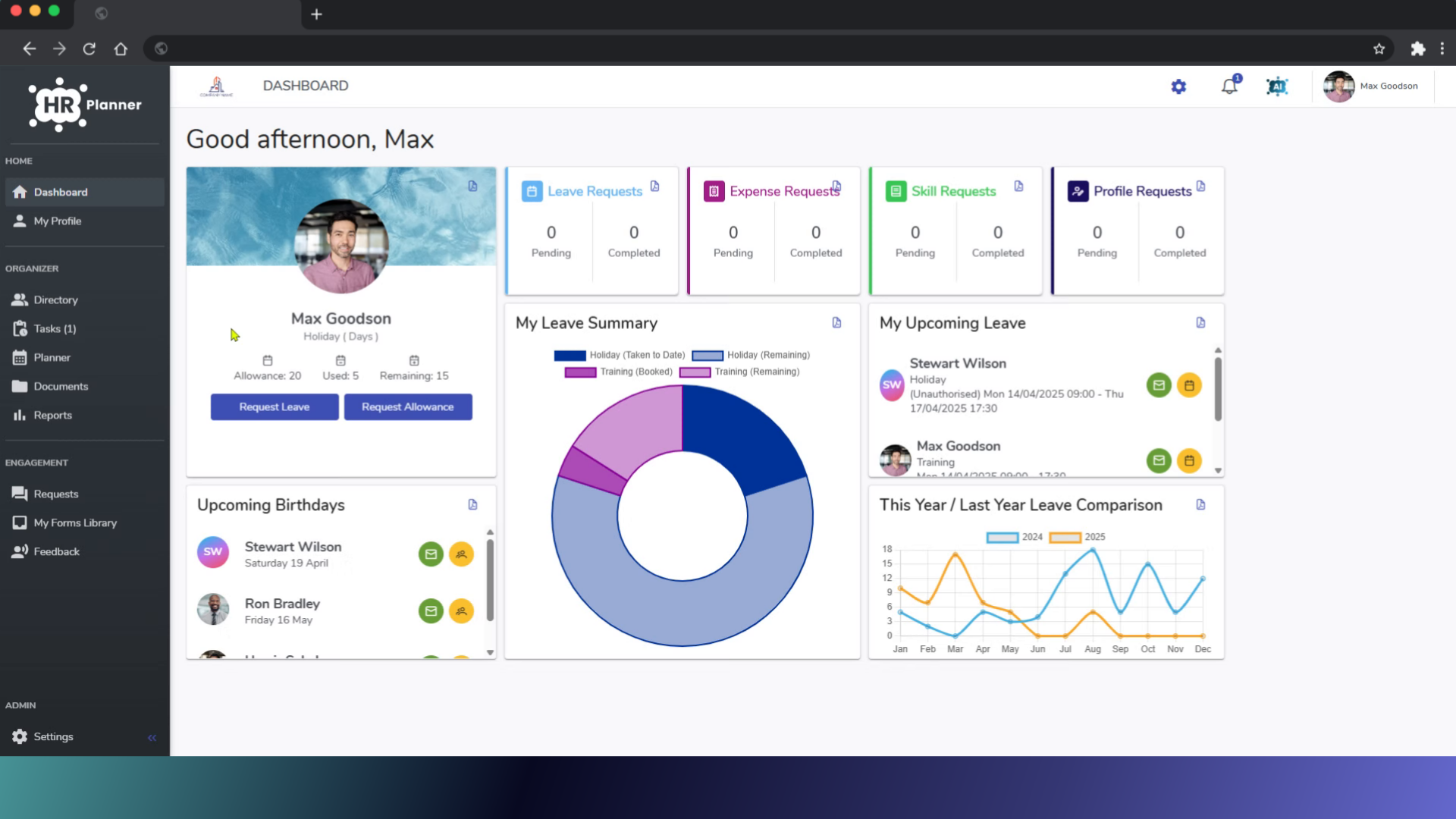
2. Click “Settings”
Click on the Settings menu
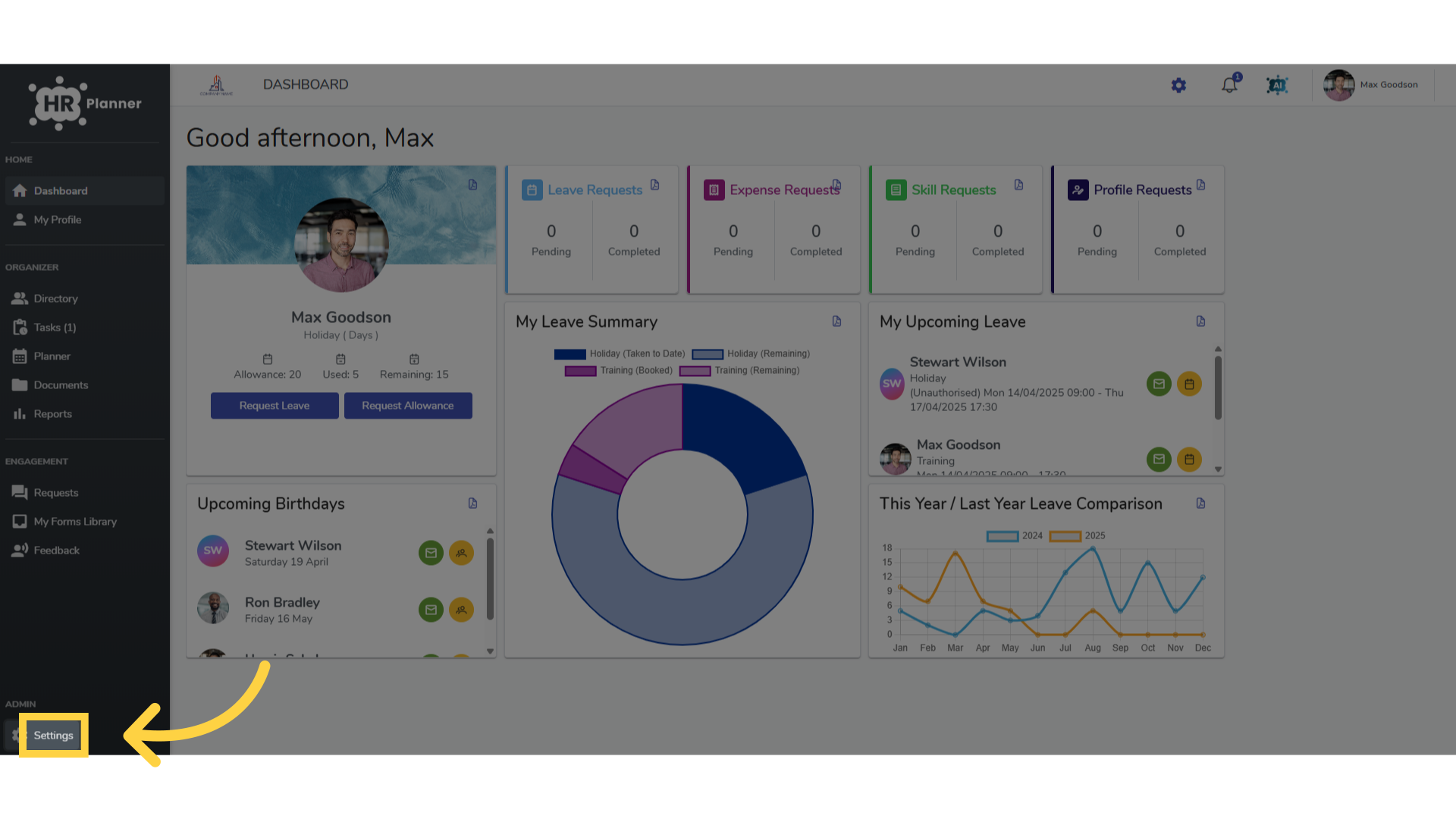
3. Click “Low Cover Protection”
and navigate to the Low Cover Protection section.
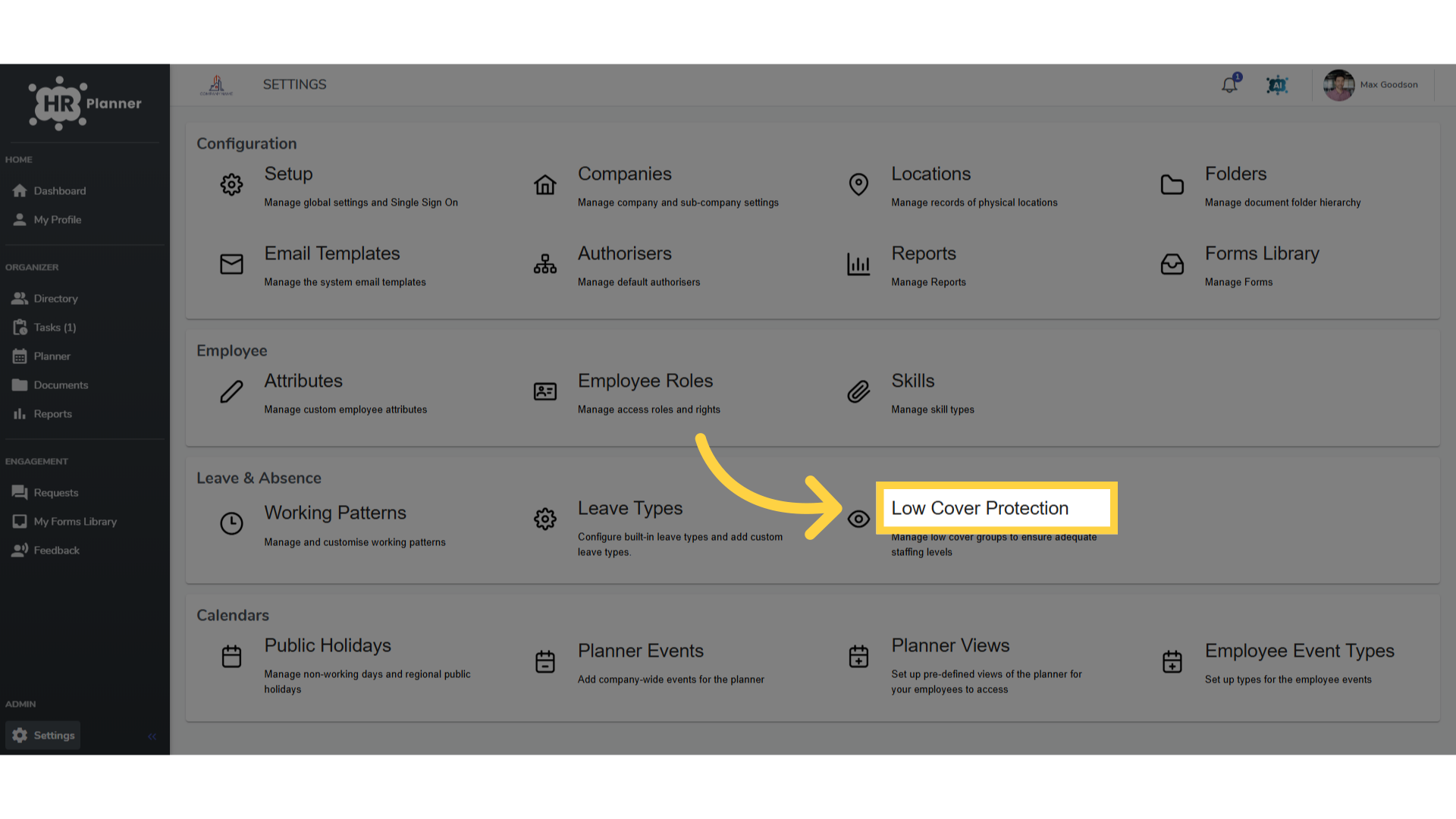
4. Click “Add New”
Start by clicking Add New
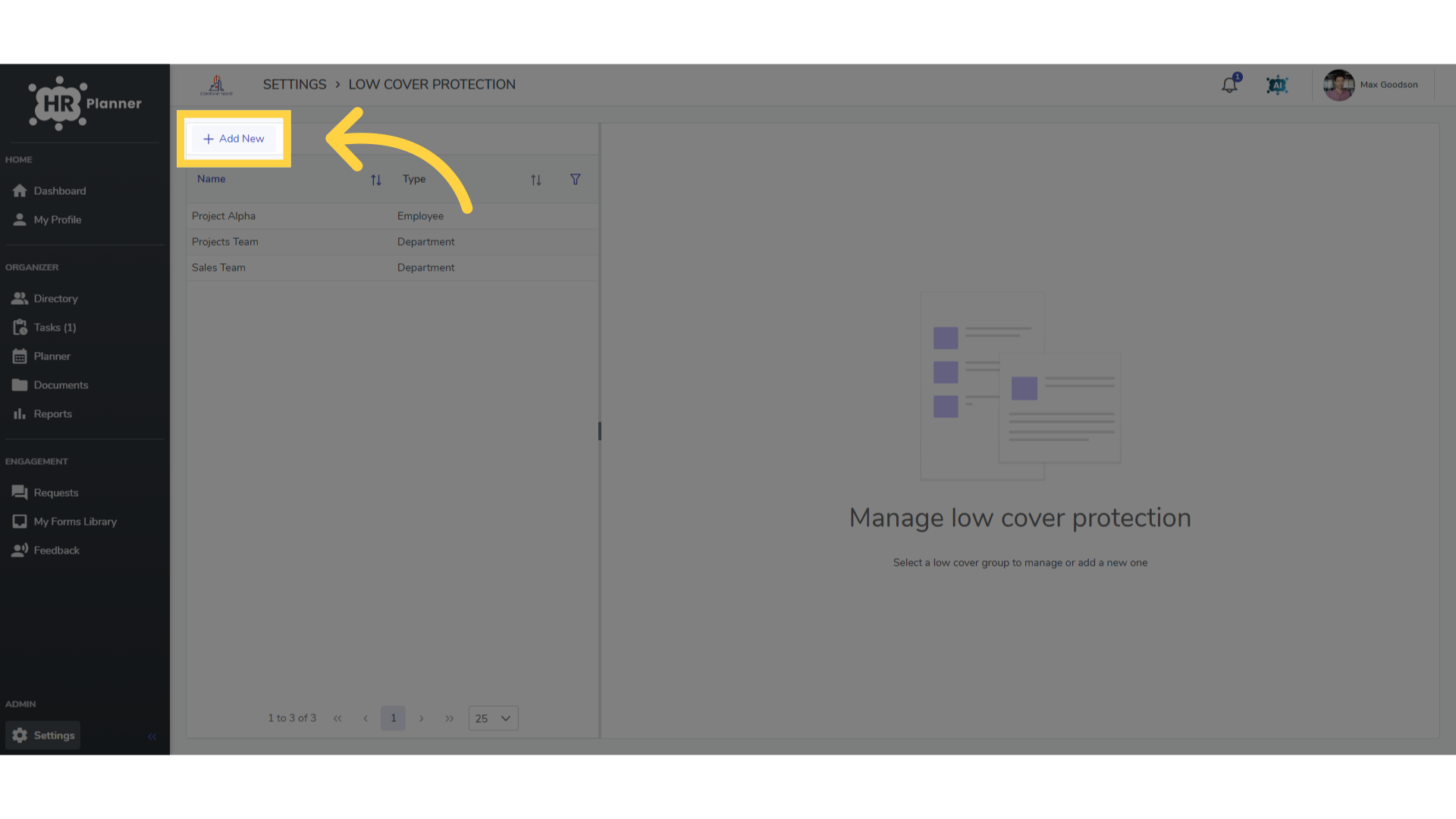
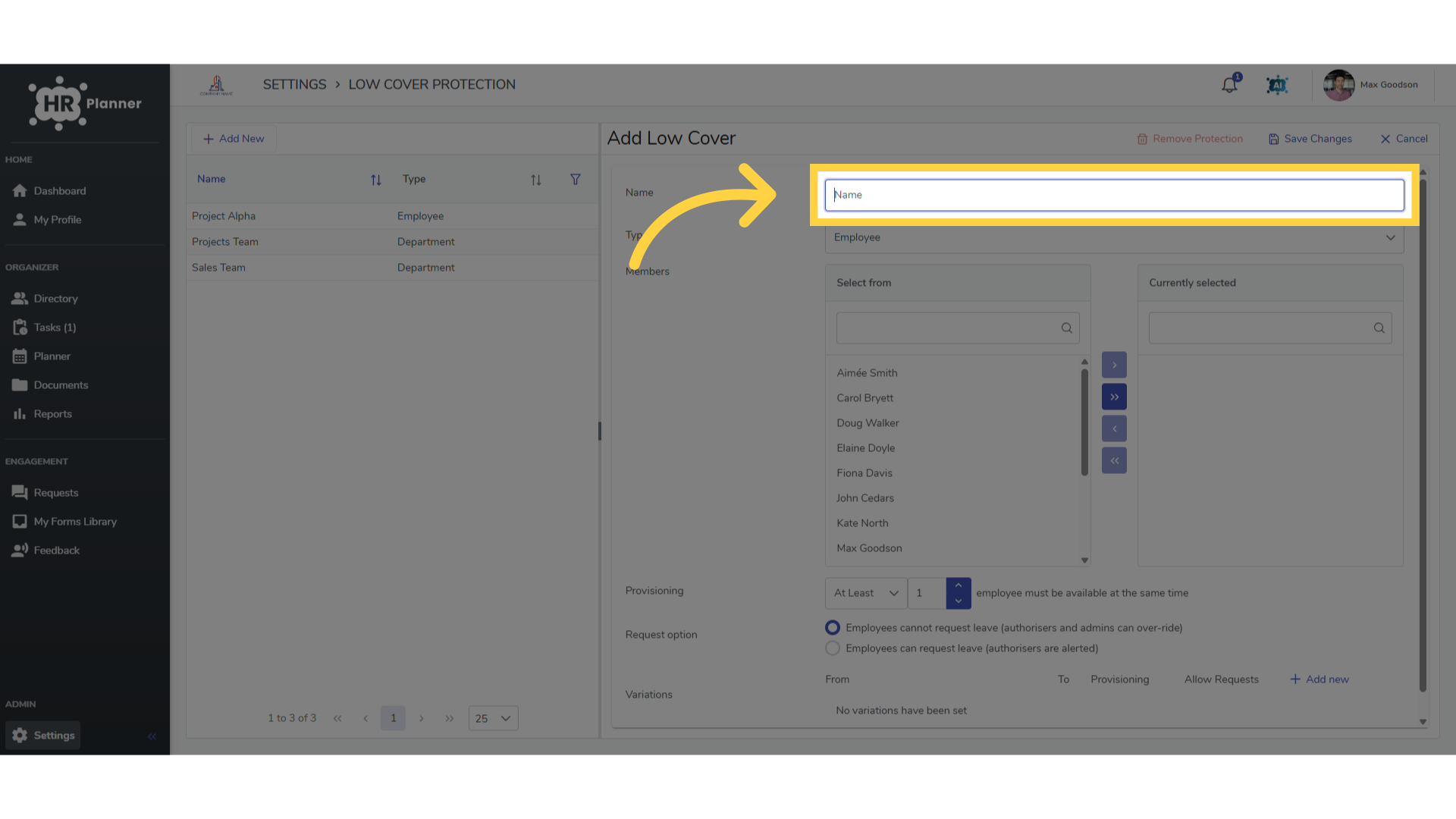
5. Click “Name”
Enter the name for the group.
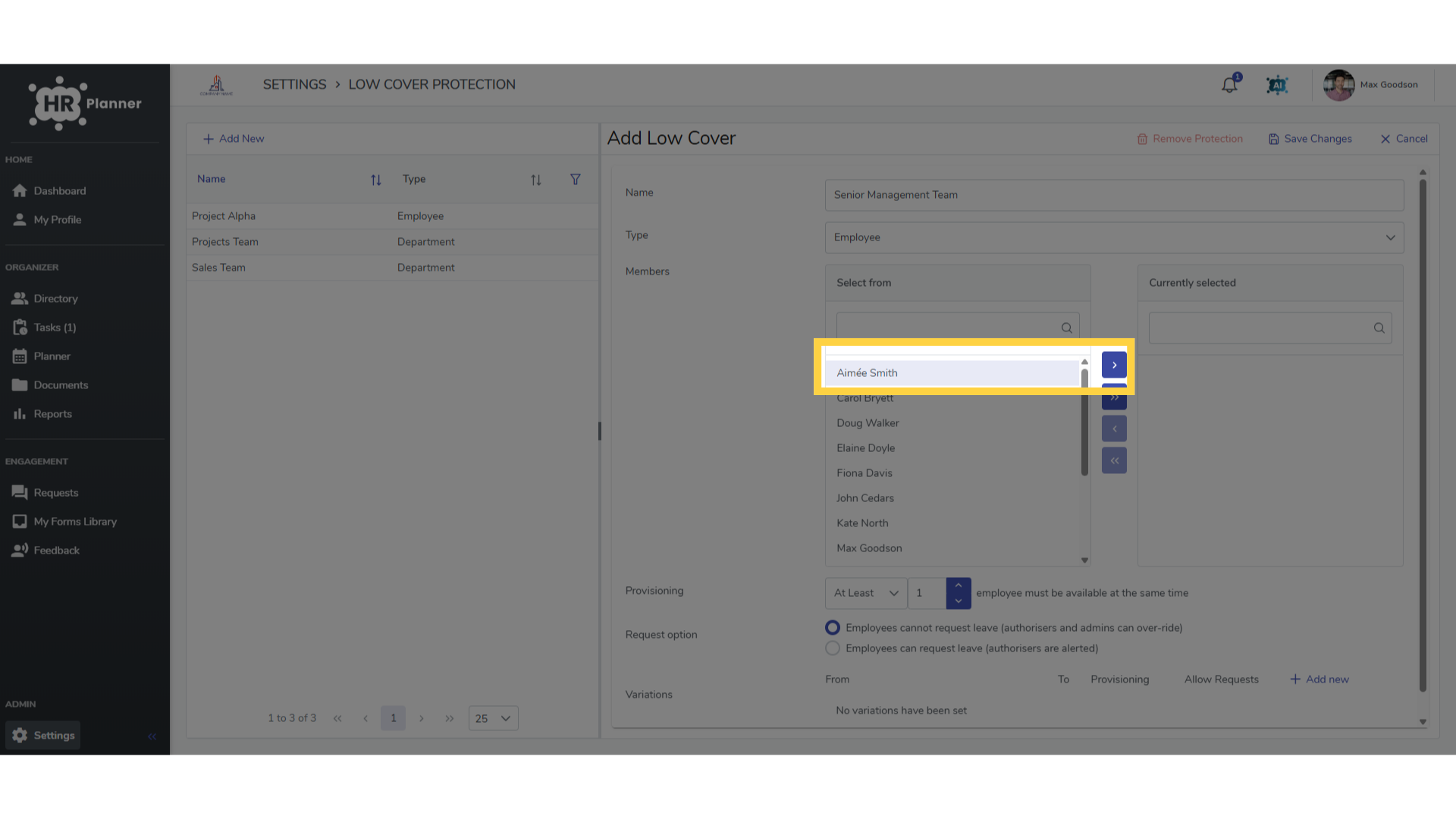
6. Click here
Members of the group can be added either by Department or individually.
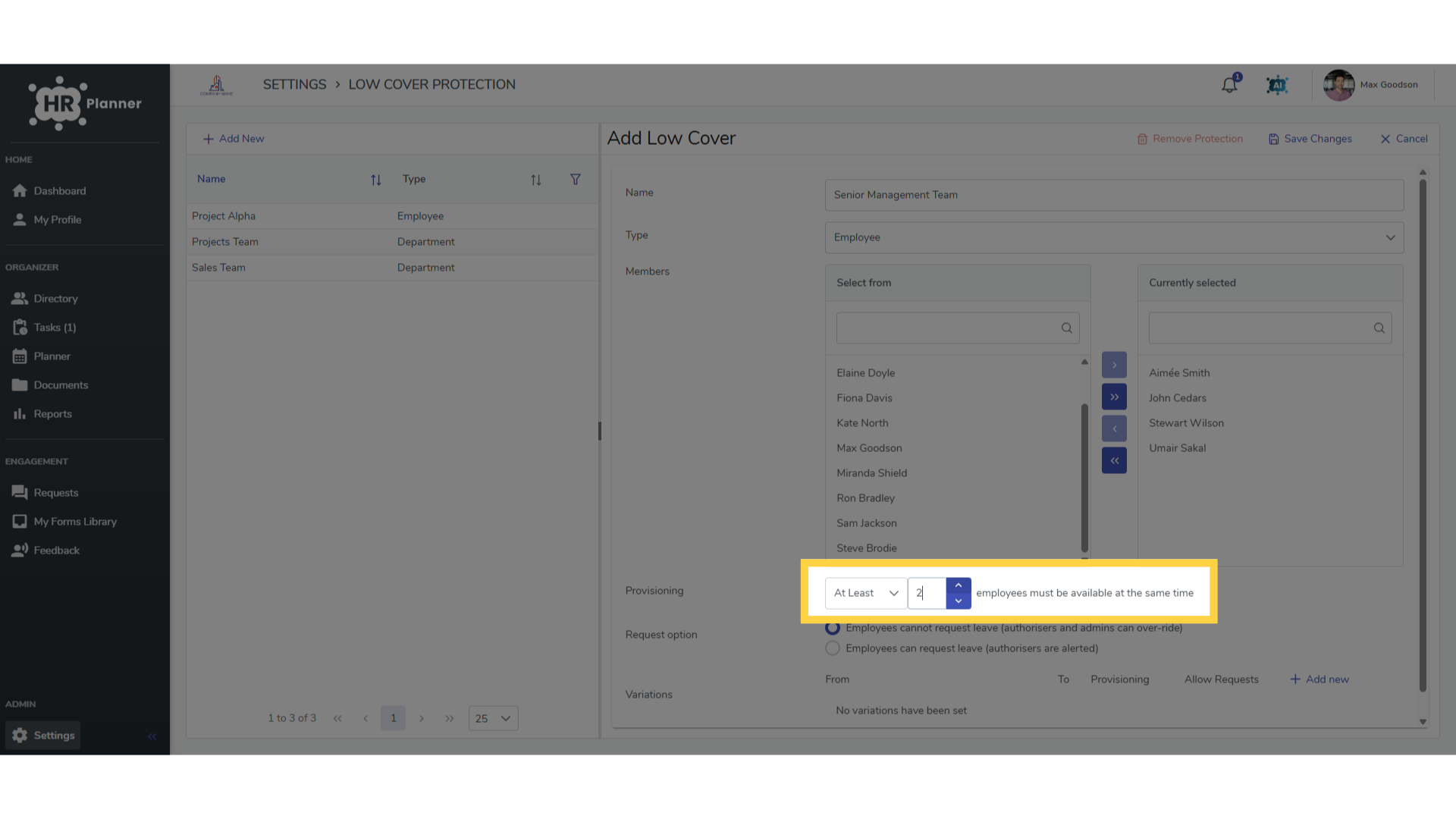
7. Click here
You can then set the limit of how many of this group can be absent or how many of them you need available.
8. Click “Add new”
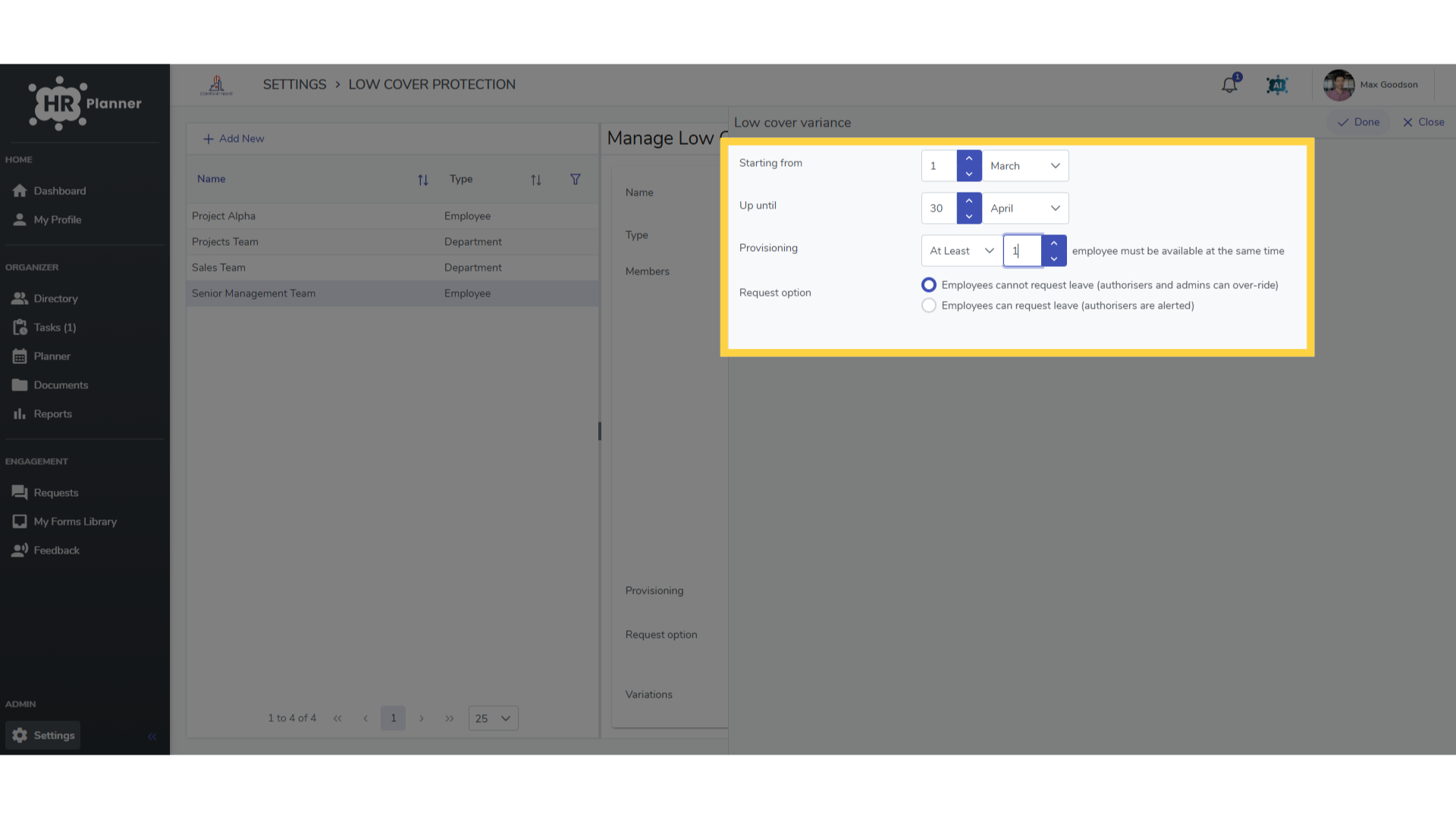
You can even add a periodical adjustment to account for the peak business periods of your year.
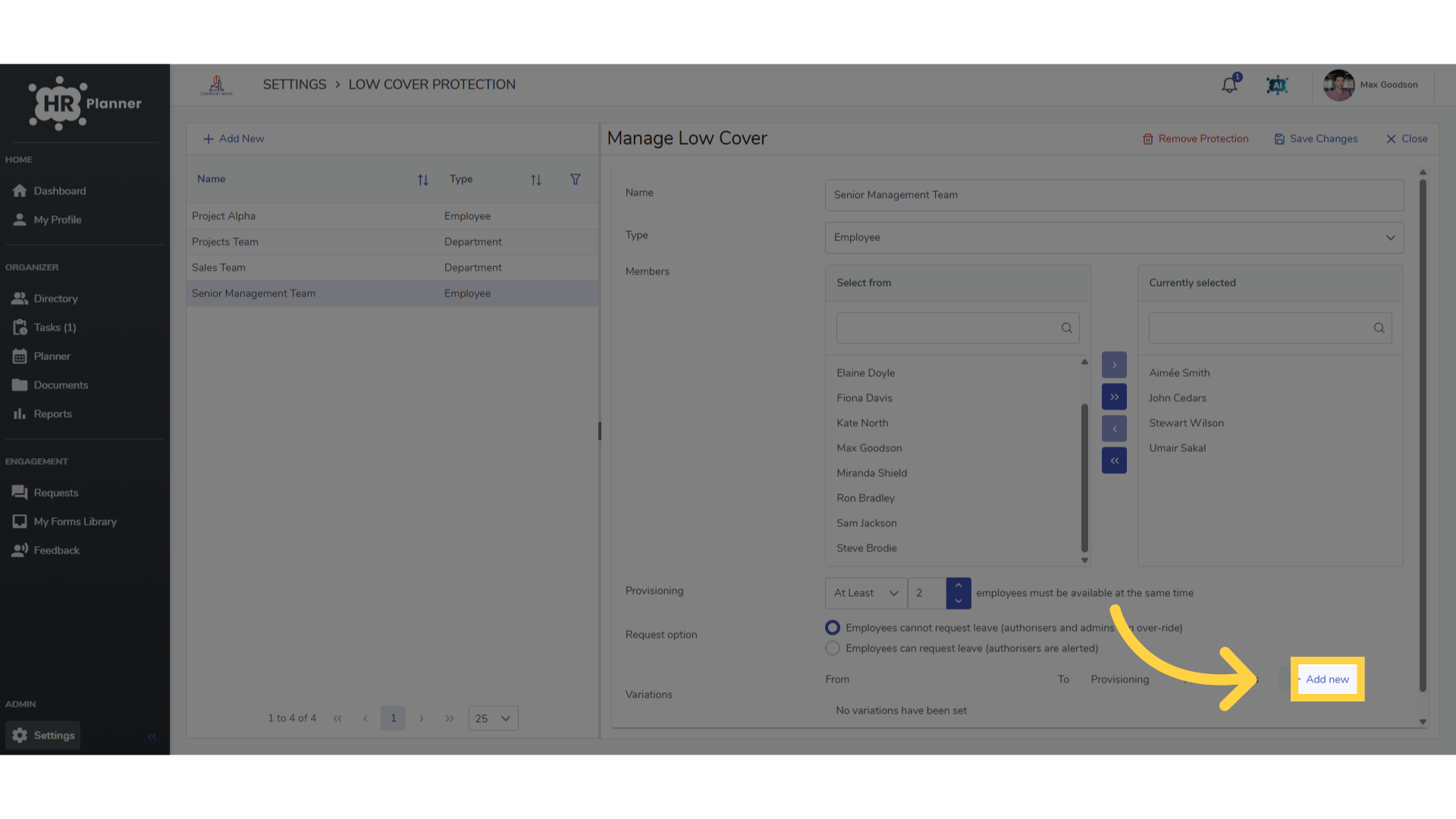
9. Click “Done”
Do this by setting the start and end date for the amended rule to apply and adjusting the the number of employees required.
The guide covered setting up a Low Cover Group in hr planner, including adding members, setting dates, and finalizing the group.