
This guide will provide you with the needed steps to change a user’s password from within your organisation.
- From your Dashboard, click Directory.
- Select the user you’d like to change the password for, in this case, we chose Fred Jones.
- On the right-hand corner of their Profile, Select Access Details.
- Next, Select Change Password.
- Finally, Enter a strong password for the User and select Change Password.
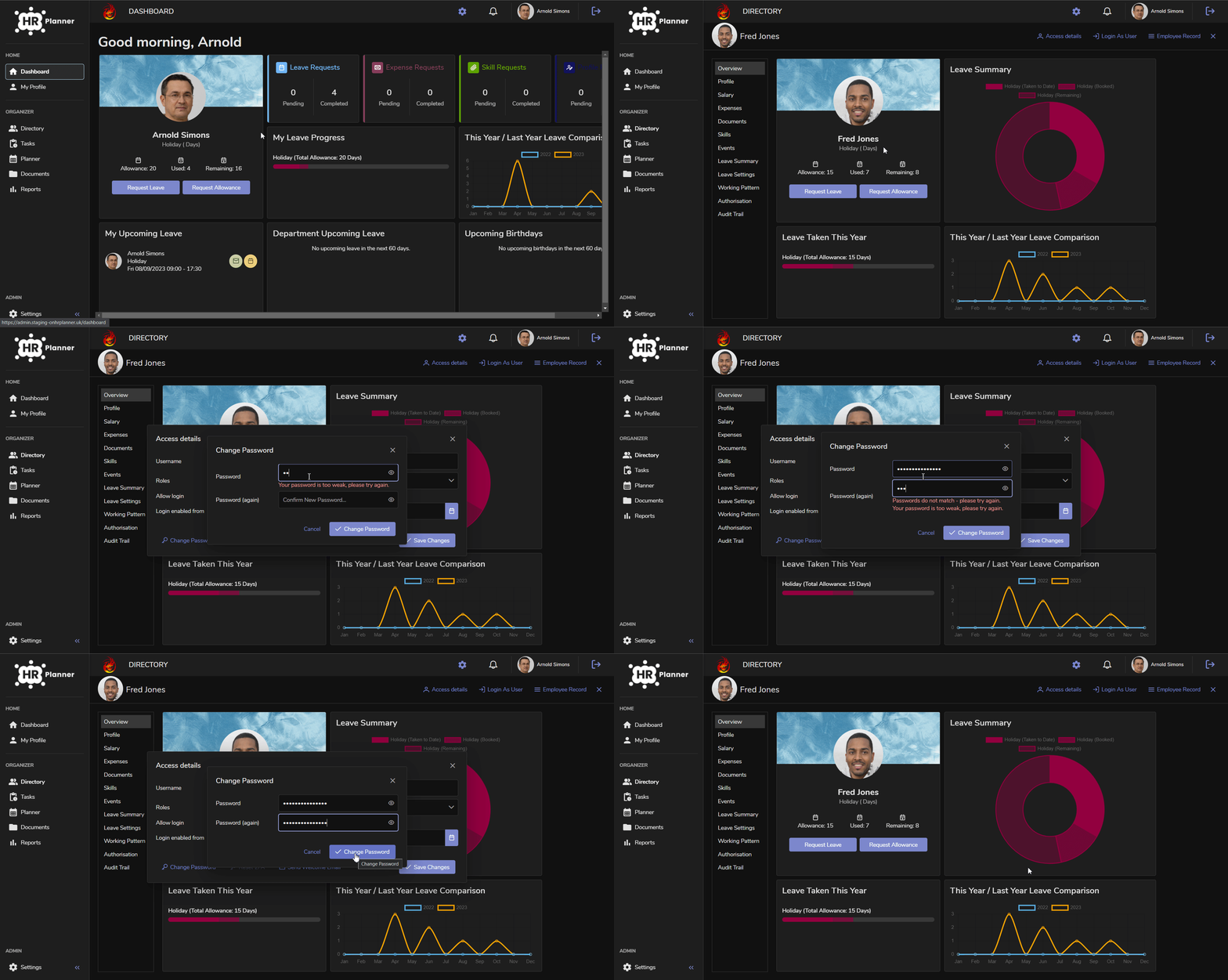
Once the password has been set, the user will be able to log in using their new credentials.