
This guide delves into the intricacies of managing the employee engagement permissions.
1. Introduction
By following the instructions provided, you will efficiently navigate through the application, ensuring your employee engagement strategies are effectively implemented.
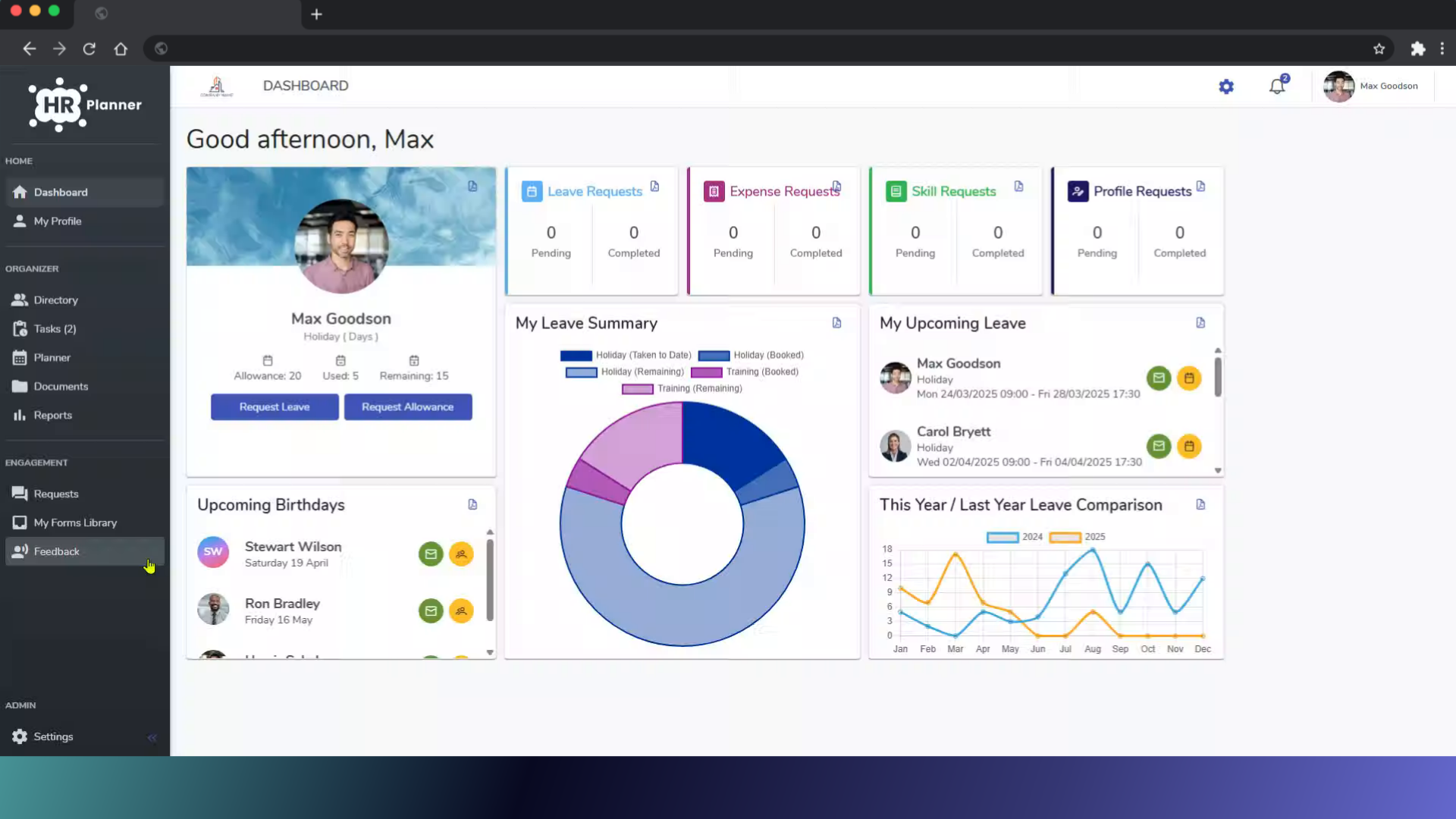
2. Click “Settings”
Firstly, access the settings menu from your dashboard,
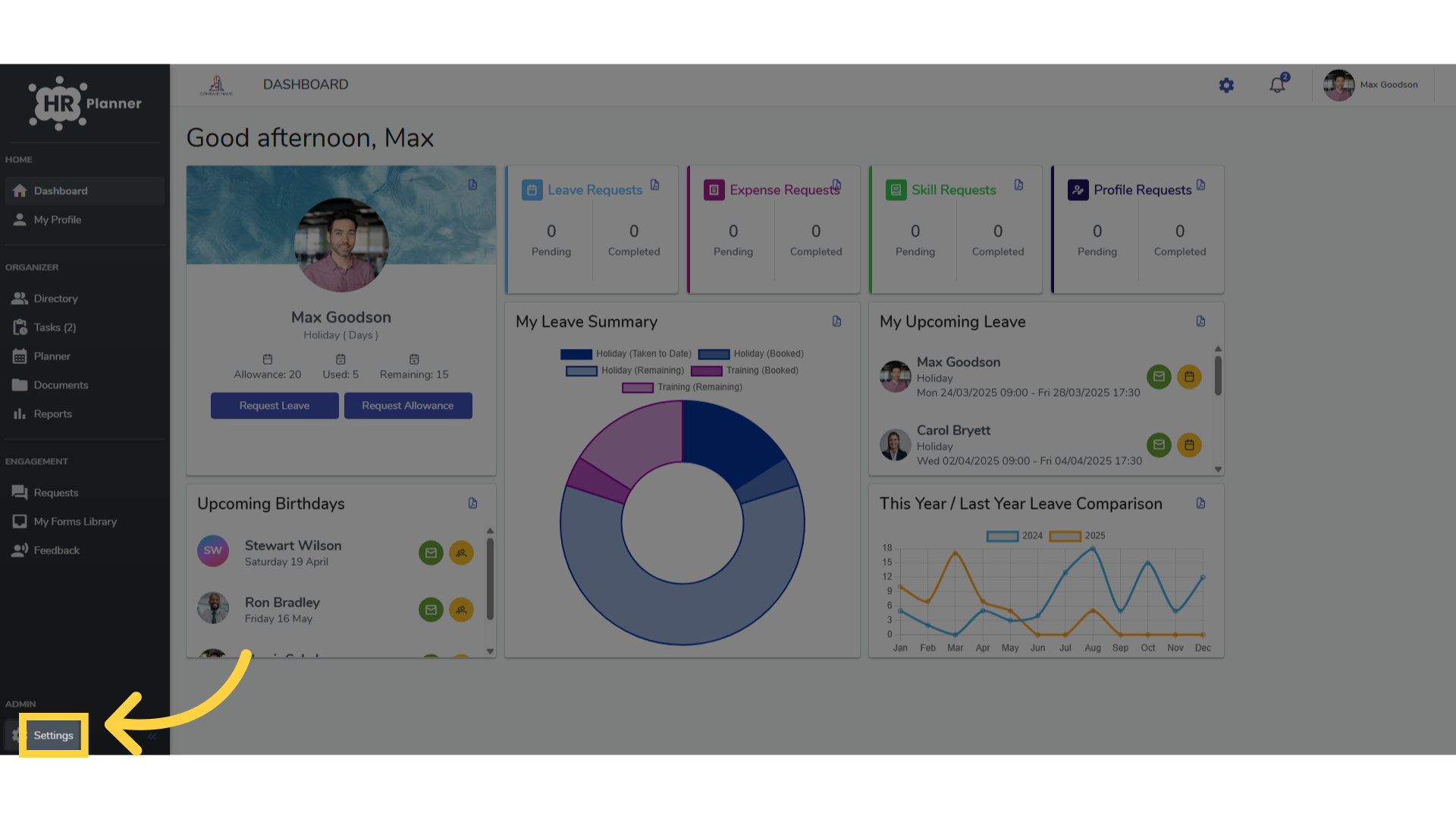
3. Click “Employee Roles”
navigate to the employee roles section,
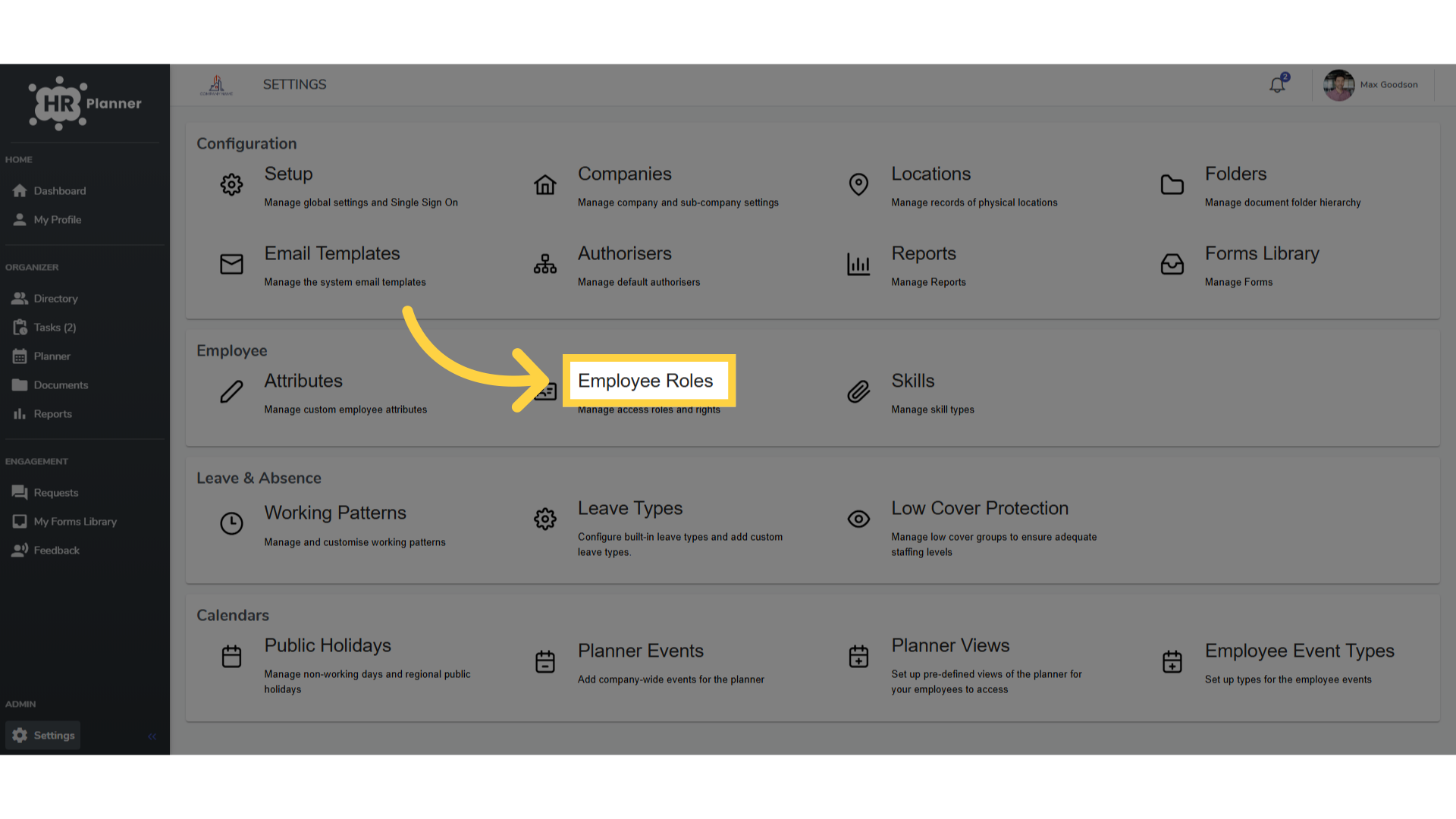
4. Click “All Employees”
select All Employees.
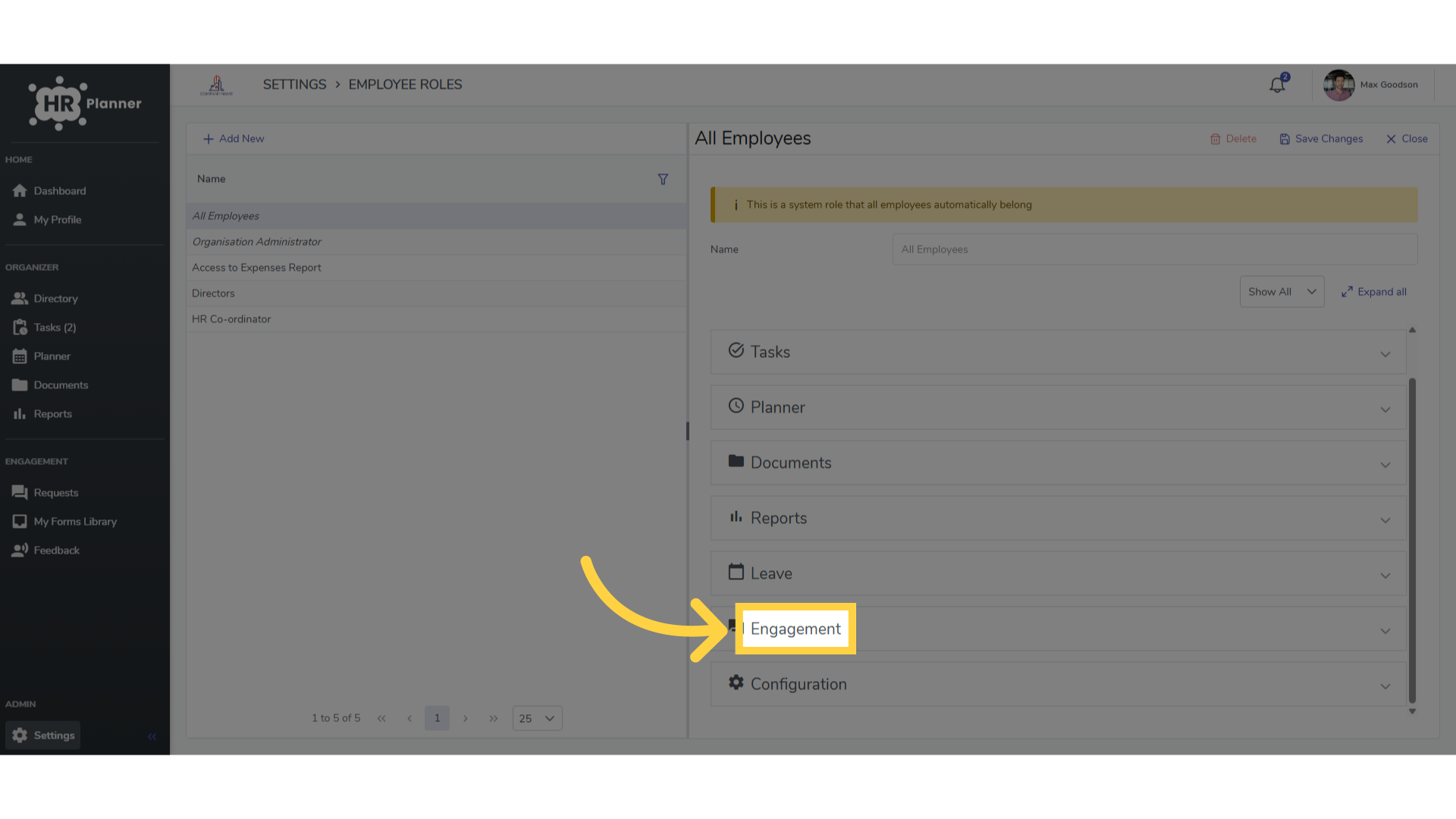
5. Click “Engagement”
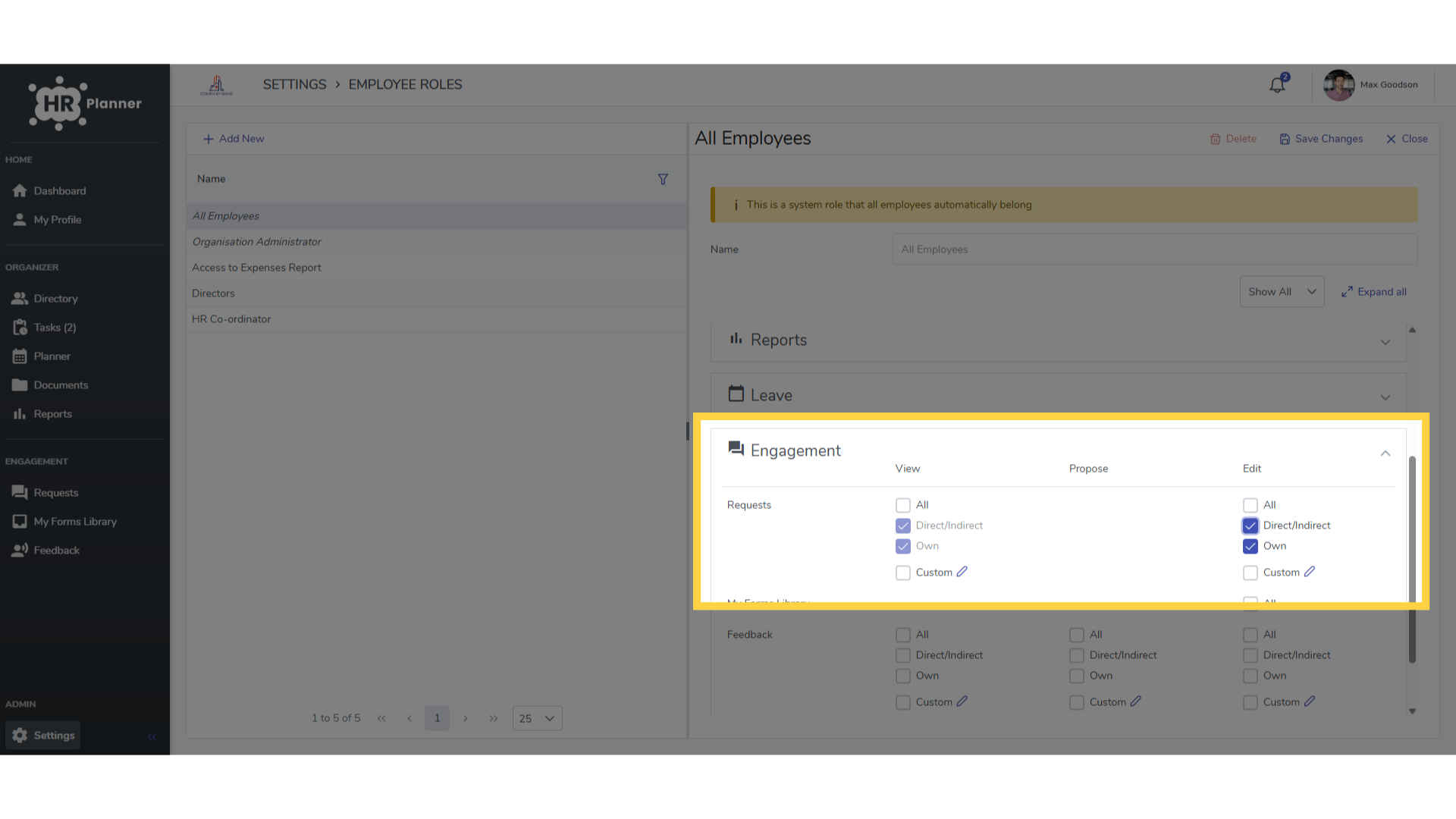
and access the Engagement section which controls which engagement requests a user can view or edit.
6. Click “Engagement”
For example, selecting View and Edit for Direct and Indirect reports allows a user to access all questionnaires created by themselves and any created by employees who reports directly or indirectly to them.
7. Click “Directory”
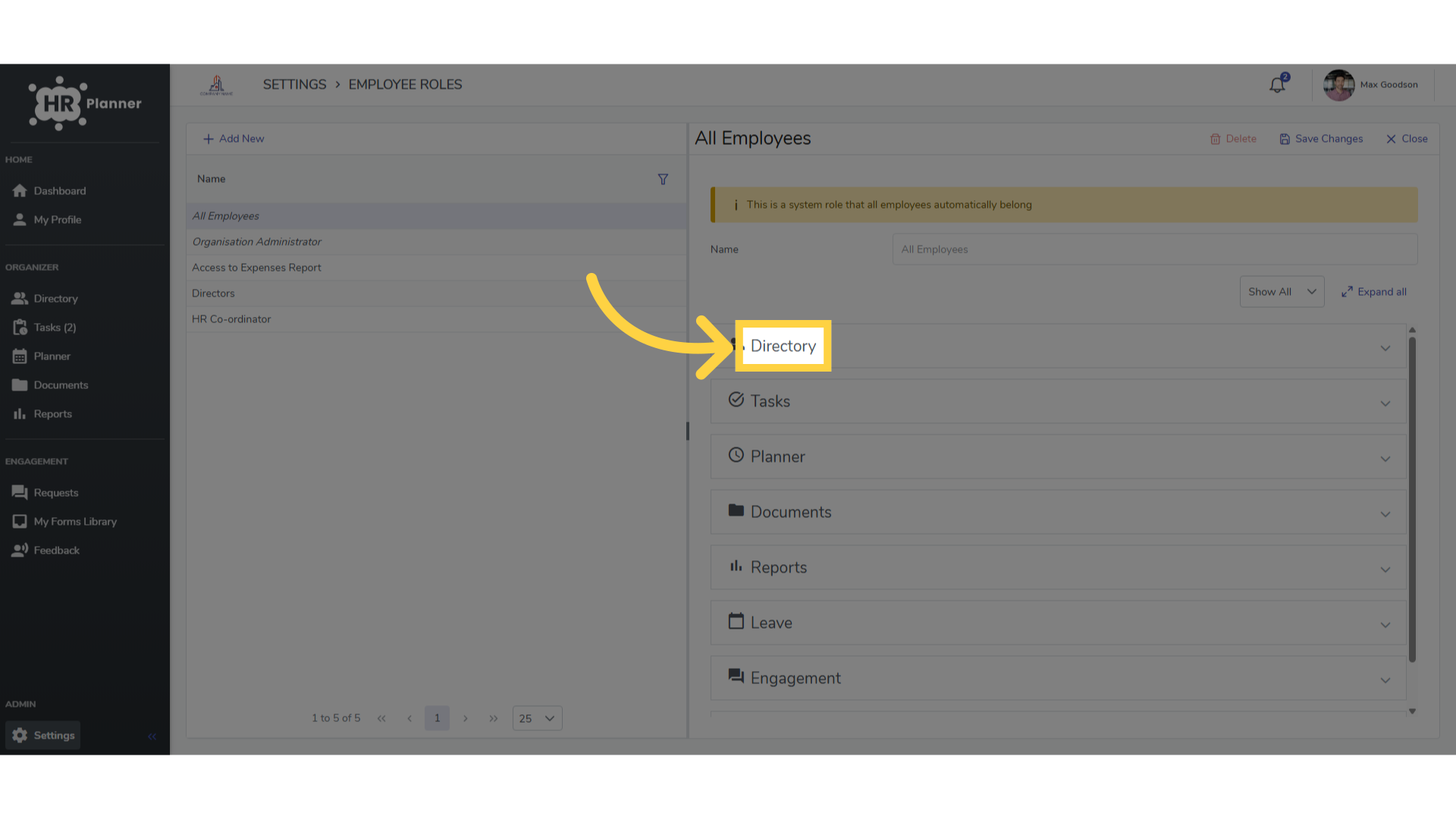
Then, once you have set which questionnaires a user has access to you can set who they can send it to. Do this in the Directory section,
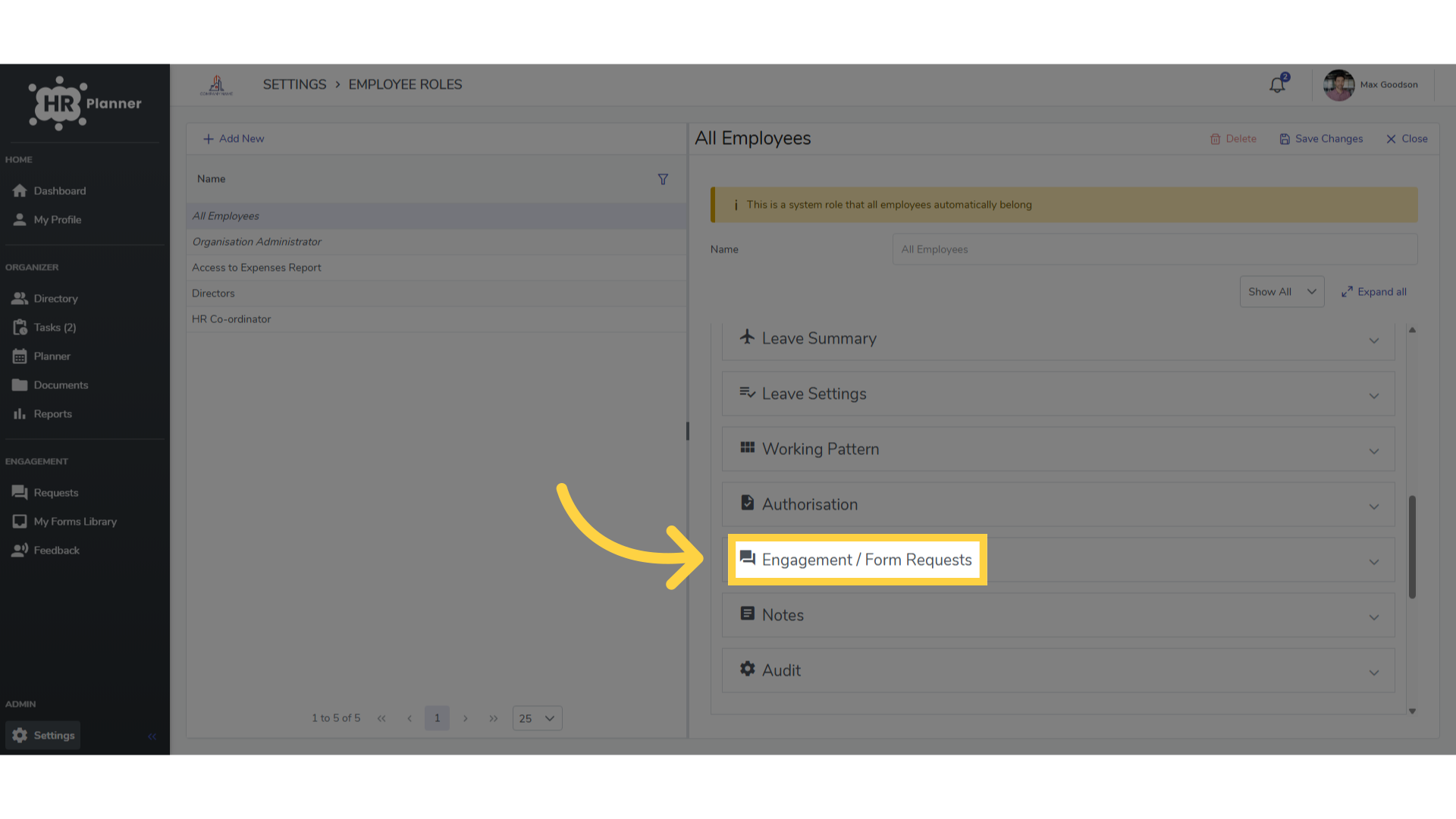
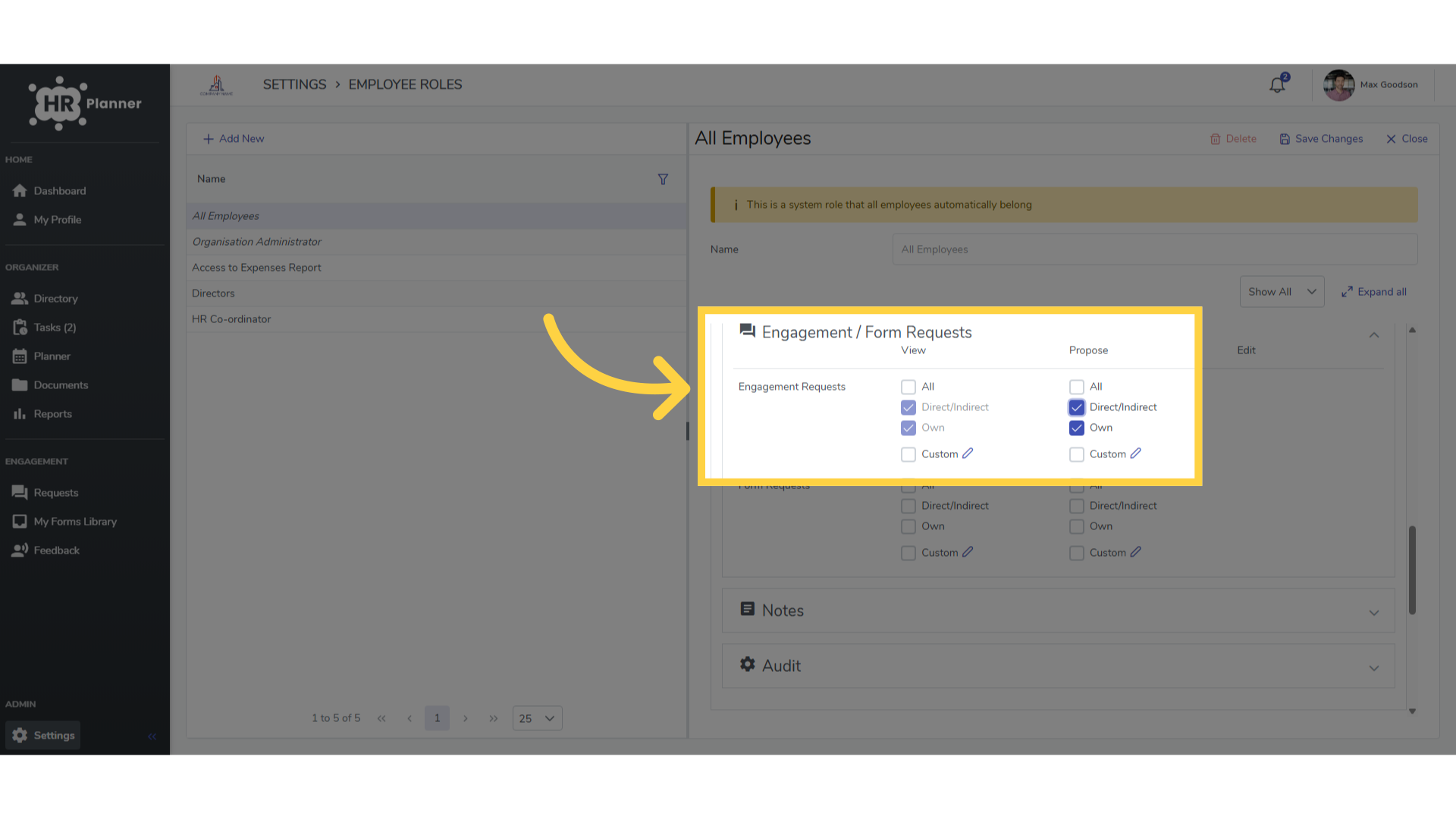
8. Click “Engagement / Form Requests”
and selecting Engagement and Form Requests.
9. Click “Engagement / Form Requests”
For example, to send questionnaires to all employees a line manager is directly or indirectly responsible for, tick these options.
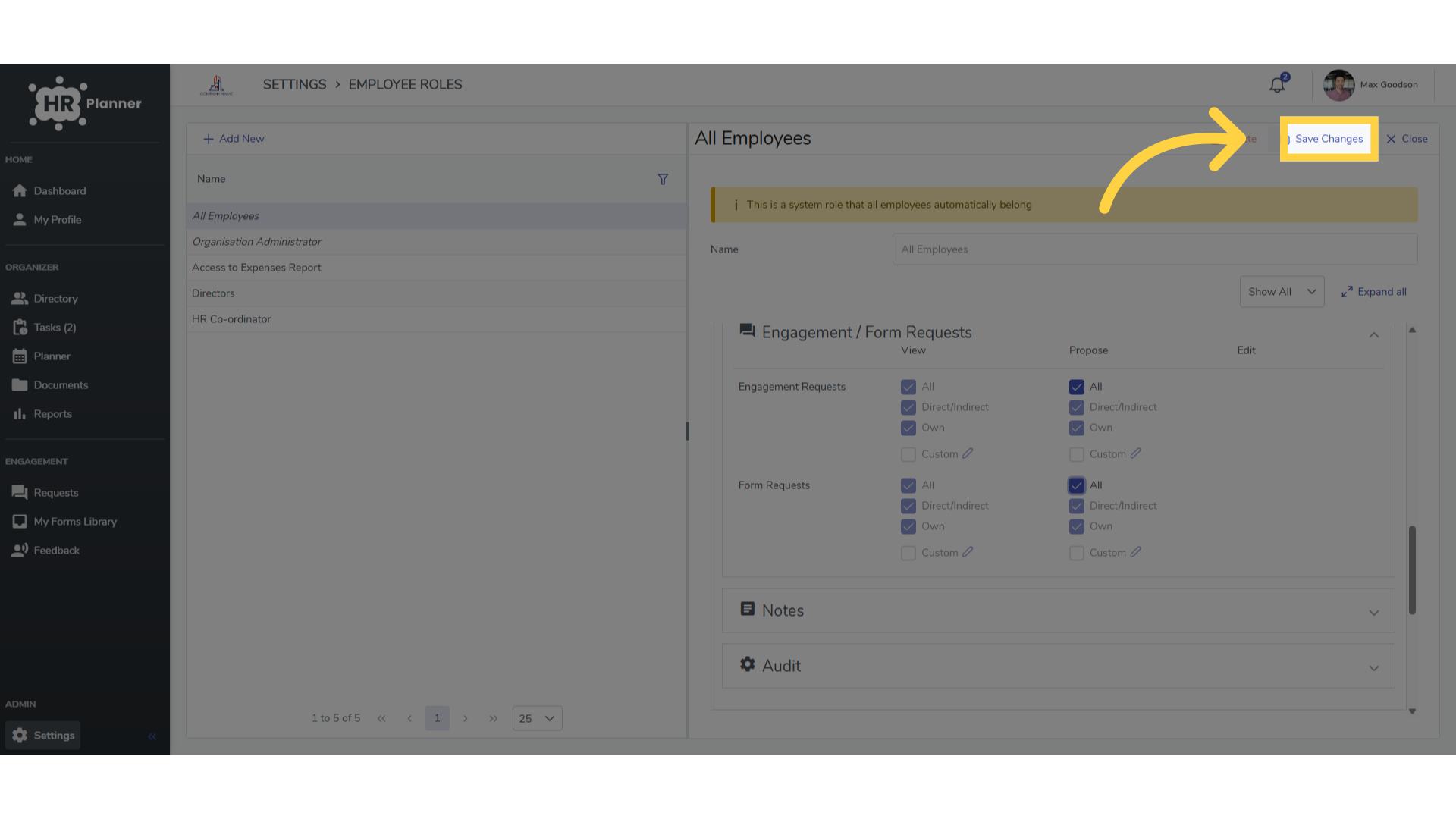
10. Click “Save Changes”
and Save Changes when finished.
The guide covered the steps required to navigate through the employee engagement settings, from accessing the settings menu to saving changes made.