
This guide will give you an overview of the employee engagement feature in HR Planner
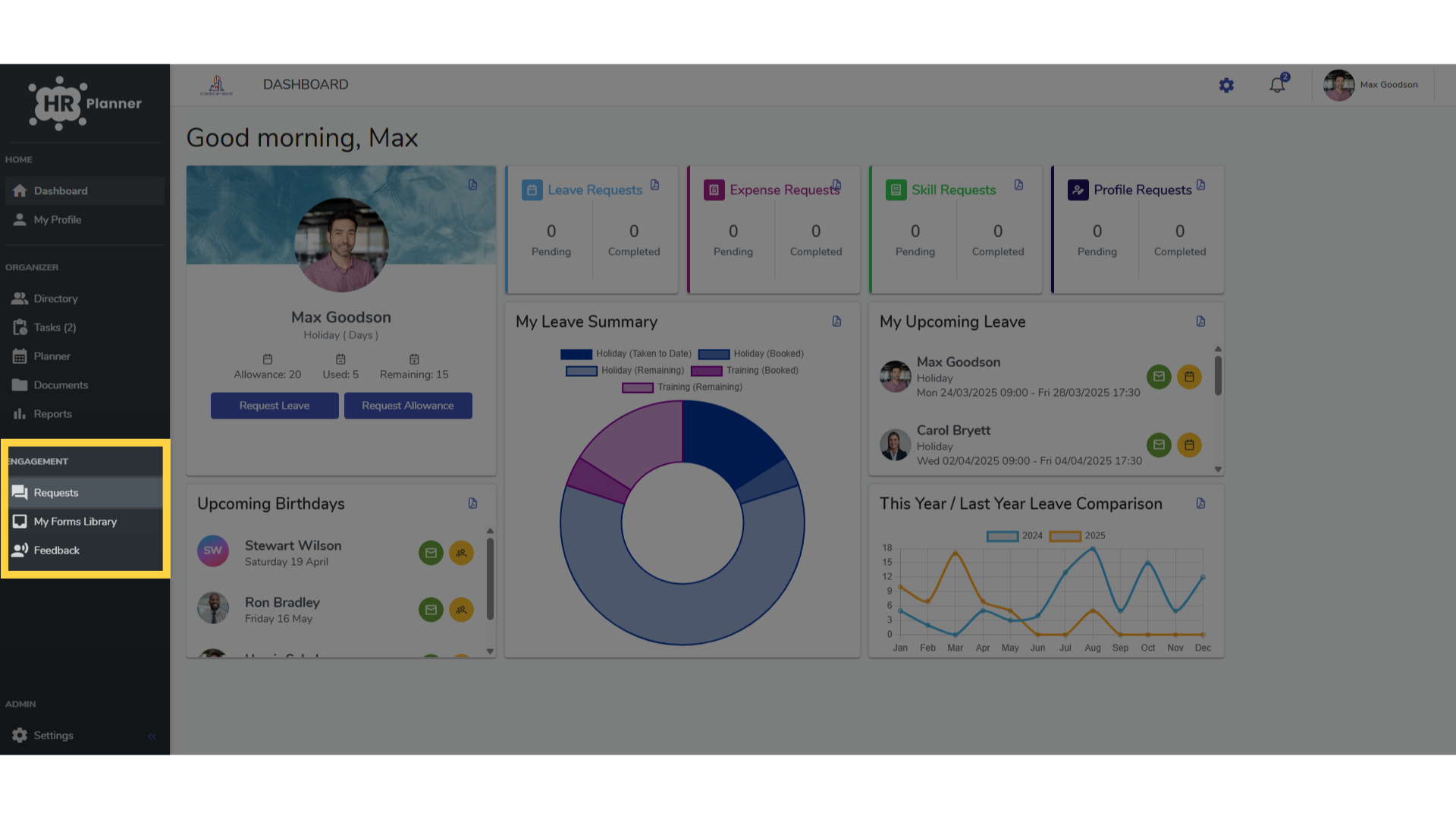
1. Click “Requests”
Employee Engagement allows you to create questionnaires, send them electronically to employees and view the results.
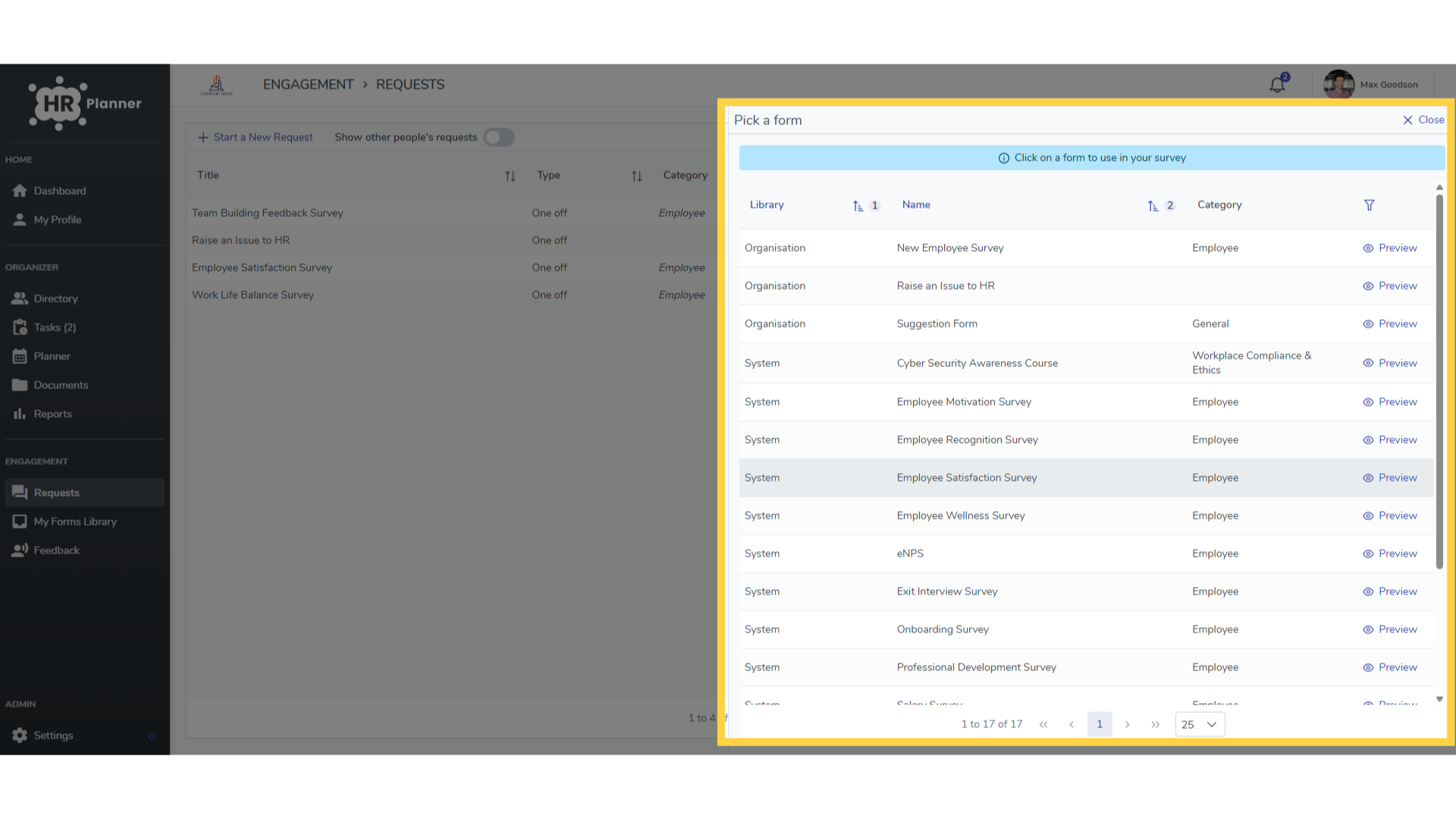
2. Click “Employee Satisfaction Survey”
There are a variety of pre-built questionnaires to choose from or you can create your own.
3. Click “3”
Engagement Requests can be sent as a one off event or scheduled to be sent on a regular basis.
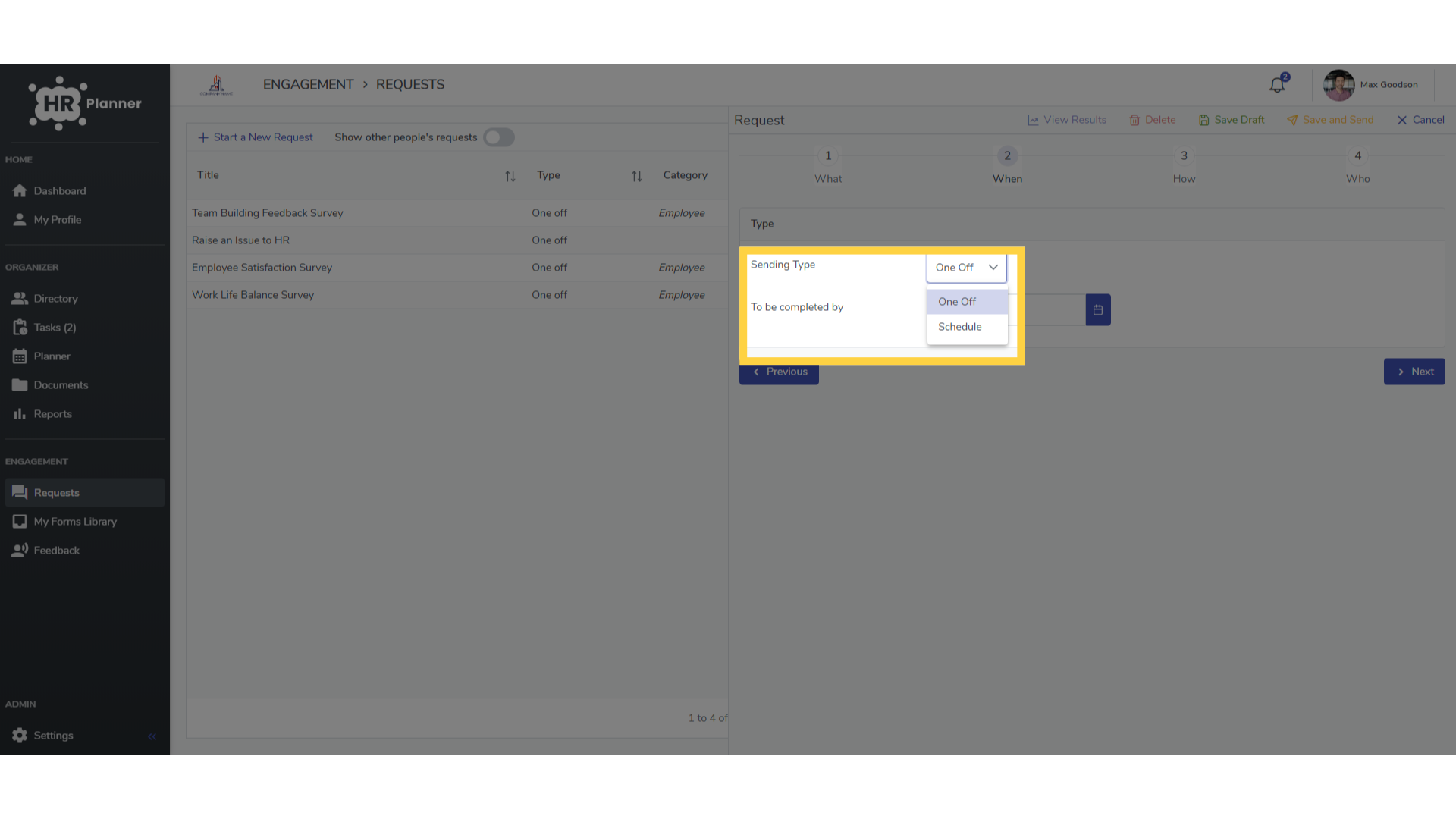
4. Click “4”
Responses can be marked as being compulsory and can be completed anonymously.
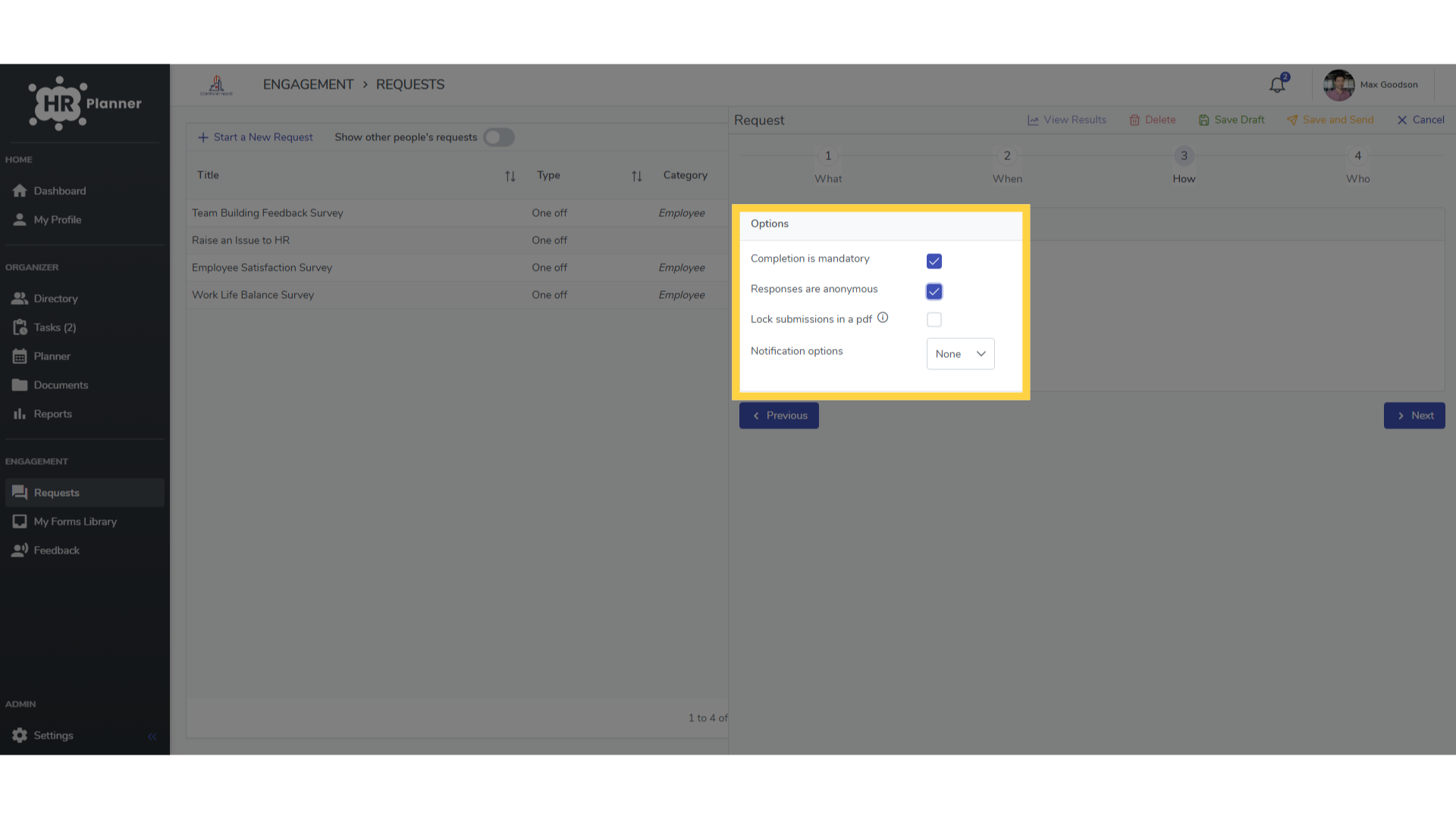
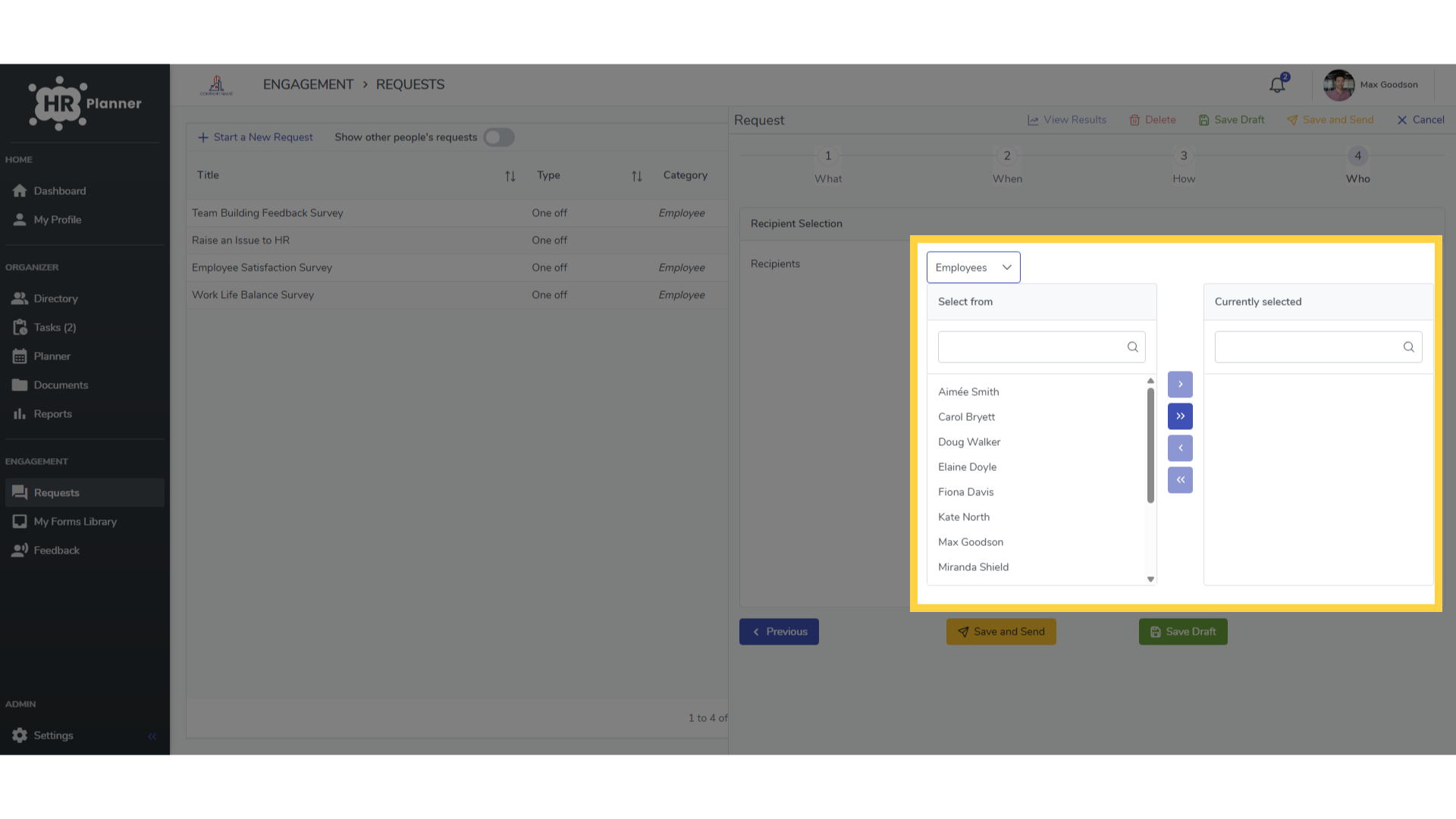
5. Click “Employees”
and can be sent to selected employees
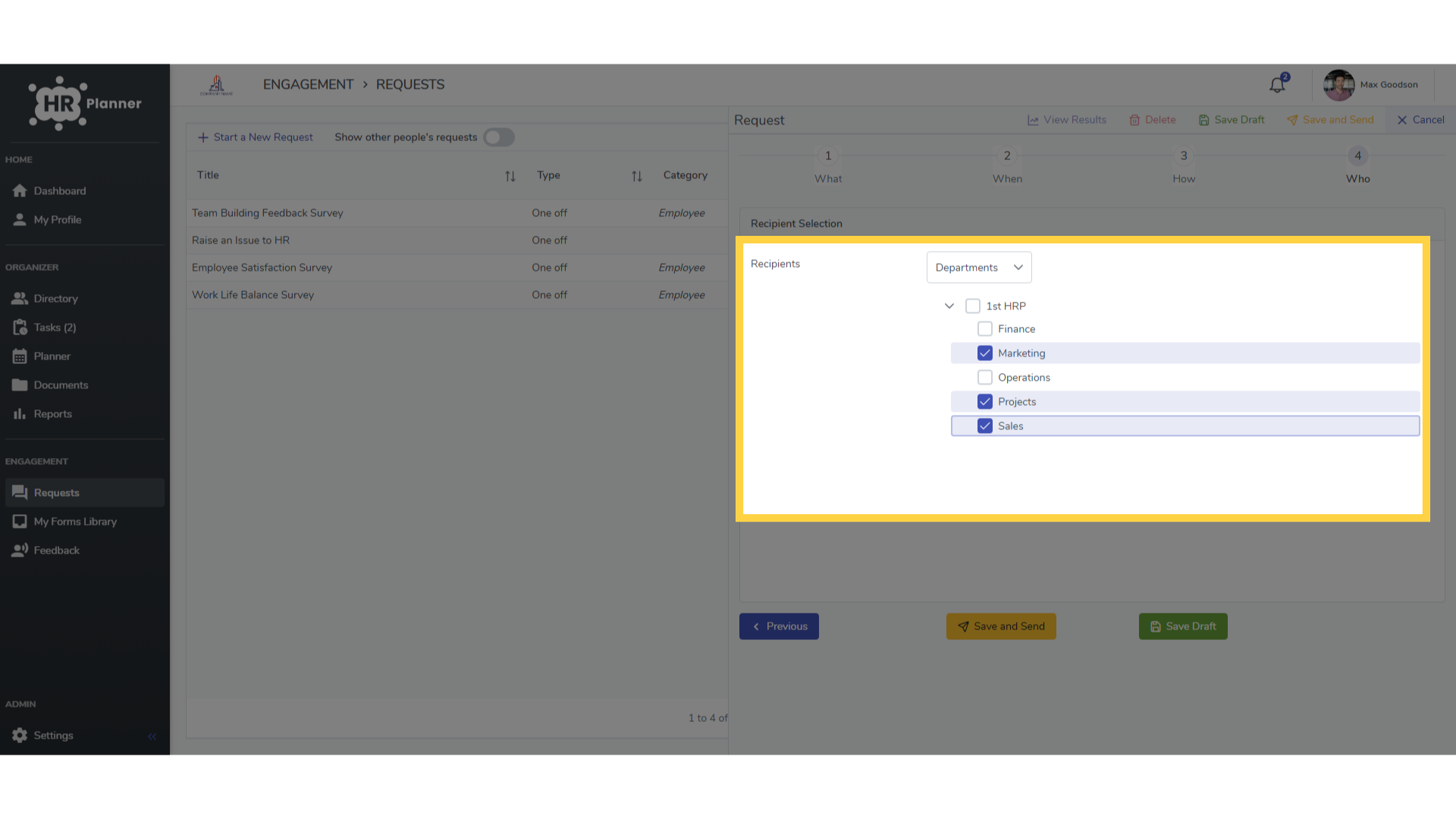
6. Click here
or specific departments.
7. Click “View”
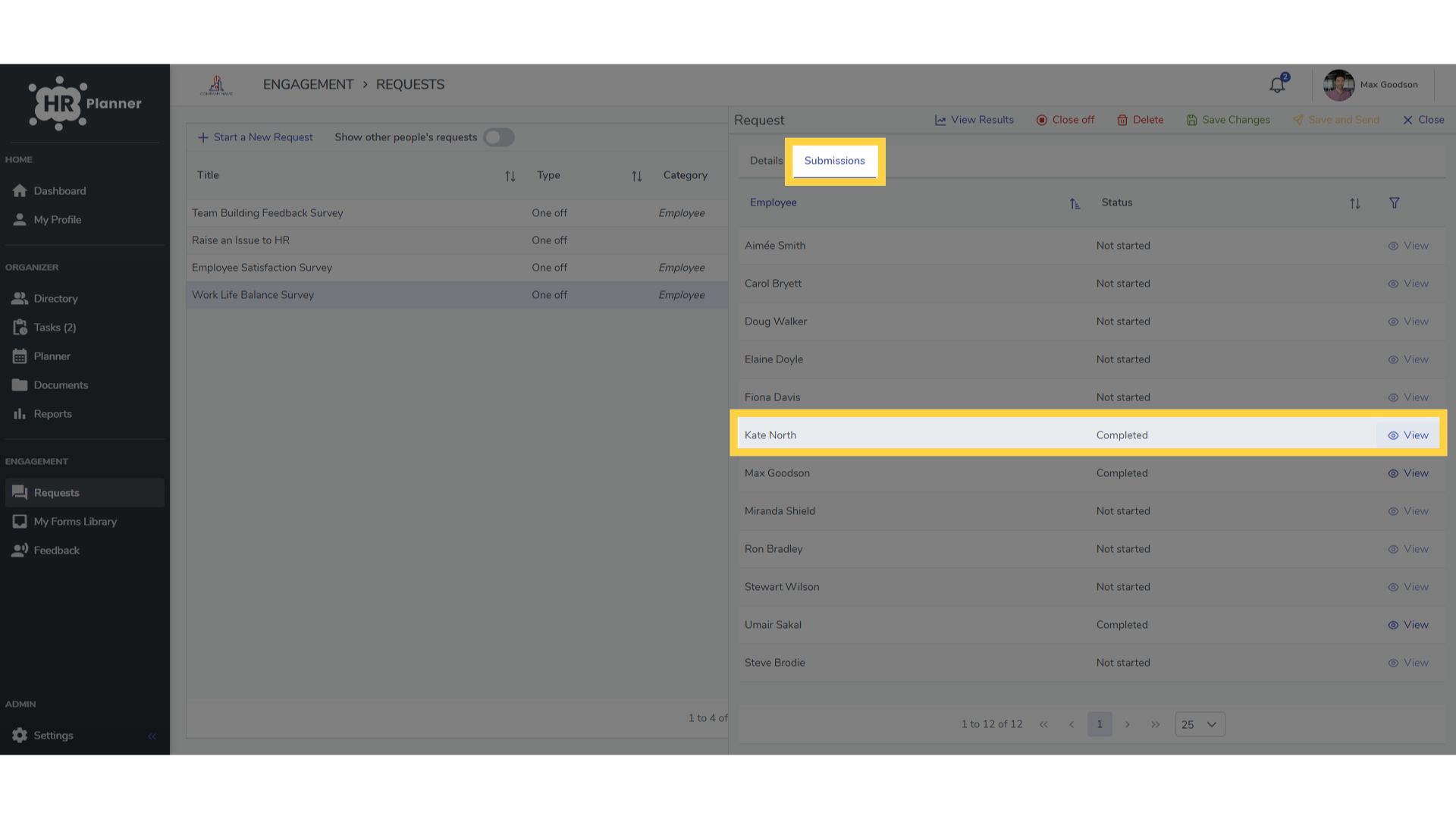
On completion engagement requests can be viewed.
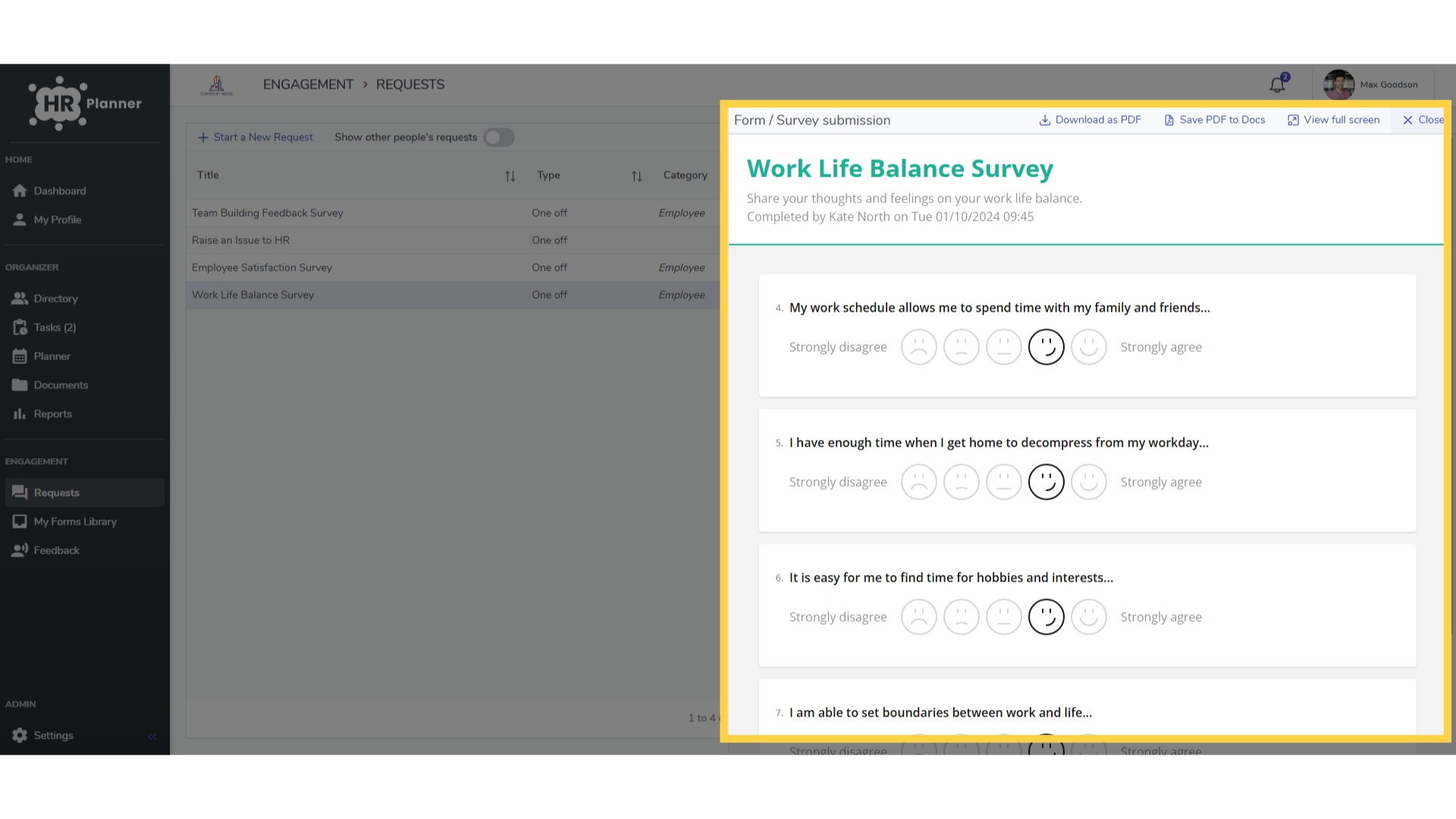
8. Click here
either by showing how an individual answered the questionnaire
9. Click “Close”
or by viewing all responses to show trends and averages.
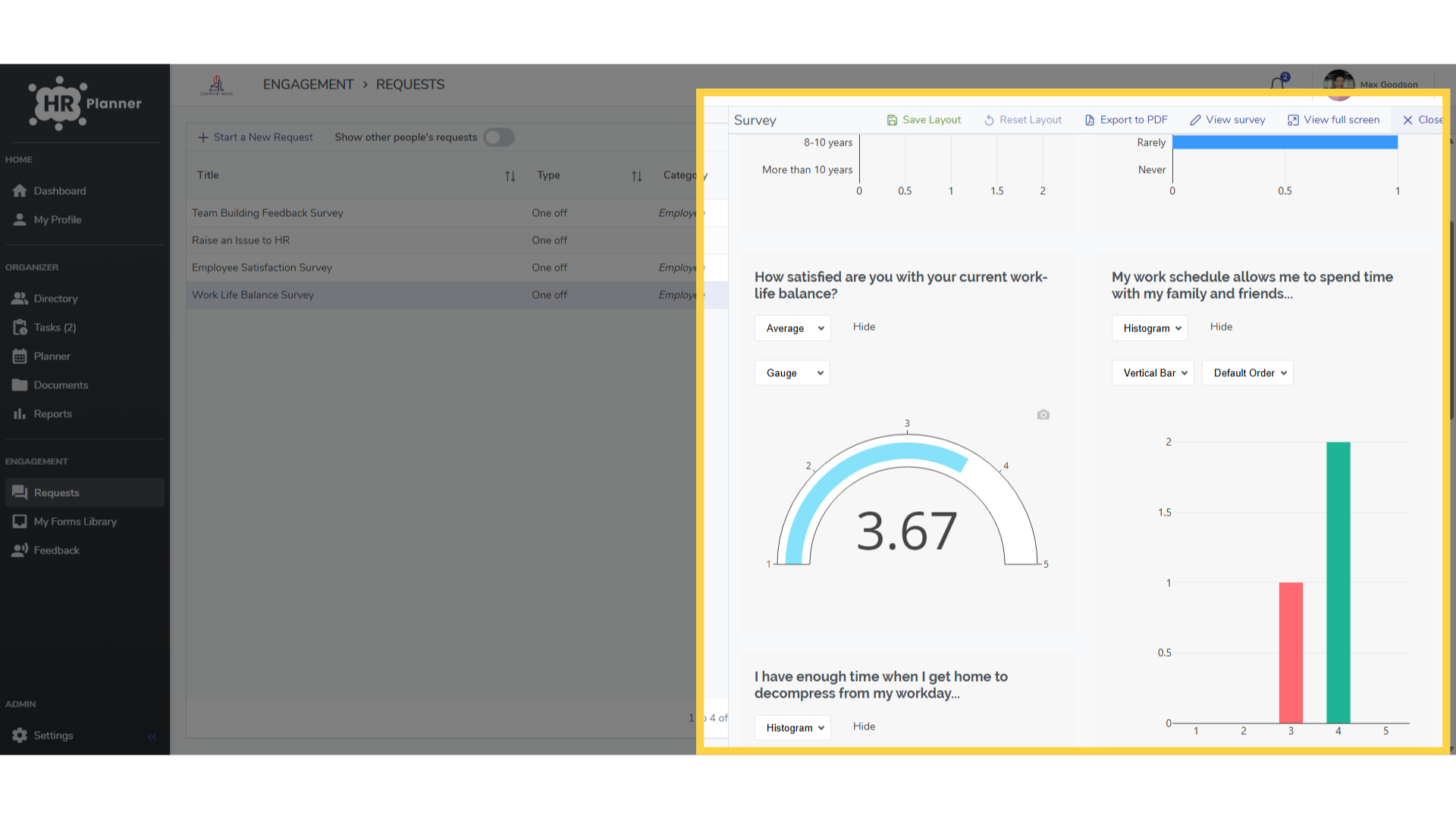
The guide provided a brief walkthrough of employee engagement tasks in hr planner, such as selecting forms, navigating sections, and viewing survey results.