
This tutorial guides you through configuring leave types to allow open-ended requests.
1. Introduction
Open ended leave requests are for employee absences where the return date is not currently known. Perfect for sick leave, for example.
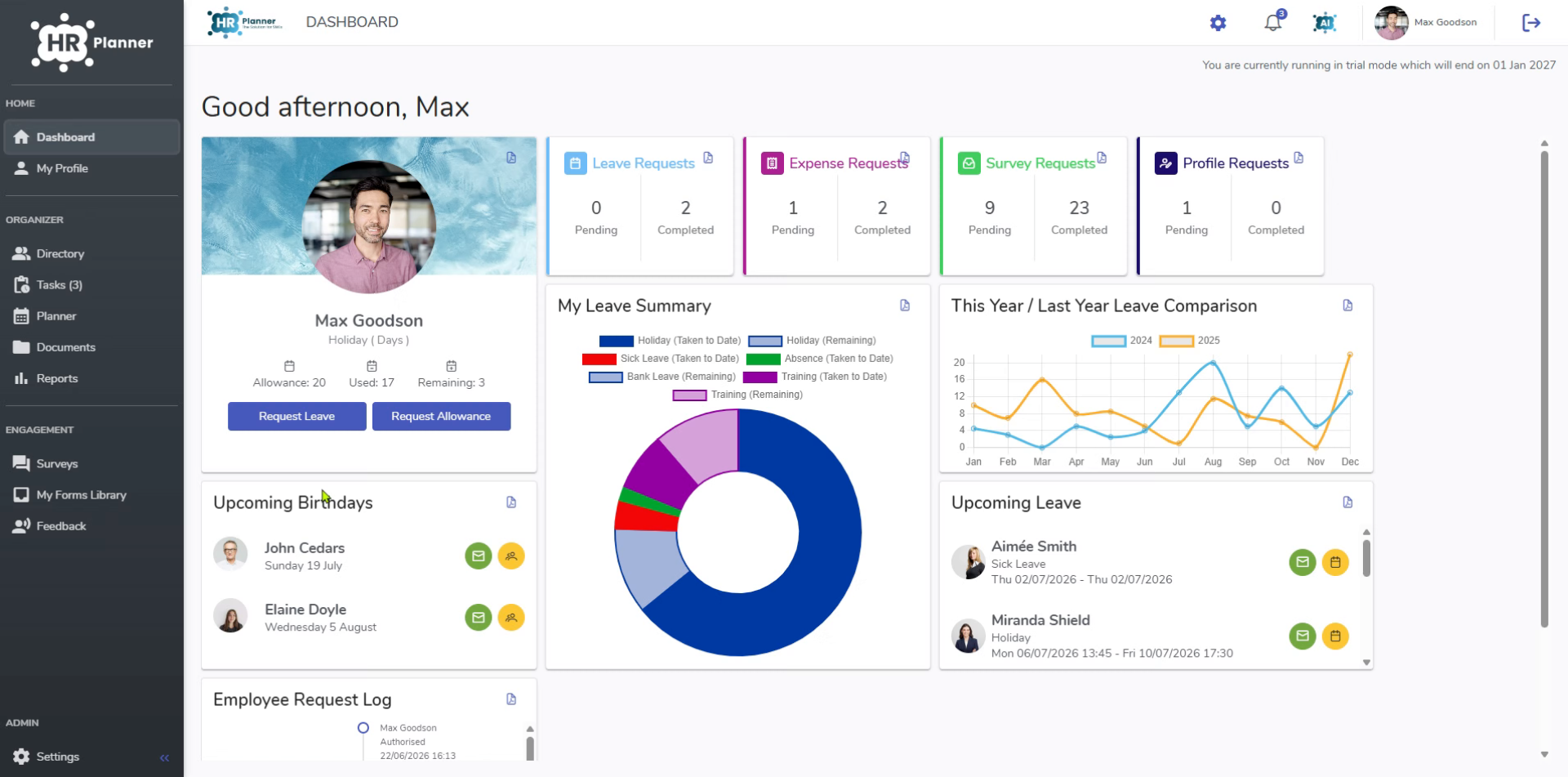
2. Access Settings Menu
Open ended requests must first be enabled for each leave type. You can do this in Settings….
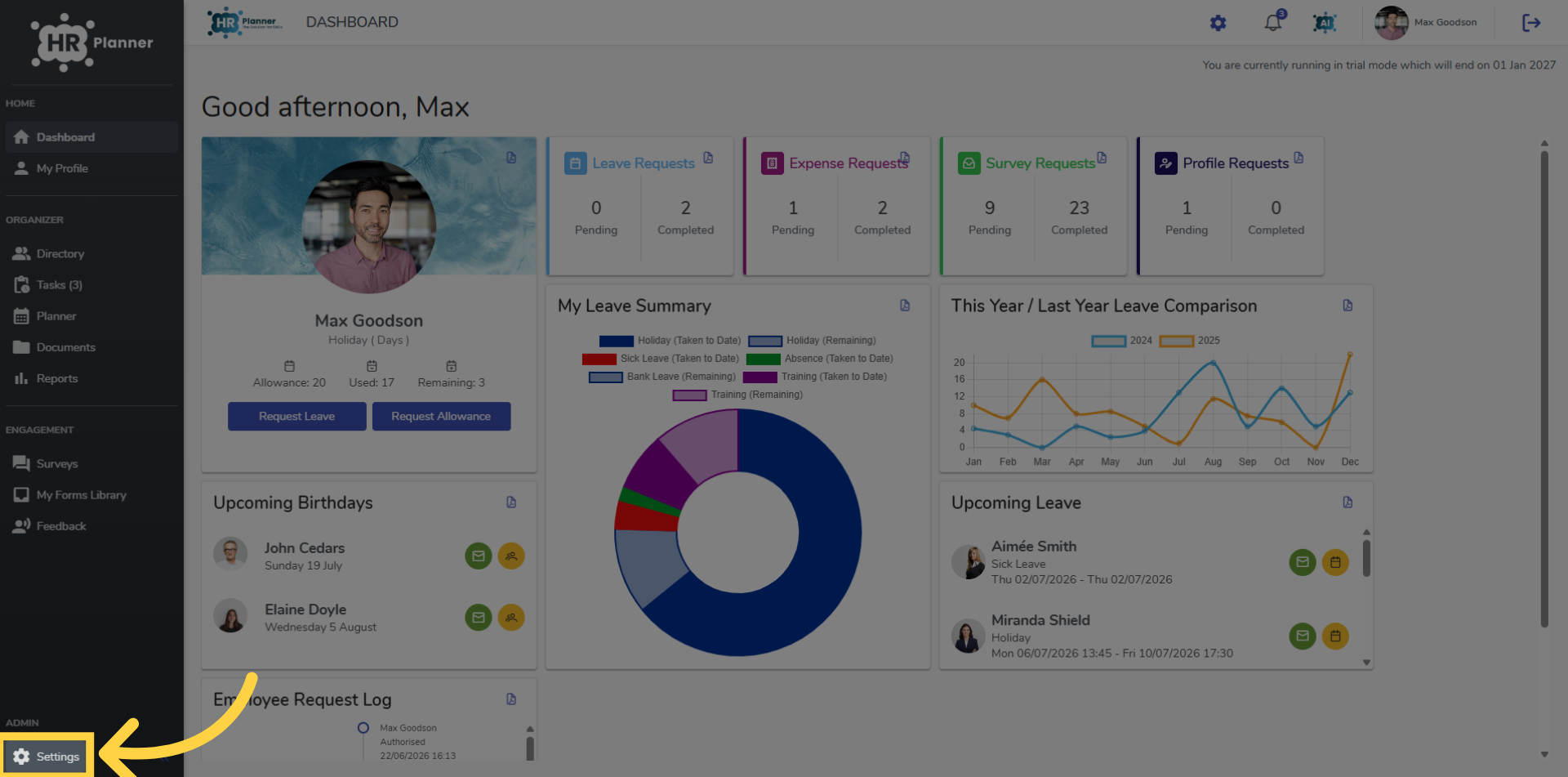
3. Open Leave Types Section
Choosing Leave Types…..
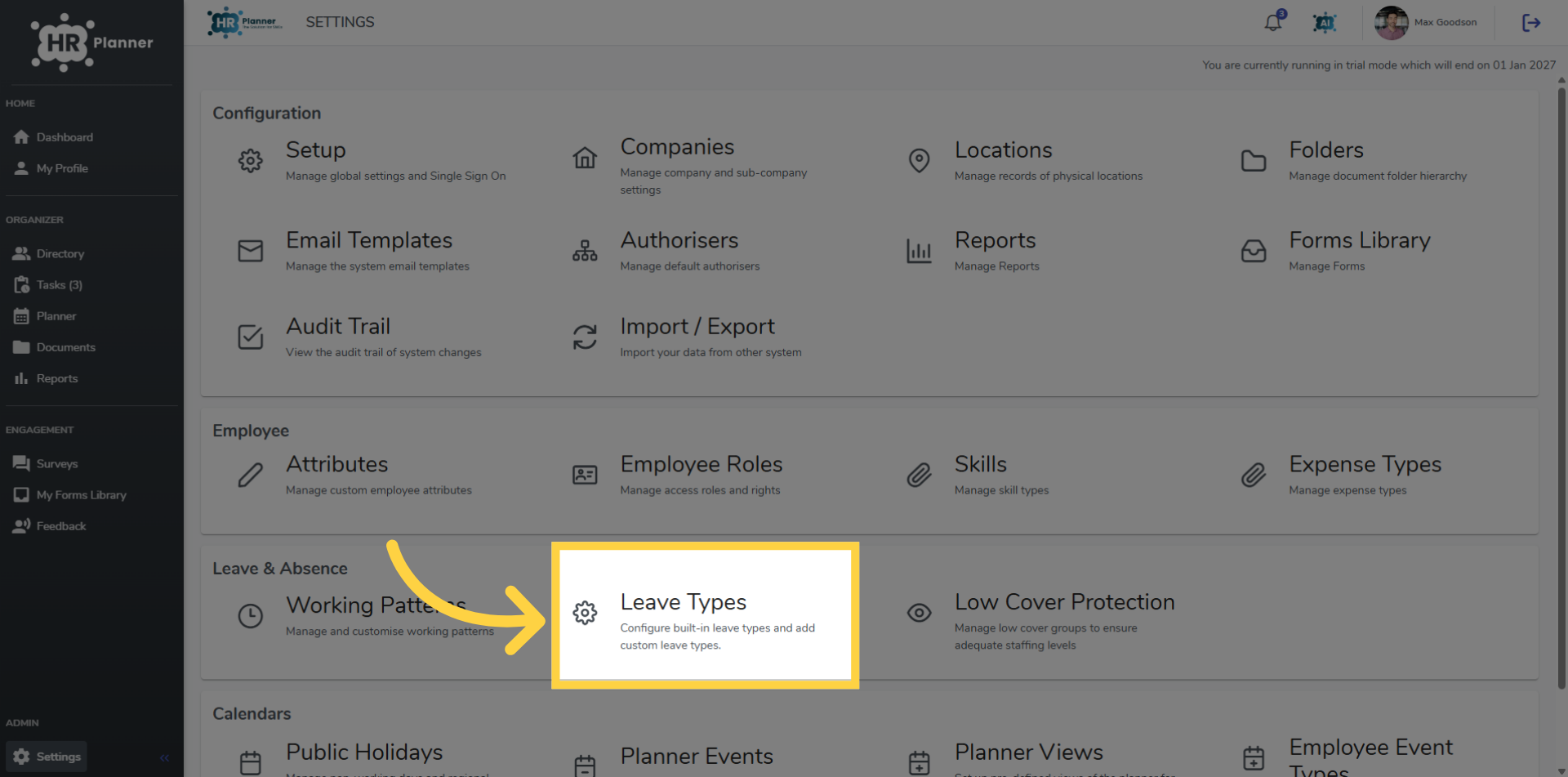
4. Select Sick Leave Type
And selecting the leave type to apply this to.
5. Edit Leave Type Details
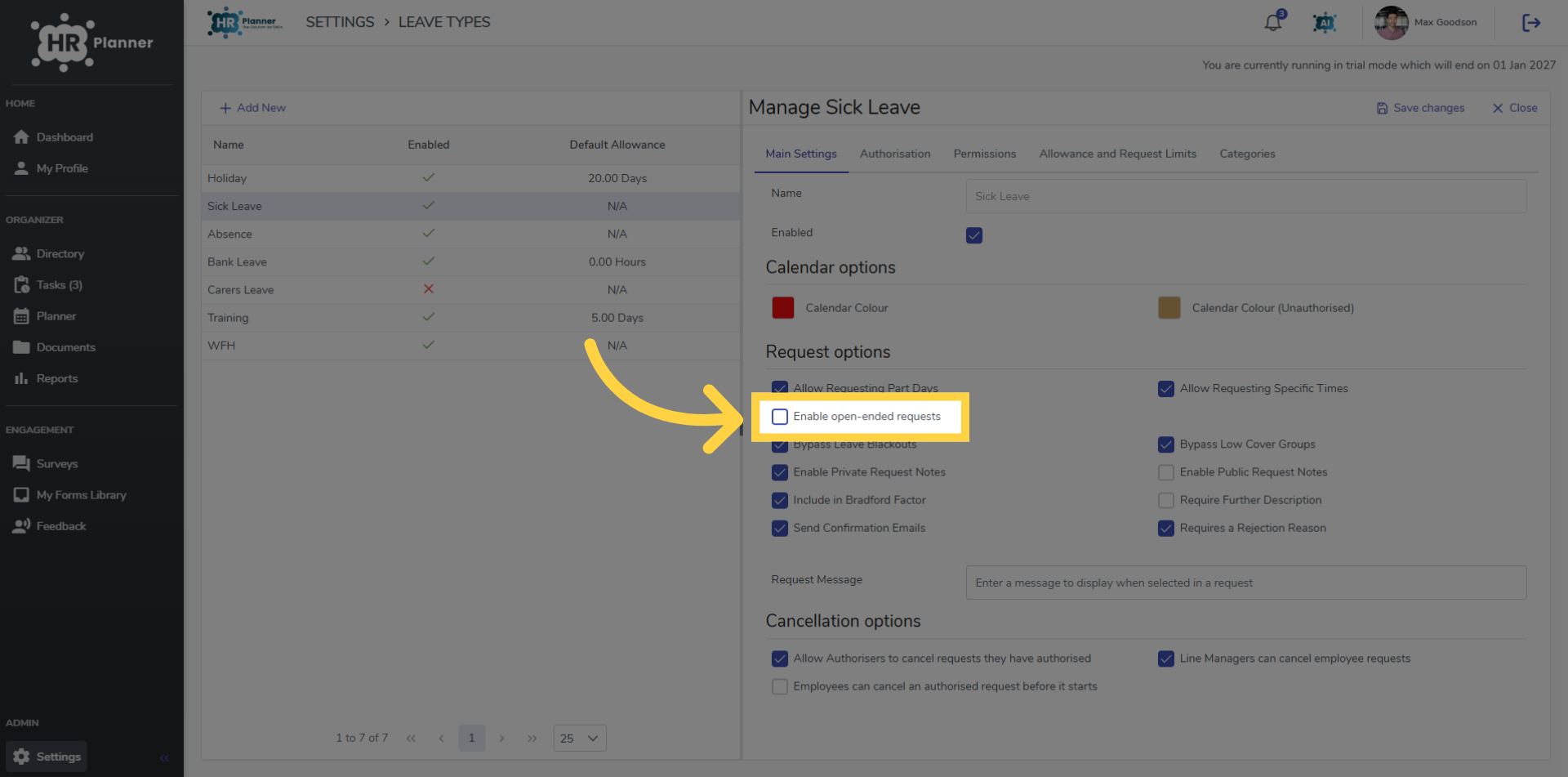
Click enable open-ended requests
6. Save Leave Type Changes
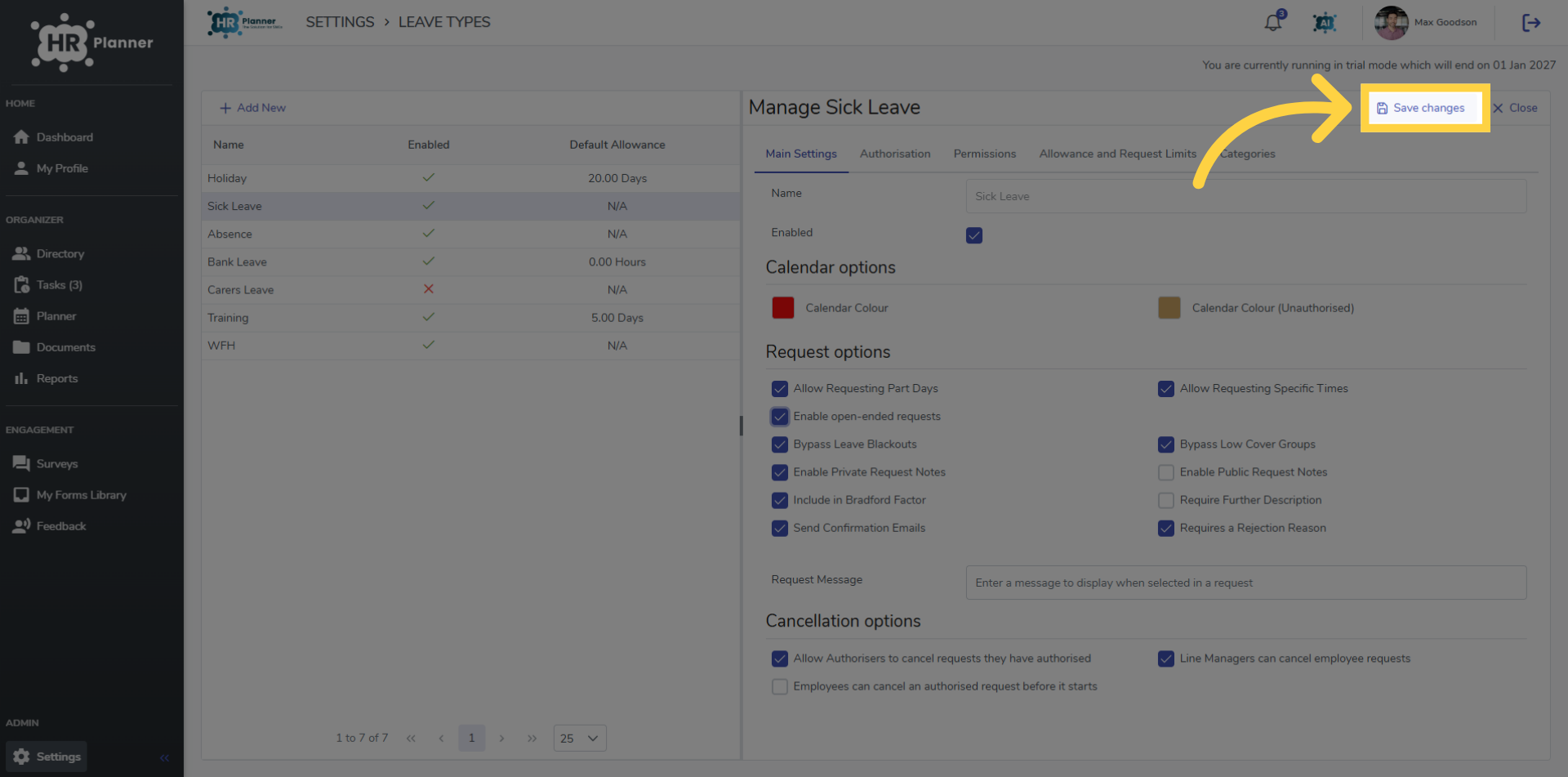
and “Save changes” to apply any modifications made to the leave type settings.
7. Select Open Ended Option
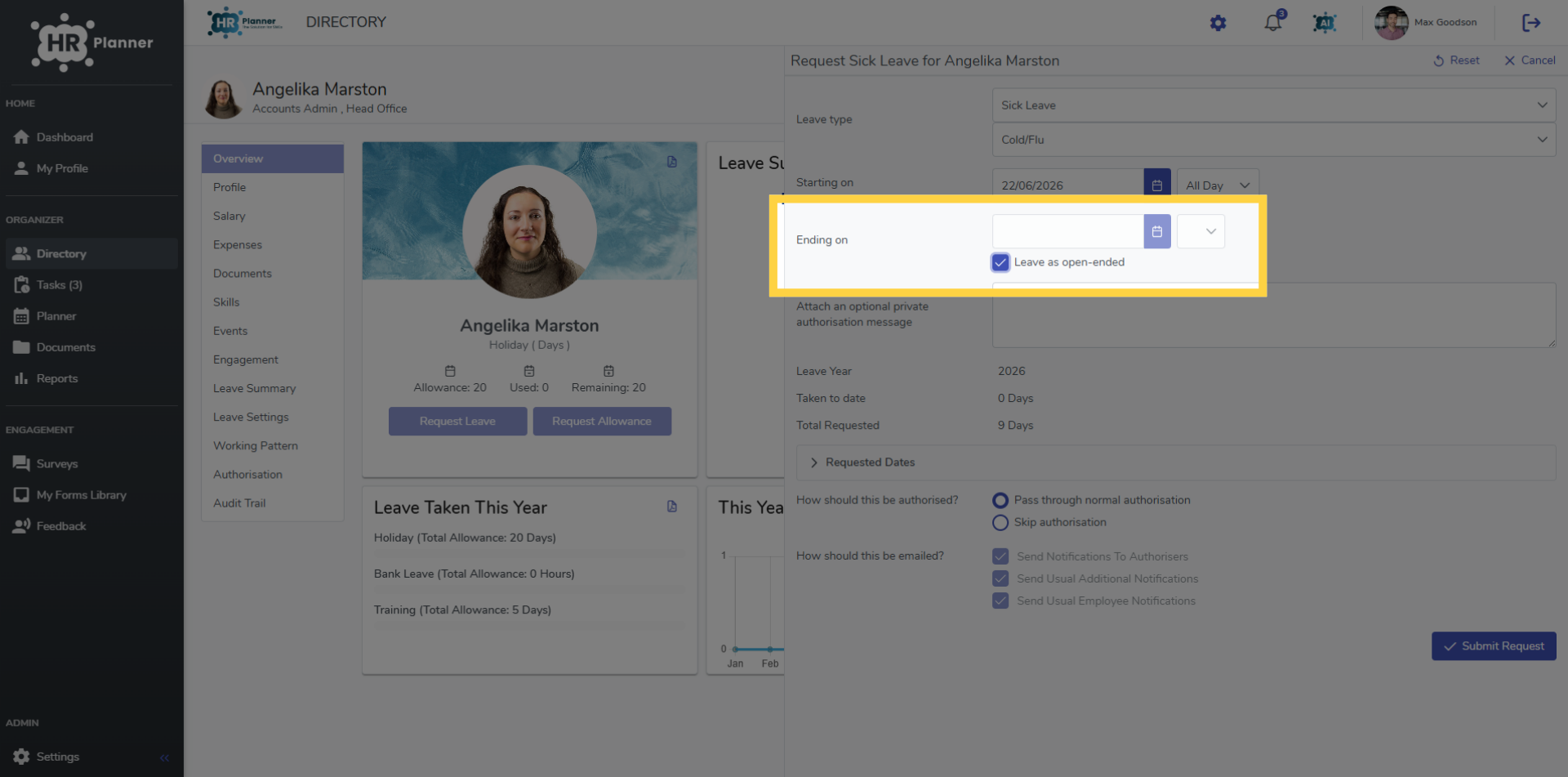
Sick Leave requests will now have the option to select Open Ended. This removes the option of setting an end date.
8. View the Planner
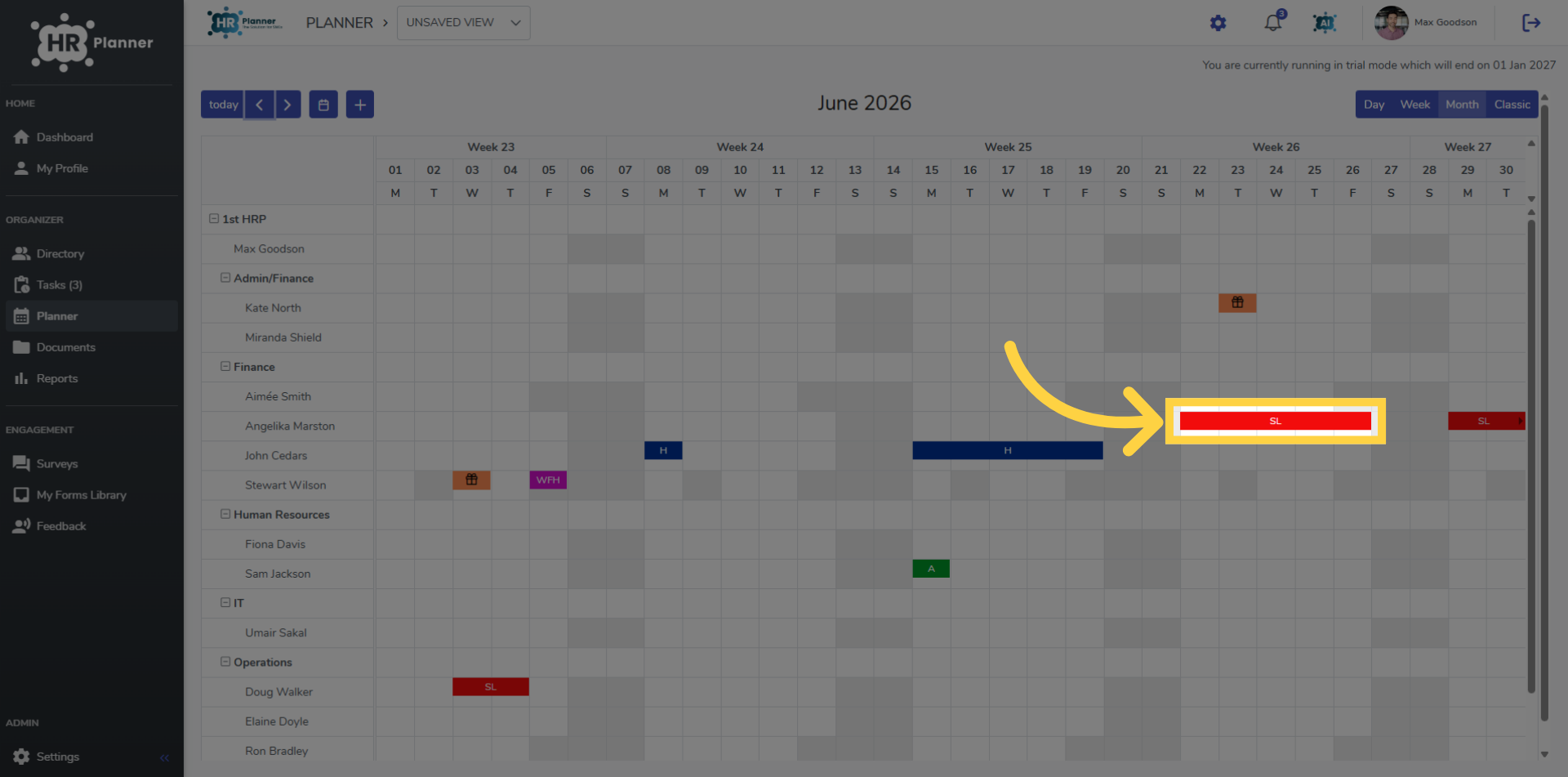
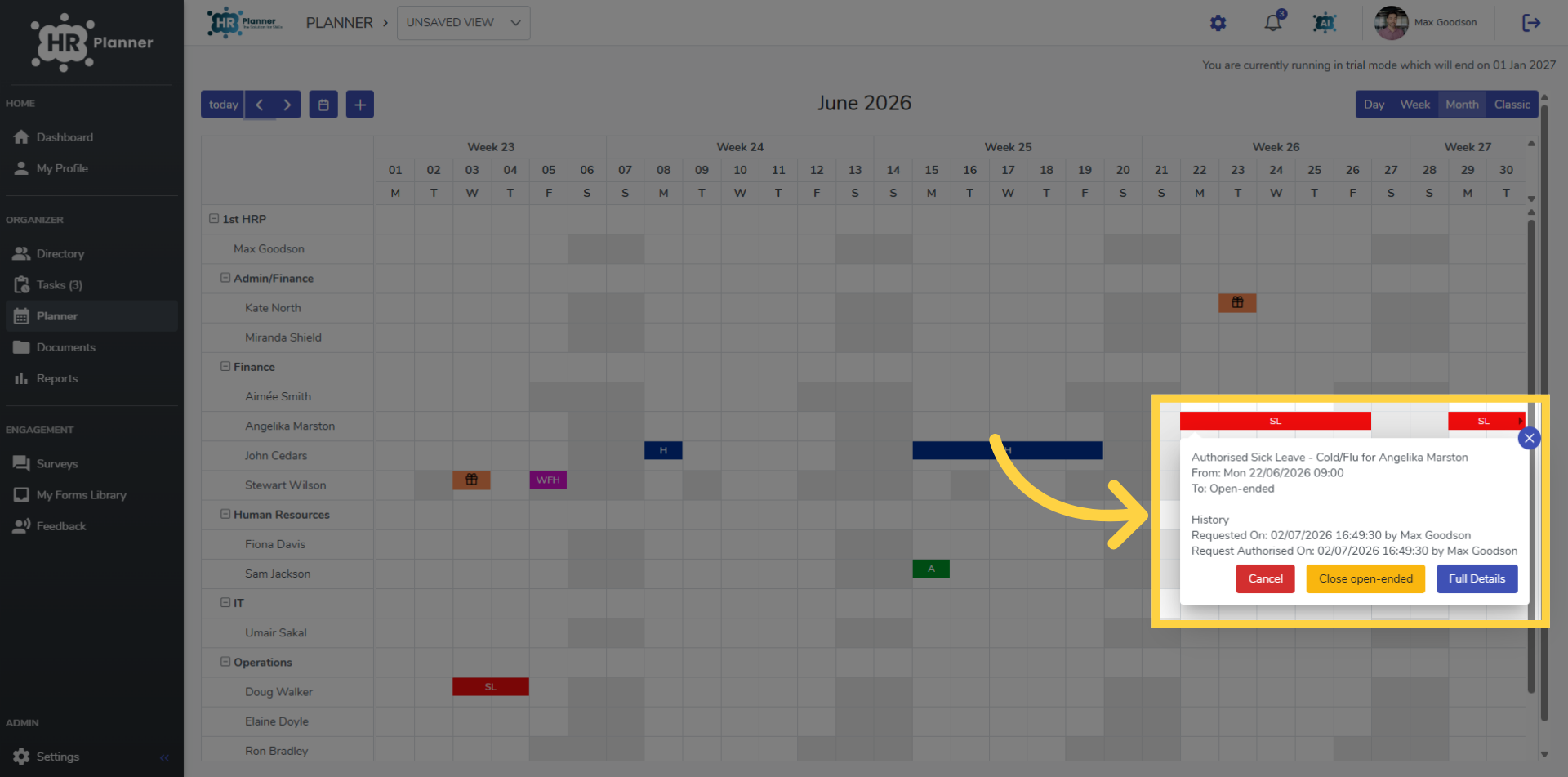
To close the request once the end date is known select the event in the Calendar
9. Close the Request
Click “Close open-ended” to finalise.
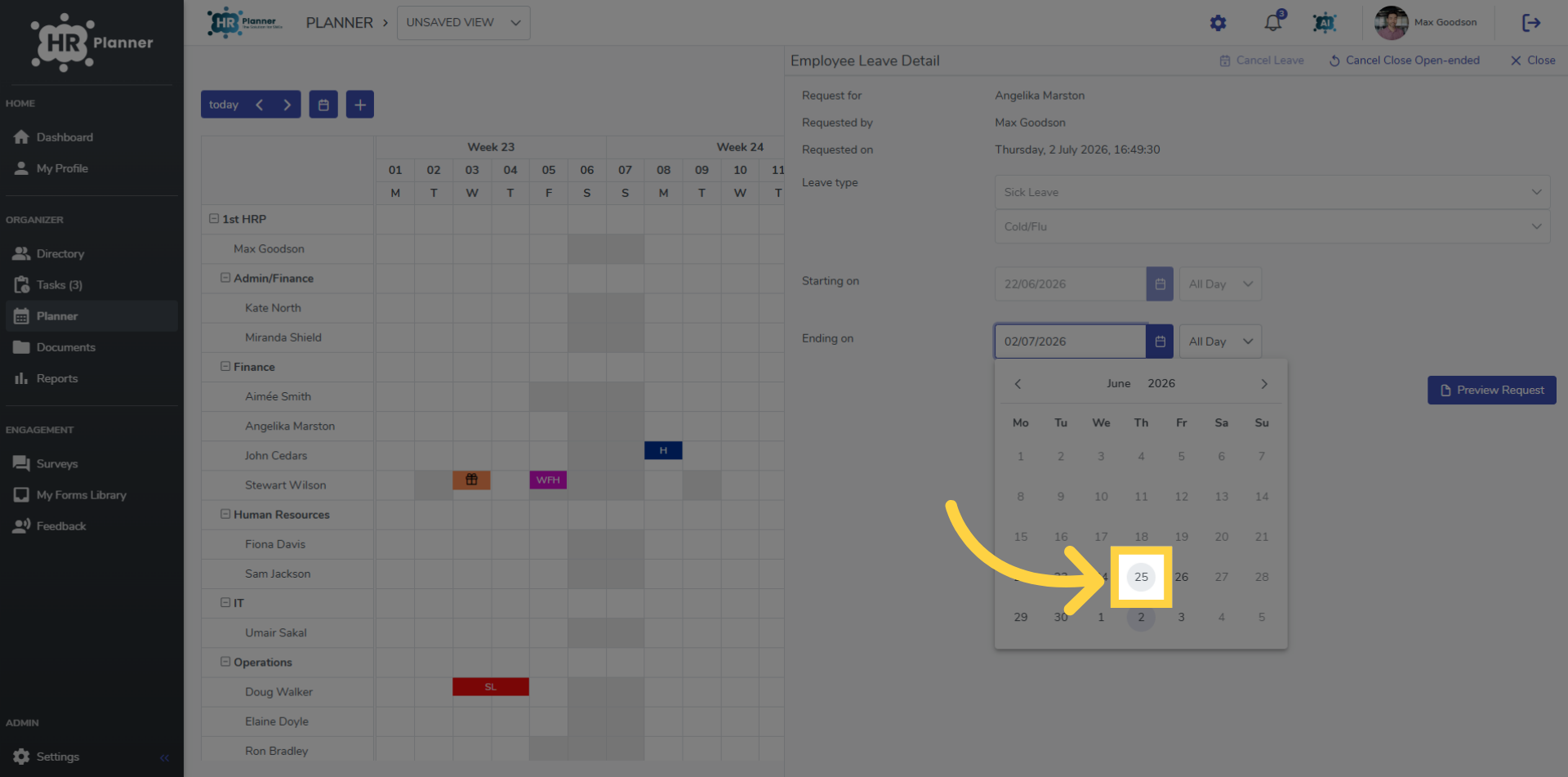
10. Select End Date
And set the absence end date.
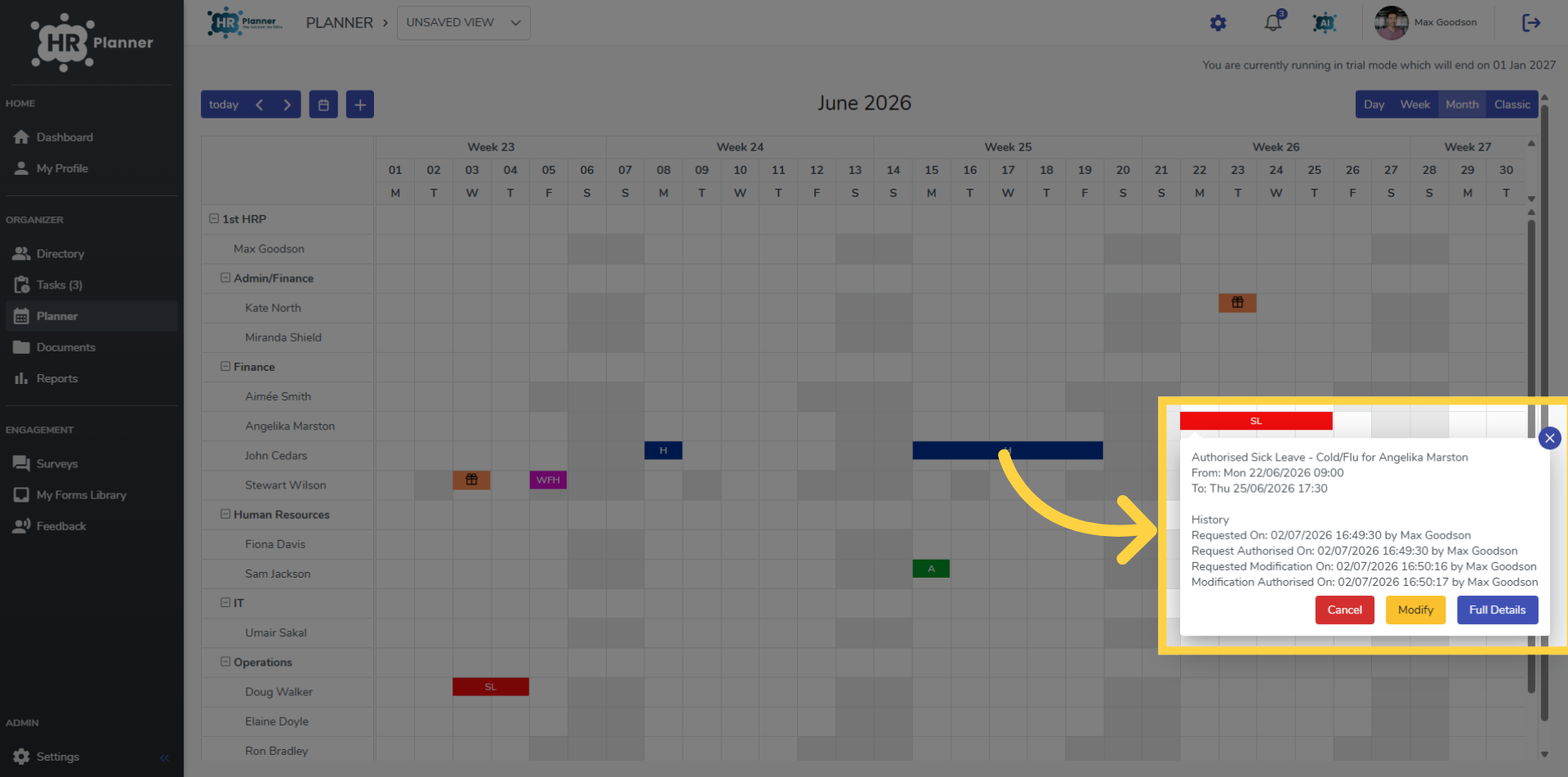
11. View Completed Request
The request is closed and the detailed history can be viewed.
You have successfully configured open-ended leave requests using HR Planner.