
This tutorial guides you through importing your data from BreatheHR into HR Planner.
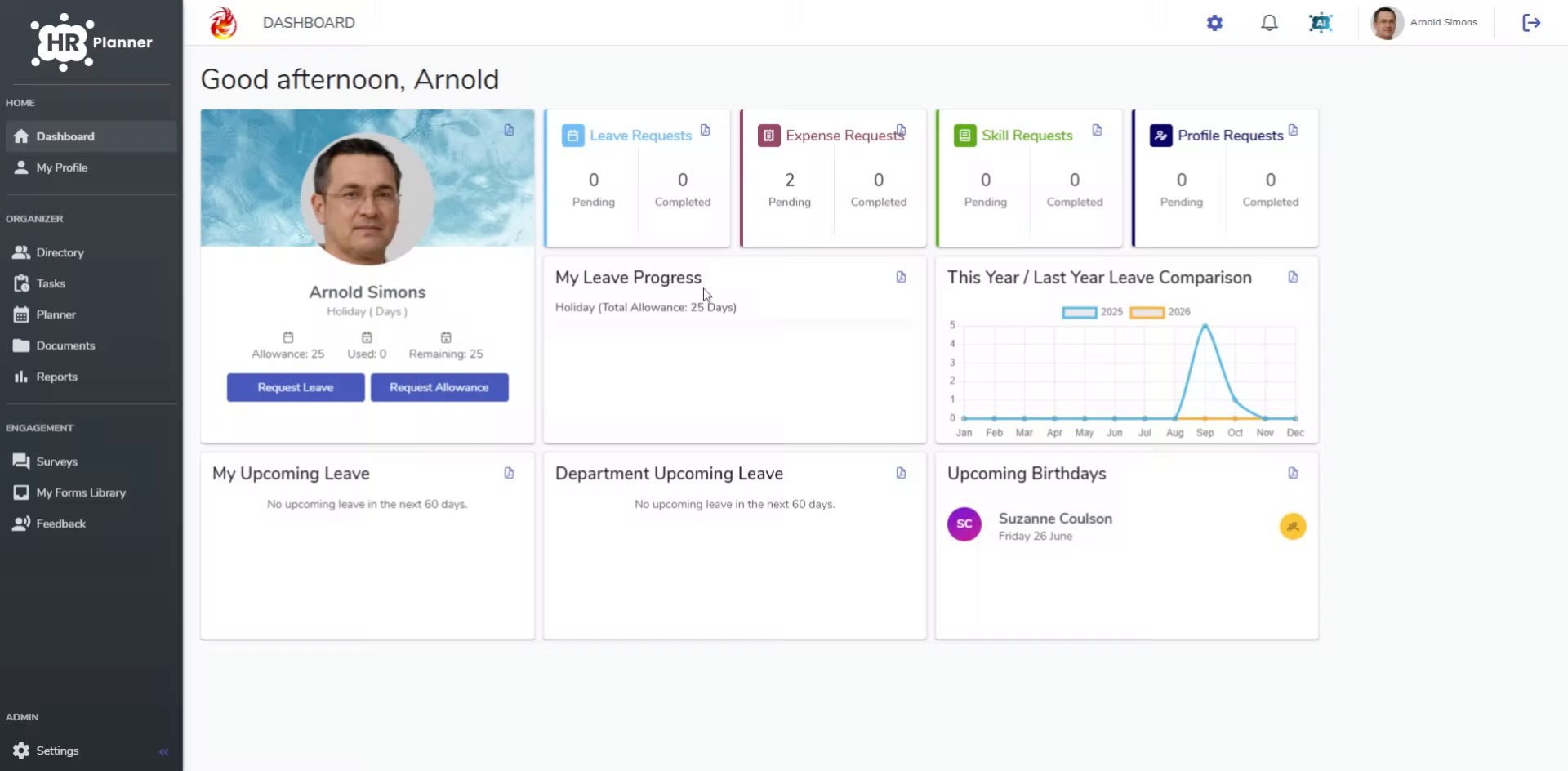
1. Access Import/Export
To start the import from BreatheHR, navigate to the import/export section in your HR planner settings.
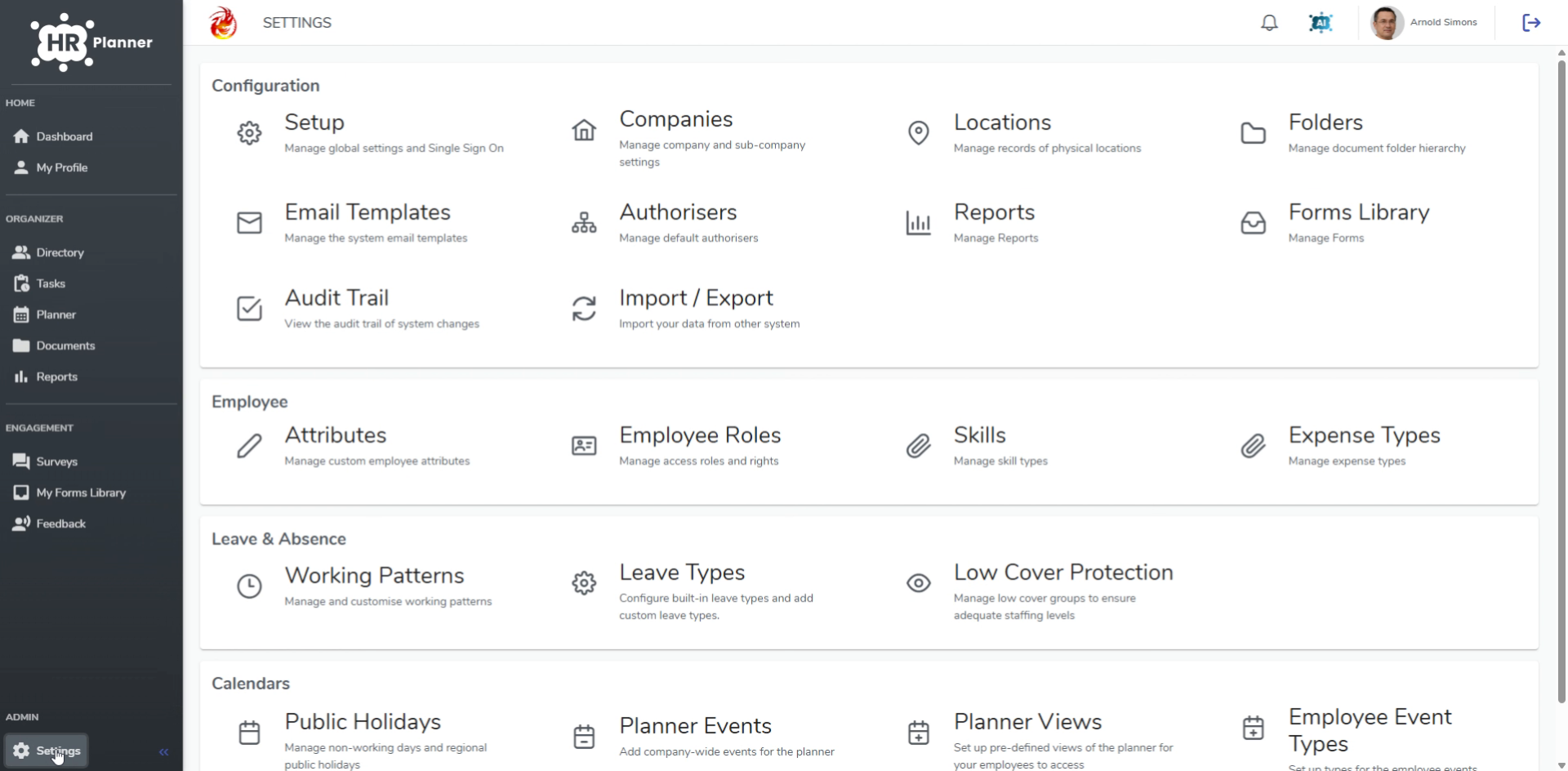
2. Select BreatheHR Import
Select BreatheHR from the list of available options and then click to start a new import run.
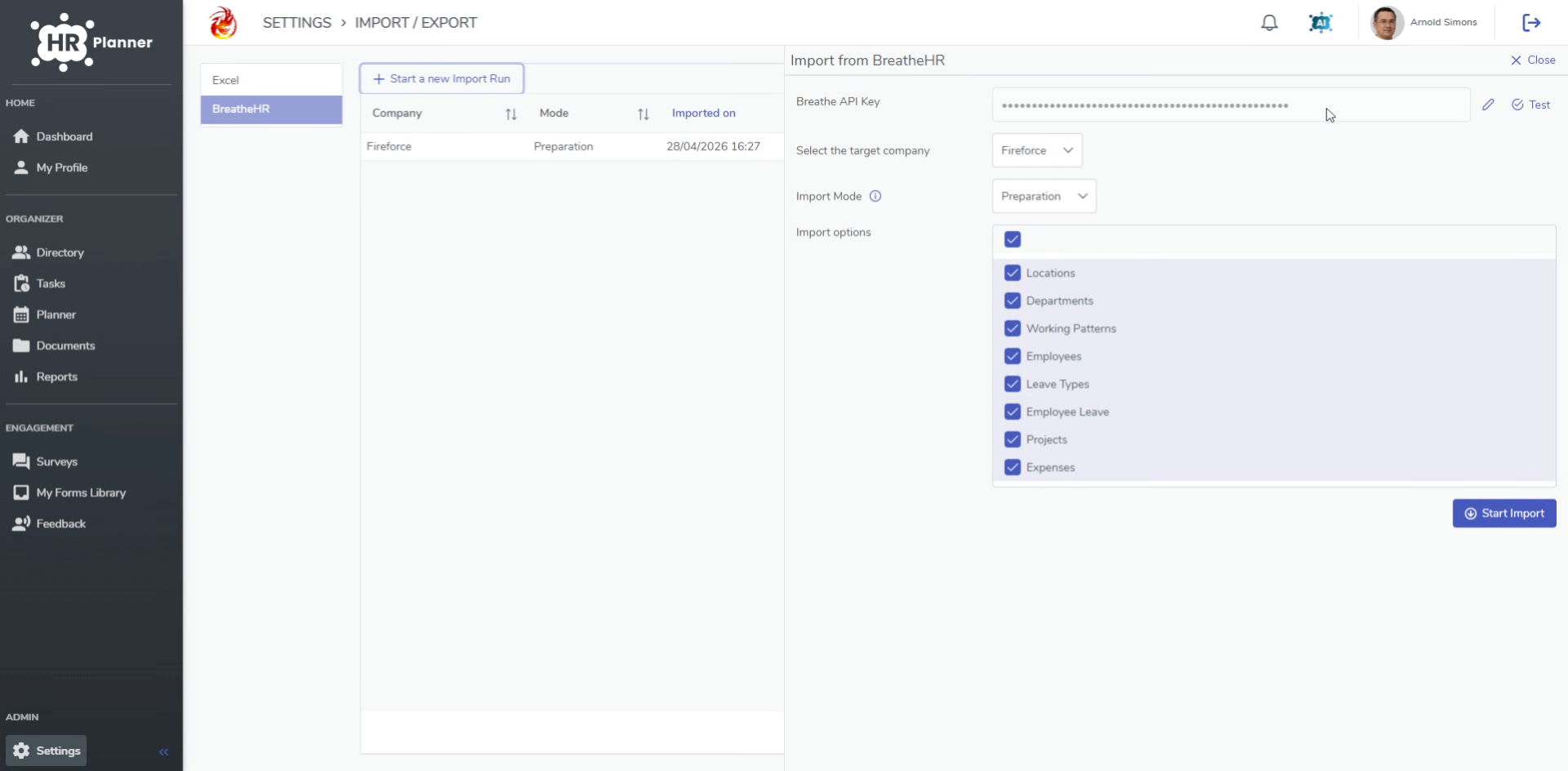
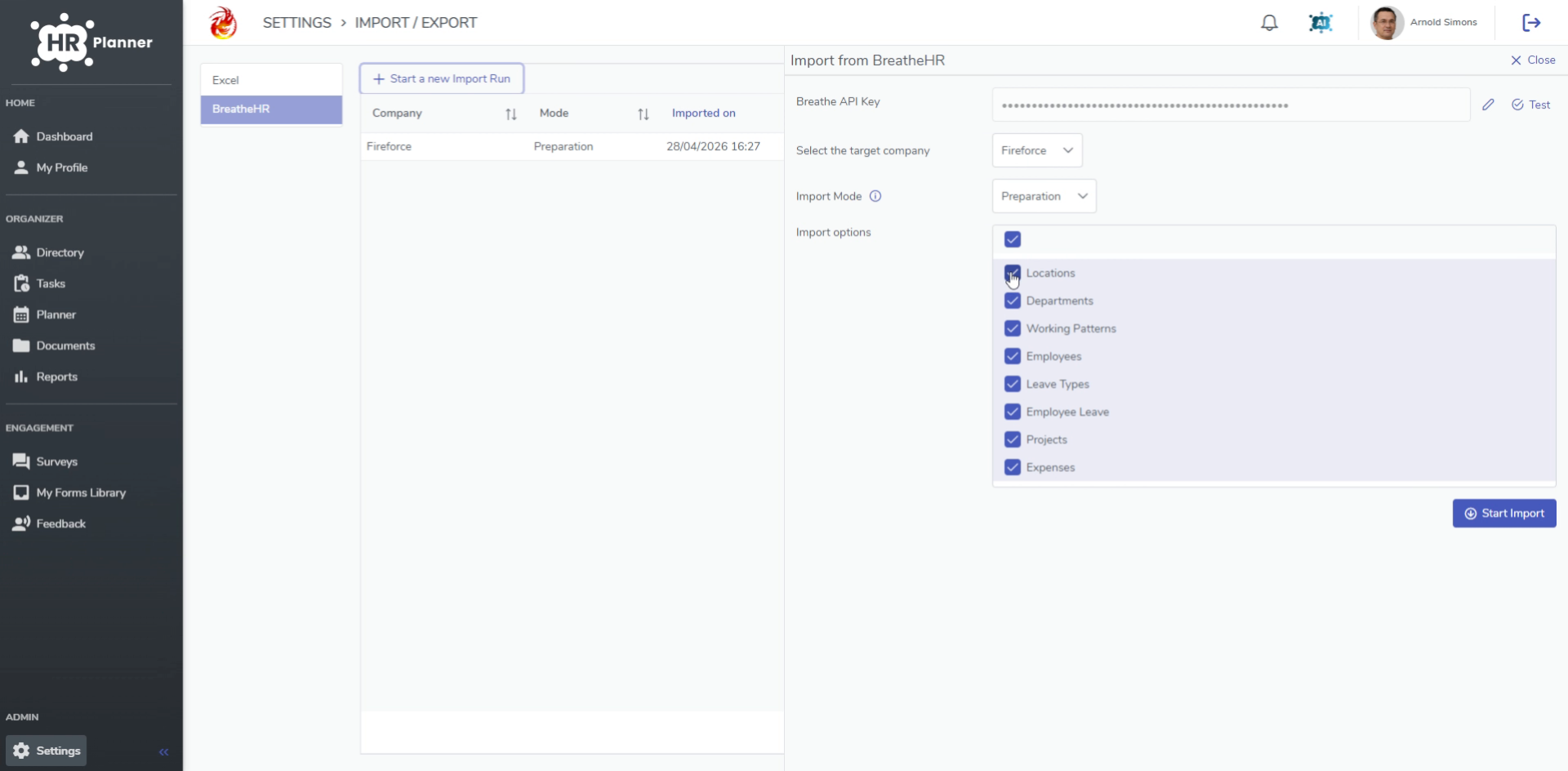
3. Enter BreatheHR API Key
Enter your BreatheHR API key, which you must obtain from your BreatheHR system. As HR Planner supports multiple Companies you can select the target company that you wish to import your data into.
4. Select Import Mode And Email Settings
Select the import mode. For example, “Preparation” will transfer all of the data except for email addresses, so people do not get unexpected emails.
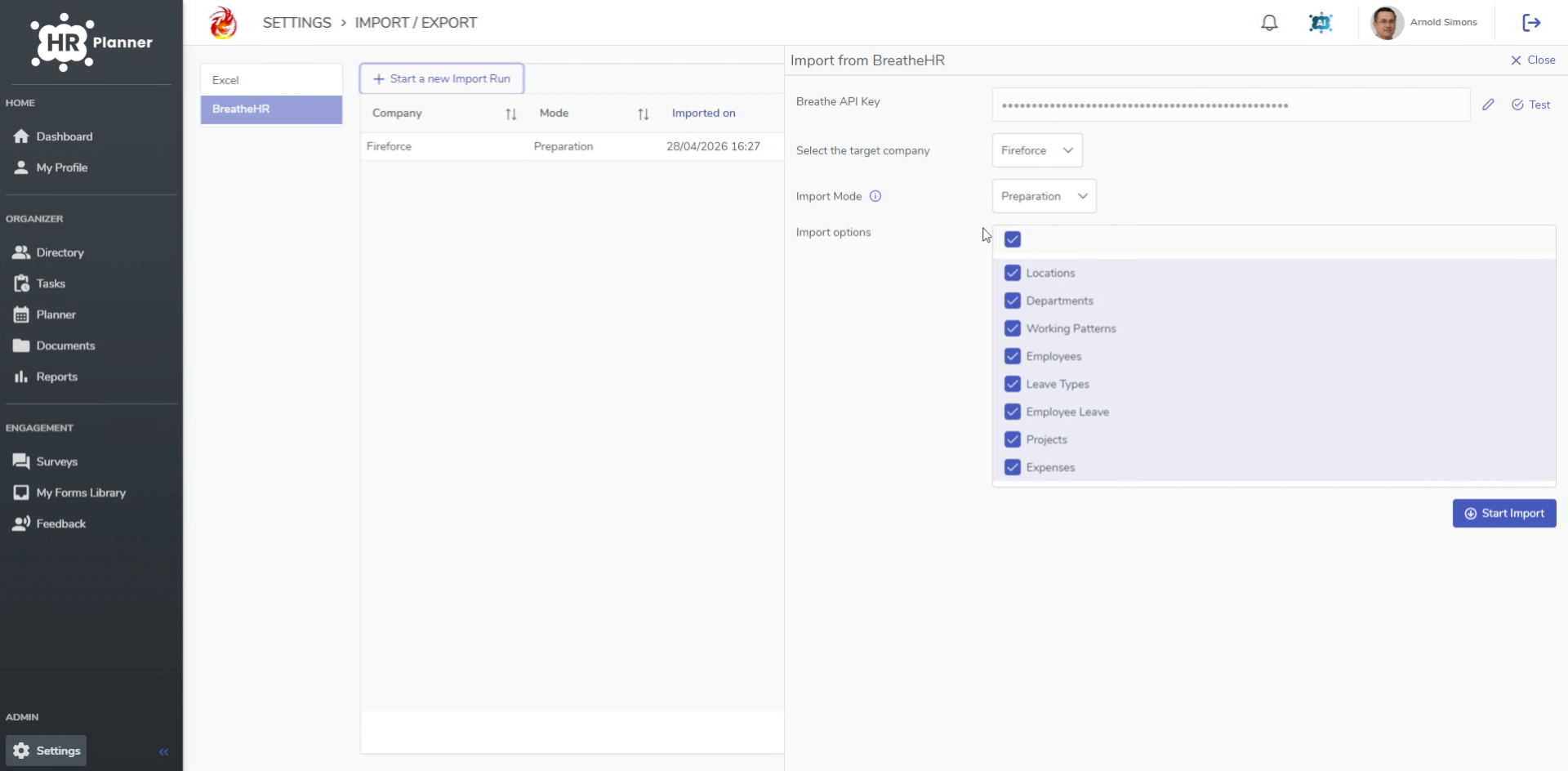
5. Choose Import Options
Then select all the options you want to import before finishing by clicking Start Import.
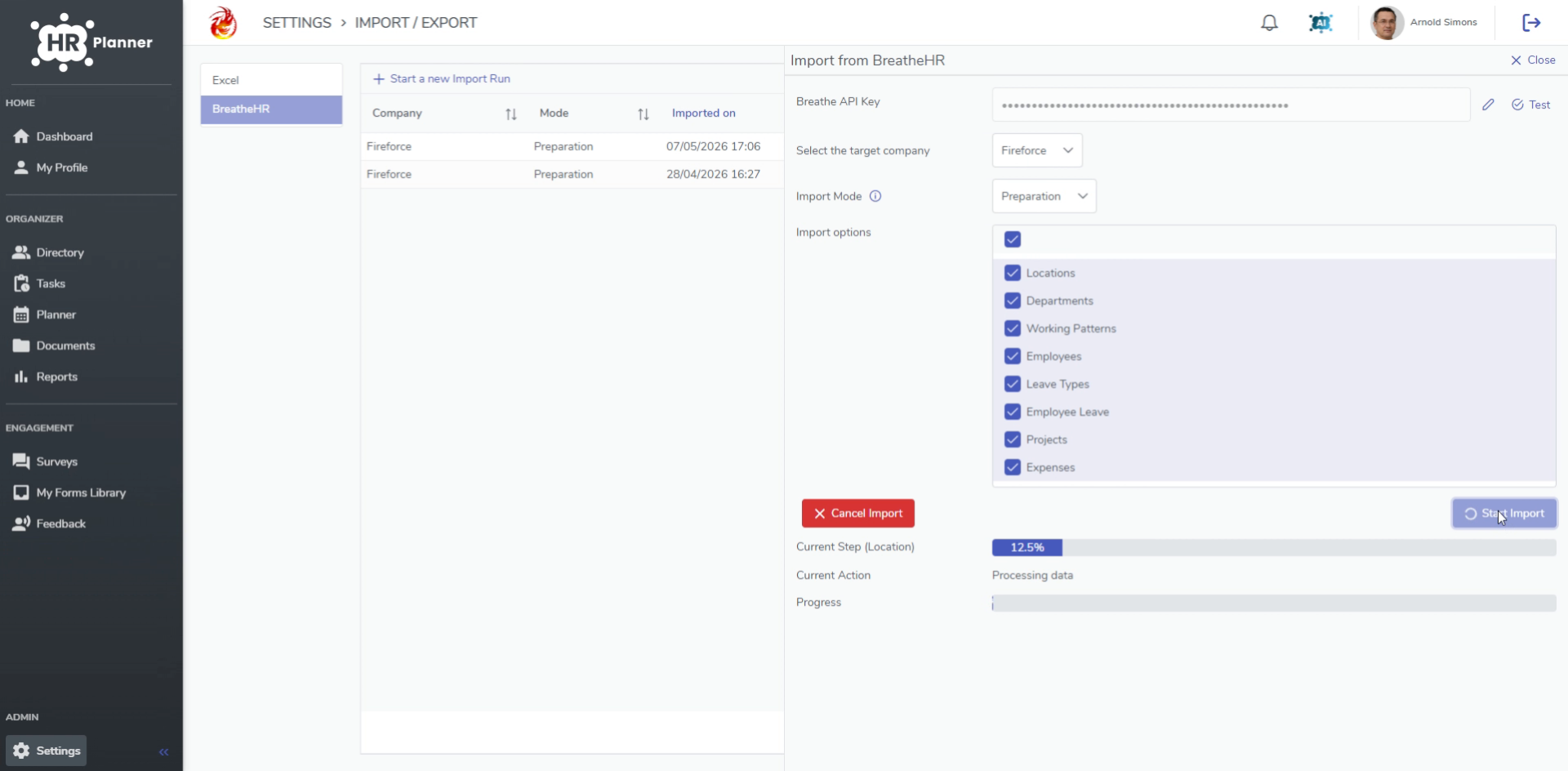
6. Monitor Data Transfer
The system will now transfer all data from BreatheHR into HR planner and show you when it’s complete.
7. Review Import Details
Our import is now complete.
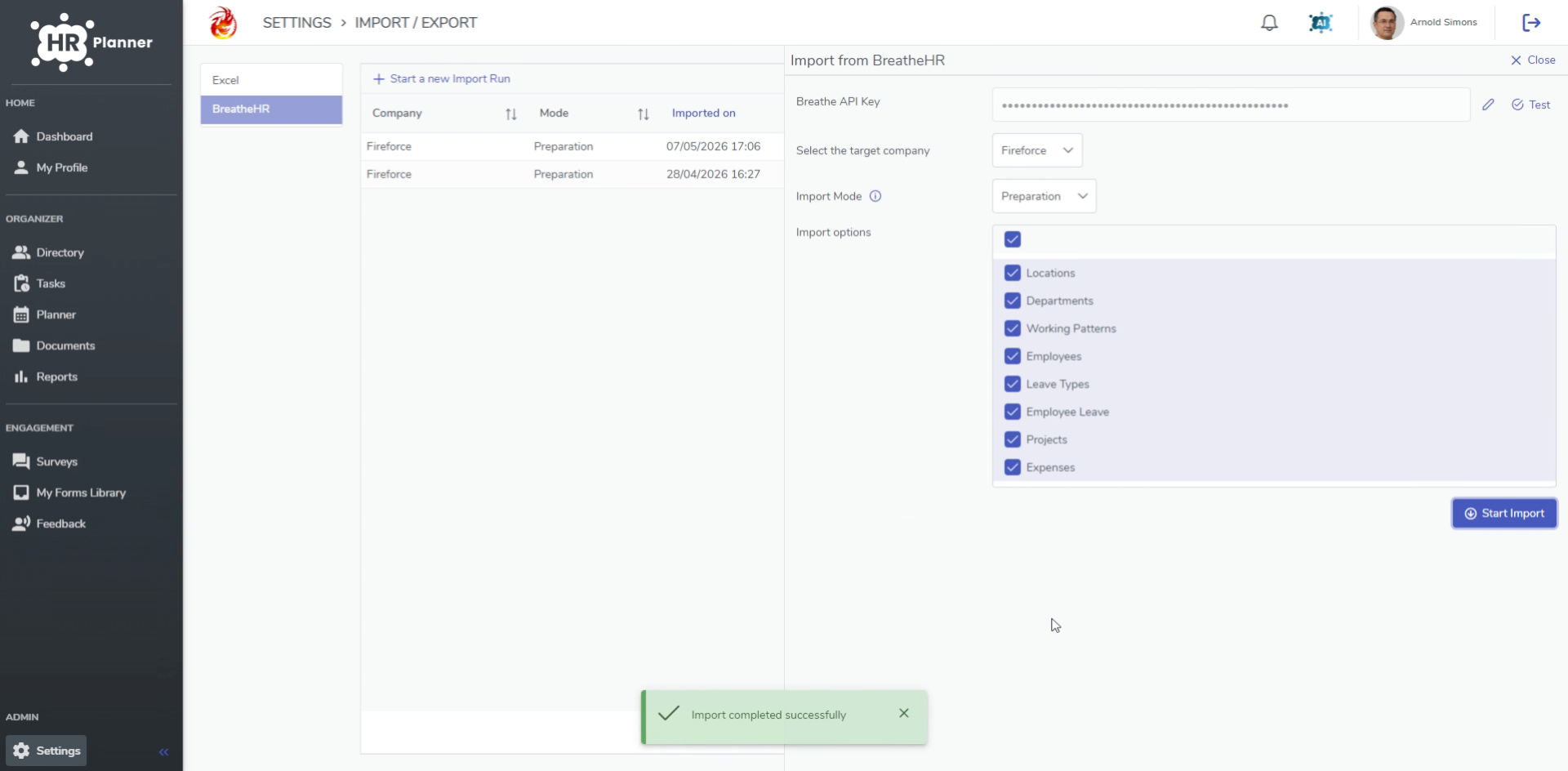
The import from BreatheHR into HR Planner is now complete. You can verify success by reviewing the imported data in the detail section and proceed with further HR management tasks.