
This guide provides a step by step walkthrough of how to request leave for multiple employees using the bulk leave request feature.
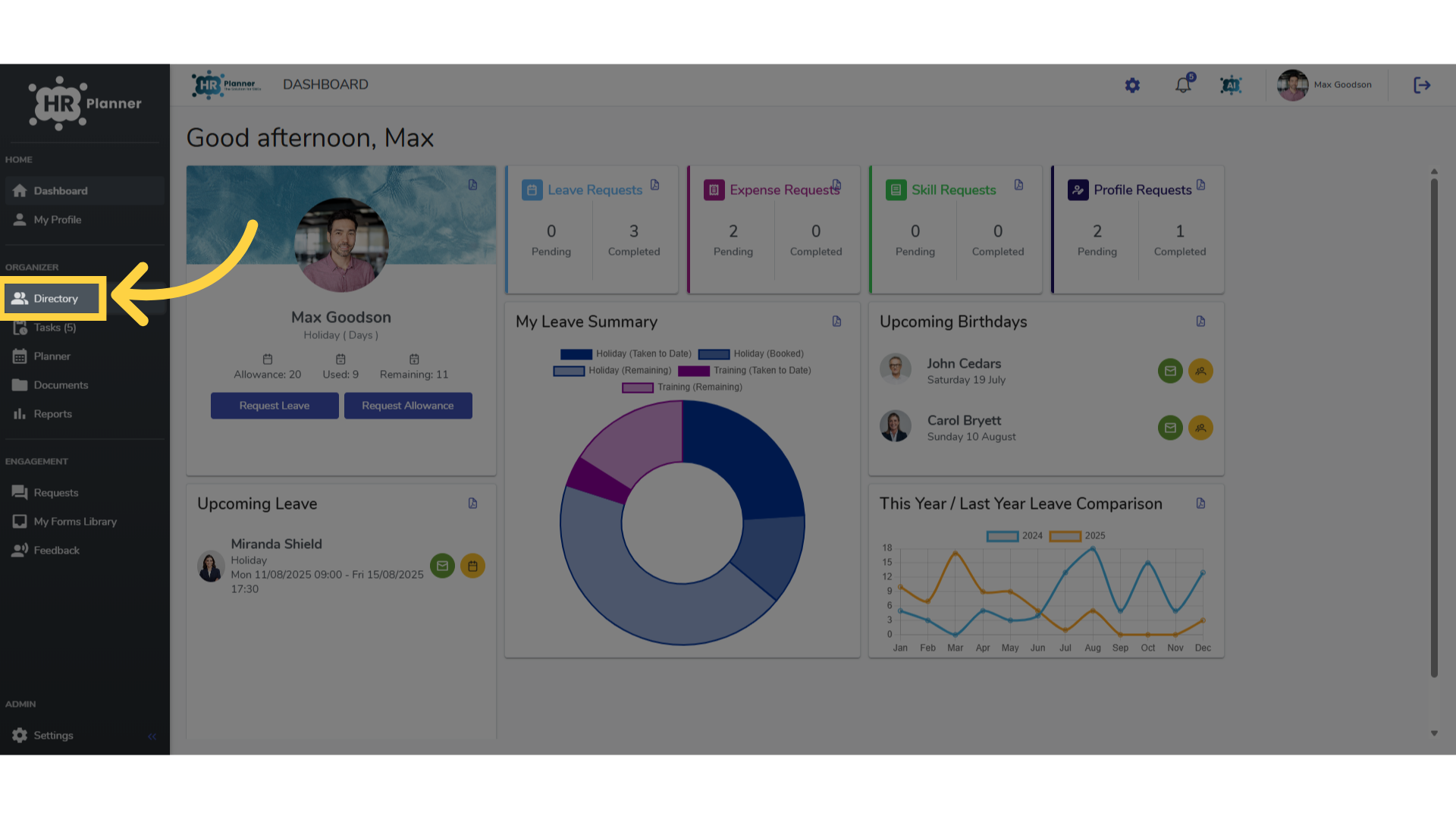
1. Access the Directory
As an example, you can use the bulk leave request feature to book leave for multiple employees during a company shut down between Christmas and new year. Firstly, navigate to the Directory.
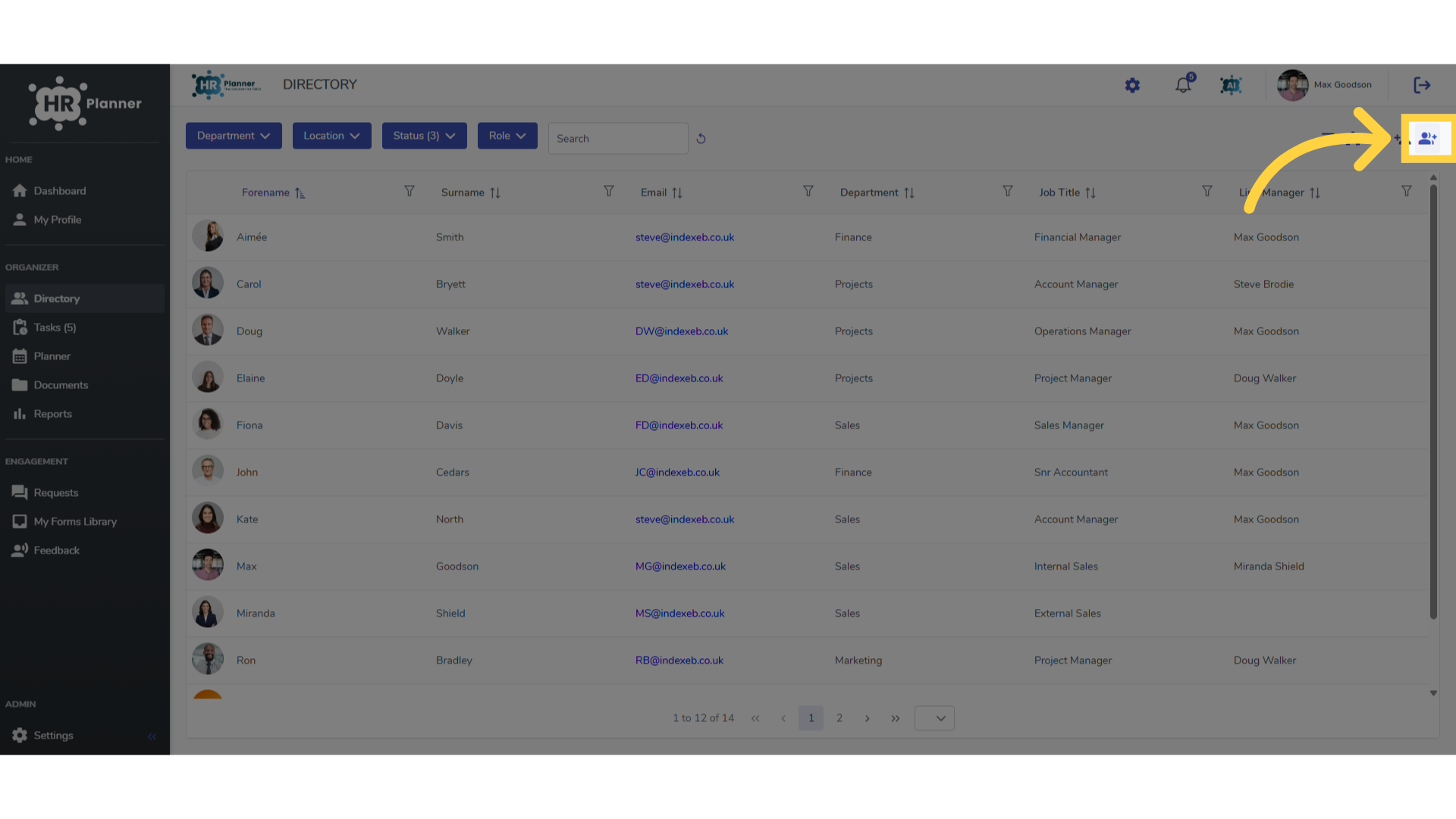
2. Select the Bulk Request icon
and click the icon in the top right hand corner.
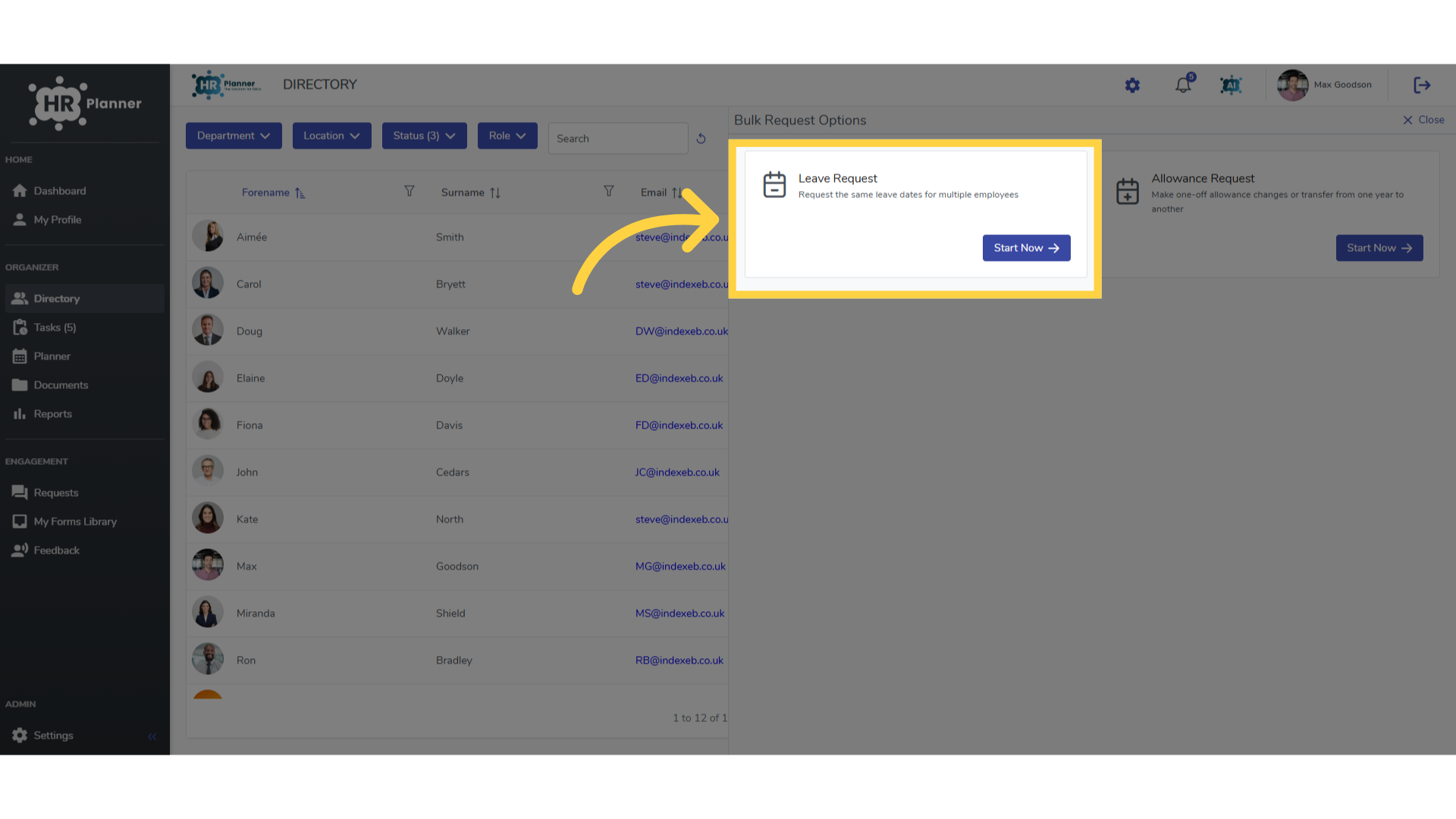
3. Click “Start Now”
In the Leave Request section click start now.
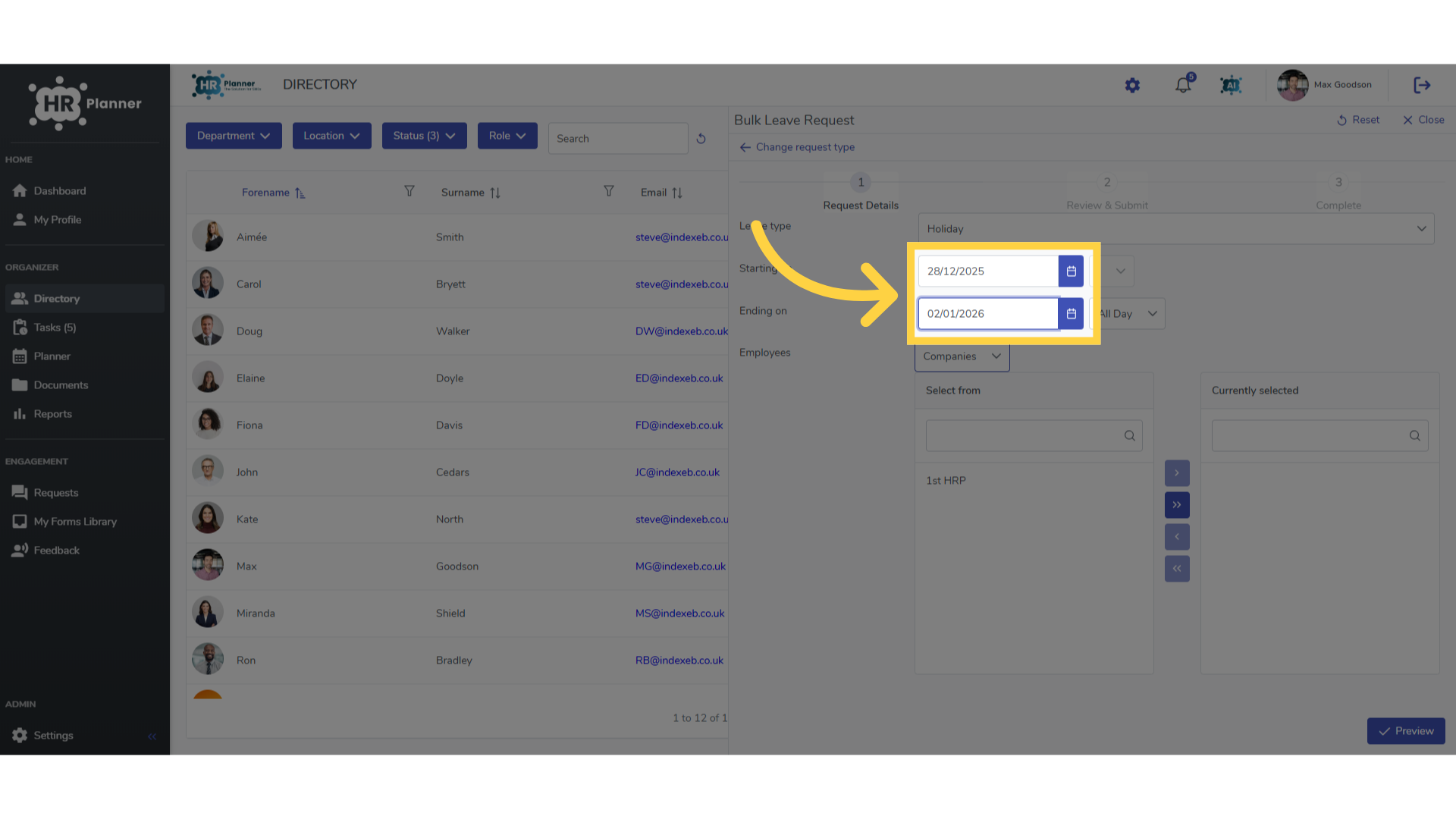
4. Set the start and end dates
Similar to a normal leave request select the start and end date of the request.
5. Choose the employees
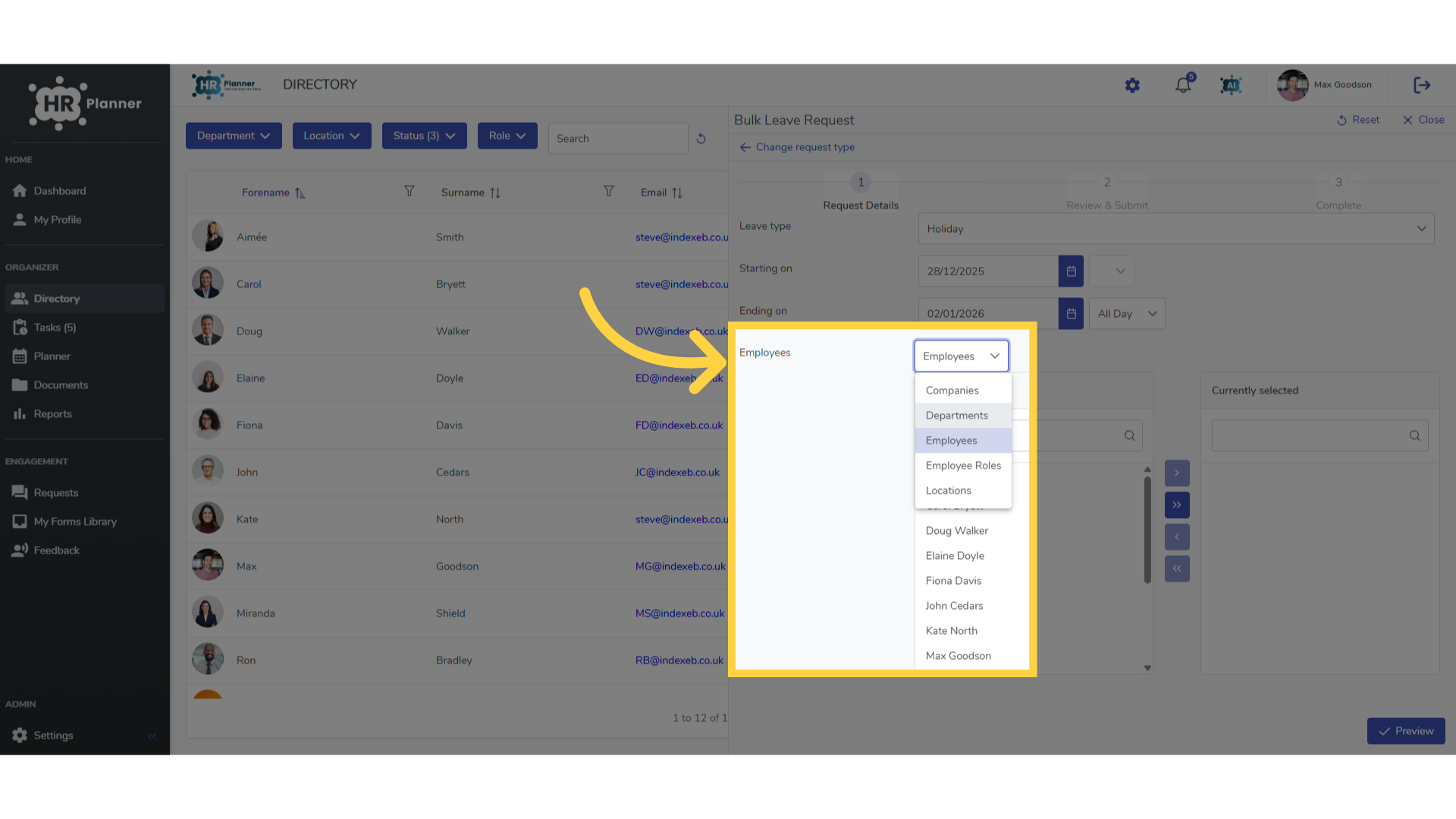
Then using the filter you can choose the company, specific employees
6. Click “Preview”
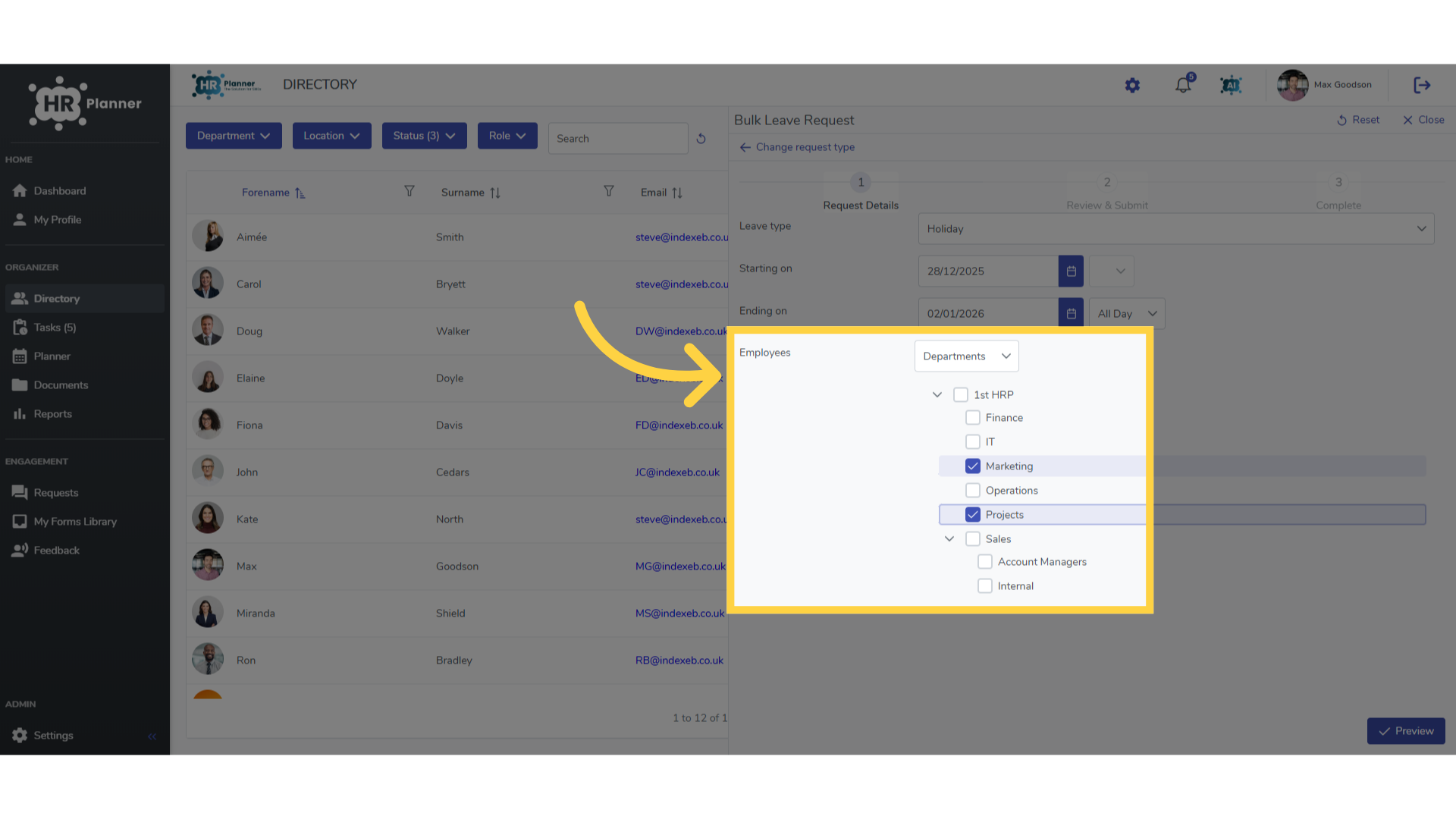
or specific departments
7. Review before sending
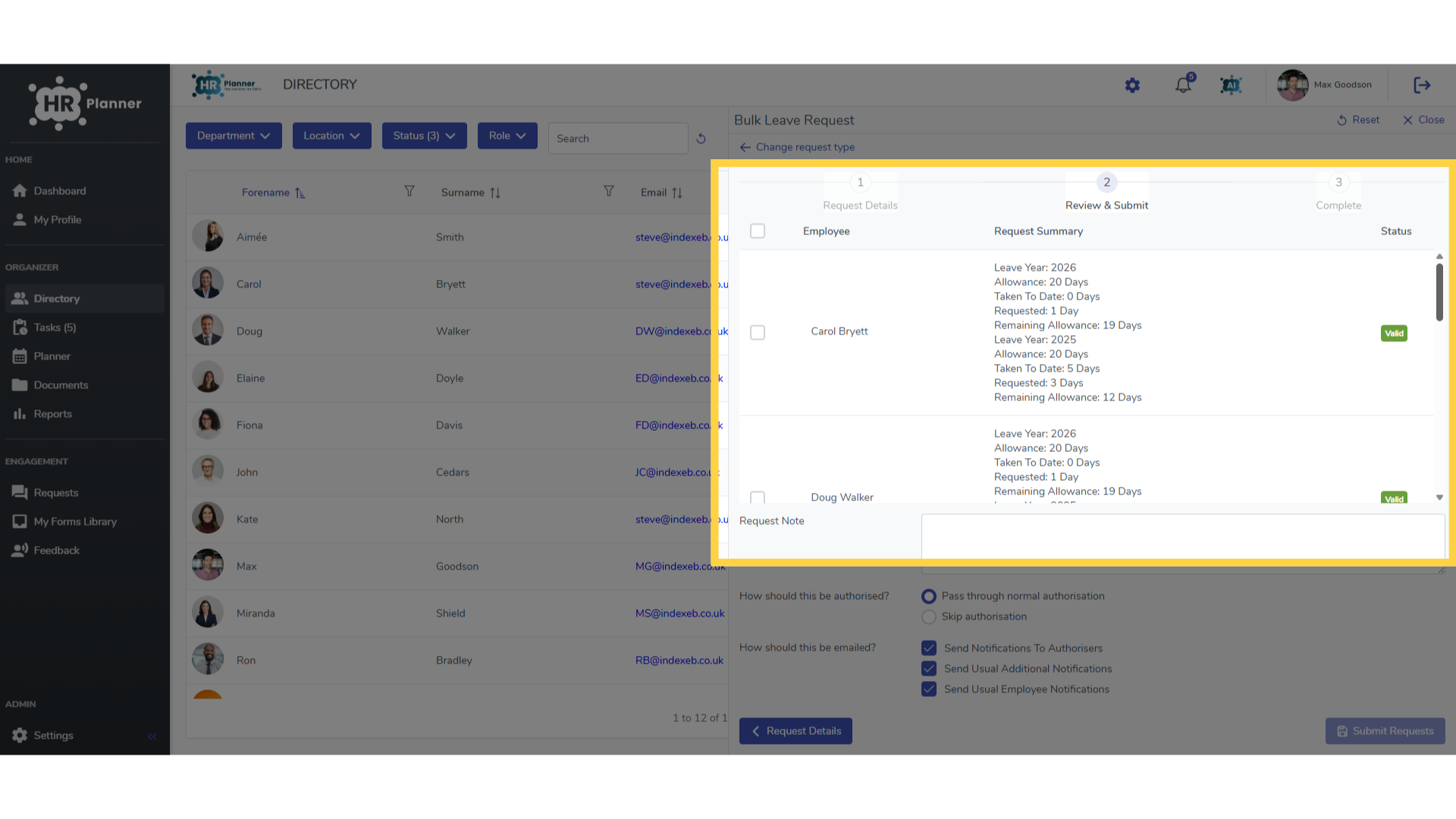
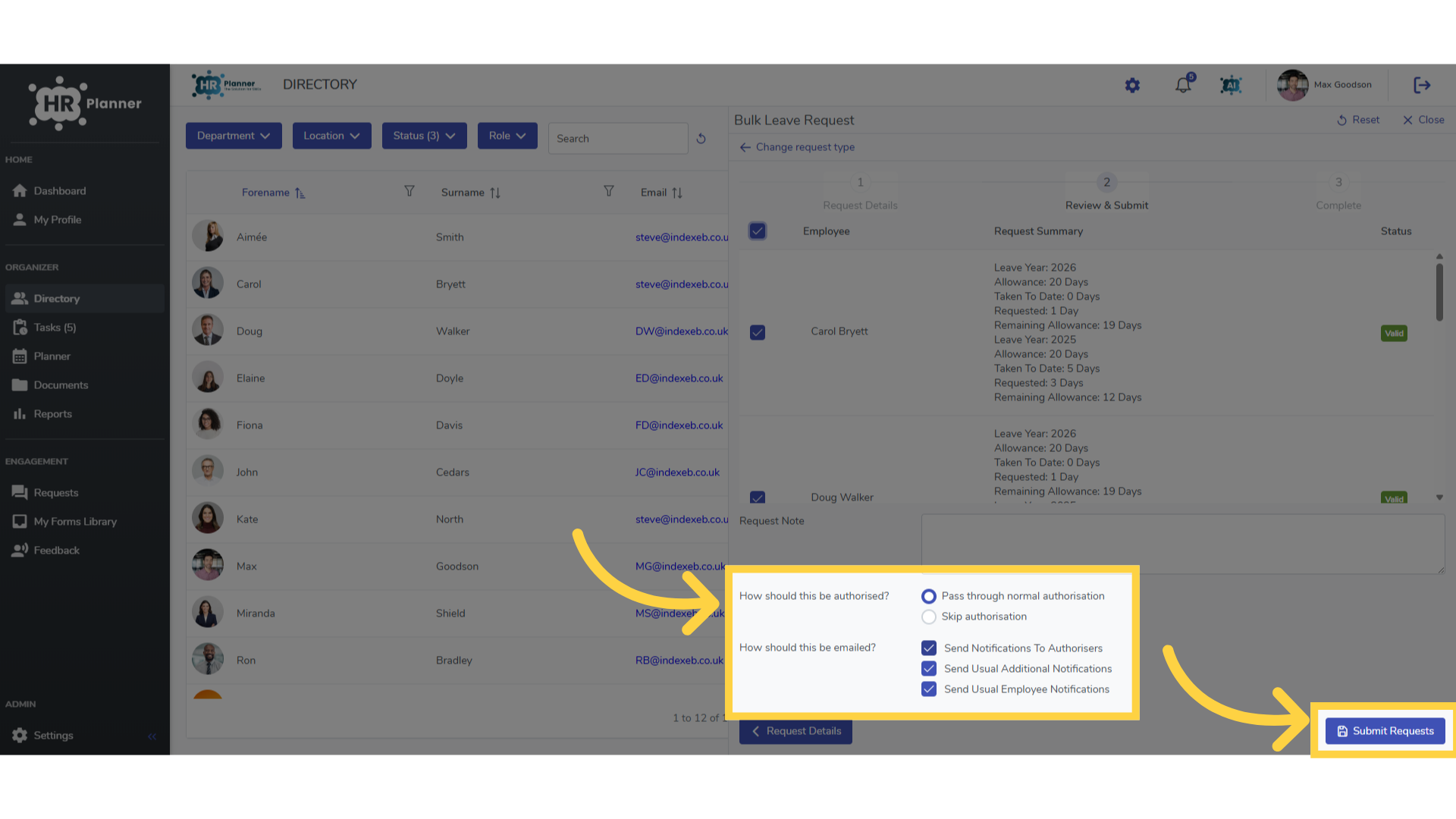
You can review the effect this request will have on each individuals leave allowance. Any issues such as exceeding an allowance will be clearly flagged.
8. Select the employees
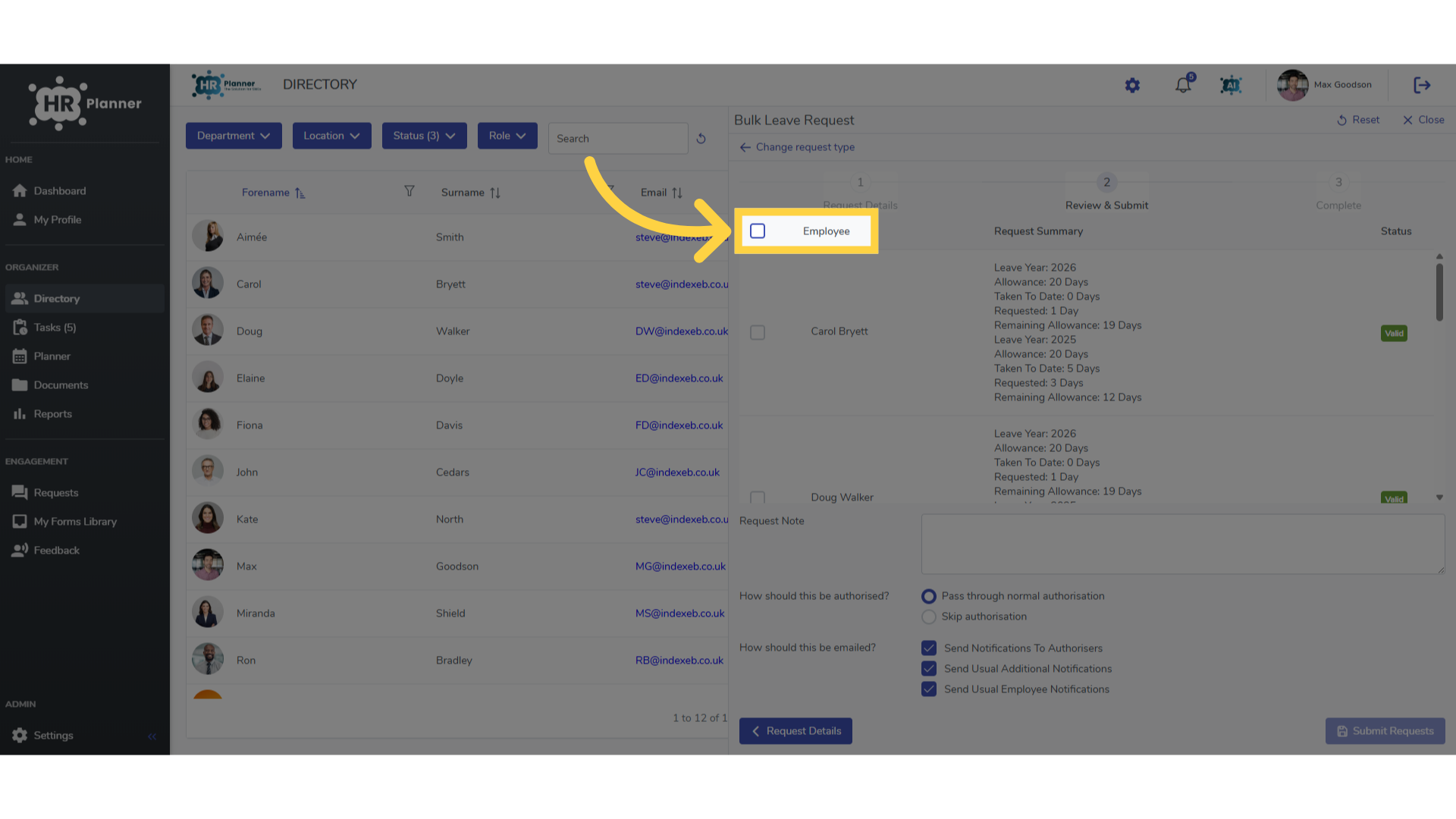
Once reviewed you can select all or some of the employees to raise and process the request for.
9. Select Notifications
You can decide whether to send the request to their normal authorisers to approve and which notification emails to send too. And to complete, click Submit Request
10. View the Calendar
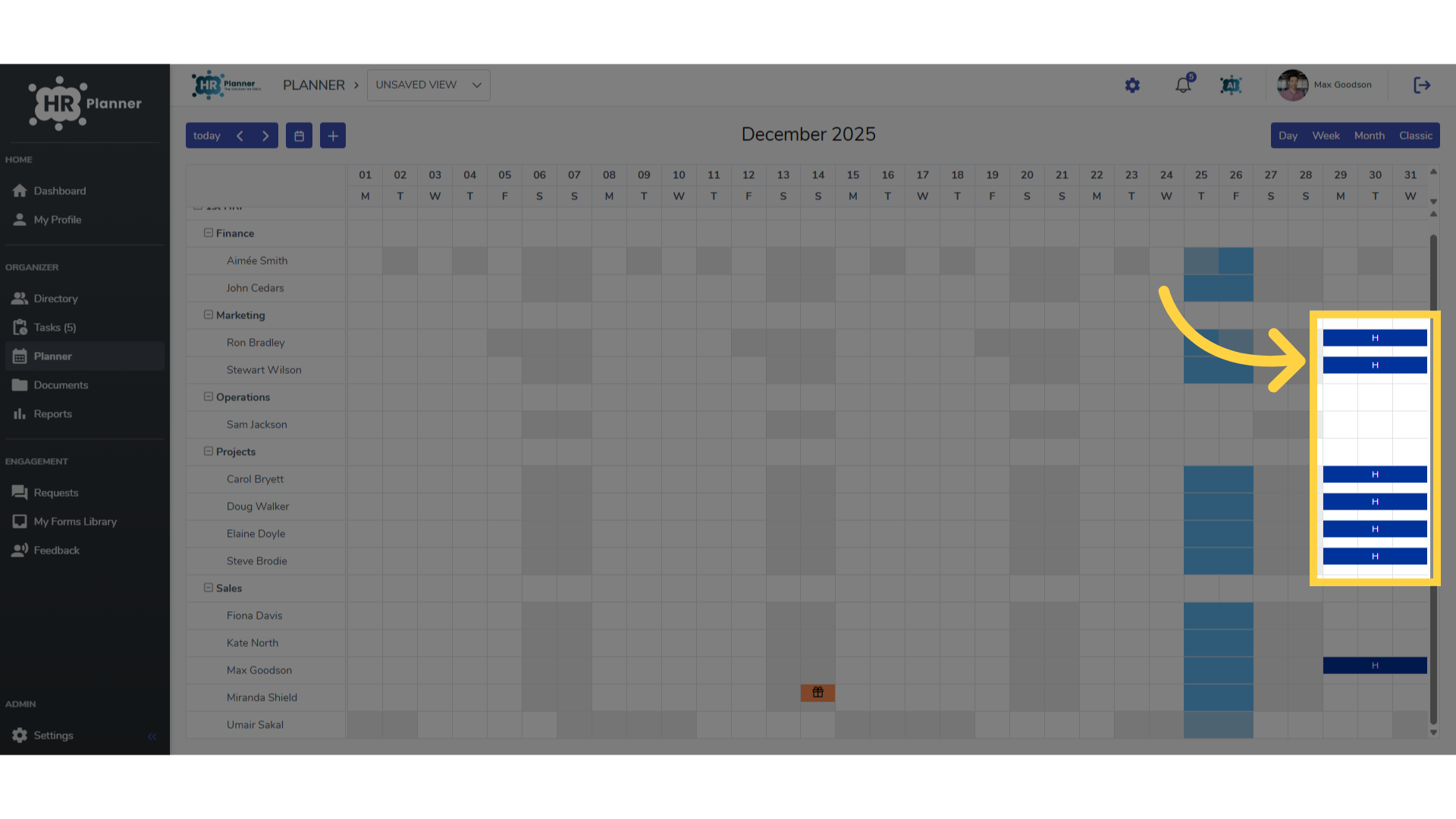
On the Planner you will see the request has been added and all allowances adjusted automatically in the normal way.
This guide covered the steps to Request Leave for Multiple Employees in h r planner.