
This tutorial guides you through managing leave requests within the HR Planner application.
1. Introduction
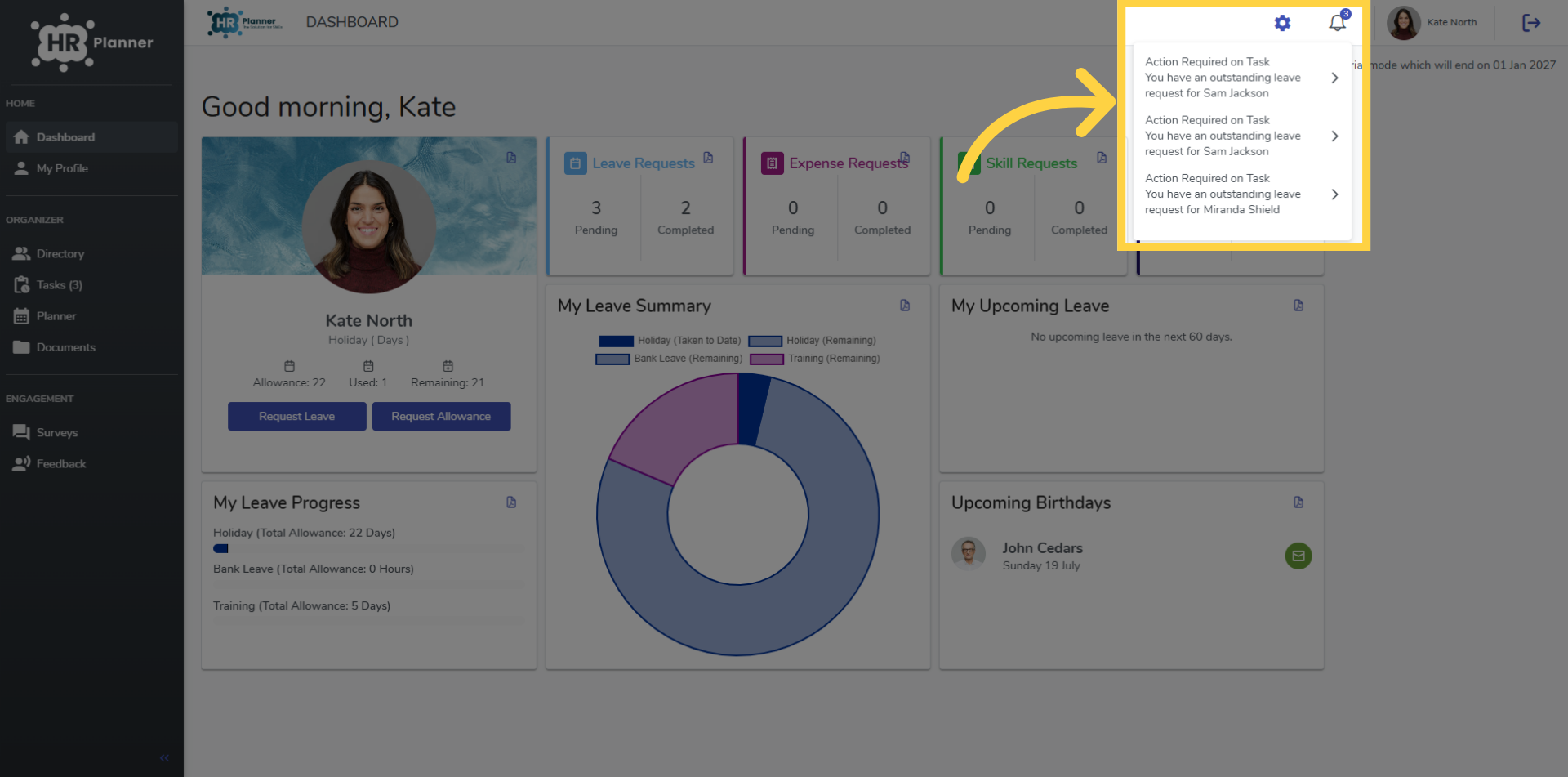
Once an employee that you are the authoriser for, submits a leave request, an email notification is sent to you.
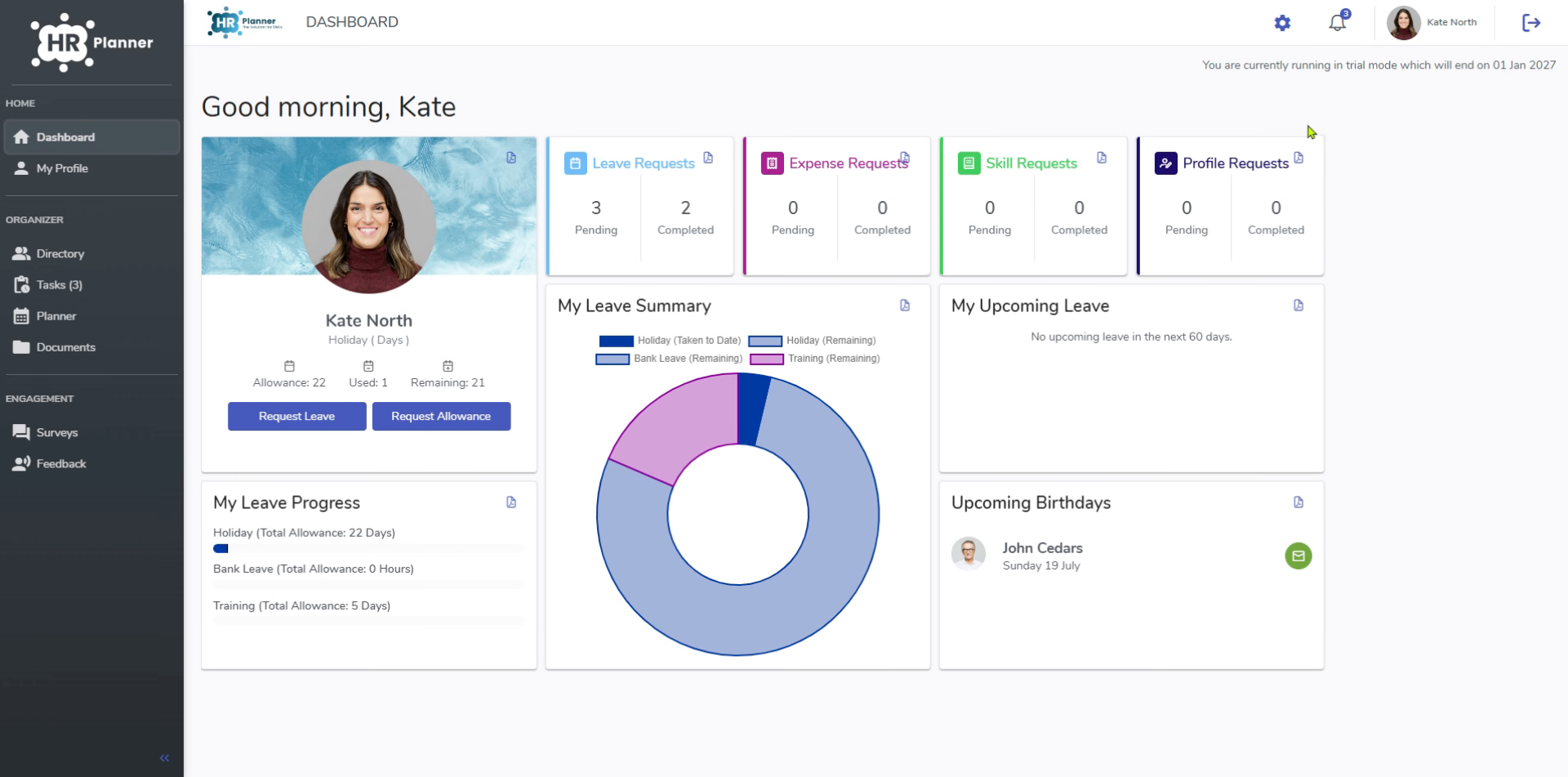
2. Access Your Authorisation Requests
You can access your outstanding authorisation requests on your dashboard.
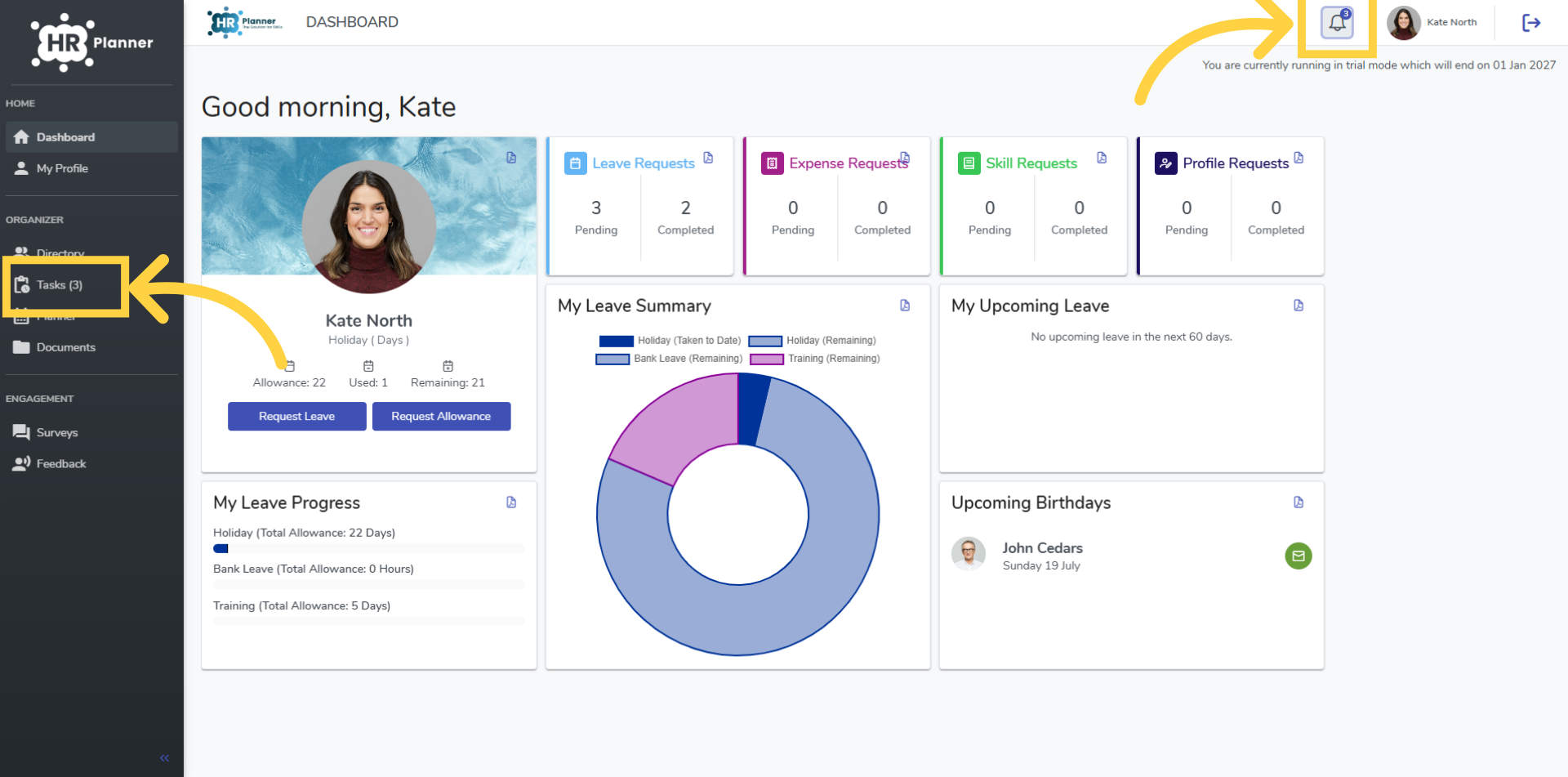
3. Open Tasks
Either by clicking the alert icon in the top task bar.
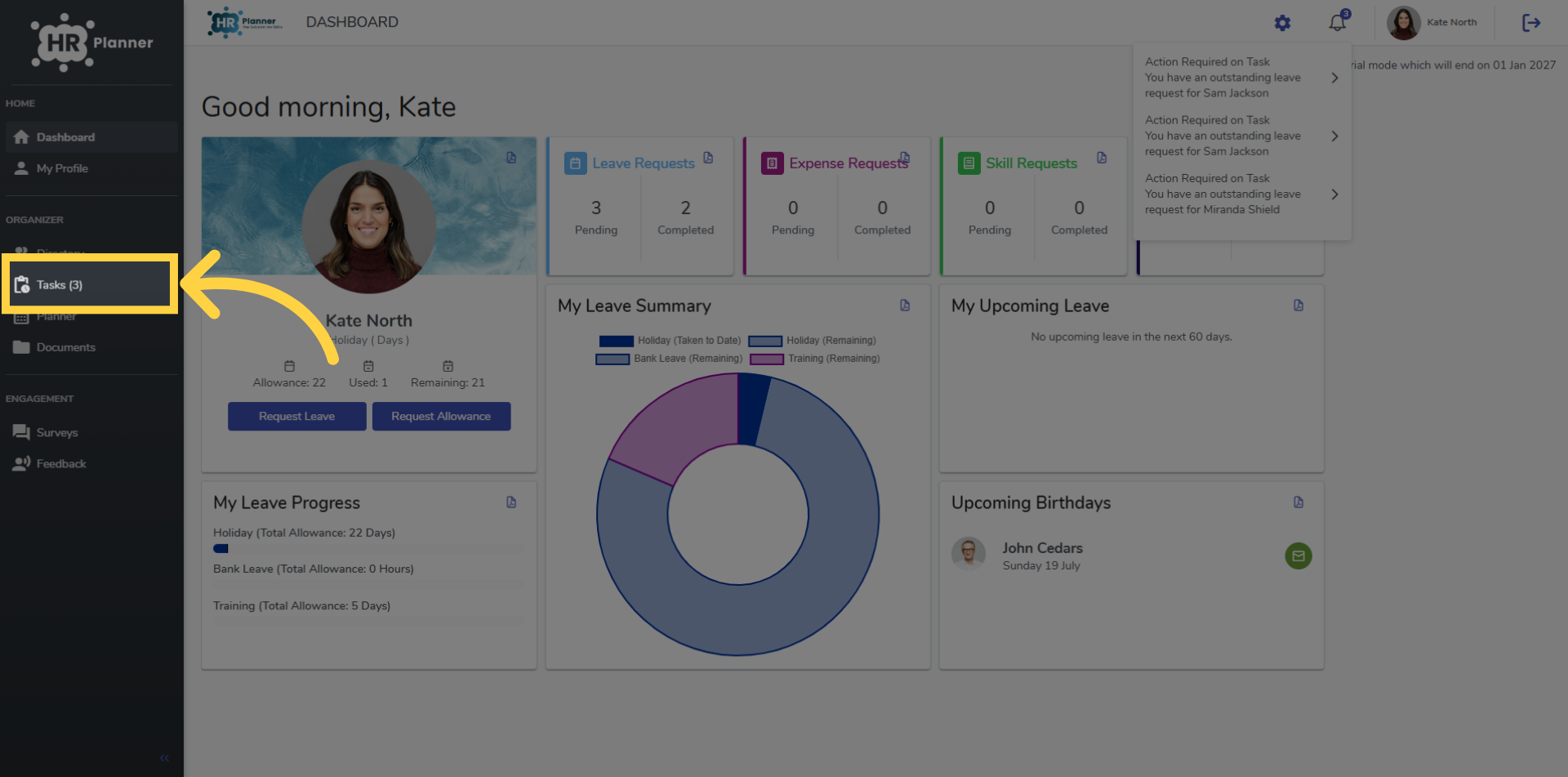
4. Open Tasks
Or by accessing your Tasks in the side bar menu.
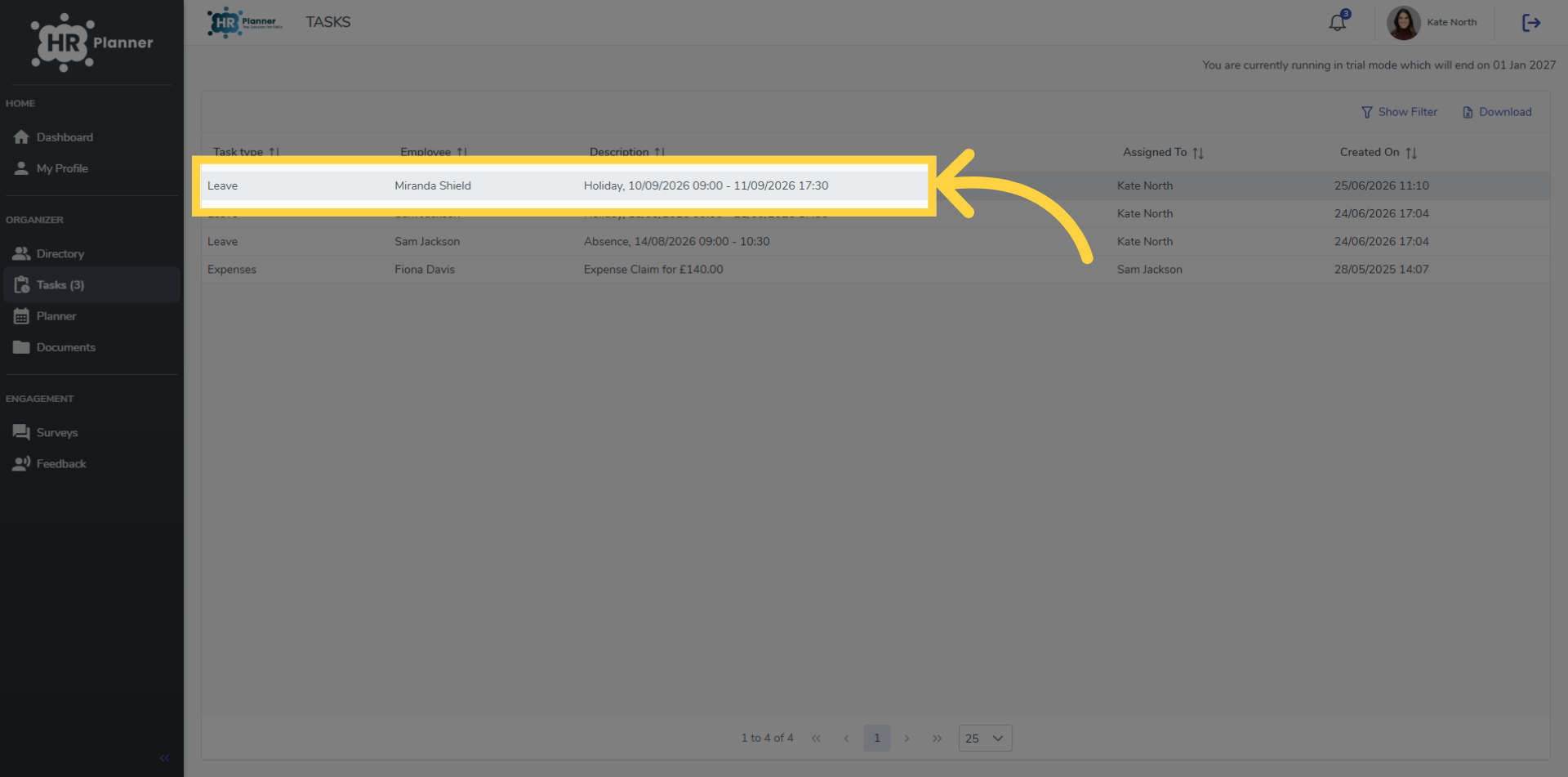
5. Select Leave Request
From the list of your Tasks click the request that you want to manage.
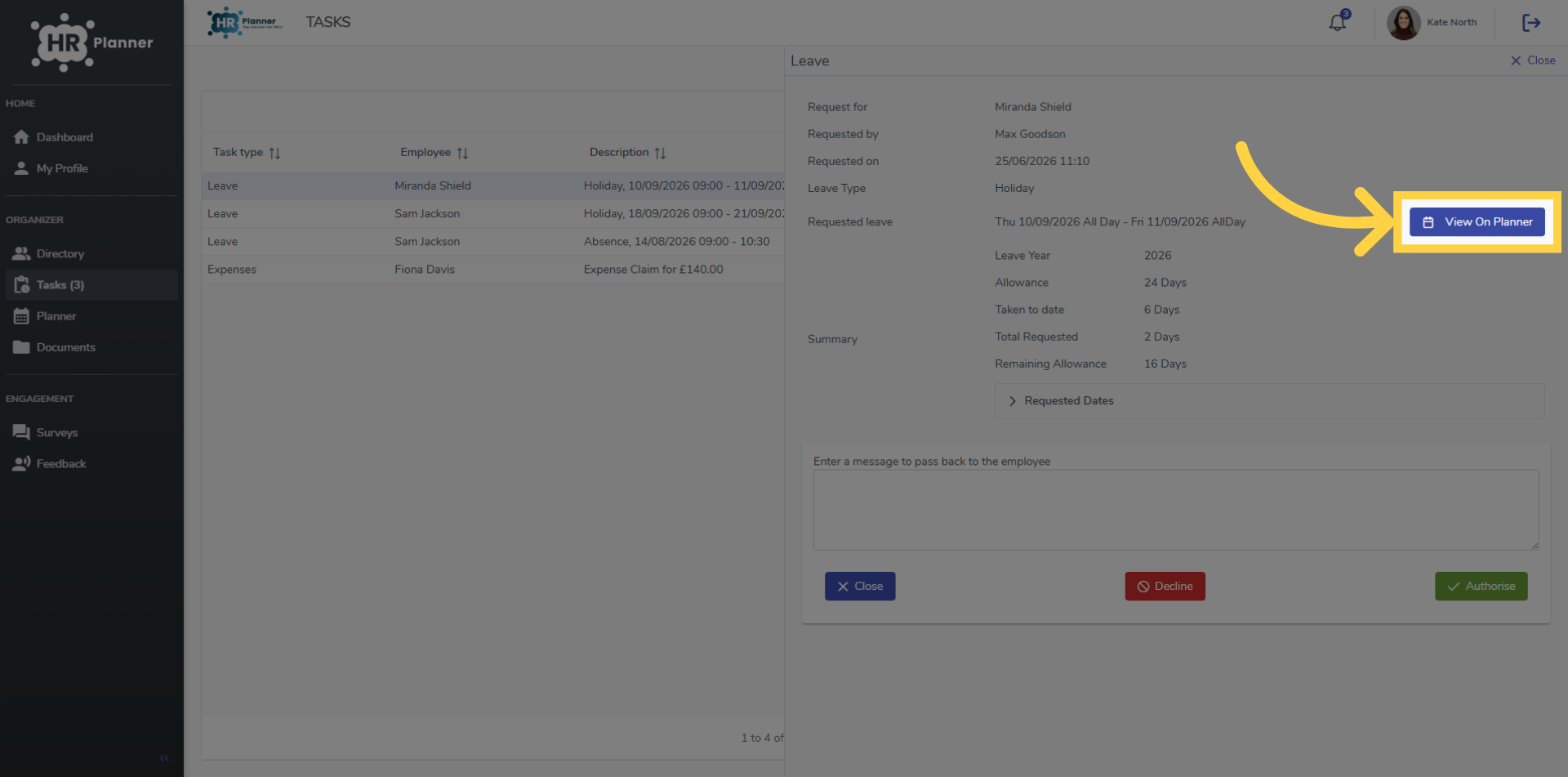
6. View The Planner
You can view the request on the Planner
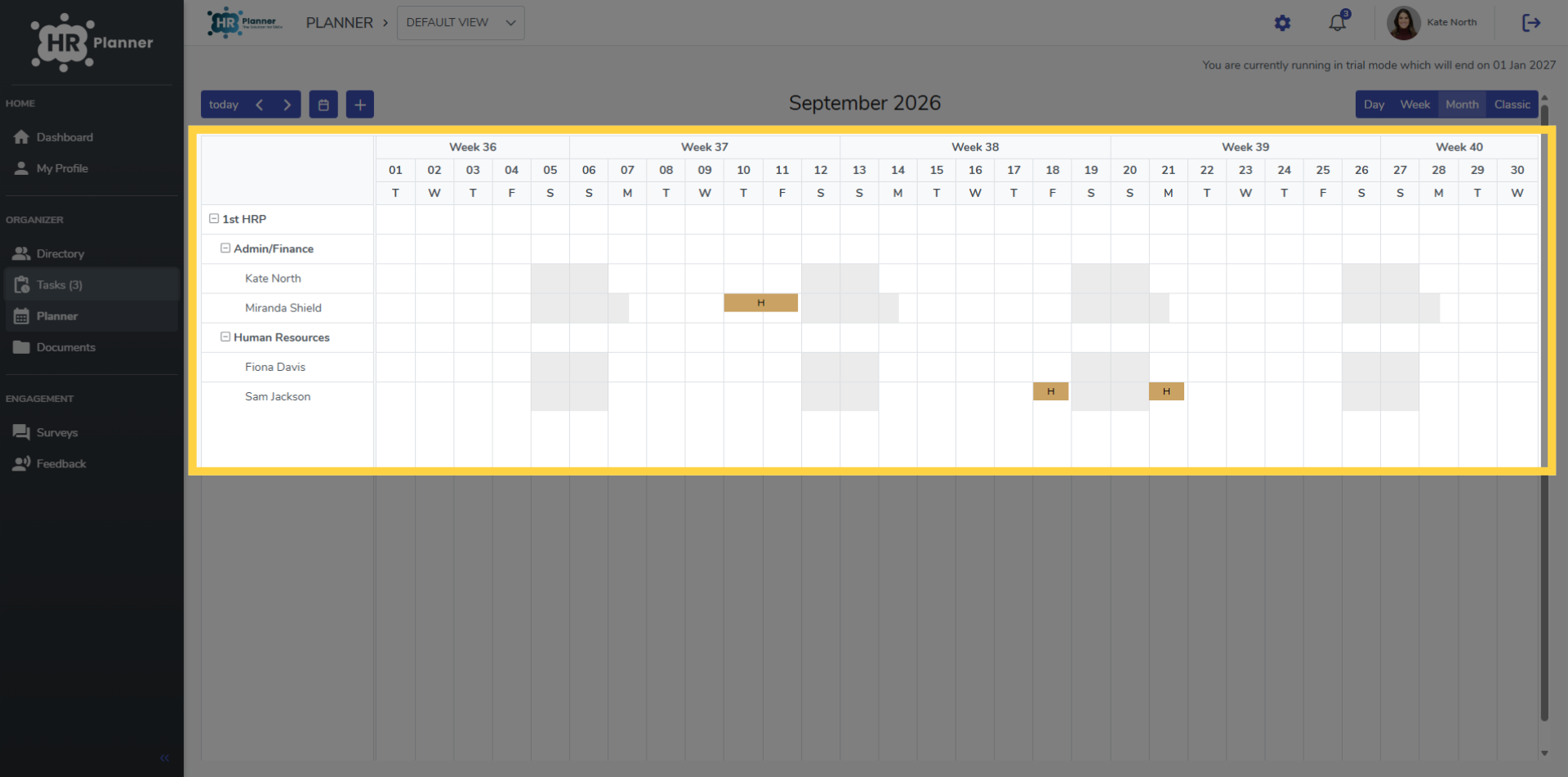
7. Viewing The Planner
to check on other employee absences.
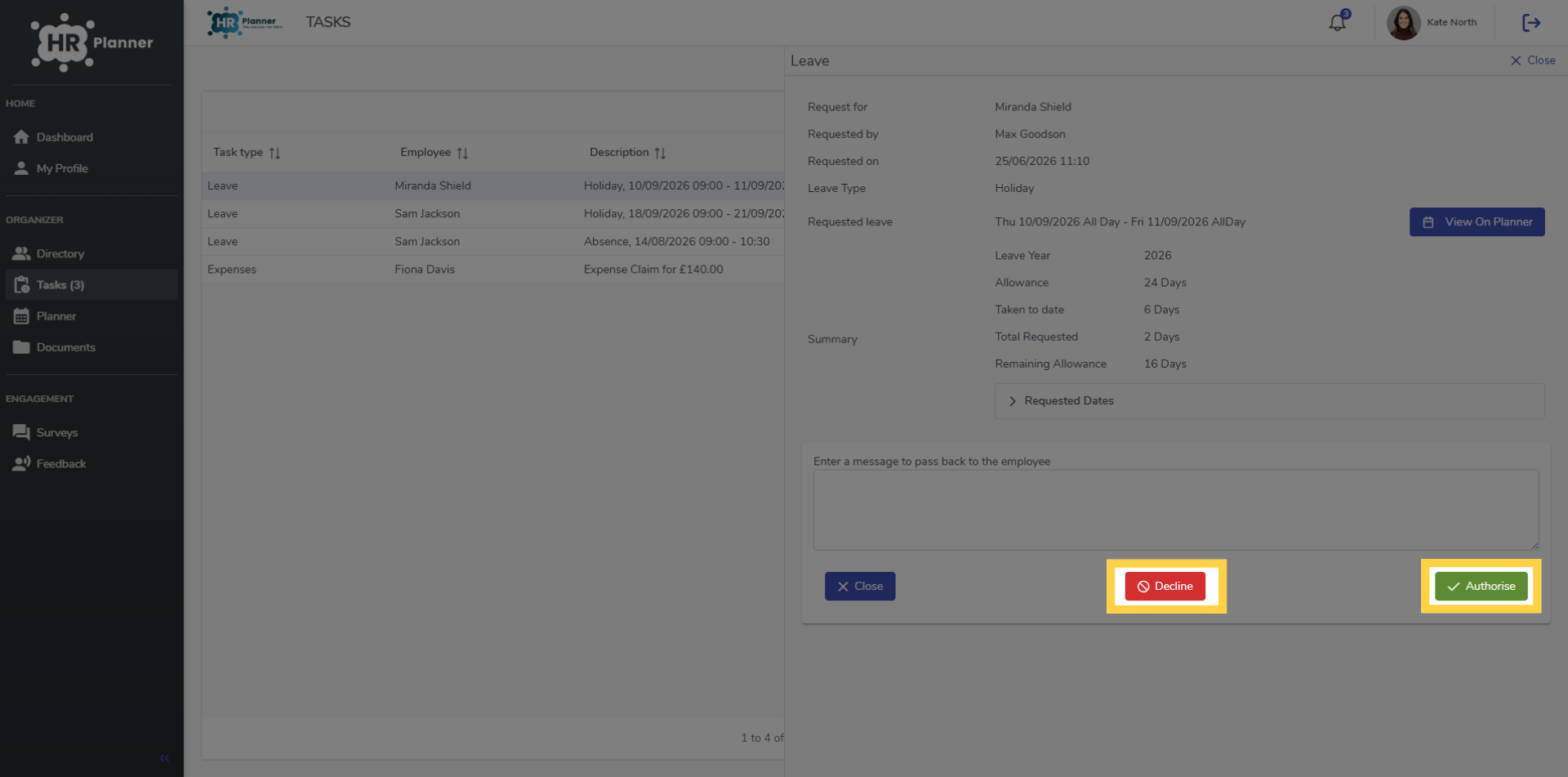
8. Authorise Leave Request
You can Decline or Authorise the request. Each sends a notification email back to the employee. If Authorised, the employees allowance is automatically adjusted.
9. View The Planner
Returning to the Planner the request now shows as authorised.
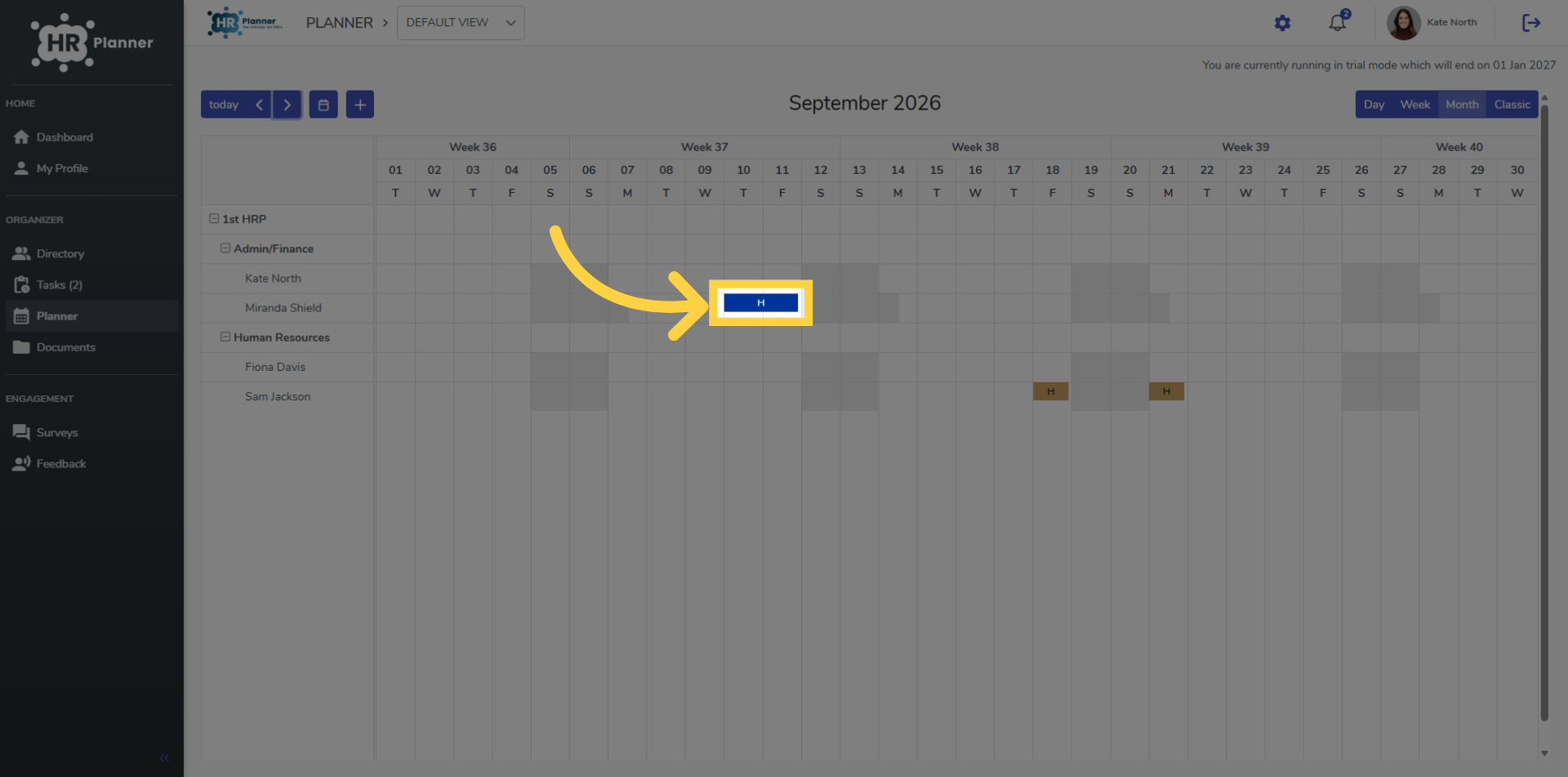
10. View Request Details and Modify
You can click the event to view the history and Modify the request.
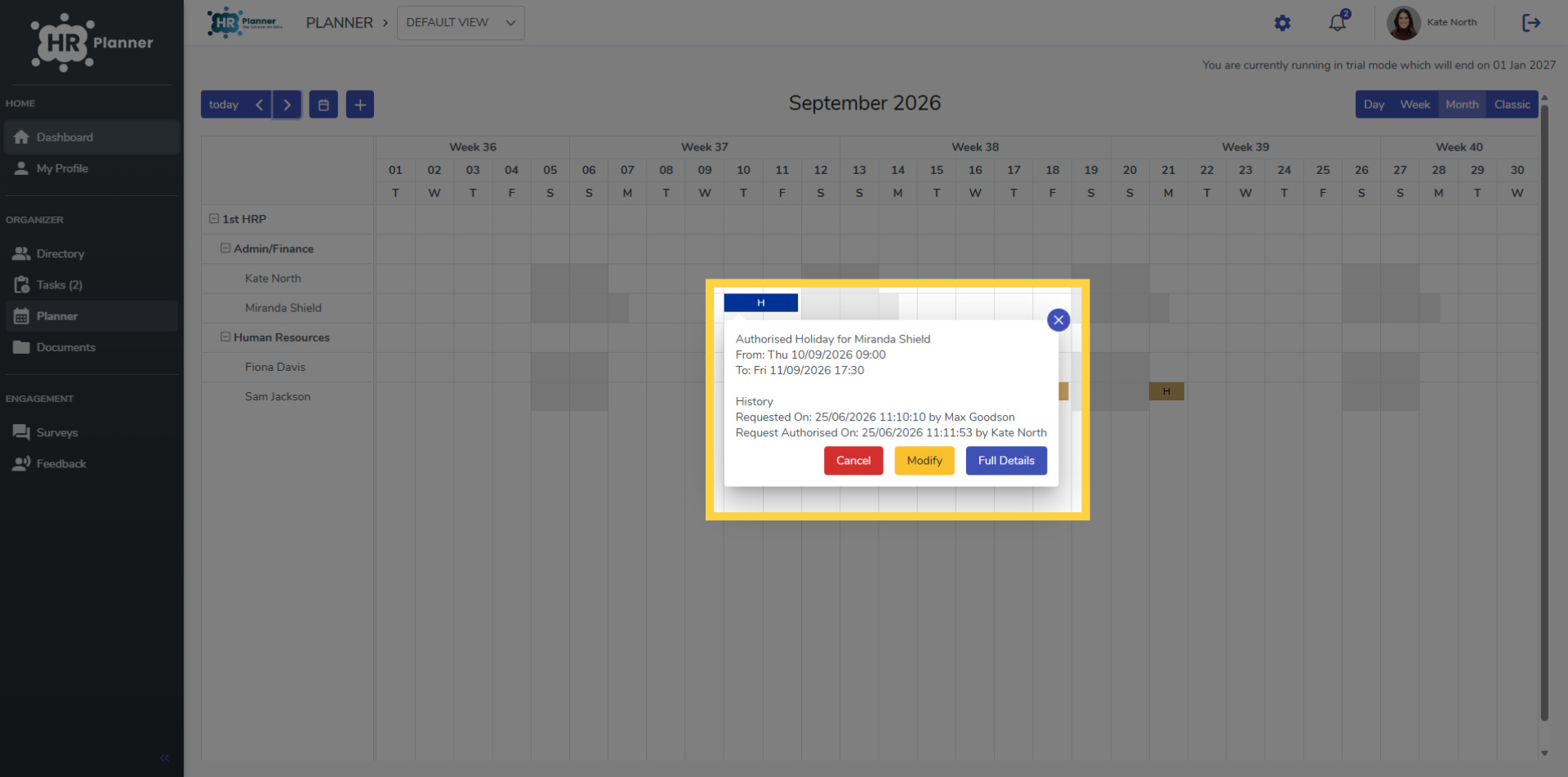
You have successfully navigated through the HR Planner dashboard to manage and review leave requests effectively.
Updated on July 14, 2026