
This guide will walk you through the steps to Using the Bulk Allowance Change feature
1. Introduction
The Bulk Allowance change feature allows you to add, remove or transfer allowance for multiple employees in a single process.
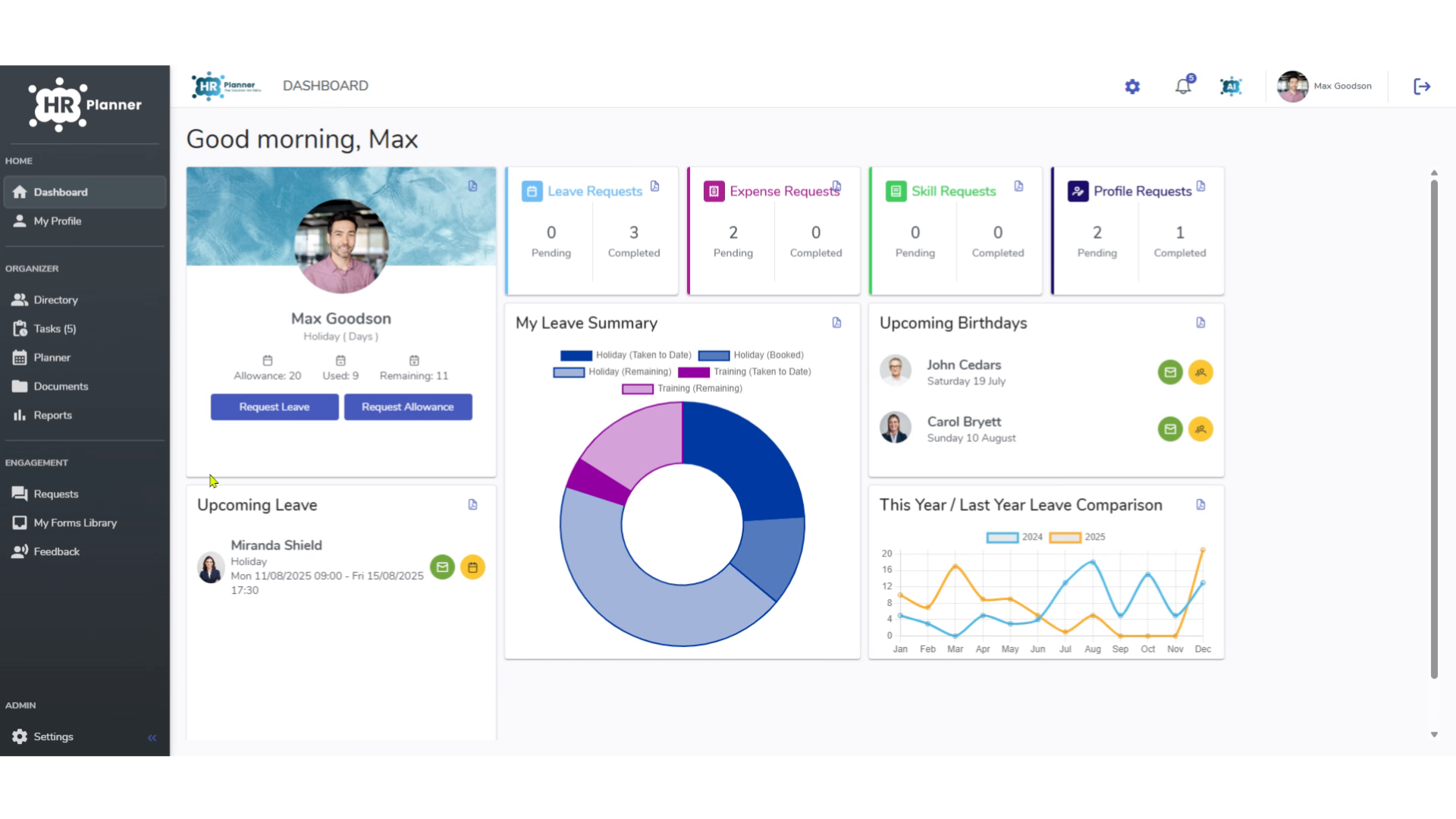
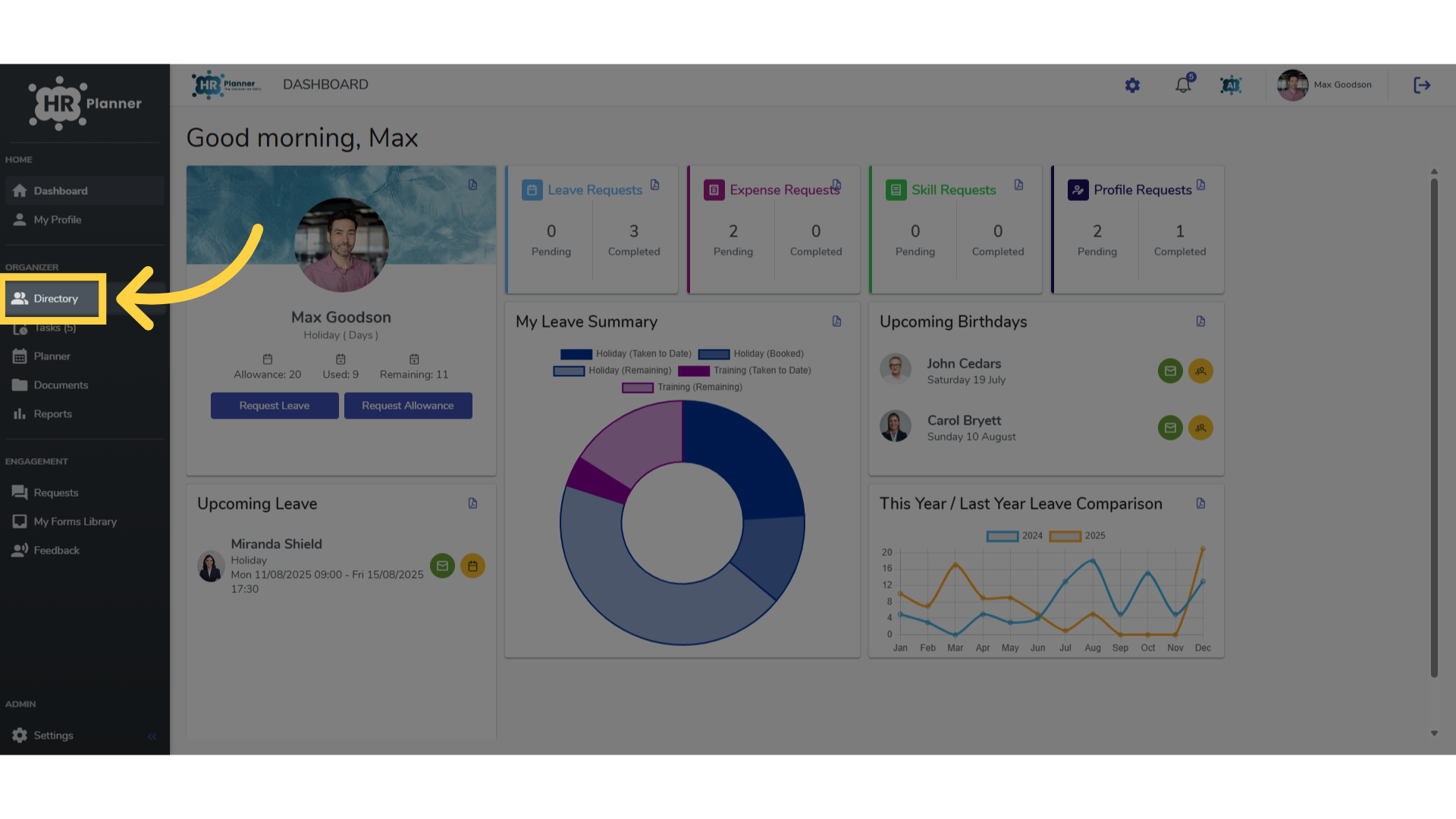
2. Click “Directory”
You can access the feature via the Directory section.
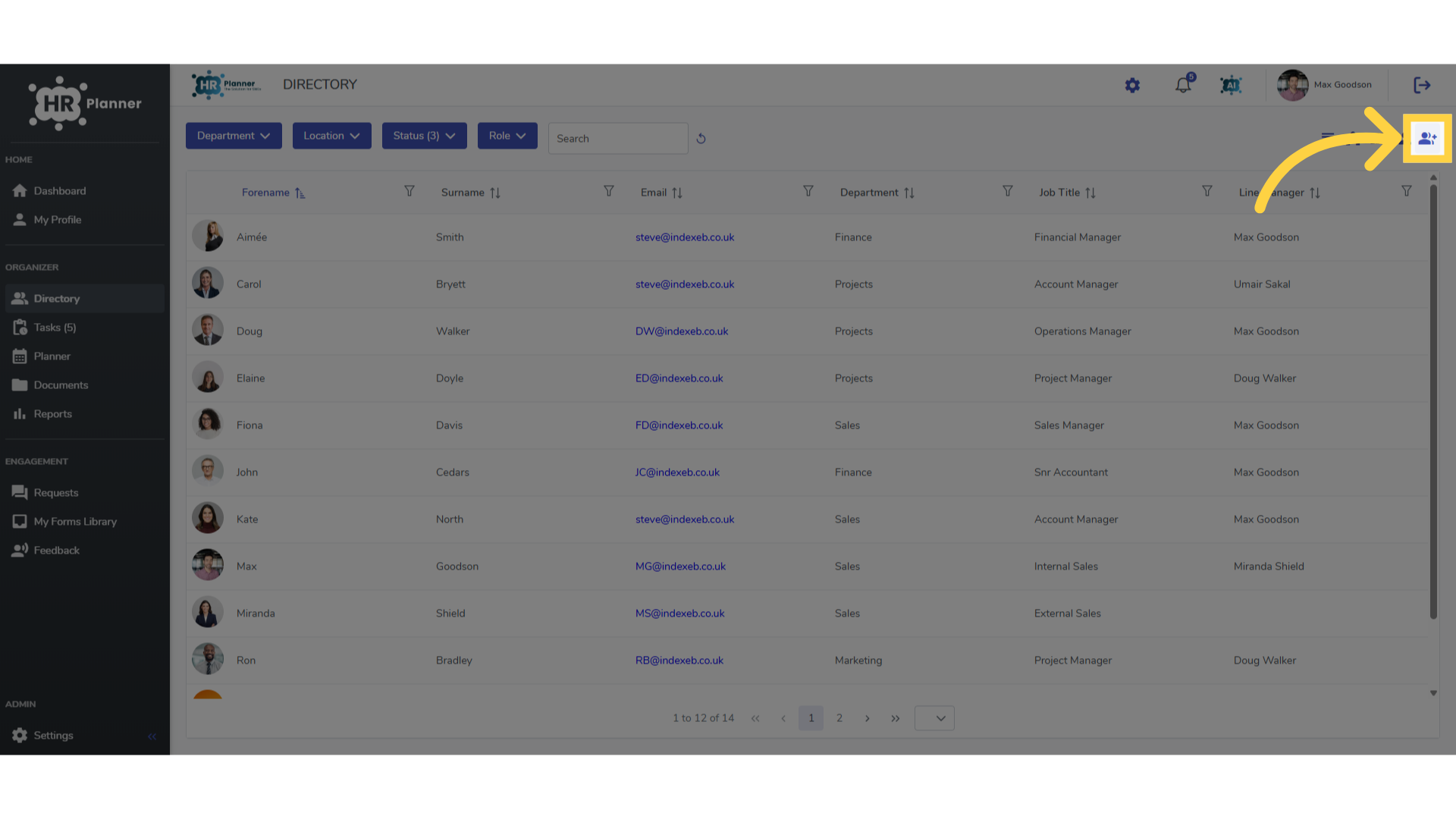
3. Click the icon
and click the icon in the top right hand corner.
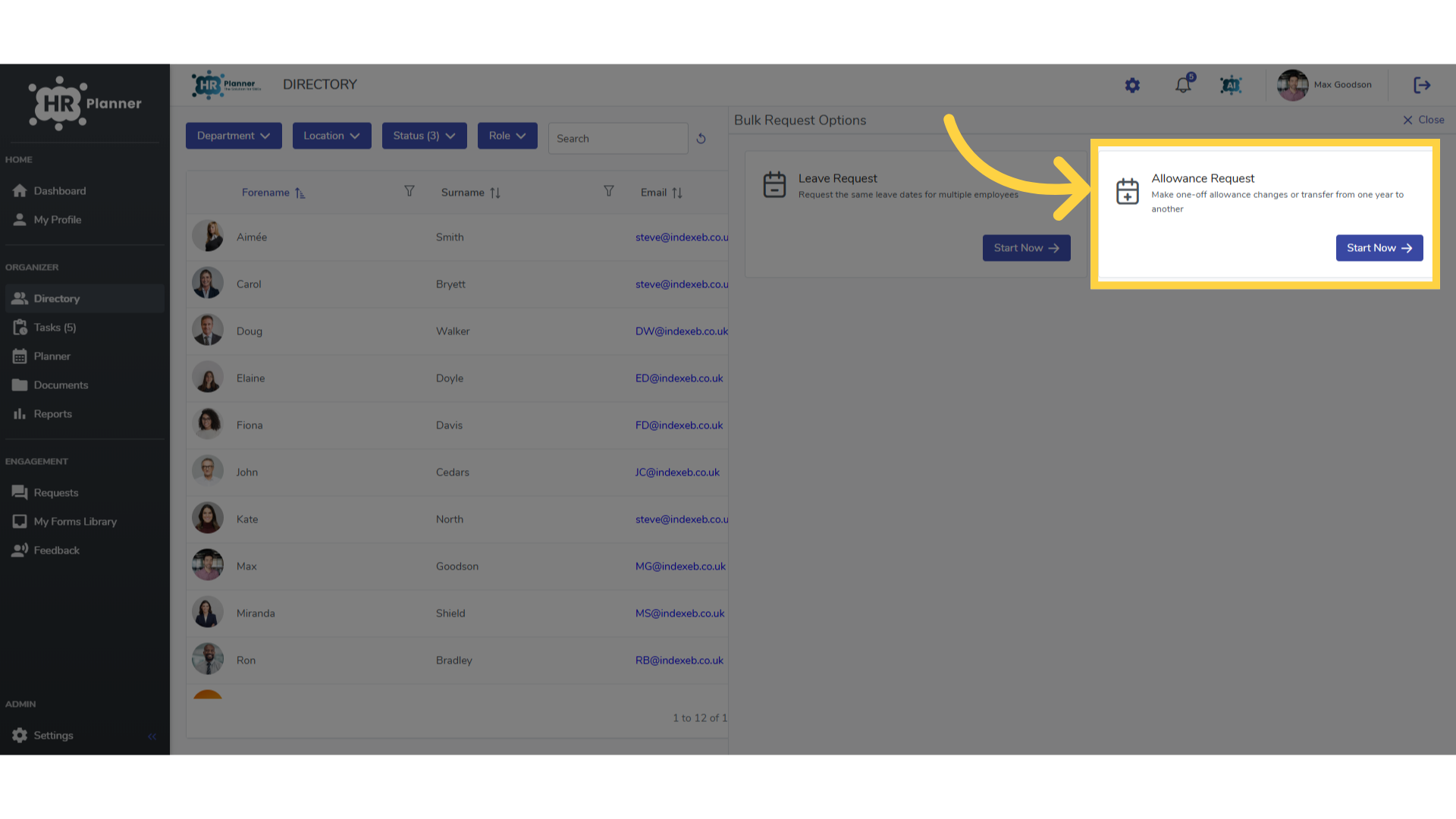
4. Click “Start Now”
Click the “Start Now” button.
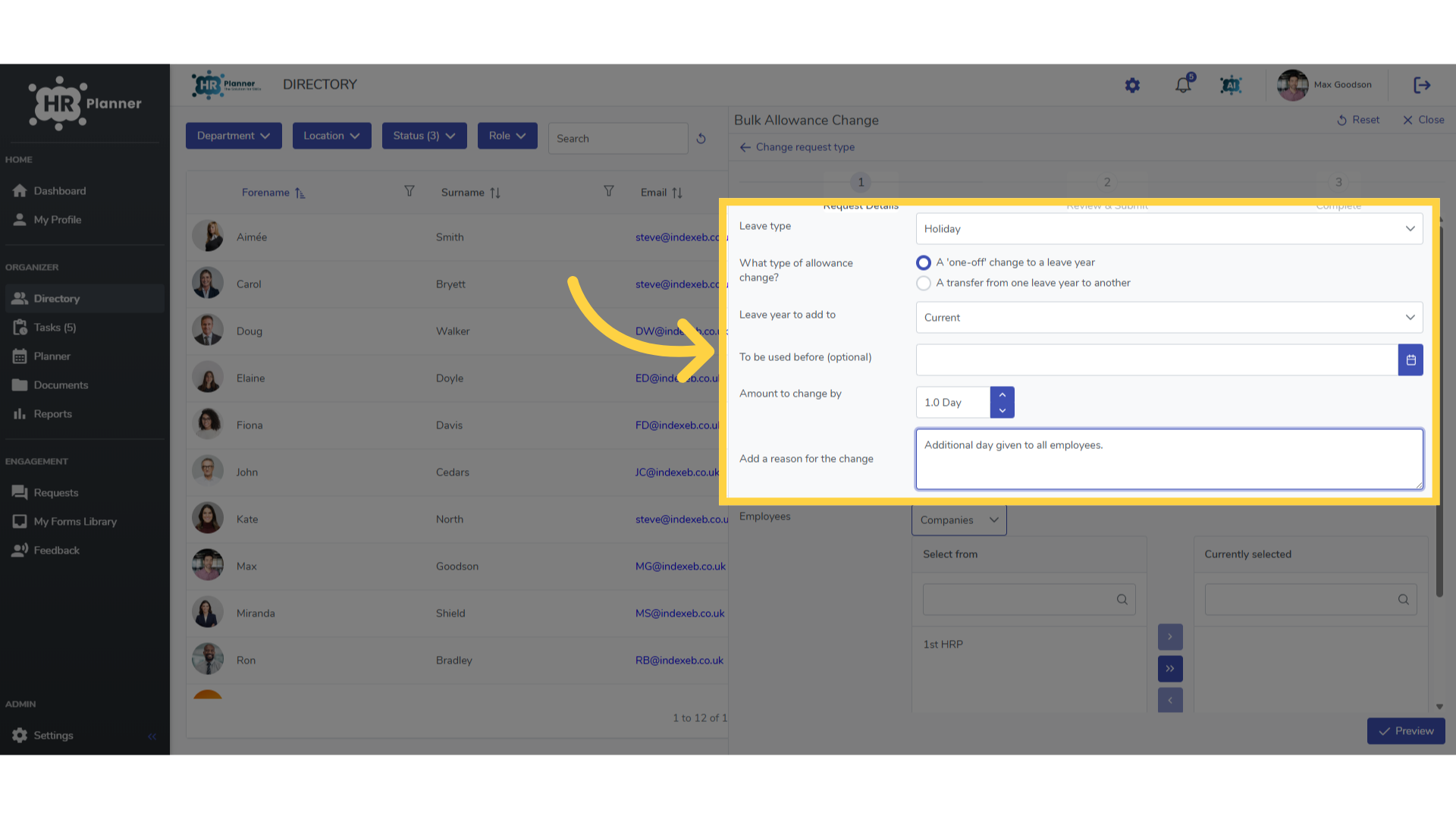
5. Add Details
Here you can select which leave type and leave year to add, remove or transfer from. Also, how much to adjust by and leave a reason for the change too.
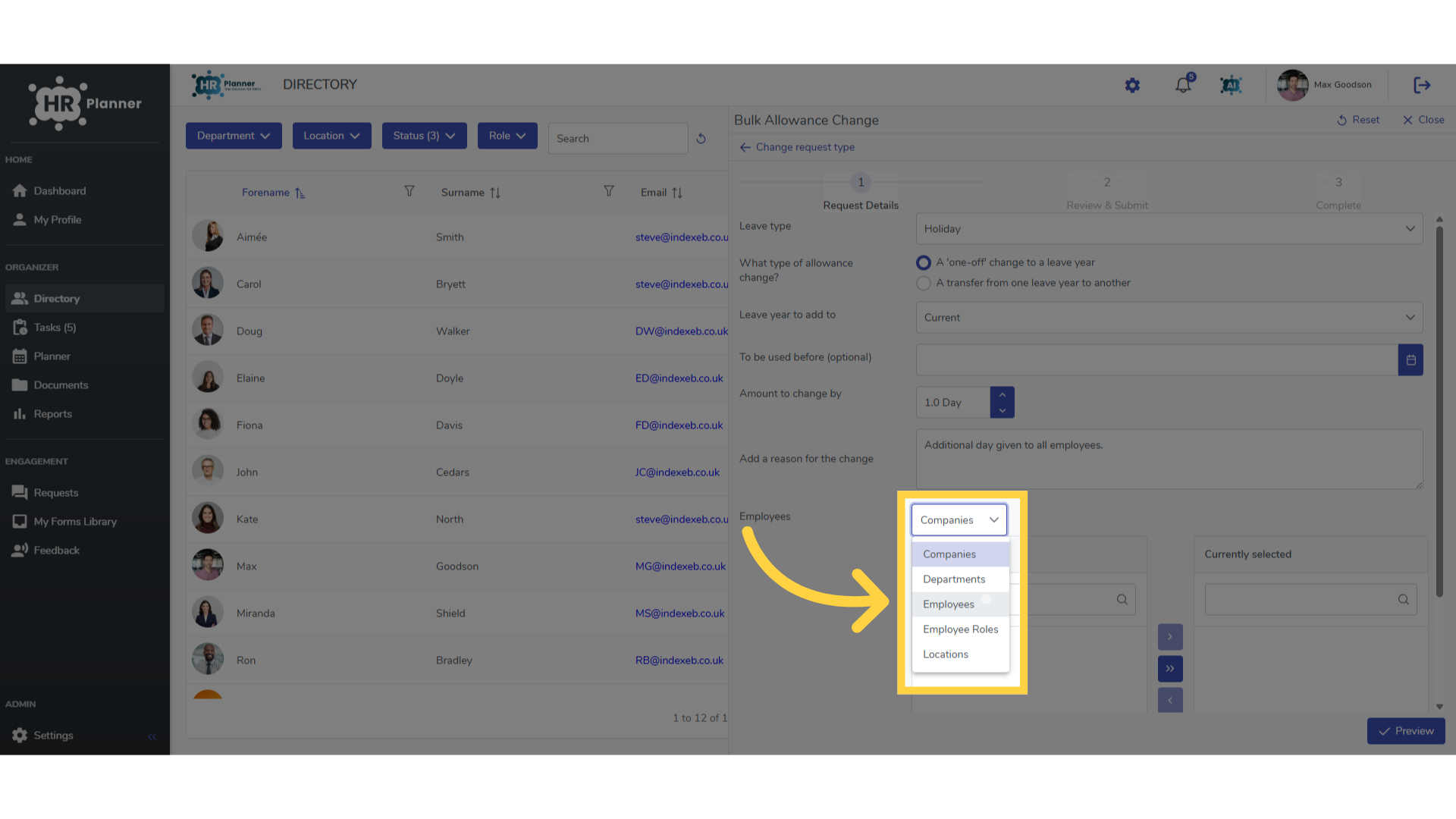
6. Click “Employees”
Then select who the change will apply to. You can filter by company, department or individual employees.
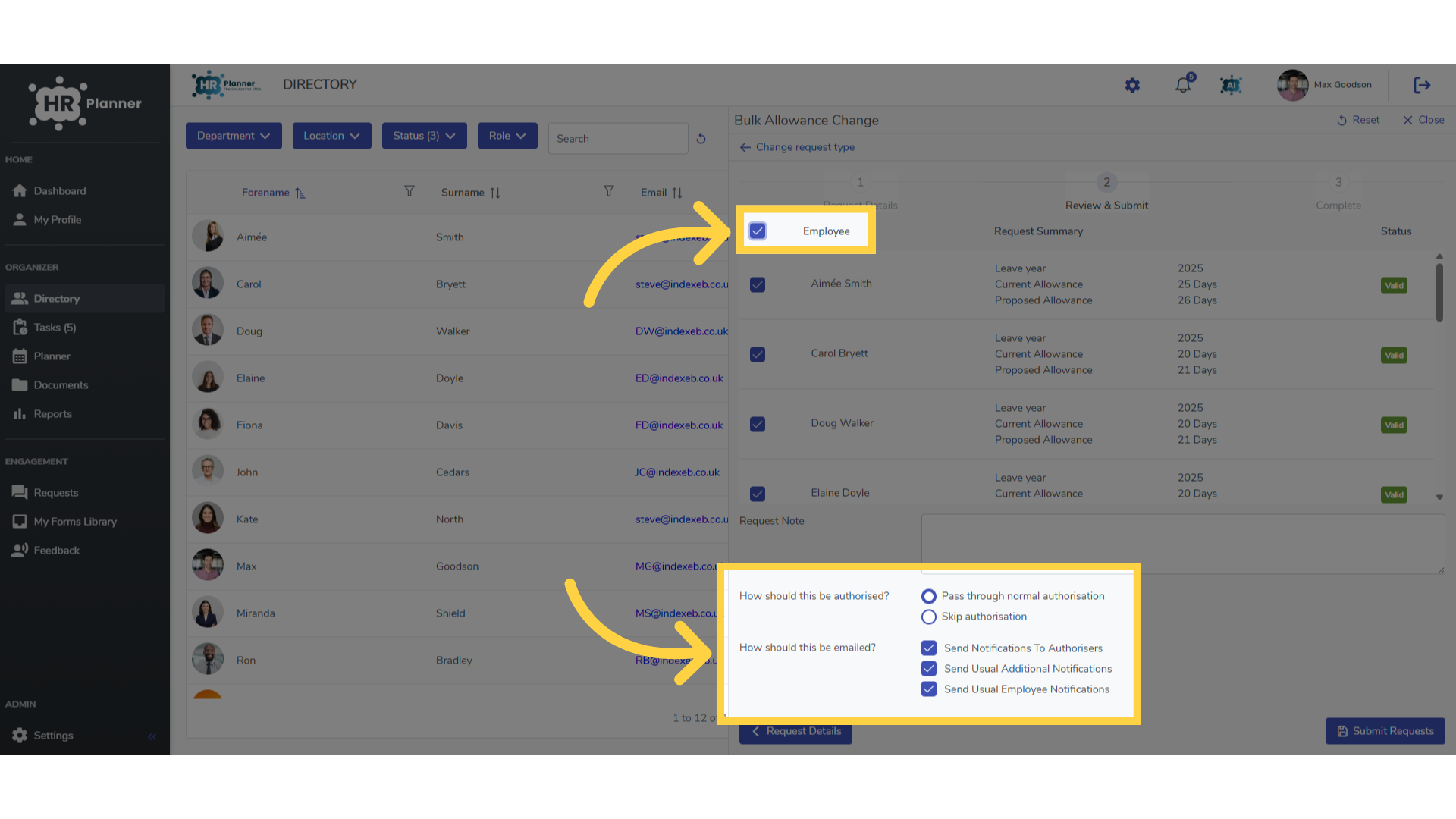
7. Select employees and notifications
After selecting the employees you can decide whether to send the requests to be authorised and which notification messages to send too.
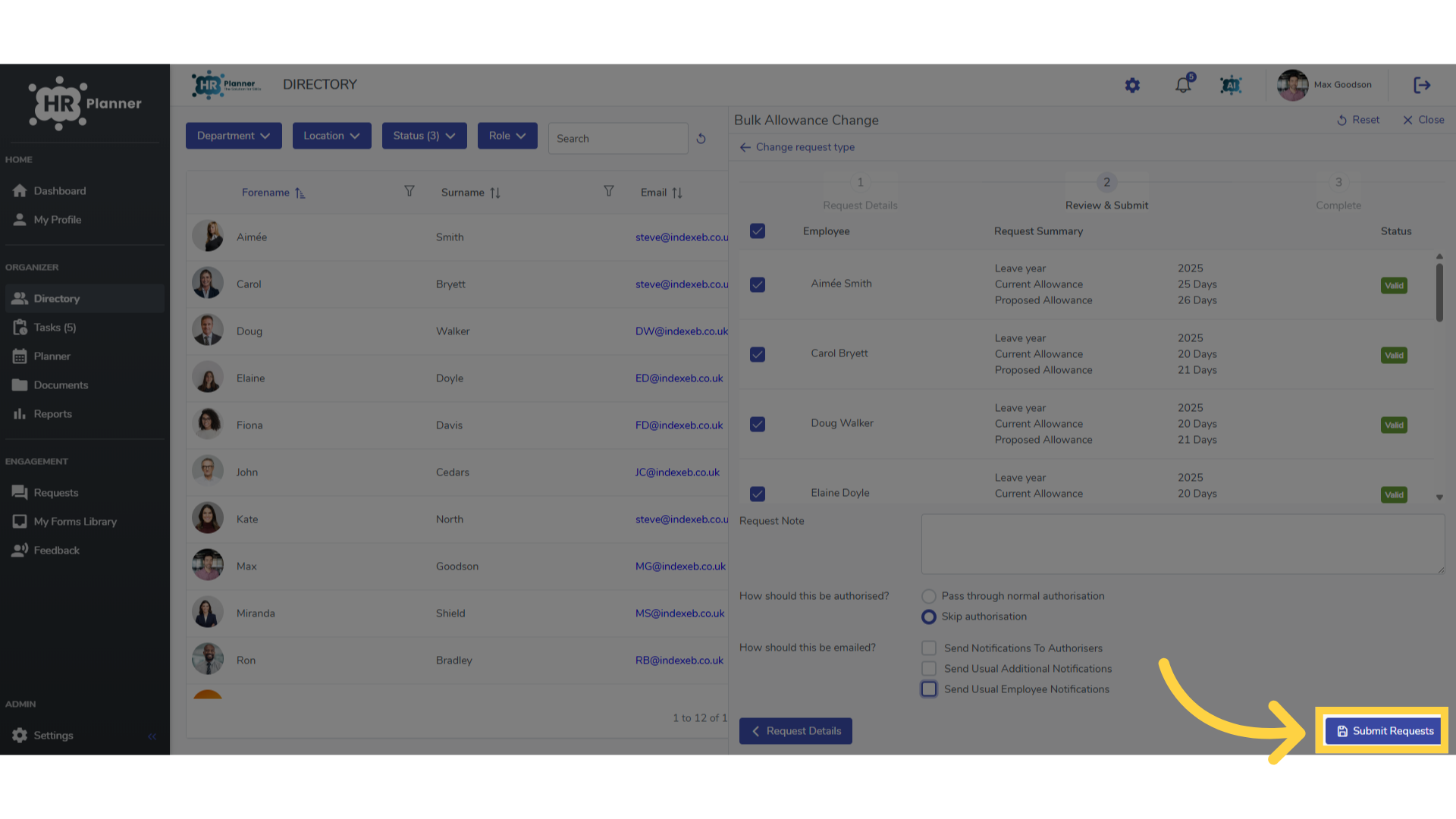
8. Click “Submit Requests”
Finally you can click “Submit Requests”
9. View the Request
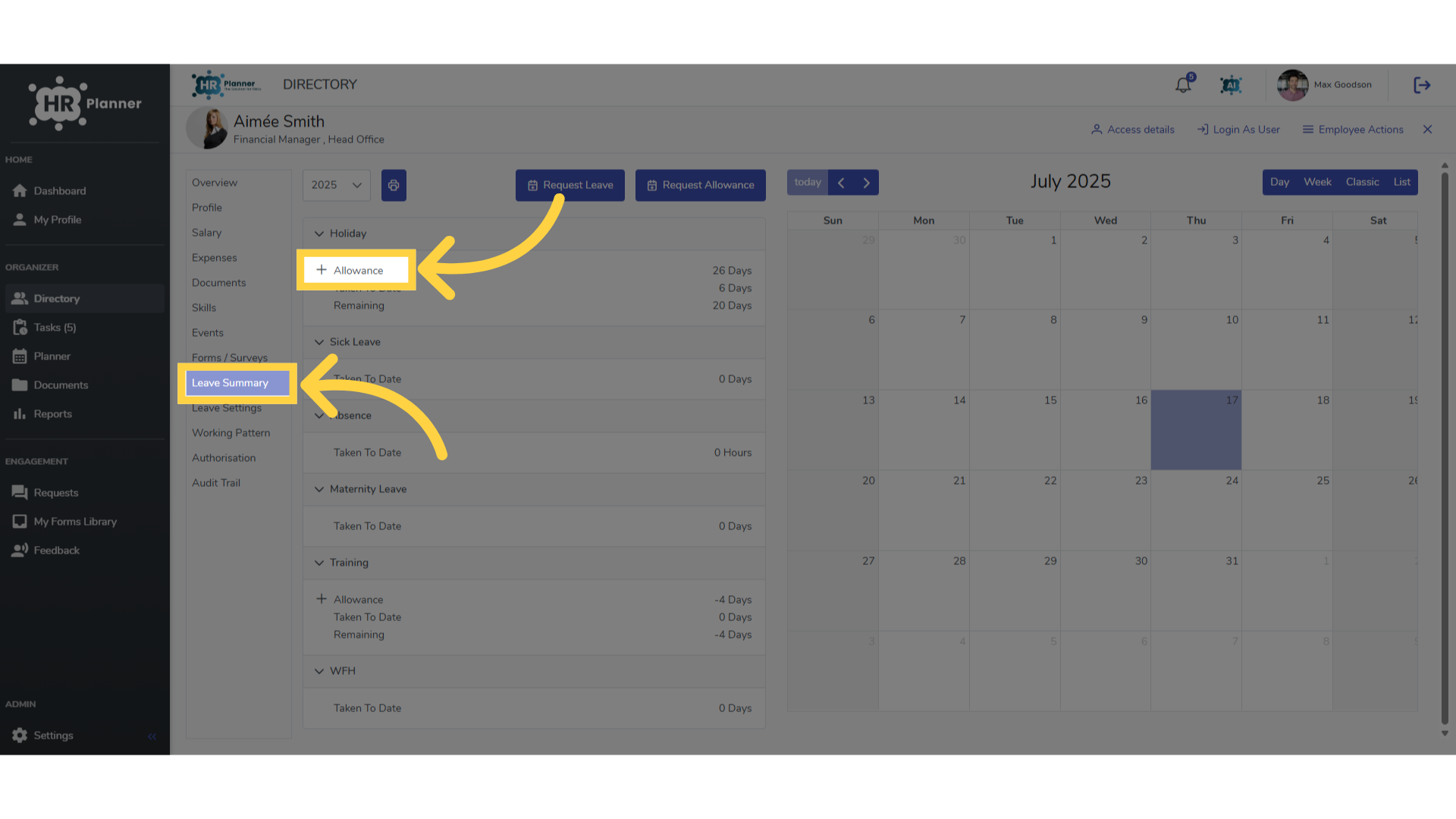
To view the request navigate to an employees Leave Summary section on their Profile.
10. View the detail
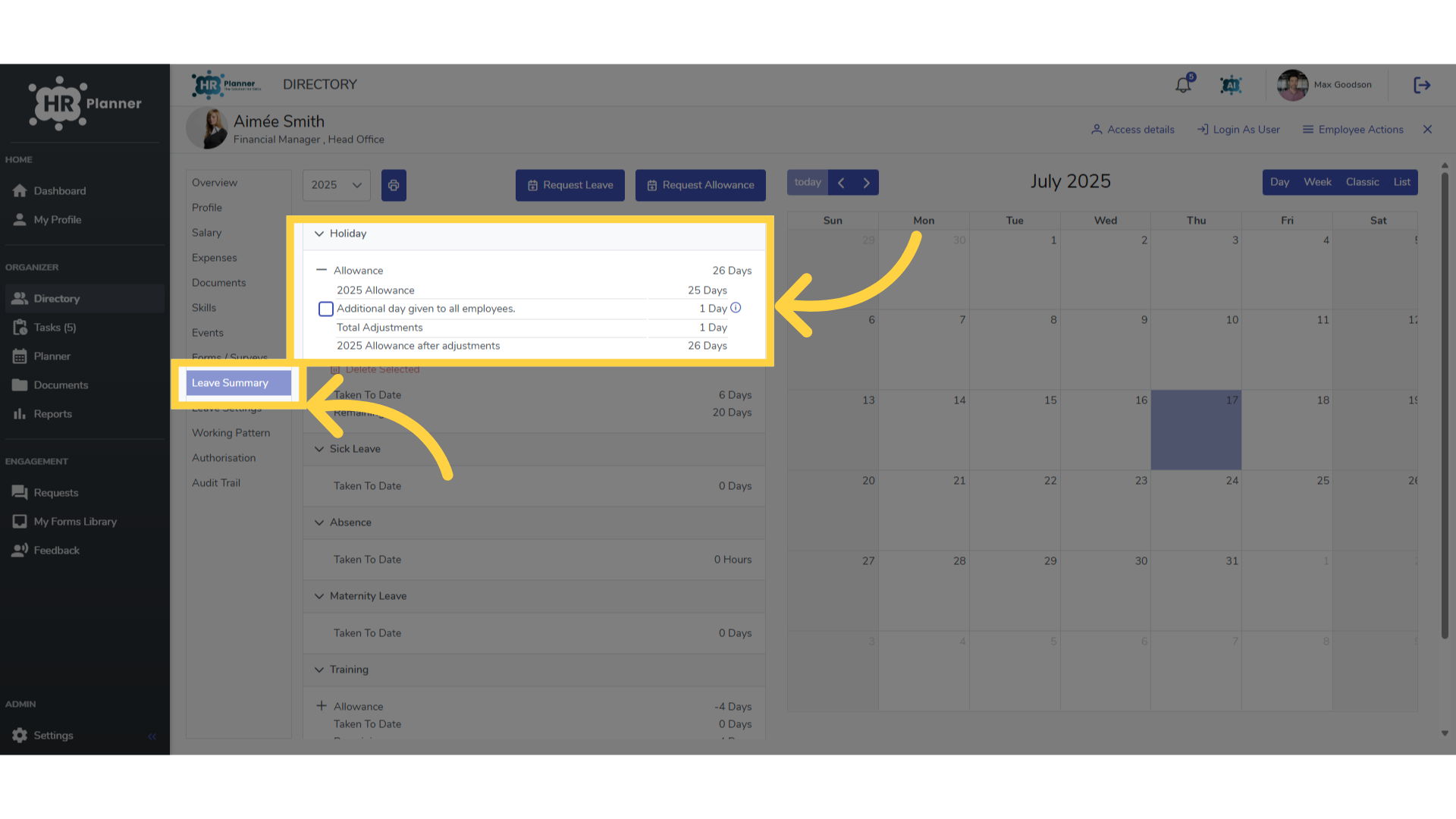
In the detail section you can view the reason given for the change to allowance.
This guide covered the steps to Using the Bulk Allowance Change feature in h r planner.