
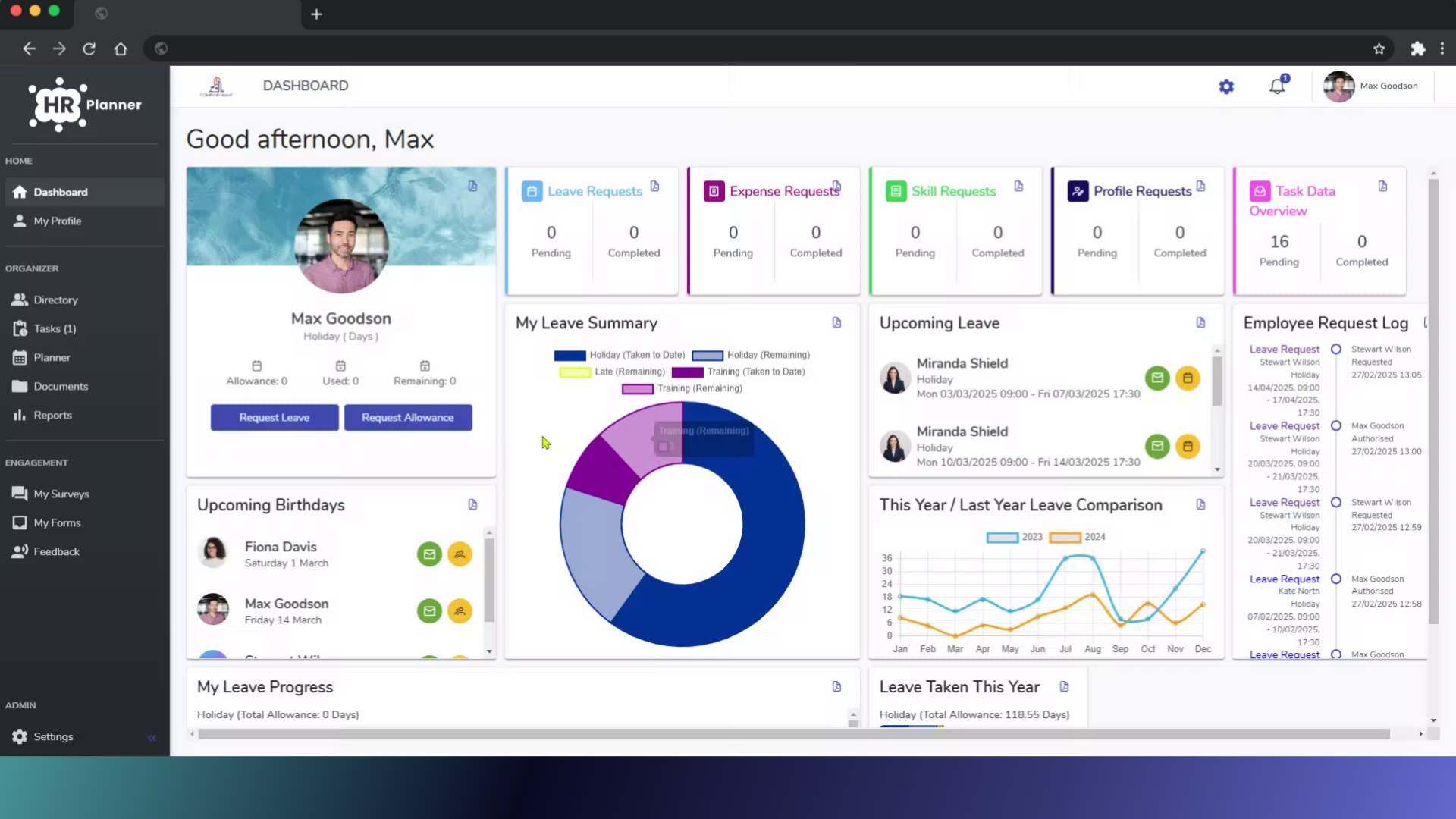
This guide will walk you through the process of raising a leave request on behalf of an employee you manage in HR planner.
1. Introduction
From navigating to the Directory tab to submitting the request for approval, each step is outlined clearly to streamline the process.
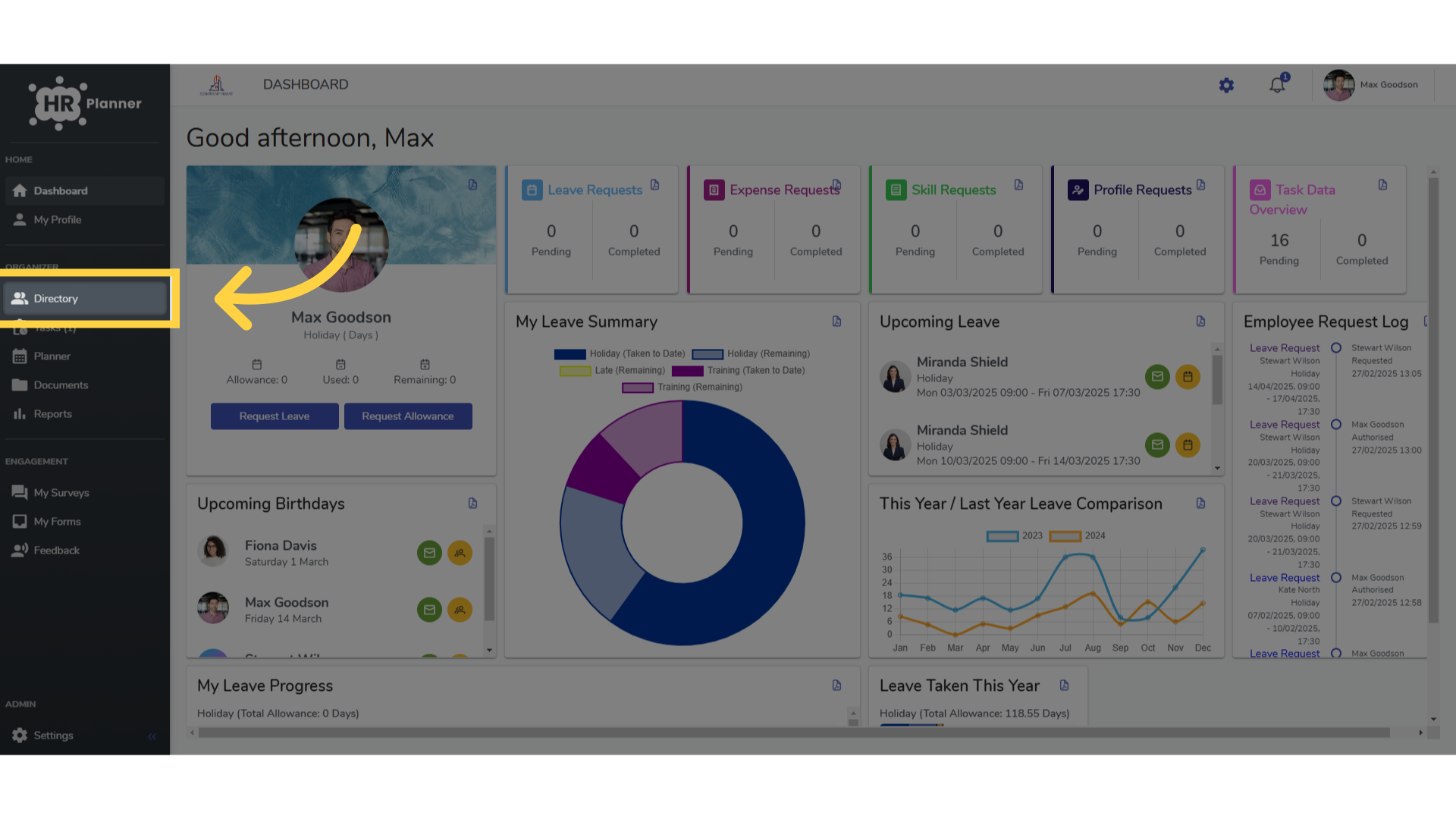
2. Click “Directory”
Navigate to the Directory tab.
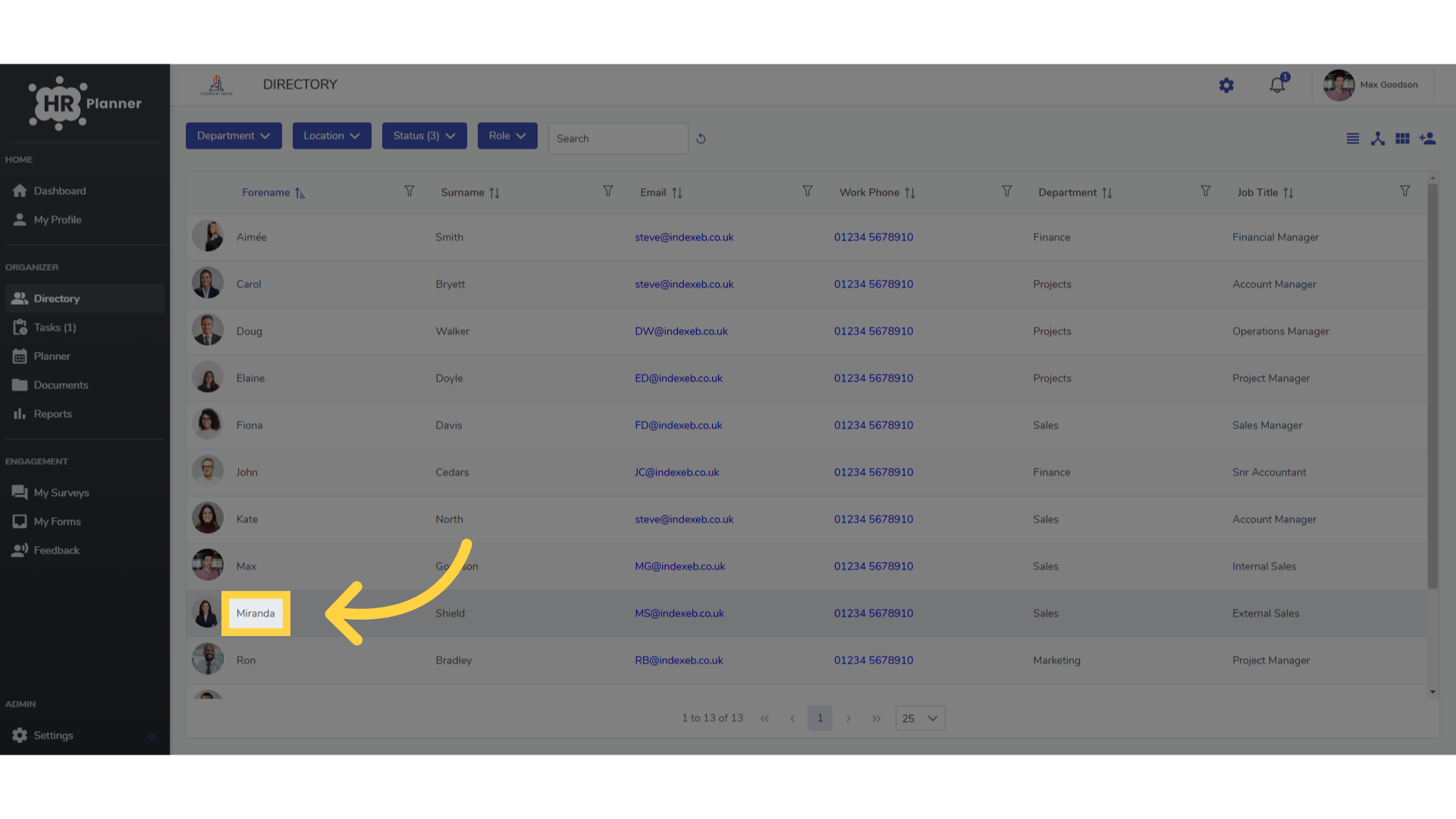
3. Click on the employee
Search for and select the employee from the list.
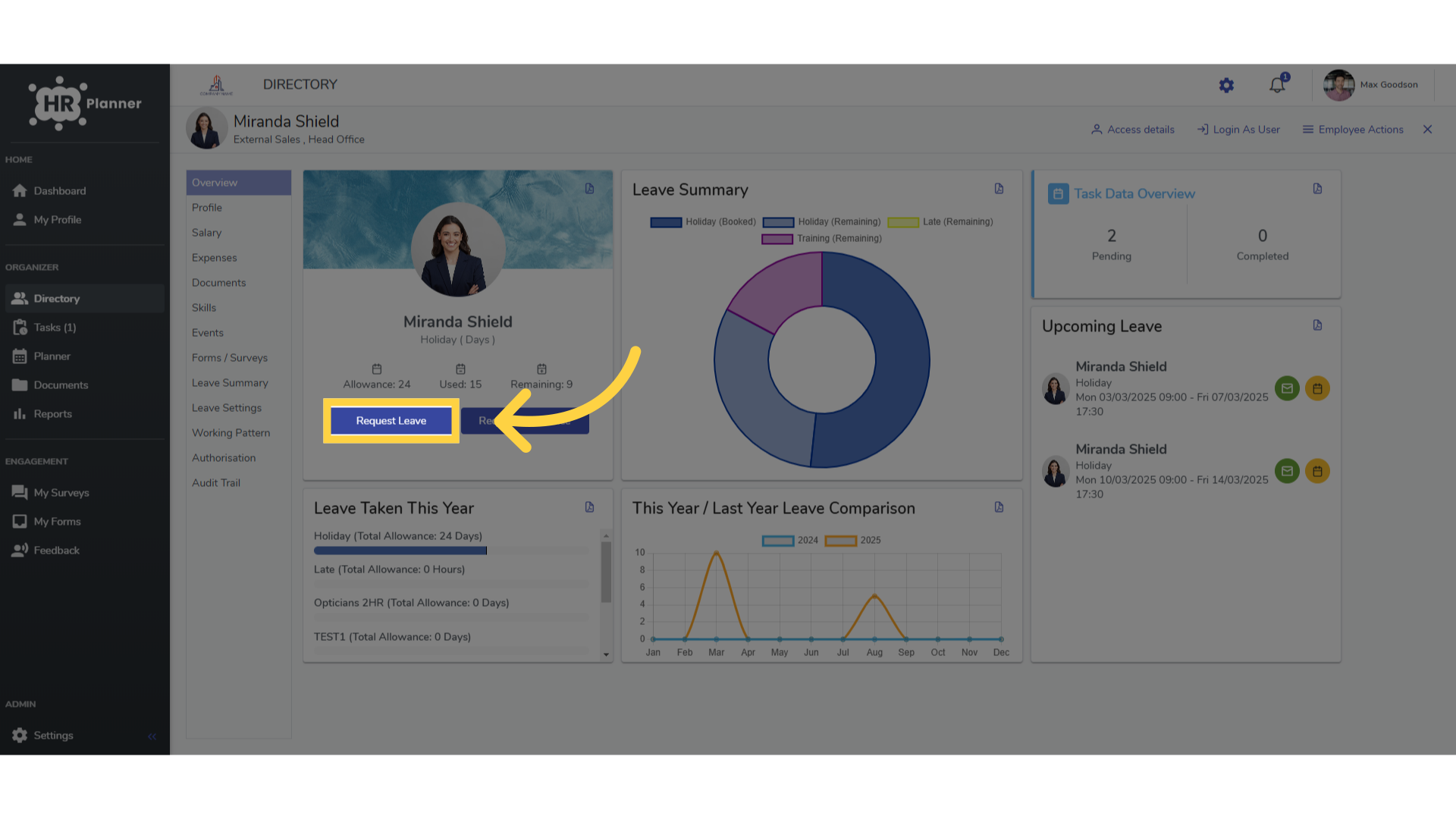
4. Click “Request Leave”
Locate and click on the option to request leave.
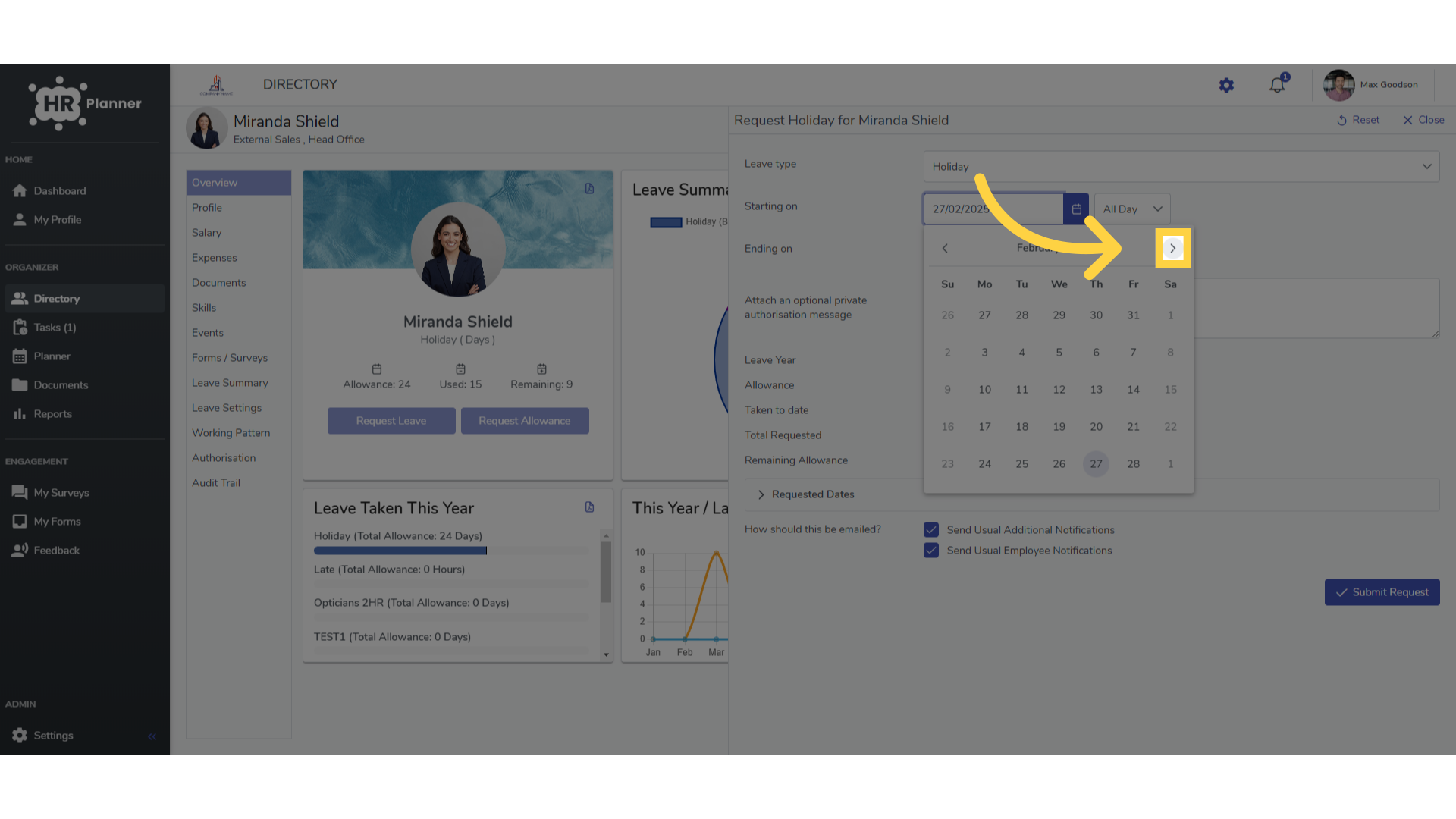
5. Click here
Navigate to the required month
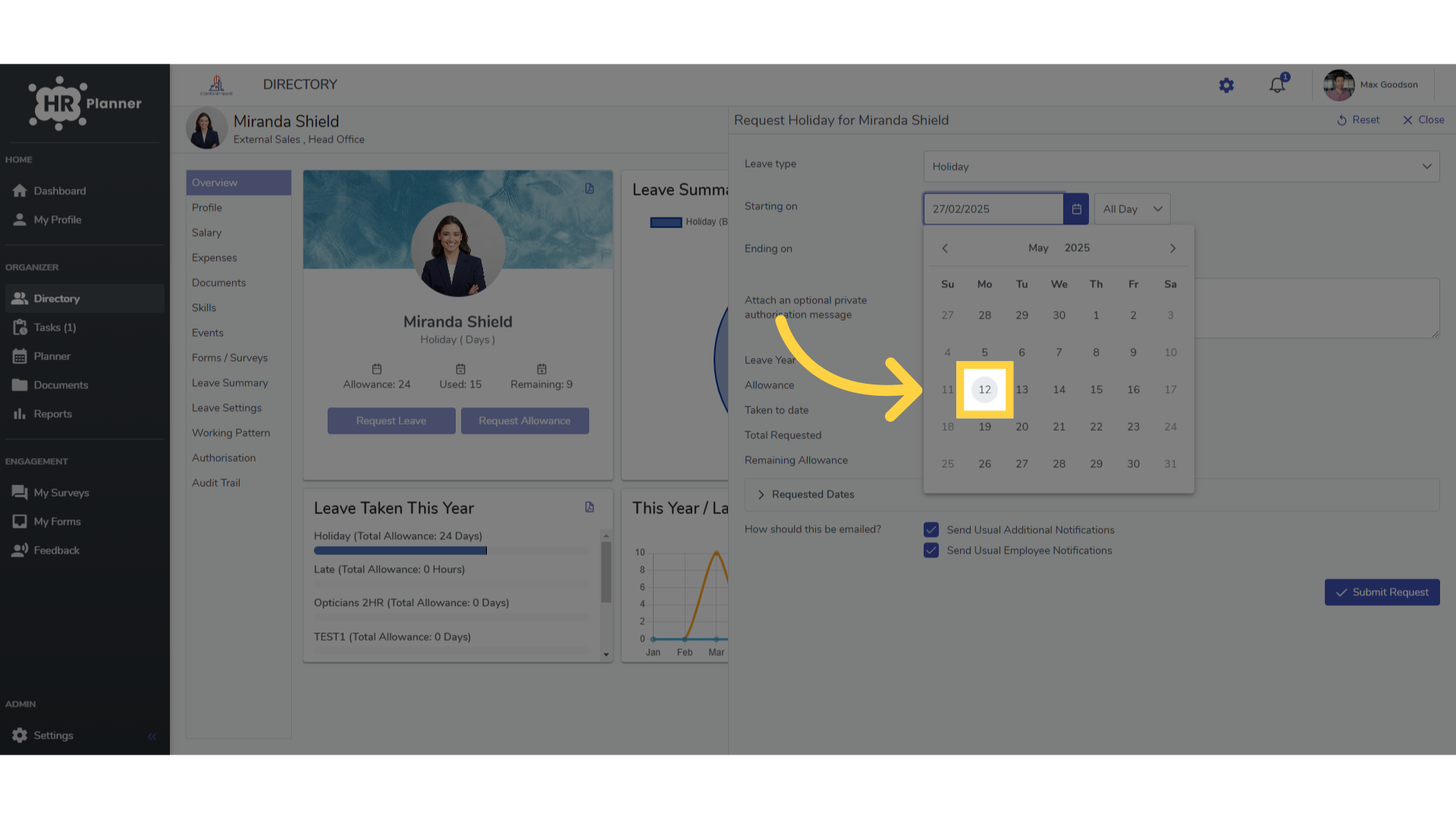
6. Click “12”
Select the start date
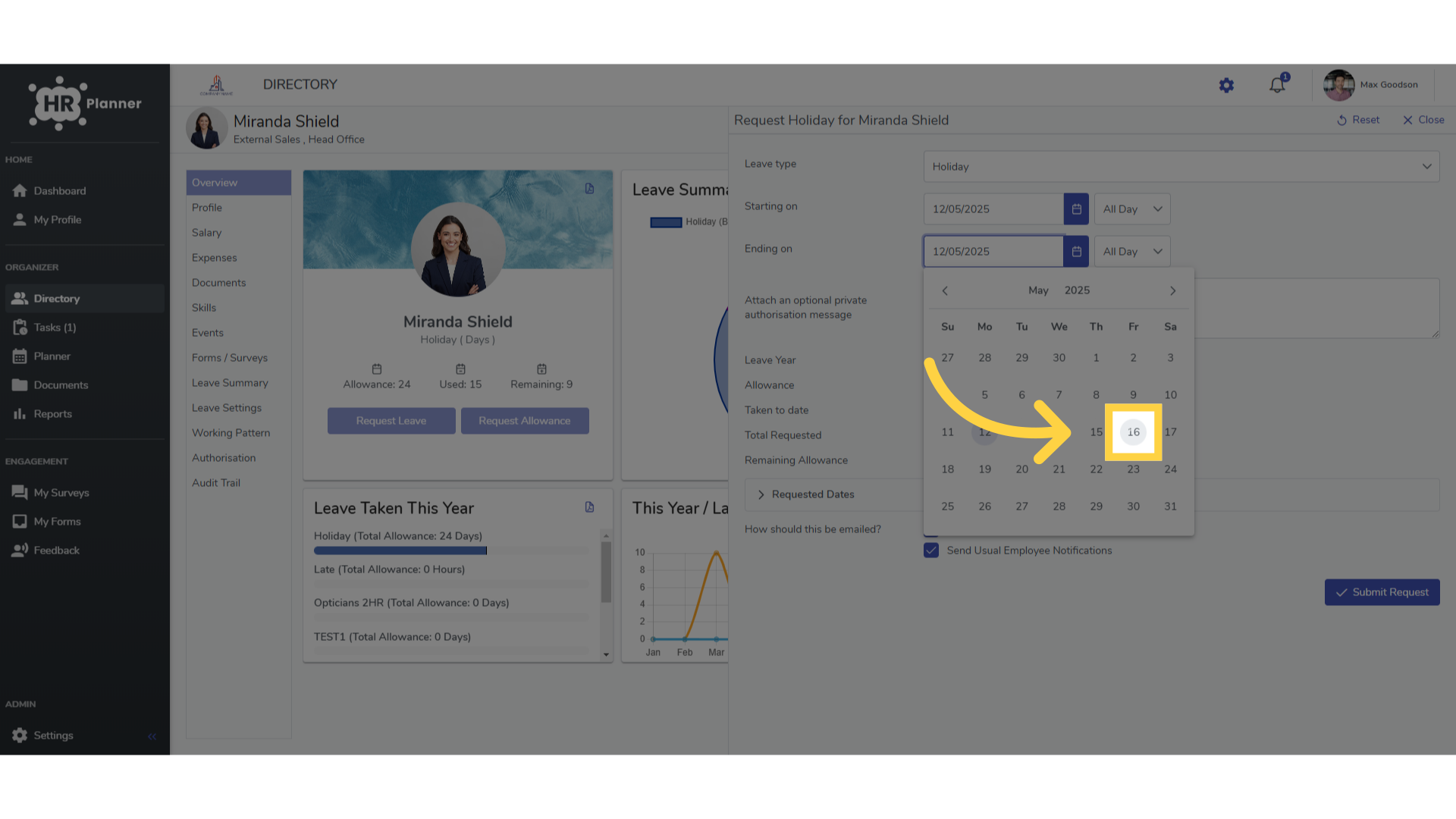
7. Click “16”
Select the end date
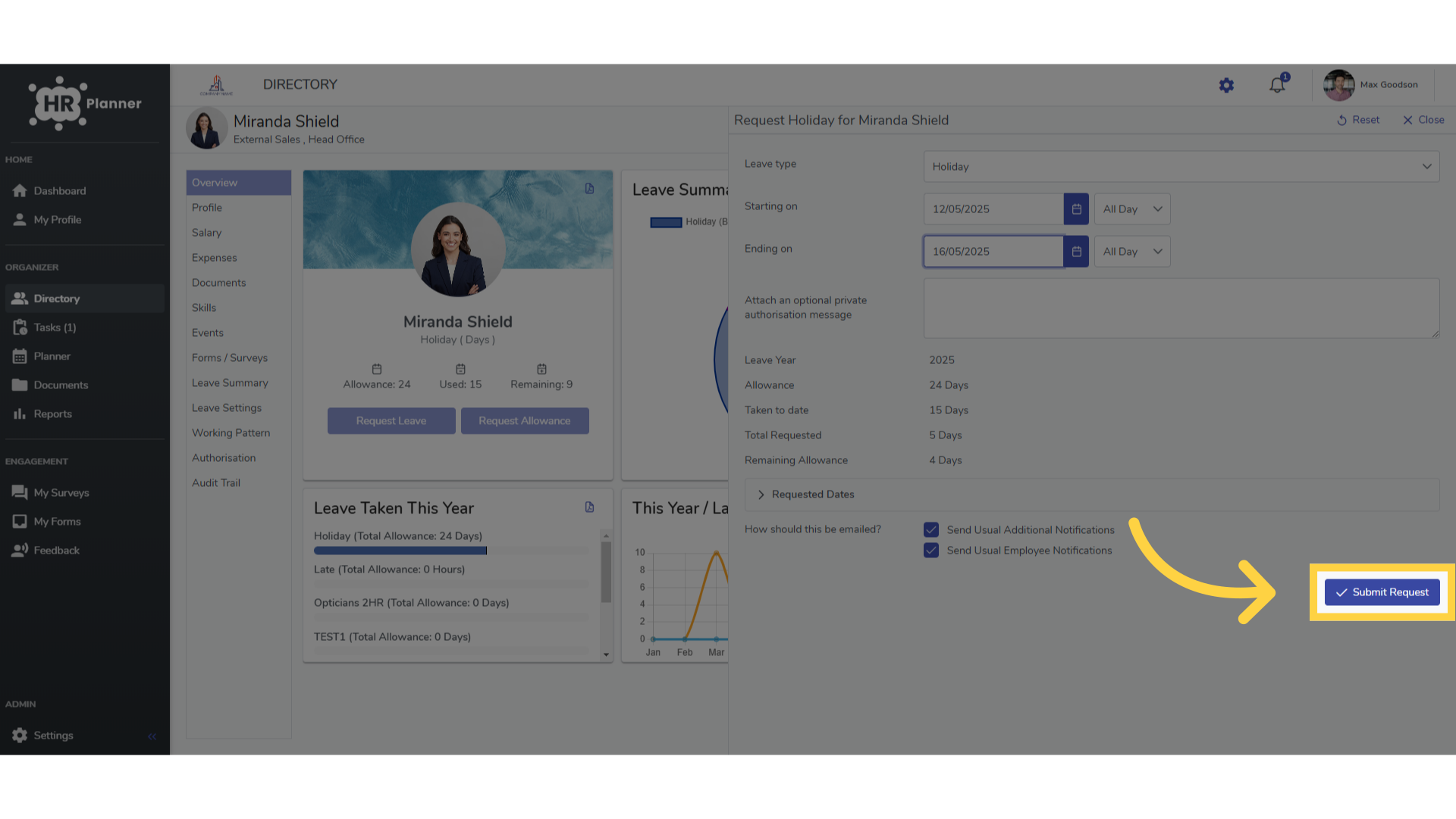
8. Click “Submit Request”
Submit the leave request for approval.
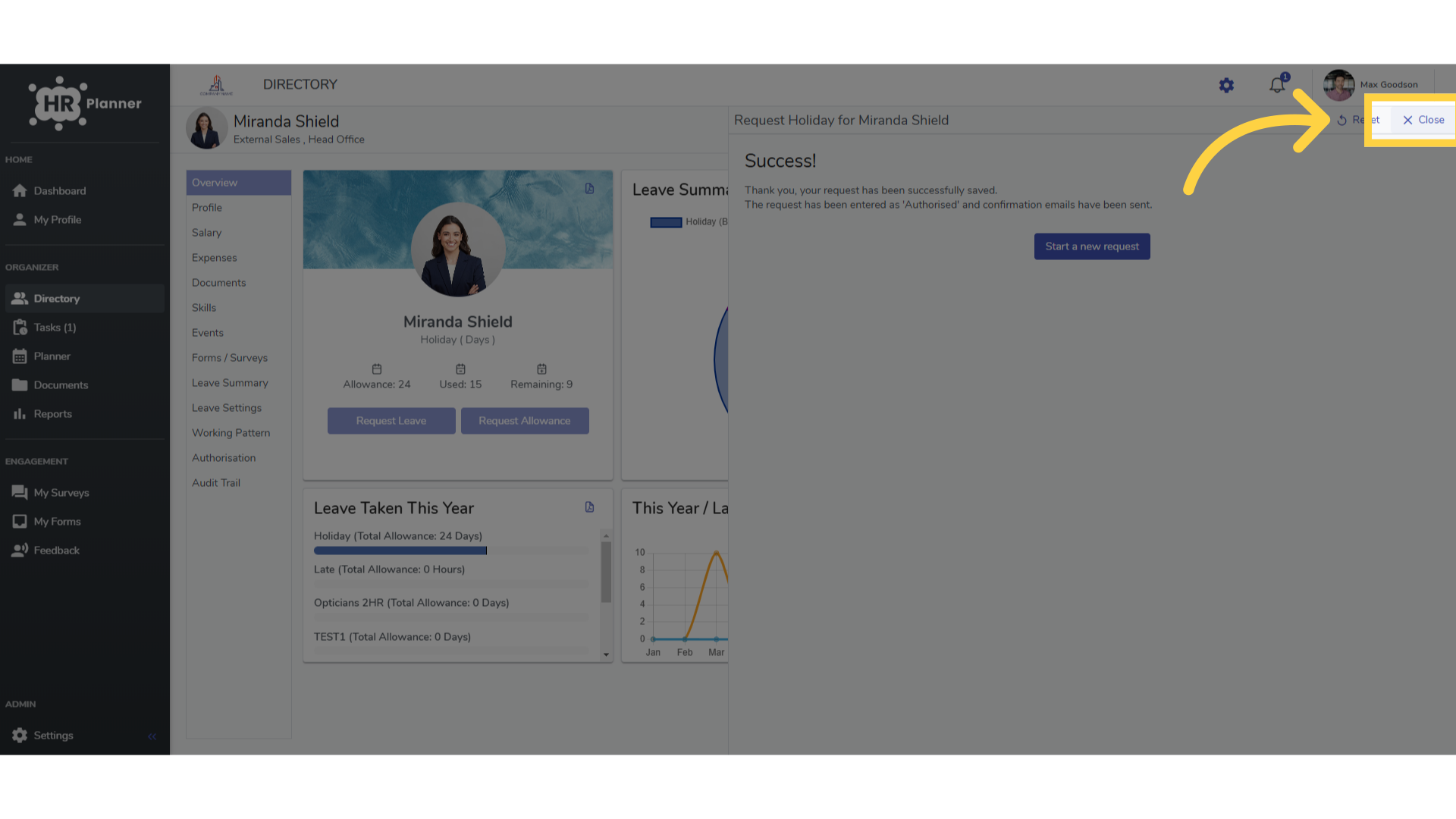
9. Click “Close”
Close the leave request window.
The guide covered the complete process of raising a leave request for an employee in hr planner, including navigating to the Directory tab, selecting the employee, filling in leave details, and submitting the request for approval.