
Two Factor Authentication (2FA) helps protect you by making it more difficult for someone else to sign in to your HR Planner account. It uses two different forms of identity: your password, and a contact method (also known as security info). Even if someone else finds your password, they’ll be stopped if they don’t have access to your security info.
Before you begin, you will need to have a suitable 2FA Application already installed on your mobile device like Google Authenticator or Microsoft Authenticator to supply the security info codes.
How To Setup 2FA
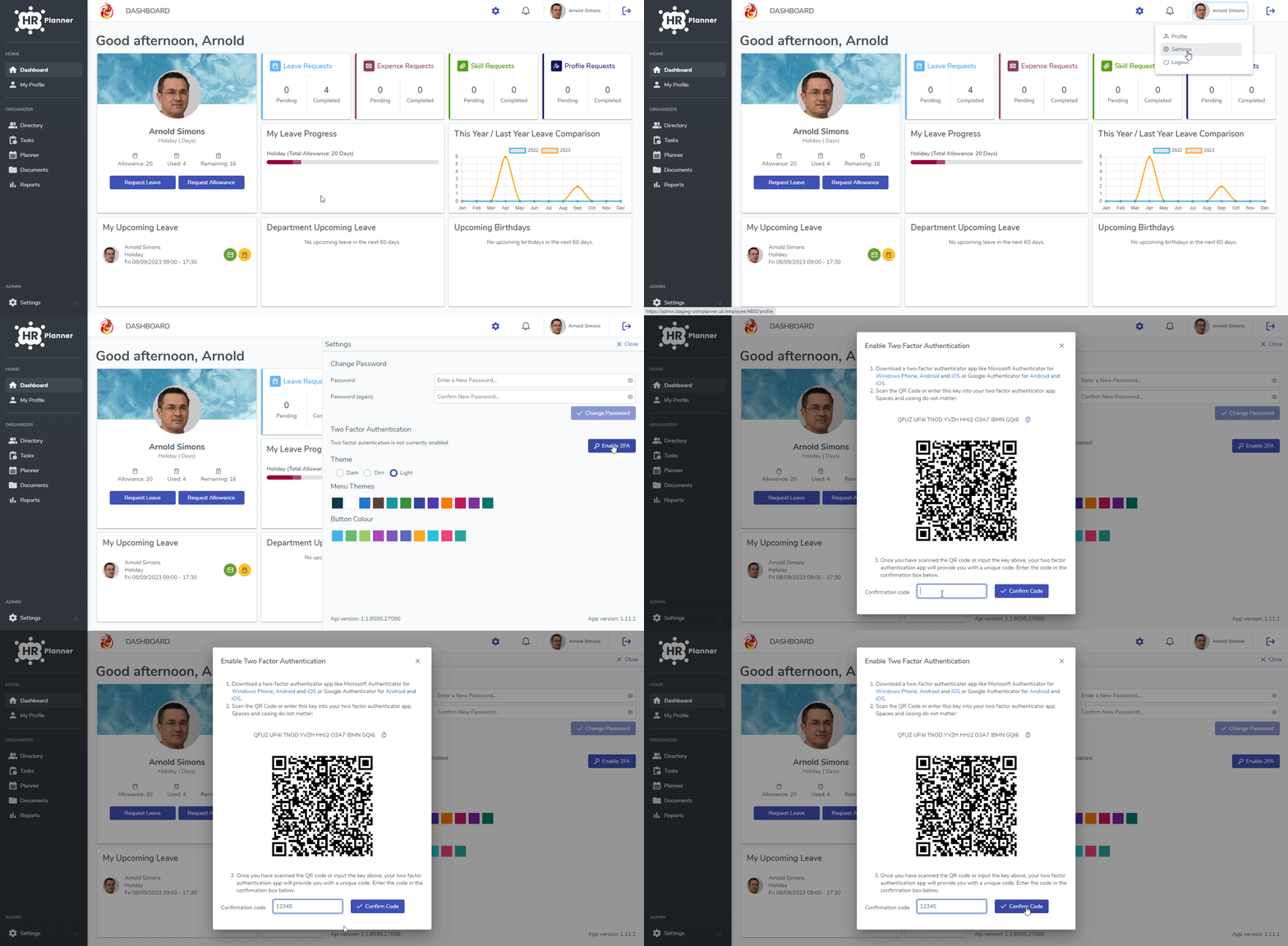
Please follow these steps to enable 2FA on your account.
- Click on your Name in the top right hand corner of any screen in HR Planner and then select Settings.
- Click Enable 2FA.
- Scan the QR code with your 2FA Application.
- Finally, enter the Confirmation Code that your 2FA Application displays to you and click Confirm Code.
How To Login Using 2FA
After you have setup 2FA on your account you will need to always supply the codes generated by your 2FA Application or sent to you via email to complete the HR Planner login process.
Login using codes from your 2FA Application
The codes will change every 30 seconds so it is a good idea to have the 2FA Application already open before you start.
- Access the HR Planner login page for your Organisation.
- Enter your Username and Password and then click Login.
- Enter the Security Info numbers from your 2FA Application and click Validate Code.
Login using codes sent to your Email
- Access the HR Planner login page for your Organisation.
- Enter your Username and Password and then click Login.
- Click the Envelope icon on the right of the 2FA code box to have the system send you a One Time Pass Code.
- Enter the One Time Pass Code from the email you received and click Validate Code.
Reset/Reactivate 2FA
If you need to reset or reactive your 2FA configuration for a new phone then please follow these steps.
- Click on your Name in the top right hand corner of any screen in HR Planner and then select Settings.
- Click Reactivate 2FA.